
As a Power Platform developer, you might be required to use the replace function in Power Automate. This is very common in most real-world use cases. So, I thought to explain the Power Automate replace expression.
In this tutorial, I will explain the Power Automate replace() function, focusing on its practical application in real-world examples. Let’s see how to use the Replace function in Power Automate.
Replace() function in Power Automate
The Replace() function in Power Automate is used to find a specific part of a text (string) and replace it with something else. This is very useful when you want to change, remove, or update certain words or characters in your data automatically.

The Power Automate Replace() function syntax is as follows:
replace(text, oldText, newText)text: This is the original text where you want to make changes.oldText: This is the part of the text you want to find and replace.newText: This is what you want to put instead of theoldText.
Example:
Let’s say you have the text:
"Hello World!"And you want to change “World” to “Power Automate”.
You would use:
replace('Hello World!', 'World', 'Power Automate')The result will be:
"Hello Power Automate!"Check out How to Filter an Array by Date in Power Automate?
How to Use the Replace Function in Power Automate
Now, let us see how to use the replace() function in Power Automate with some real examples.
Example 1: Replace String in a Variable
Suppose you have a variable with a text string named ‘ Power Automate Cloud Flow’ and you want to replace the ‘Cloud ‘ with ‘Desktop‘ as a string. So that the end result will be ‘Power Automate Desktop Flow’.
To do this, follow the steps below:
- Create an Instant cloud flow in Power Automate.
- Next, add an “Initialize variable” action to store the text string. Set the properties.
- Name: Provide a name for the variable.
- Type: Select type as a string.
- Value: Enter the value of a string.

- After that, add another “Initialize variable” action to store the replacement string. Provide the parameters, such as Name, Type, and Value.

- Now, add a “Compose” action to replace the string with replacement text. Give the expression below.
replace(variables('Var1'),'Cloud',variables('Var2'))
- Then, save and run the flow manually. After the flow execution, check the compose outputs section. You can see that the text string will be replaced with the text that we provided in the variable. Below if the screenshot for your reference.

This is an example of using the replace function in Power Automate.
Read How to Filter an Array by Index in Power Automate?
Example 2: Power Automate Replace Character in String
Let me explain another example of replace() in Power Automate. This example will show you how to replace a character in a string using Power Automate.
Suppose I have a text value as [Power Apps | Power Automate | Power BI | Power Pages]. I want to replace the instances of the character “|” with another character, ie, “,“.
Check out the steps below:
- To the flow, take an “Initialize variable” to store the text string value in a variable. Provide Name, select type as String, and value as below.

- Then, add a “Compose” action to the flow. Copy and paste the expression provided in the code below.
replace(variables('Power Platform'),'|',',')
- After that, save and run the flow. Open the compose action, which will display the following output.

This is how to replace a character in a string using Power Automate.
Check out How to Filter an Array by String Values in Power Automate?
Example 3: Power Automate Replace String With Blank
Suppose you have the following data source as a SharePoint list [Budget List], and you want to replace the text “TS-” while retaining only the numeric part in the Budget ID column.

This can be done by replacing the “TS-” string with a blank value.
Here, I will trigger Instant cloud flow, which will run based on a button click. Follow the steps below:
- To retrieve the items from a SharePoint list, add a “Get items” action. Provide Site Address and List Name.

- Next, add a “Compose” action to give the expression that will replace the string with blank values.
replace(items('For_each')?['BudgetID'],'TS-','')This will automatically add a For Each loop by taking the body/values from the dynamic content of the Get Items action.
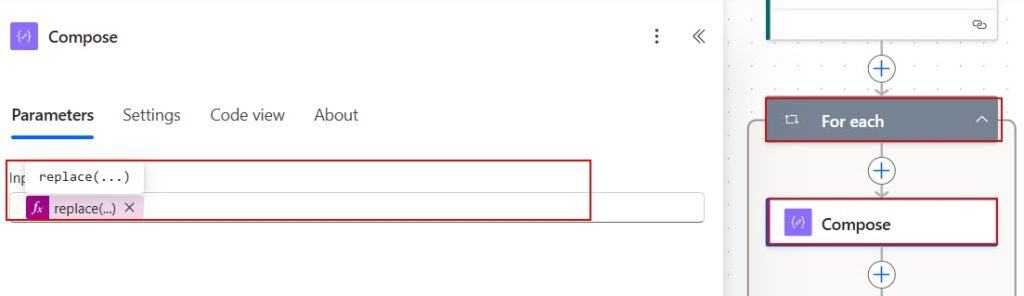
- Inside the For Each loop, add the “Update item” action to update each item with the replaced text. Set the parameters, such as Site Address and List Name.
- Id: Choose to add ID from the Get items action of the previous step.
- Budget ID: Select the outputs of the compose action from the dynamic content.

Now, the flow is ready. Manually run the flow.
Output:

Check out Update SharePoint List Items from Excel using Power Automate
Power Automate Replace() Function – Video Tutorial
Here is a useful video that you can follow to learn how to use the replace() function in Power Automate.
I hope you now understand how to use the replace function in Power Automate. You can mention your suggestions or questions in the comment section.
You may also like the following Power Automate functions tutorials:
- Power Automate String Functions
- Power Automate Date Functions
- Decimal Function Power Automate
- Power Automate startsWith() Function
- How to Replace Value in an Array in Power Automate

After working for more than 18 years in Microsoft technologies like SharePoint, Microsoft 365, and Power Platform (Power Apps, Power Automate, and Power BI), I thought will share my SharePoint expertise knowledge with the world. Our audiences are from the United States, Canada, the United Kingdom, Australia, New Zealand, etc. For my expertise knowledge and SharePoint tutorials, Microsoft has been awarded a Microsoft SharePoint MVP (12 times). I have also worked in companies like HP, TCS, KPIT, etc.


Hi, great article. Can you give us an example on how to uppercase or lowercase very first character from each word in a string? For example: this is a sentence => This Is A Sentence
Kind regards
Adrian