
Our Chicago sales team exports web orders into a SharePoint list, and every order ID arrives padded like [ORD-2026-10-4471] . Their lookup flow kept returning nothing, because a bracket and two spaces don’t match a clean ID.
Power Automate has no single remove() function. You combine slice(), substring(), replace() and trim(), and one wrong index makes the whole action fail.
In this tutorial, I’ll show you power automate remove characters from string expressions for the first, last and first N characters, specific symbols, text around a delimiter, and spaces, each tested in a real flow.
Quick answer: Add a Compose action and, in the expression (fx) editor, type slice(variables('OrderID'), 1) to remove the first character or slice(variables('OrderID'), 0, -1) to remove the last one. Use replace(text, '-', '') to remove a specific character everywhere.
How do you remove the first or last character?
My running sample is one order record: OrderID = ORD-2026-10-4471, RawOrderID = the padded copy above, and Phone = (312) 555-0148. Each is an Initialize variable action; every expression goes in a Compose action, typed in the fx editor without the leading @.
slice(variables('OrderID'), 1)        // remove the first character
slice(variables('OrderID'), 0, -1)    // remove the last character
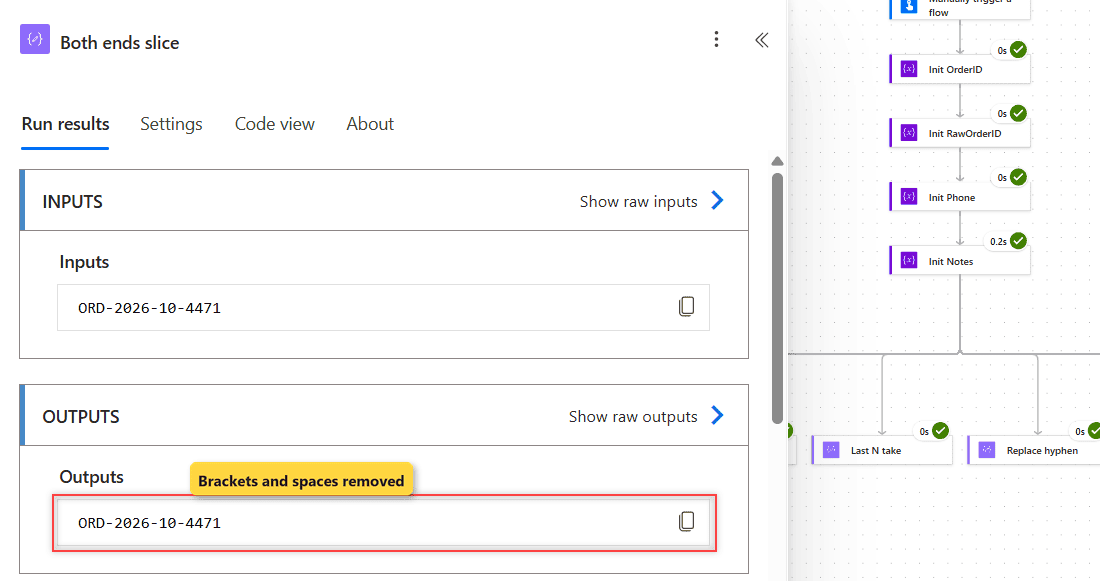
slice(trim(variables('RawOrderID')), 1, -1)   // remove both ends
Line one returns RD-2026-10-4471 and the second returns ORD-2026-10-447. The slice() function in Power Automate reads negative numbers from the end, so you never calculate the length yourself.
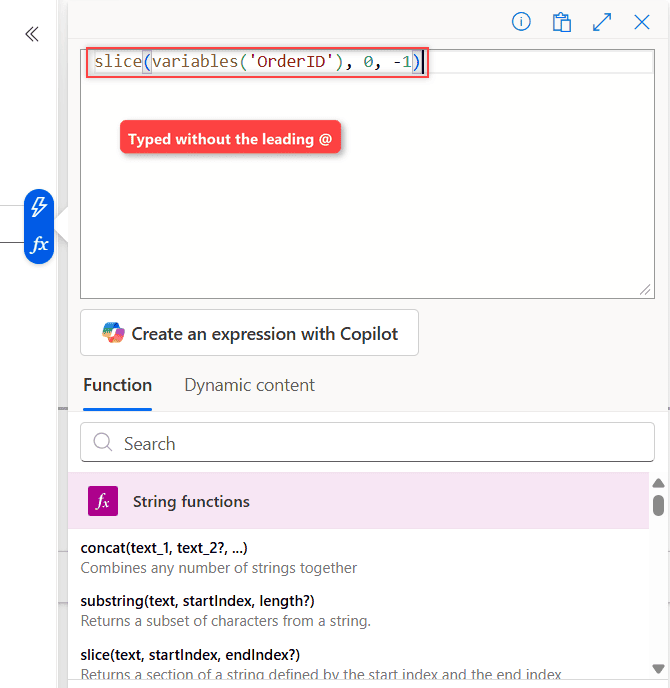
Line three trims the spaces, then cuts the brackets: ORD-2026-10-4471.
The older way: substring() and take()
Older flows use the substring() function or take(). You subtract from length() yourself:
substring(variables('OrderID'), 1)
substring(variables('OrderID'), 0, sub(length(variables('OrderID')), 1))
take(variables('OrderID'), sub(length(variables('OrderID')), 1))
Important: subtract 1, not 2. With sub(length(...), 2) you get ORD-2026-10-44, which loses two characters.
Remove the first or last N characters
slice(variables('OrderID'), 4)        // drop the first 4 characters
slice(variables('OrderID'), 0, -5)    // drop the last 5 characters
These return 2026-10-4471 and ORD-2026-10. For a variable prefix, use the length() function or indexOf().
Remove a specific character everywhere with replace()
To delete every hyphen, replace it with an empty string. The replace() function changes all matches, not only the first:
replace(variables('OrderID'), '-', '')The result is ORD2026104471. replace() is case-sensitive, so replace(variables('OrderID'), 'ord-', '') returns ORD-2026-10-4471 unchanged.
Remove several different characters at once
Now the phone number. Billing wants digits only, so for a short, known list of characters, nest replace() calls:
replace(replace(replace(replace(variables('Phone'), '(', ''), ')', ''), ' ', ''), '-', '')That returns 3125550148. For a long or unknown list, I keep only allowed characters with a Select action and join():
From:  range(0, length(variables('Phone')))
Map:   if(contains('0123456789', substring(variables('Phone'), item(), 1)), substring(variables('Phone'), item(), 1), '')
Compose (after Select):  join(body('Select_digits'), '')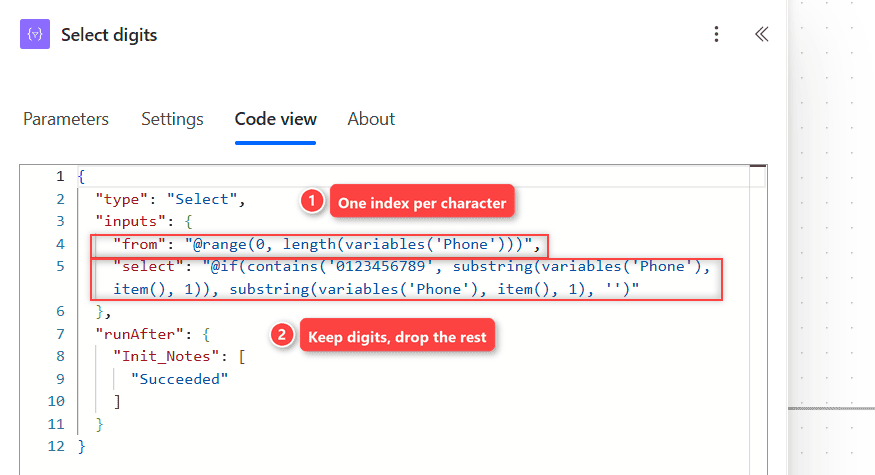
Select checks every position from range() and keeps only digits; join() glues them back into 3125550148. For symbols such as @ or #, see how to remove special characters from a string.
Remove everything before or after a character
When the position varies but a delimiter doesn’t, find it with indexOf() or lastIndexOf(), then cut:
substring(variables('OrderID'), add(indexOf(variables('OrderID'), '-'), 1))   // remove everything before the first hyphen
substring(variables('OrderID'), 0, lastIndexOf(variables('OrderID'), '-'))     // remove everything after the last hyphen
These return 2026-10-4471 and ORD-2026-10. If you need every part, the split() function is simpler. indexOf() returns -1 when the character is missing.
Remove spaces and line breaks
trim(variables('RawOrderID'))                       // leading and trailing spaces
replace(variables('Phone'), ' ', '')                 // every space
replace(variables('Notes'), decodeUriComponent('%0A'), ' ')   // line breaks
trim() turns the raw value into [ORD-2026-10-4471] but keeps inner spaces, while replace() with a space turns the phone into (312)555-0148. A two-line delivery note becomes Leave at front desk Chicago office. The trim() function guide covers tabs.
Common errors and how to fix them
- substring() index out of range.
substring(variables('OrderID'), 1, length(variables('OrderID')))fails because the substringparameters are out of range. slice() returns what fits instead. - Empty input.
substring('', 0, sub(length(''), 1))fails, because the start indexshould be less than the length of the string, whileslice('', 0, -1)returns an empty string. - Null input. A blank SharePoint column arrives as null, and
slice(null, 1)fails: sliceexpects its first parameter to be of type string. Wrap it in coalesce() first:
slice(coalesce(variables('OrderID'), ''), 0, -1)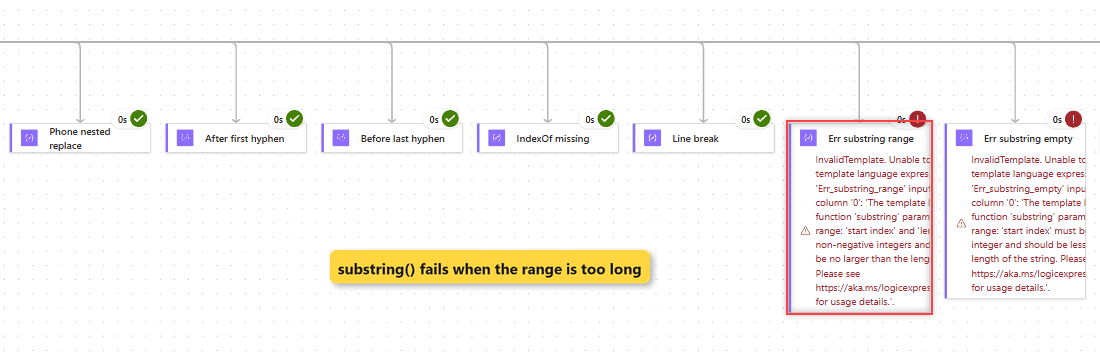
Note: Microsoft documents skip() for arrays, yet in my run skip(variables('OrderID'), 1) returned RD-2026-10-4471. It works, but slice() is the documented choice for text. For other expression failures, read unable to process template language expressions.
Want more text tricks for your flows? Try these next:
Frequently Asked Questions
How do I remove the last character from a string in Power Automate?
Use slice(yourText, 0, -1) in a Compose action. The older equivalent is substring(yourText, 0, sub(length(yourText), 1)), which fails on an empty string.
How do I remove all special characters in Power Automate?
There’s no regular expression function in cloud flows. Nest replace() calls for a few known characters, or keep allowed characters with Select over range() and join().
Is replace() case-sensitive in Power Automate?
Yes. replace() matches the exact case, while indexOf() and lastIndexOf() ignore case. Microsoft lists both behaviors in the workflow expression functions reference.

I have worked with Microsoft technologies for more than 18 years, including SharePoint, Microsoft 365 and the Power Platform (Power Apps, Power Automate and Power BI), at companies like HP, TCS and KPIT. I started EnjoySharePoint in 2011 to share the solutions I build in real projects with readers in the United States, Canada, the United Kingdom, Australia, New Zealand and beyond. Microsoft has recognized this work with the Microsoft MVP award 13 times since 2014.
This is a great article, but cannot seem to get my scenario to work with any of these example. Some items may have several special characters that need removed such as &, /, and ‘ that I need to do in one business name. The apply to each seem to only remove one special character at a time and when I do the last compose statement, it takes just the latest apply to each scenario and uses it. For example, my current array is just two items until I can figure out how to check for all of them at once, createArray(‘&’,””). What am I missing to check for all at one time and replace?
turn your array into a string then build up your replaces around it, no need to actually do an Apply to each. In a compose example replace(replace(replace(string(createArray(‘&’,'”‘))’thingtoreaplce’,’replacewith’),’thingtoreplace’,’replacewith’),’thingtoredplace’,’replacewith’) that example does 3 replaces on the string created from your array value. once that is done, then take the output from the compose you created. no need to look, its just a bigger function of built up replaces
I want to say thanks, this is a super amazing useful well done page. Lots of yours are but I use this one a lot thank you so much!
Hello,
Thanks for creating this. The “Power Automate remove multiple characters from string” section is exactly what i am looking for. Do you know how i can change this flow to perform this process on multiple file names at once?. Ex I have users uploading documents to a SharePoint list item, from there I’ll us power automate to move the documents from the list to a document library. Many of the file names will have a # in them which will cause the flow to fail. I have tried to set the flow up to apply to multiple files at once but have yet to succeed yet.
Thanks
Good Site thank you