
I was recently working on a Power Platform project for a client who assigned me a task to replace multiple strings in a variable that stores a string.
Power Automate has a replace() function that allows you to replace strings, substrings, characters, and array objects.
This tutorial will guide you on how to replace multiple strings using Power Automate.
Let’s see how to do this!
Replace Multiple Text Strings in Power Automate
To illustrate this example, I used the following text string: “The HR team collaborated with the IT department to implement a secure employee onboarding system using cloud-based technology.”
Now, I wanted to replace the multiple string values, ie, ‘HR‘ with ‘Human Resources‘ and ‘IT ‘ with ‘Information Technology‘ in the above-mentioned text string.
For this, we can create a Power Automate Instant cloud flow that will be triggered by clicking the button.
Here are the steps to do:
- Browse make.powerautomate.com in the browser to log in to the Power Automate Home page, where you can create an Instant cloud flow.
- Next, add an ‘Initialize variable‘ action to store the text string in a variable. Set the parameters, such as Name, Type as ‘String’, and Value with the text string.

- After that, to replace the multiple strings in a given string, I will add a ‘Compose‘ action. In the Inputs parameter, insert the expression given below.
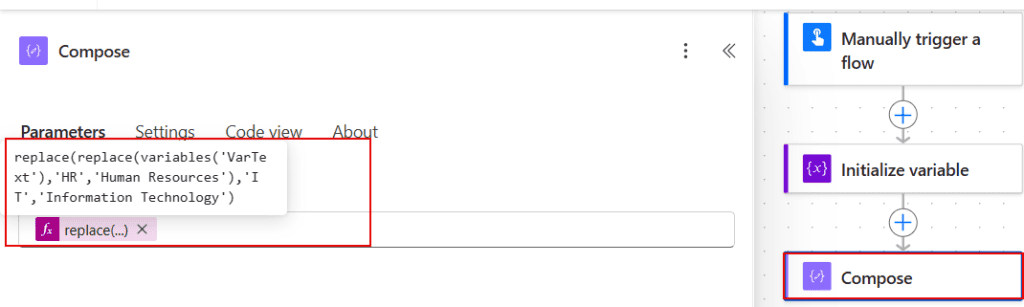
- The flow is ready now. Let me save it by clicking on the Save icon and then test the flow.
- When the flow executes successfully, you can see that the strings have been replaced with other text strings. Have a look at the screenshot for your reference.

This way, you replace the multiple strings present in a text using replace() in Power Automate.
I hope you found this tutorial informative and helpful. If you have any suggestions for me, please mention them in the comments section.
You may also read the other Power Automate tutorials:
- Power Automate Replace() Function
- Replace Apostrophe in String in Power Automate
- Replace Commas With New Lines in Power Automate
- Replace Special Characters in a String Power Automate
- Replace Last Character from String in Power Automate

Preeti Sahu is an expert in Power Apps and has over six years of experience working with SharePoint Online and the Power Platform. She is the co-author of Microsoft Power Platform: A Deep Dive book. As a Power Platform developer, she has worked on developing various tools using Power Apps and Power Automate. She also makes Microsoft 365 videos and shares them on YouTube.

