
A regional sales report I built had four pages, and every page needed to show only the East and West regions, while one chart on the first page should only list products above $80,000. Both requests are filters, just at different levels, and choosing the right level saves you from repeating the same filter on every visual.
In this tutorial, I’ll show you how to add filters in Power BI at the visual, page and report level, which filter types you can use, how to filter on a measure, and how to lock or hide filters before you share the report.
Quick answer: Open the Filters pane and drag a field from the Data pane into Filters on this visual, Filters on this page or Filters on all pages (the box labeled Add data fields here). Or right-click the field in the Data pane and choose Add to filters. Then pick the values with Basic filtering, or set conditions with Advanced filtering or Top N.
Filter levels in Power BI
The Filters pane sits to the right of the report canvas. If you can’t see it, select the >> arrows on the collapsed Filters bar to expand it. Filters work at these levels:
| Level | Where to add it | What it filters |
|---|---|---|
| Visual | Filters on this visual (select the visual first) | Only the selected visual |
| Page | Filters on this page | Every visual on the current page |
| Report | Filters on all pages | Every visual on every page |
| Drillthrough | Drill through section of the target page’s Visualizations pane | The target page, based on the value the user drilled from |
Fields you put into a visual automatically appear under Filters on this visual. You can also add fields that aren’t in the visual at all. If you’re comparing this with on-canvas controls, see Power BI filters vs slicers.
Two ways to add a filter
The usual way is drag and drop: drag a field from the Data pane into the Add data fields here box under the level you want.
If dragging is awkward, for example on a laptop trackpad, right-click the field in the Data pane and choose Add to filters:
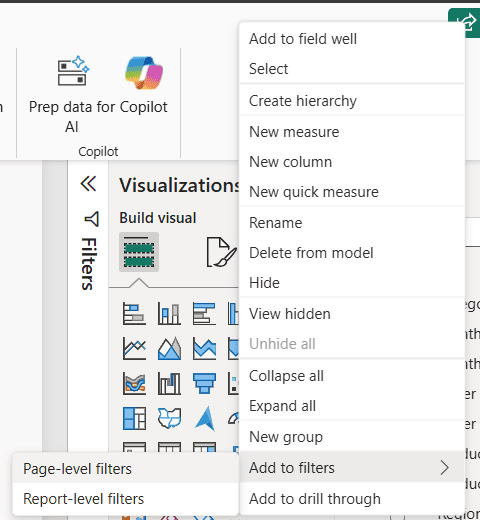
With nothing selected you get Page-level filters and Report-level filters. Select a visual first and the menu also offers a visual-level option.
Add a page-level filter
I wanted every visual on my sales page to show only the East and West regions:
- Click an empty part of the canvas so no visual is selected.
- In the Data pane, right-click Region and choose Add to filters > Page-level filters (or drag Region under Filters on this page).
- In the Region filter card, keep Filter type as Basic filtering and select East and West.
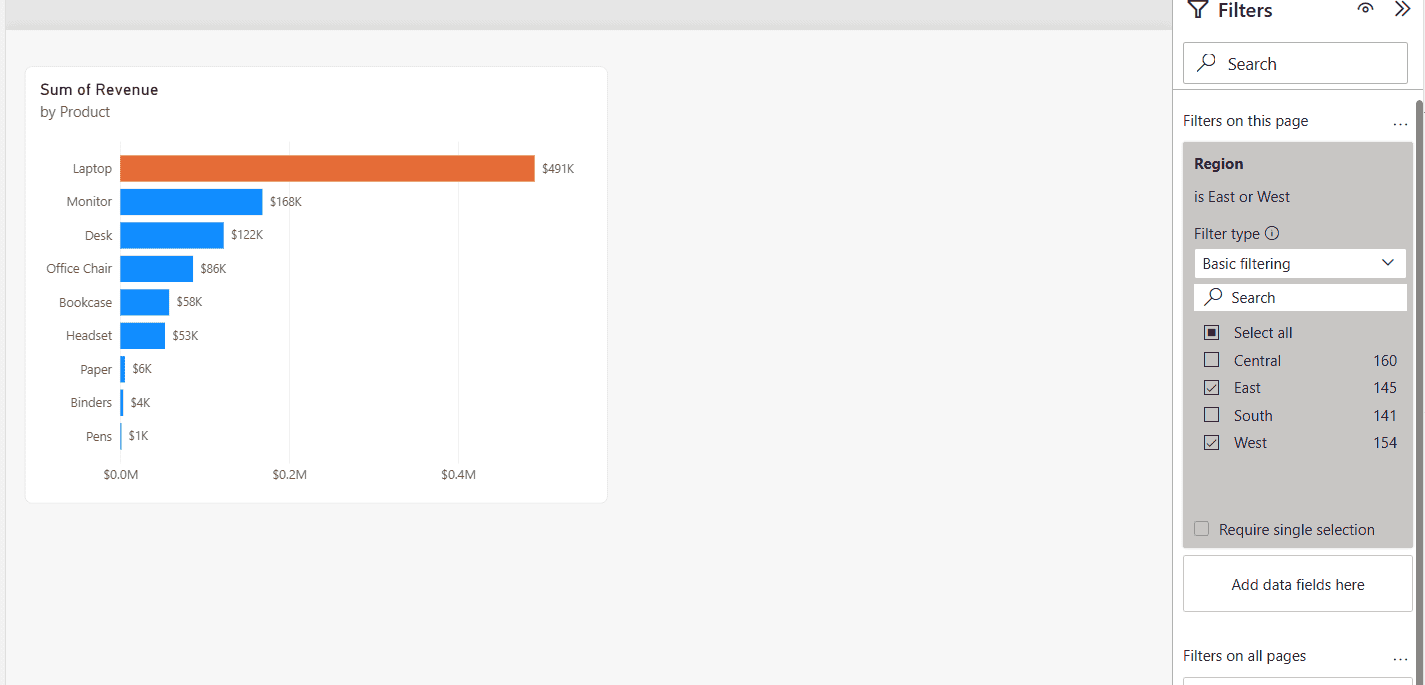
The card header now reads “Region is East or West”, and every visual on the page updates. Turn on Require single selection if users should only ever see one region at a time. If you want readers to change the region themselves on the canvas, use a slicer instead; see how to add slicers in Power BI.
Add a visual-level filter (including on a measure)
Next, I limited the bar chart to products with more than $80,000 in revenue. This filter belongs on the visual, not the page:
- Select the bar chart. Its fields appear under Filters on this visual.
- Expand the Sum of Revenue filter card.
- Under Show items when the value, choose is greater than and type 80000.
- Select Apply filter.
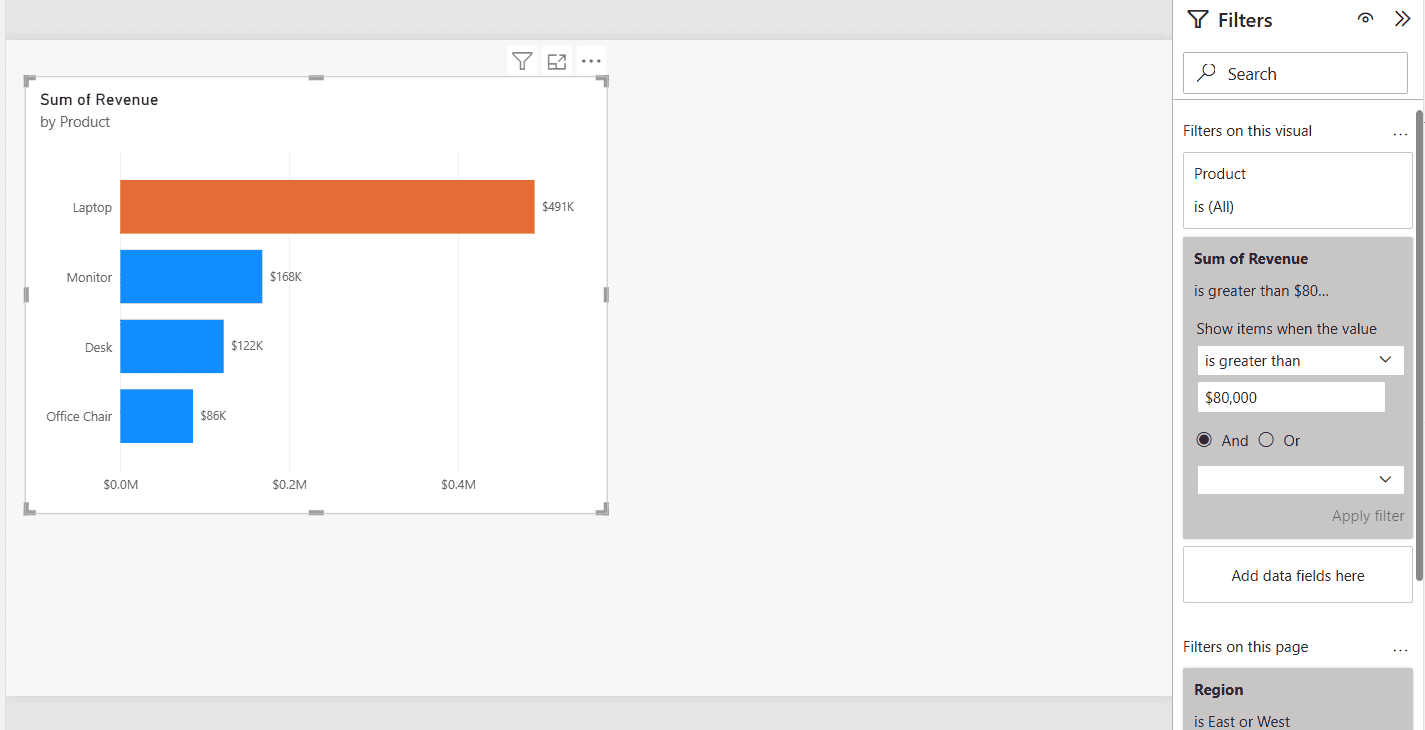
The chart keeps only Laptop, Monitor, Desk and Office Chair. Notice the order of operations: the page filter (East and West) is applied first, then the visual filter checks each product’s revenue within those regions.
Filtering on a measure like this is only possible at the visual level. To build the condition into the measure itself, use CALCULATE; see how to filter a Power BI measure.
Add a report-level filter
Report-level filters apply to every page. Drag the field under Filters on all pages, or right-click it and choose Add to filters > Report-level filters. A common example is limiting the whole report to the current fiscal year or to one country.
If a filter should apply to most pages but users still need to change it, a synced slicer is usually friendlier. Here’s how to sync slicers across pages.
Filter types you can use
Each filter card has a Filter type. The options depend on the column’s data type:
- Basic filtering: a checklist of values with a search box. Best for picking a few categories.
- Advanced filtering: conditions such as contains, does not contain, starts with, is blank or is not blank, combined with And/Or. For numbers and dates: is less than, is greater than, is on or after, and so on.
- Top N: show the top or bottom N items by a value, for example the top 5 products by Sum of Revenue. Drag the measure into the By value box.
- Relative date and Relative time: for date and date/time columns, such as “is in the last 3 months”. Not every column offers them; on my Order Date field only Basic and Advanced appeared, so check the data type if they’re missing.
Need several values or conditions? Basic filtering accepts any number of checked values, and Advanced filtering combines two conditions with And or Or. For date-specific options, see how to filter dates in Power BI.
Drillthrough filters
A drillthrough filter lets readers right-click a data point and jump to a detail page filtered to that item. On the detail page, drag a field (for example Product) into the Drill through section at the bottom of the Visualizations pane. Power BI adds a back button to the page automatically.
Now, when a reader right-clicks a product on any page and chooses Drill through, the detail page opens showing only that product. Keep all filters, on by default, also passes along the other filters that were active on the source page.
Lock, hide and format filters for report readers
Before you publish, decide what readers can change. Each filter card has two icons in its header:
- Lock: readers see the filter but can’t change it.
- Hide (the eye icon): readers don’t see the filter at all, but it still applies.
You can also hide the whole pane for readers with the eye icon next to the Filters heading, and style it under Format page > Filter pane and Filter cards (colors, fonts and borders).
Whatever filters are set when you save the report become its default state. In the Power BI service, readers can return to it with Reset to default.
Filters, interactions and slicers together
Filters in the pane always apply. Clicking a data point also filters other visuals on the page; you can control that with Edit interactions in Power BI. Slicers sit on the canvas and act like page filters that readers control directly. For a cascading setup, see how to make one slicer filter another.
Common filter problems and fixes
- The Filters pane is missing: select View > Filters in Desktop, or expand the collapsed pane with >>. In the service, switch to Edit mode to add filters.
- No visual-level section: select the visual first. With nothing selected, only page and report sections show.
- A measure can’t be added as a page filter: measures work only as visual-level filters. Use a calculated column, or filter the measure with CALCULATE.
- The numbers look wrong: check for filters at all three levels, plus slicers and hidden filters, before blaming the DAX.
- Readers see blank options: exclude (Blank) in Basic filtering, or see how to remove blank values from a slicer.
These Power BI filtering tutorials go well with this one:
Frequently Asked Questions
How do I add a filter to a visual in Power BI?
Select the visual, then drag a field into Filters on this visual in the Filters pane and choose the values or conditions. Microsoft’s guide to adding filters shows the same steps in the Power BI service.
What is the difference between page-level and report-level filters?
A page-level filter applies to every visual on one page. A report-level filter, under Filters on all pages, applies to every page in the report.
Can I filter a Power BI visual by a measure?
Yes, but only at the visual level. Add the measure to Filters on this visual and set a condition such as is greater than 80000.
How do I stop users from changing a filter?
Select the lock icon on the filter card. To hide it completely, select the eye icon; the filter still applies but readers can’t see it.
What is the difference between a filter and a slicer in Power BI?
Filters live in the Filters pane and can be locked or hidden. Slicers are visuals on the canvas that readers click to filter the page.

I have worked with Microsoft technologies for more than 18 years, including SharePoint, Microsoft 365 and the Power Platform (Power Apps, Power Automate and Power BI), at companies like HP, TCS and KPIT. I started EnjoySharePoint in 2011 to share the solutions I build in real projects with readers in the United States, Canada, the United Kingdom, Australia, New Zealand and beyond. Microsoft has recognized this work with the Microsoft MVP award 13 times since 2014.