
In Power Apps, the nested gallery allows you to add a gallery inside another. It creates a hierarchical structure for data representation, making it easier for users to understand the relationship between different data.
In this article, I will explain what is a Nested gallery in Power Apps and how to use Power Apps Nested gallery along with the topics below:
- Power Apps nested gallery with expand collapse functionality
- How to provide the dynamic height for a nested gallery in Power Apps
Nested Gallery in Power Apps
The gallery inside the gallery is known as Nested Gallery. Here, I have a Project Management app that contains a list of projects. Within each project, a nested gallery shows the associated tasks.
It allows users to easily view all tasks related to a project and its details by simply expanding the project title.

For this application, I have taken the datasource as a SharePoint list. It is named 2024 Project Details.

This SharePoint list has the below columns.
| Column Name | Data Type |
|---|---|
| Project Name | Title(Single line of text) |
| Project ID | Number |
| ProjectManager | Person or group |
| StartDate | Date and Time |
| EndDate | Date and Time |
| Status | Choice(Completed, Not Started, In Progress) |

Refer to the table below, which contains columns and data types for the SharePoint list.
| Column Name | Data Type |
|---|---|
| Task Name | Title(Single line of text) |
| TaskID | Number |
| ProjectID | LookUp |
| AssignedTo | Person or group |
| StartDate | Date and Time |
| DueDate | Date and Time |
| Status | Choice(In Progress, Not Started, Completed) |
Power Apps Nested Gallery with Expand and Collapse Functionality
Let’s begin implementing Power Apps nested gallery with the expand and collapse functionality. Follow the steps below.
1. In Power Apps, create a blank canvas app -> Connect it with the two SharePoint mentioned above lists.

2. Insert a Blank Flexible Height gallery and rename it ProjectGallery.

3. Provide the SharePoint list name in the Items property of the gallery.
Items: 2024ProjectsDetails
4. Select the gallery and insert a label to display the project names.

Now, we’ll add another gallery to display the tasks related to each project.
5. Select the ProjectsGallery, add a BlankVertical gallery, and rename it Task Gallery.
Then, provide another SharePoint list name as a data source for the task gallery in its Items property.
Items: 'Project Task List'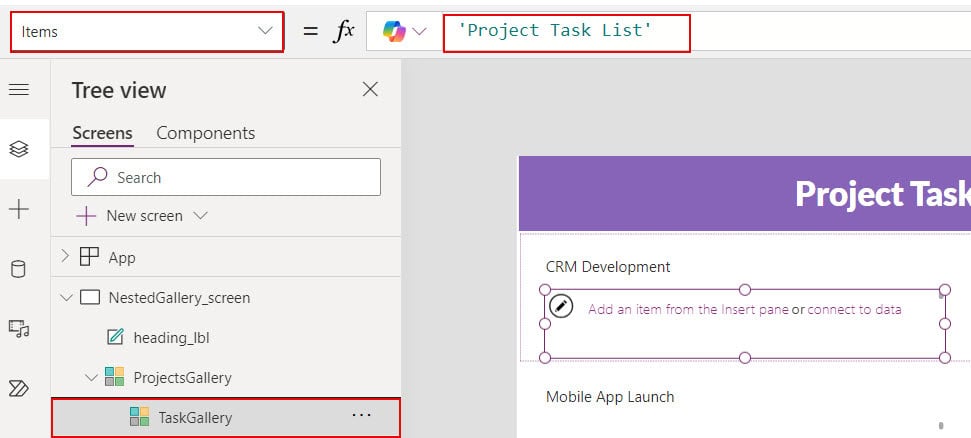
6. Add a text label to display the project ID in ProjectsGallery. In its Text property, provide the below formula.
ThisItem.'Project ID'
7. Insert a Text label in the TaskGallery to display the task names.

8. Apply the Filter formula on the Items property of the TaskGallery. So, related task names for each project will be displayed.
Filter('Project Task List',ProjectID.Value=lbl_projectId.Text)
9. Now, add up and down icons for the ProjectsGallery, as shown below. Then, give those icons a name like in below
- Up icon: Icon_expand.
- Down icon: Icon_collapse.

10. Then, provide the formulas below in the OnSelect property of up and down icons.
Icon_expand:
Select(Parent);
UpdateContext({varExpandGal:false})
Icon_collapse:
Select(Parent);
UpdateContext({varExpandGal:true});
11. Provide the below formula in the Visible property of the icon_expand.
If(ThisItem.'Project ID'=ProjectsGallery.Selected.'Project ID',varExpandGal)The varExpandGal variable contains a false value by default for the expand icon. This formula makes the icon visible and invisible when the current project ID matches the project ID in the “ProjectsGallery”.

12. Provide the below formula in the Visible property of the Icon_collapse.
If(ThisItem.'Project ID'=ProjectsGallery.Selected.'Project ID',!varExpandGal,true)This formula makes the collapse icon invisible. when we click on the expand icon. So, the varExpandGal variable value will change according to the icon we click.

13. Now add the Right icon to the TaskGallery. Then, provide the formula below in its OnSelect property.
Select(Parent);
ClearCollect(TaskDetailsFilter,Filter('Project Task List',ProjectID.Value=lbl_projectId.Text))
Here, Select(Parent) is the default formula, and ClearCollect creates a collection that stores the selected project ID task details.

14. Now, Provide the formula below in the Height property of the TaskGallery.
If(ThisItem.'Project ID'=ProjectsGallery.Selected.'Project ID',172,0)This formula will change the height of the nested gallery when we click on the expand and collapse icons.
We already used the above If condition on the visible property of those two icons. So, when we click on the expand icon, the nested gallery height will increase to 172, which will reduce to 0 when we click the collapse icon.

15. To display the details of the selected task, insert one Data table control. Then, in its Items property, provide the collection name that we created before.
Items : TaskDetailsFilter
16. To add the fields to that data table, click on Fields ->+Add field ->Select field names -> Add button.

17. Now, save the changes and publish it once. While previewing, you can see the expand icon will expand the nested gallery, and the collapse icon will hide the nested gallery.
The selected task details will be displayed on the data table control.
This way, we can build a nested gallery with an expand-and-collapse feature and display the selected task details.
How to Provide the Dynamic Height for Nested Gallery in Power Apps
Here, we will see how to implement a nested gallery with dynamic height. Take a look at the example below. I have an application displaying the project details and its related task details.
According to the items in the nested gallery, the height changes dynamically.

Follow the steps below to achieve the above example.
Note: I have taken the same SharePoint lists, which I explained in the above-nested gallery expand and collapse example.
1. Insert a Vertical Gallery control and connect it with the 2024 project details SharePoint list. Then, add some text labels to display the details, like
- Project ID
- Project Name
- Start Date
- End Date
- Assigned to – Image control.

2. Add a blank vertical gallery into the present gallery and provide the formula below in its Items property.
Items: Filter('Project Task List',ProjectID.Value=lbl_Project_ID.Text)This formula filters the tasks that are assigned to each project.

3. Add some text labels to display the details of the tasks, like
- Task Name
- Task ID
- Task Status
- Task Assigned to, etc.
4. Look at the example below; by default, the height of the nested gallery is the same for each project.

5. To get the dynamic height, provide the formula below in the Height property of the child gallery.
CountRows(Childgallery.AllItems)*50The CountRows function counts the number of records in the gallery. Change the Childgallery name with your inner gallery name.
The above formula returns the total number of items in the gallery. We multiply that number by 50. You can change the multiply number according to your need.

Now, save the changes and preview them once. The number of items in the nested gallery determines its dynamic height.
Moreover, you may like some more Power Apps articles:
- How to Get Current User Information in Power Apps
- Power Apps Barcode Reader Control
- How to Submit Data From Power Apps to Excel
- Filter Power Apps Gallery By Dropdown
I hope you found this helpful article. Here, I have explained the Power Apps nested gallery with two different examples: one with expand and collapse functionality and the other with dynamic height.
This article can be a reference when implementing a nested gallery in Power Apps.

After working for more than 18 years in Microsoft technologies like SharePoint, Microsoft 365, and Power Platform (Power Apps, Power Automate, and Power BI), I thought will share my SharePoint expertise knowledge with the world. Our audiences are from the United States, Canada, the United Kingdom, Australia, New Zealand, etc. For my expertise knowledge and SharePoint tutorials, Microsoft has been awarded a Microsoft SharePoint MVP (12 times). I have also worked in companies like HP, TCS, KPIT, etc.


Can you help me, how to add subgrid in canvas app. I was told to use data card, but not sure about the link and navigation.