
If you build business apps in Power Apps, adding a simple calculator inside the app can save your users a lot of time. They don’t have to switch to the Windows calculator or their mobile phone every time they want to do a quick calculation.
In this tutorial, we will build a clean, user‑friendly calculator in a Power Apps Canvas app that can do basic math: addition, subtraction, multiplication, and division.
We’ll start with a Power Apps blank-canvas app, design the layout, write the formulas, and then look at some useful enhancements you can add on top. You can copy this pattern into any existing app, such as an expense, order entry, or timesheet app, where users need quick calculations.
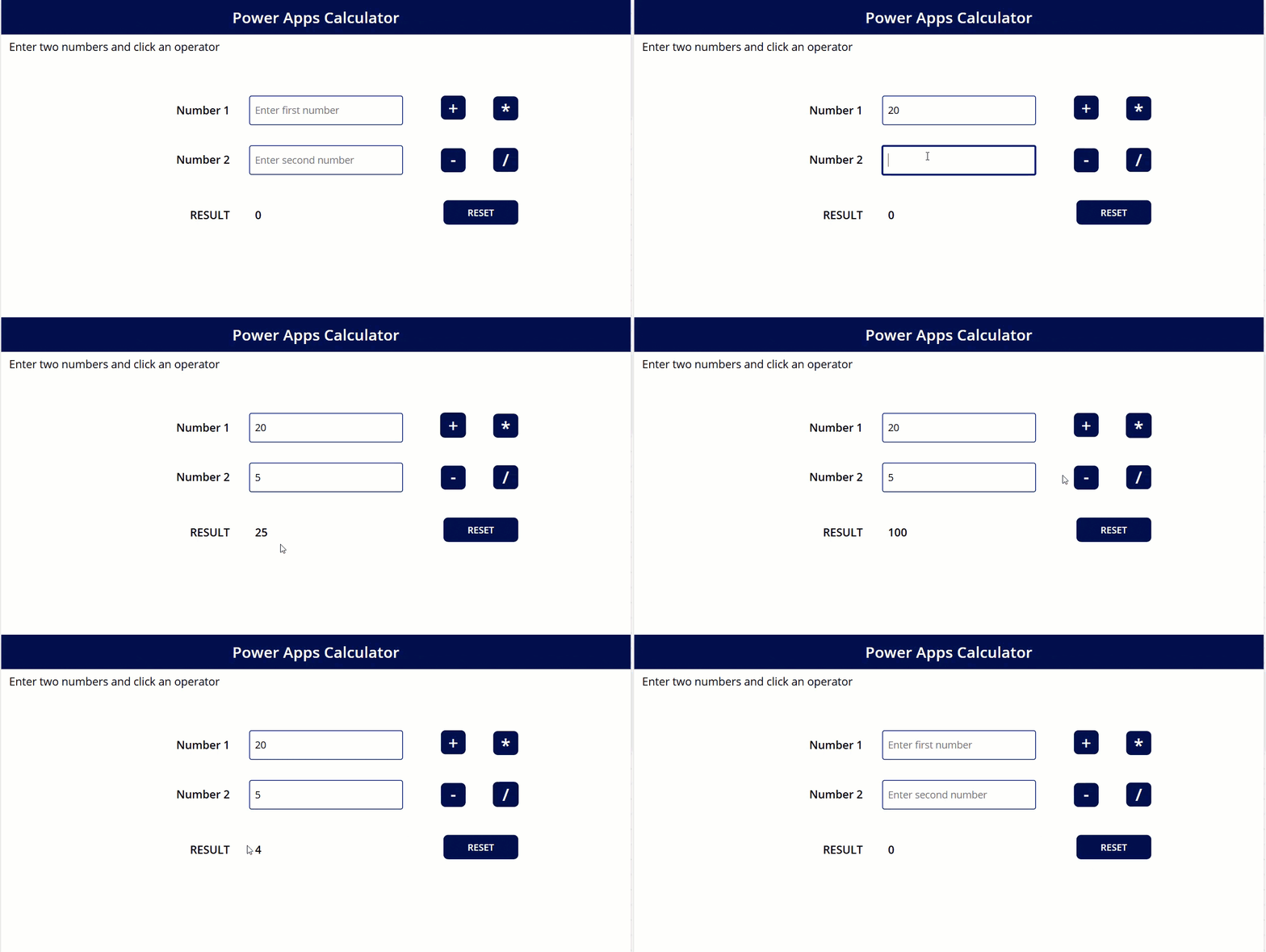
Create a Calculator in Power Apps
We will build a simple calculator in a Power Apps canvas app with:
- Two text input boxes for numbers (Number 1 and Number 2).
- Four buttons for operations: +, -, *, /.
- One text input or label to show the result.
- An optional Reset/Clear button to clear everything and start again.
The flow is:
- User types two numbers.
- User clicks one of the operation buttons.
- The app calculates using a formula and shows the result.
We will also store values in variables so the app behaves reliably and is easy to extend later.
Step 1: Create a Canvas app
- Go to the Power Apps maker portal and sign in.
- Select to create a Canvas app.
- Choose Blank app, and then choose Phone layout (or Tablet if you prefer a wide layout).
- Give it a name like “Calculator App” and create the Power Apps app.
You will see a default screen, usually named Screen1. We’ll add all our controls to this screen.
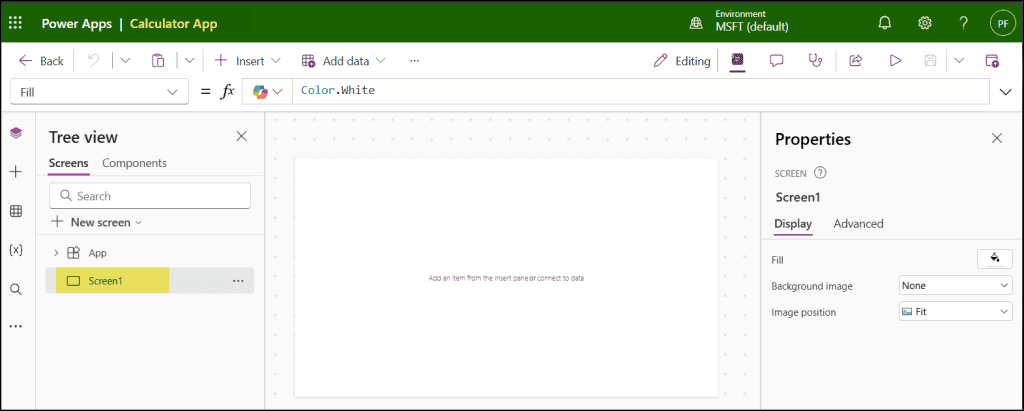
Step 2: Design the UI
We’ll keep the interface simple and neat, just like a basic calculator.
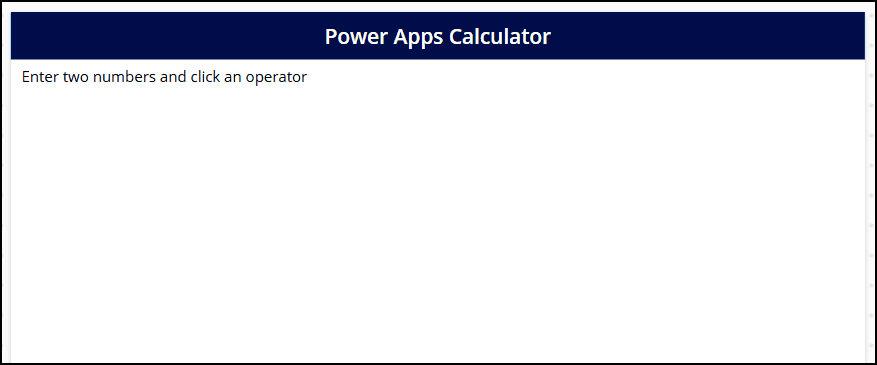
Add labels for headings
- Insert a Power Apps Label at the top.
- Set the Text property to:
“Power Apps Calculator” - Make the font size a bit larger and center it at the top of the screen.
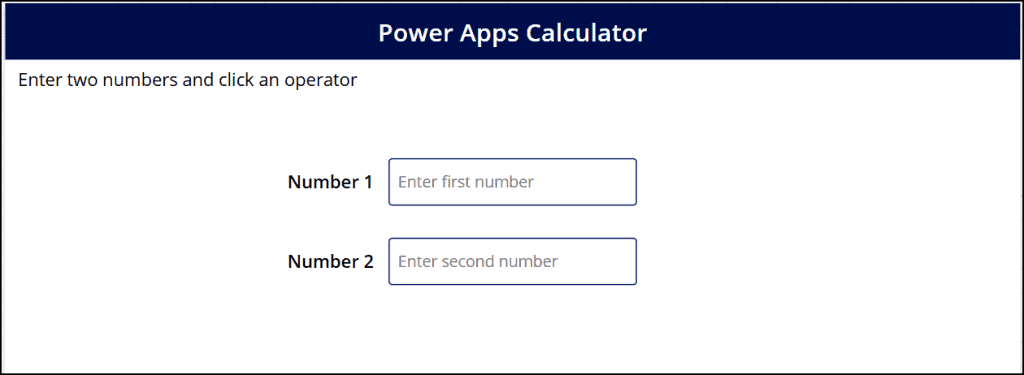
You can also add a small subheading like “Enter two numbers and click an operator” to guide the user.
Add Power Apps text inputs for numbers
Now, add two number inputs:
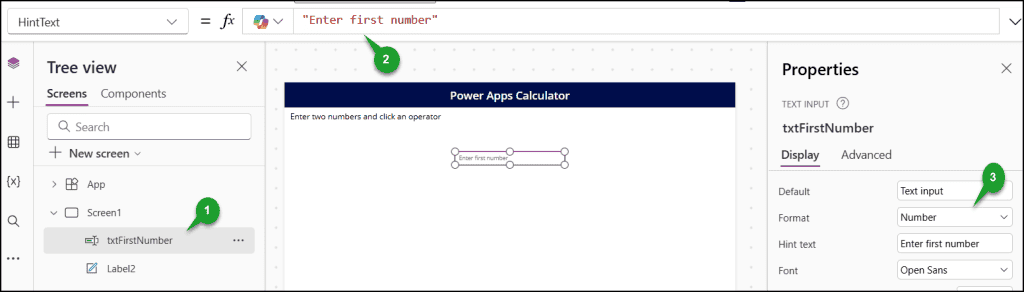
- Insert a Power Apps Text input control.
- Rename it to txtFirstNumber.
- Set its Hint text to “Enter first number”.
- Set the Format property to Number so it only accepts numeric input.
Repeat the same for the second text input:
- Insert another Text input control.
- Rename it to txtSecondNumber.
- Set Hint text to “Enter second number”.
- Set Format to Number.
Place txtFirstNumber and txtSecondNumber one below the other, with a small label beside each if you prefer (for example, “Number 1”, “Number 2”).
Add a result box
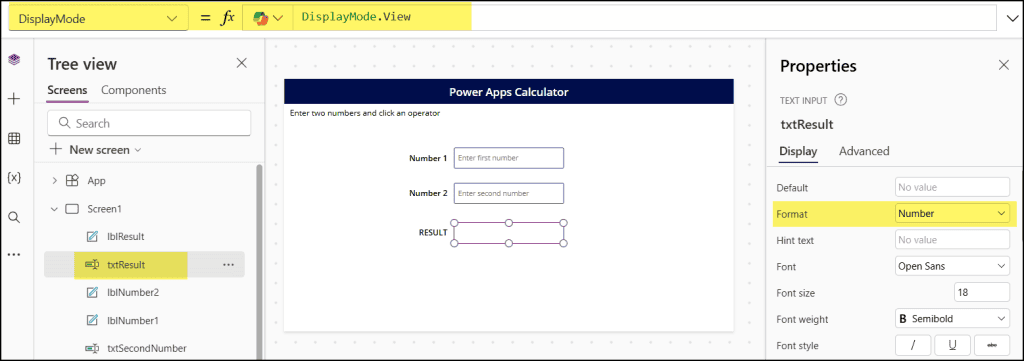
You can show the result in either a text input or a label; we’ll use a text input so it looks like a calculator display.
- Insert a Text input control.
- Rename it to
txtResult. - Set Default to
""for now. - Set Format to Number or keep Text if you want to display error messages.
- Optionally set DisplayMode to
Viewso the user cannot type directly in the result box.
Add a label above it with text like “RESULT”.
Step 3: Add buttons for operations
We will add four buttons: Add, Subtract, Multiply, and Divide.
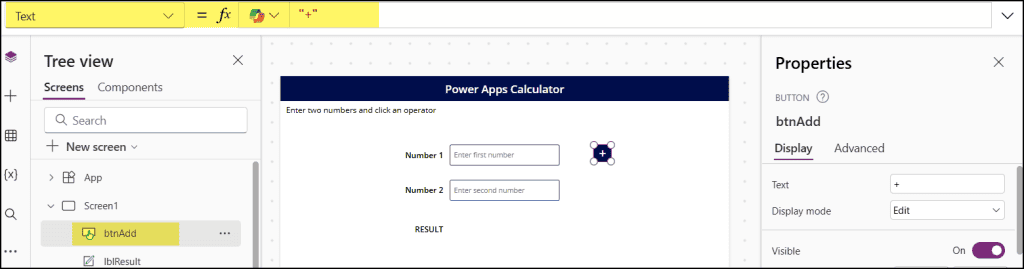
- Insert a Power Apps Button.
- Set its Text property to
"+". - Rename it to
btnAdd.
Copy this button three times and adjust:
- btnSubtract with Text:
"-" - btnMultiply with Text:
"*" - btnDivide with Text:
"/"
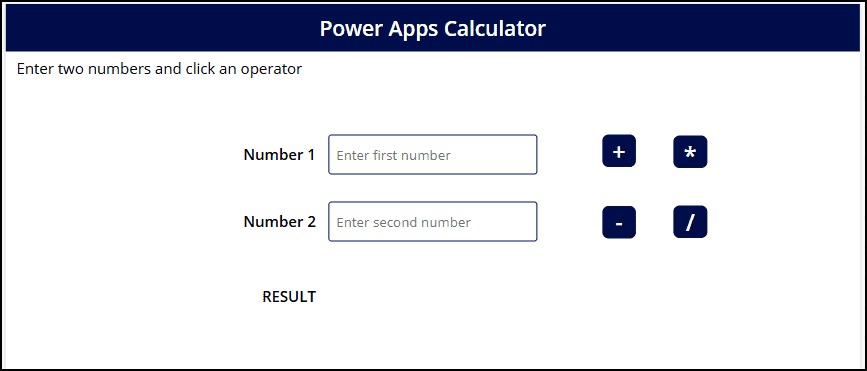
Arrange these four buttons in a row or a 2×2 grid so they are easy to tap on mobile devices. You can choose a simple background color (for example, a white background and dark blue buttons) to give it a calculator feel.
Step 4: Store the input values in variables
To ensure calculations are reliable, we will store the values from the text inputs in context variables when the user leaves the field.
Select txtFirstNumber and set its OnChange property to:
UpdateContext({N1: Value(txtFirstNumber.Text)})This means:
- Whenever the user changes the value in the first text box, the app stores the numeric value in a variable
N1.
Now select txtSecondNumber and set its OnChange property to:
UpdateContext({N2: Value(txtSecondNumber.Text)})Now you have two numeric variables: N1 and N2. We’ll use these for all operations.
Step 5: Write formulas for each operation
Next, we will configure each button’s OnSelect to perform the calculation and store the result in a third variable, say ResultValue.
Addition
Select the Add (+) button and set OnSelect to:
UpdateContext({ResultValue: N1 + N2})Subtraction
Select the Subtract (-) button and set OnSelect to:
UpdateContext({ResultValue: N1 - N2})Multiplication
Select the Multiply (*) button and set OnSelect to:
UpdateContext({ResultValue: N1 * N2})Division
Select the Divide (/) button and set OnSelect to:
UpdateContext({ResultValue: N1 / N2})These formulas update the ResultValue variable whenever the user taps an operator.
Step 6: Show the result in the result box
Now we need to bind the result text box to the ResultValue variable.
Select txtResult and set its Default property to:
ResultValue
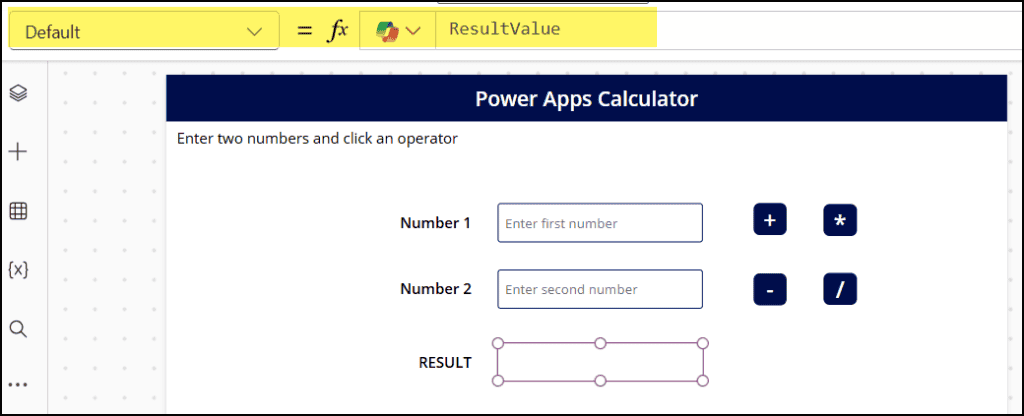
This way, whenever we update ResultValue from any button, the result box displays the new value.
If you are using a label instead of a text input for the result, you can set the label’s Text property to ResultValue.
Step 7: Add a Reset / Clear button
A clear button is very useful for quickly resetting the Power Apps calculator.
- Insert a Button.
- Set its Text property to
"Reset"or"Clear". - Rename it to
btnReset.
Set its OnSelect property to:
UpdateContext({ResultValue: 0});
Reset(txtFirstNumber);
Reset(txtSecondNumber);
Reset(txtResult);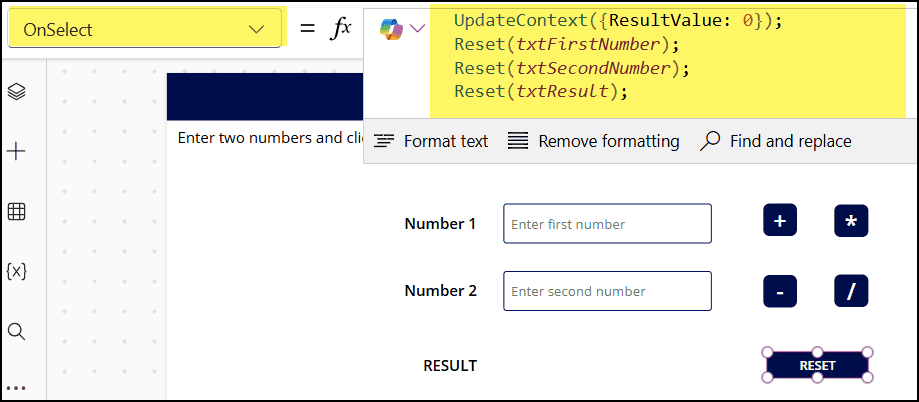
This will:
- Set the result back to 0.
- Clear both number inputs.
- Clear the result box.
You can also set ResultValue it to Blank() instead of 0 if you prefer an empty result initially.
Step 8: Handle empty values and basic validation
Right now, if a user clicks an operator without typing numbers, Power Apps may treat empty values as 0 or show an error, depending on your configuration. It’s better to handle this cleanly.
You can add a simple check in the button formulas. For example, in the Add button:
If(
    IsBlank(N1) || IsBlank(N2),
    UpdateContext({ResultValue: "Please enter both numbers"}),
    UpdateContext({ResultValue: N1 + N2})
)
If you use this approach, keep txtResult in text mode (not numeric) because it may show text like “Please enter both numbers”.
You can apply similar checks for other operations.
Step 9: Handle divide by zero
Division by zero is a common edge case. If the user enters 0 as the second number and presses the Divide button, we should display a helpful message rather than an error.
Update the Divide button’s OnSelect to:
If(
    IsBlank(N1) || IsBlank(N2),
    UpdateContext({ResultValue: "Please enter both numbers"}),
    If(
        N2 = 0,
        UpdateContext({ResultValue: "Cannot divide by zero"}),
        UpdateContext({ResultValue: N1 / N2})
    )
)
This keeps the app user‑friendly even in error scenarios.
Output
Now let’s play the app. Save, publish, and preview it. Enter the first number, the second number, and choose any operator that you wish to calculate. You’ll get the result as shown below.
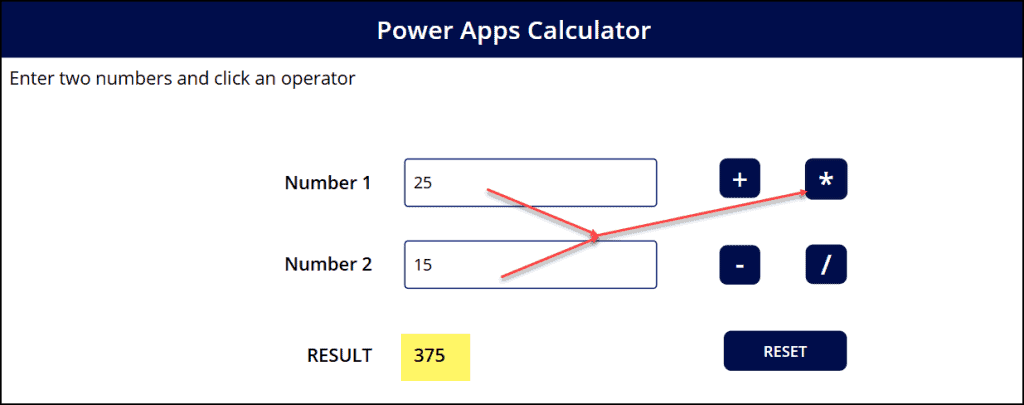
Make Power Apps calculations more reusable
If you want to reuse the same calculator logic across multiple screens or apps, you can move the logic into a reusable component or structure your formulas in a consistent way.
Some ideas:
- Create a component that contains the two inputs, the buttons, and the result box, and expose inputs and outputs as component properties.
- Use named variables (like InputNum1, InputNum2, and ResultValue) consistently, so you can easily drop the pattern into other apps.
This is especially helpful if you have multiple forms or screens where users need basic math operations.
In this tutorial, we built a simple calculator in Power Apps using a few text boxes, buttons, and formulas. Once you understand this pattern, you can use the same idea to build much more powerful apps.
Also, you may like some more Power Apps tutorials:
- Submit Data From Power Apps to Excel
- Display “Time Ago” Labels in Power Apps
- Power Apps Bulk Approvals Using Power Automate
- Create an Auto Scrolling Gallery in Power Apps
- Power Apps Stuck On “Getting your data”

Preeti Sahu is an expert in Power Apps and has over six years of experience working with SharePoint Online and the Power Platform. She is the co-author of Microsoft Power Platform: A Deep Dive book. As a Power Platform developer, she has worked on developing various tools using Power Apps and Power Automate. She also makes Microsoft 365 videos and shares them on YouTube.

