
To upload a file from Power Apps to a SharePoint document library, let users pick the file with an Attachments control and send it to a Power Automate flow that runs the SharePoint Create file action. Power Apps can’t write files to a library on its own, because a library isn’t a list with an attachments column.
I built this for a Contoso finance team that wanted to drop invoices and reports into SharePoint from a simple app instead of opening the library. In this tutorial, I’ll show how to get the Attachments control onto a blank screen, build the flow with the current When Power Apps calls a flow (V2) trigger, upload one or many files, and avoid the errors I hit along the way.
Quick answer: Copy an Attachments control out of an Edit form, set its Items to Blank() and DisplayMode to DisplayMode.Edit. Create a flow with the When Power Apps calls a flow (V2) trigger, add a File input, and add SharePoint Create file with the file’s name and contentBytes. In the app, call FlowName.Run({contentBytes: f.Value, name: f.Name}) for each attachment inside ForAll().
What you need
- A SharePoint document library. I use Documents on the EnjoySharePoint site, with a folder called Contoso Uploads. The library’s URL name is Shared Documents.
- Any SharePoint list on a site you can reach, only to borrow its Attachments control. My Customer Orders list works.
- Permission to add files to the library. The flow uses the SharePoint connection of the person running the app, so app users need at least Contribute access.
If your goal is to keep files with a list item instead, you don’t need a flow: an Edit form with the Attachments field does that directly. The Attachments column in a SharePoint list has to be turned on for it.
Step 1: Add the Attachments control to the screen
The Attachments control isn’t on the Insert menu. It only appears inside a form card, so you borrow it from a form:
- In Power Apps Studio, create a blank canvas app. Select Add data > SharePoint and connect any list.
- Insert an Edit form and set its Data source to that list. If the form doesn’t show an Attachments card, select Edit fields > Add field > Attachments.
- Click the Attachments card twice to select the control inside it (named something like DataCardValue8), press Ctrl+C, select the screen in the Tree view, and press Ctrl+V.
- Delete the form, and rename the pasted control. I call it attFiles.
The pasted control still points to its old card, so it shows red error icons. Fix these properties (select the control, open Advanced in the Properties pane and search for each one):
| Property | Set it to | Why |
|---|---|---|
| Items | Blank() | It referred to the form’s record |
| DisplayMode | DisplayMode.Edit | So users can add files |
| Tooltip | “Attach files to upload” | It referred to the card’s DisplayName |
| BorderColor | A fixed color such as RGBA(0, 18, 107, 1) | It referred to the card’s error state |
| X, Y, Width | Plain numbers | Y and Width referred to the old card |
In my app, the copied control came with Max attachments set to 6 and Maximum attachment size set to 10 (MB). Change both to match what you want users to upload. The same copy trick is handy when you customize SharePoint list forms with Power Apps.
Step 2: Create the flow that saves the file
In Power Automate, select Create > Instant cloud flow, or start a blank flow, and build it like this:
- Add the trigger When Power Apps calls a flow (V2). Under Built-in, it’s in the Power Apps group.
- Select Add an input > File. Keep the default name, File content.
- Add the SharePoint action Create file. Select the Site Address, and set Folder Path to
/Shared Documents/Contoso Uploads. The path must start with an existing library. - In File Name, insert the dynamic content File content name. In File Content, insert File content contentBytes.
- Optional: add Respond to a Power App or flow with a Text output that returns the Create file Path, so the app can show where the file went.
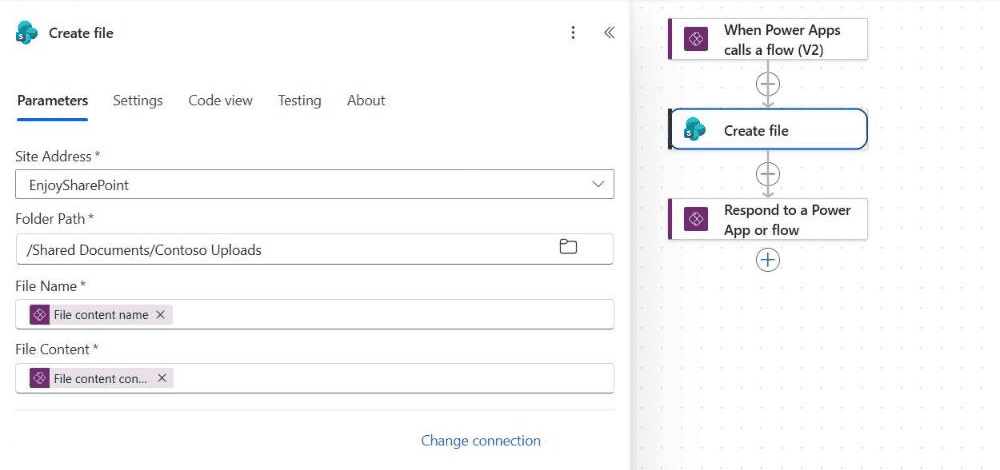
Behind the File Name token is the expression triggerBody()?['file']?['name']. Save the flow with a short name. I use ESP Demo – Upload File to Library. For other ways to use this action, see how to create a file with Power Automate.
Before connecting the app, I tested the flow on its own: Test > Manually > Test shows a file picker for the File input, so you can upload a PDF and check the library.
Step 3: Call the flow from the Upload button
- In Studio, select … (More) on the left rail > Power Automate > Add flow, and pick your flow. It appears under In your app with its formula name, such as
'ESPDemo-UploadFiletoLibrary'. - Insert a Button, set its Text to “Upload to SharePoint”, and set its OnSelect to the formula below.
ForAll(
    attFiles.Attachments As f,
    'ESPDemo-UploadFiletoLibrary'.Run(
        {
            contentBytes: f.Value,
            name: f.Name
        }
    )
);
Notify(
    CountRows(attFiles.Attachments) & " file(s) uploaded to Documents",
    NotificationType.Success
);
Reset(attFiles)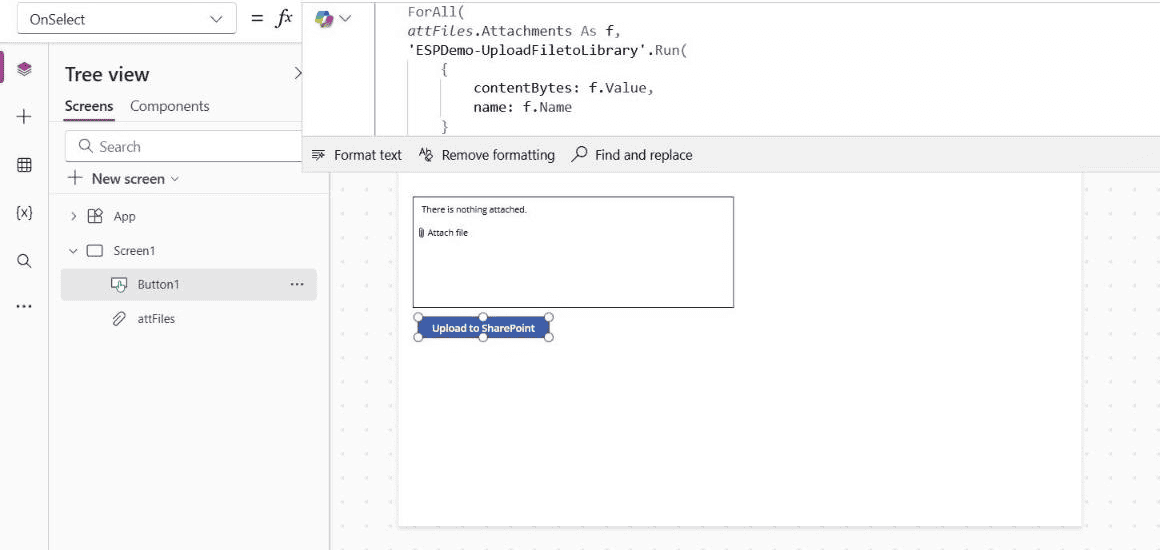
The formula runs the flow once per attached file. f.Value is the file content and f.Name is its name. After the loop, Notify shows a green banner and Reset clears the control. For details on the loop, see the ForAll function in Power Apps.
Adding the flow doesn’t write the Run formula for you anymore, so type it yourself. IntelliSense shows the parameter the flow expects. In my app it wanted a record with contentBytes and name. Some examples, including Microsoft’s training module, wrap it as {file: {contentBytes: ..., name: ...}}, which Studio flagged as an error here, so follow what Studio shows you.
For a single file, you can skip ForAll and use First(attFiles.Attachments).Value and .Name, with Max attachments set to 1.
Test it
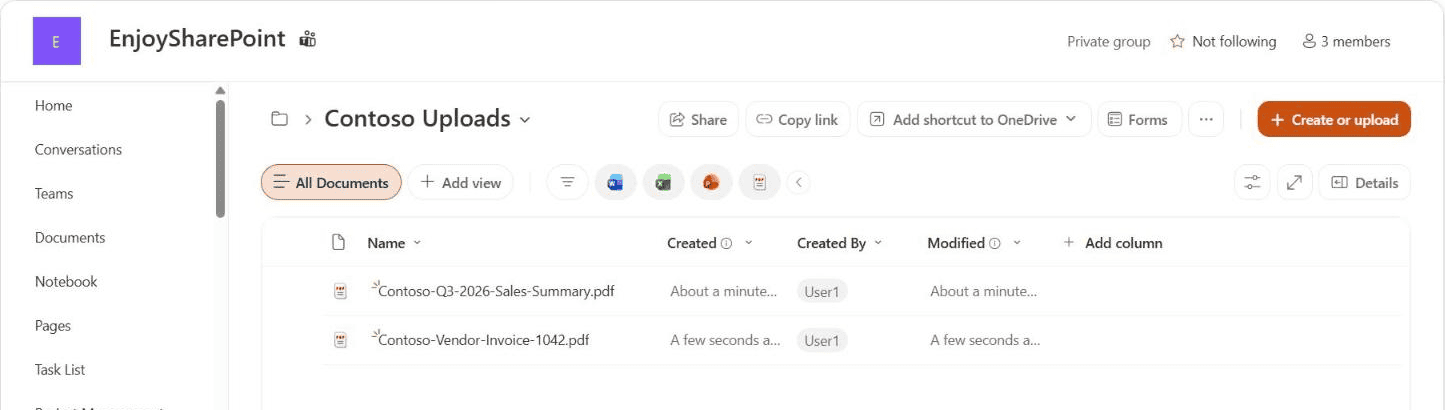
Save the app, press the Play button, attach one or more files, and select Upload to SharePoint. Each file becomes a separate flow run. Open the library folder to check. These two PDFs came from my test runs of the flow:
To show a different banner when something fails, wrap the Run call with IfError. The banner types are explained in the Notify function.
Add metadata to the uploaded file
Often you also want columns such as Department or Invoice Number filled in. Add Text inputs to the V2 trigger (for example Department), and after Create file add the SharePoint action Update file properties. Use the Create file ItemId as the Id and map the trigger inputs to your columns.
In the app, the Run call then takes extra arguments after the file record, for example .Run({contentBytes: f.Value, name: f.Name}, drpDepartment.Selected.Value). IntelliSense shows the order.
Update file properties works like the list version of the action, which I cover in updating only one field of a SharePoint item.
File size limits
- Maximum attachment size on the control is in MB. Keep it low enough for your users’ connections.
- A Power Automate message is limited to 100 MB, and the whole request counts, not just the file. Base64 encoding makes a file about a third bigger on the way.
- If the app waits for Respond to a Power App or flow, the flow has to answer within 120 seconds.
- Power Apps Mobile adds one file at a time, and files stored only in OneDrive or other cloud folders may not attach.
For very large files, a better route is to let users upload in SharePoint directly, or move list attachments to a library with a flow after they’re saved.
Troubleshooting
- Red errors on the pasted control: a property still refers to Parent or the old data card. Check Items, Tooltip, BorderColor, X, Y and Width.
- The Run formula shows an invalid argument: the flow’s inputs changed. In the Power Automate pane, select … next to the flow > Refresh, then fix the formula to match IntelliSense.
- The flow fails with an access denied error: the app user can’t add files to the library. Give them Contribute permission.
- The file is created but won’t open: make sure File Content uses contentBytes from the trigger, not the name or the whole object.
- Only the first file uploads several times: inside ForAll, use the loop record (
f.Value), notFirst(attFiles.Attachments). - Reset(attFiles) shows an error: Reset only works on resettable controls on the same screen. See the Reset function error and its fix.
One security note from Microsoft: values passed from Power Apps to a flow can be seen in network traffic, so validate anything important, such as a folder name, inside the flow instead of trusting the app.
These tutorials go well with uploading files from Power Apps:
Frequently Asked Questions
Can Power Apps upload a file to a SharePoint document library without Power Automate?
Not with standard Power Fx. The Attachments control saves only to list items, so you need a flow with Create file, as in Microsoft’s upload file training module.
How do I upload multiple files from Power Apps at once?
Raise Max attachments on the control and call the flow inside ForAll(attFiles.Attachments As f, …). The flow runs once per file.
Why doesn’t the Attachments control appear on the Insert menu?
It only exists inside form cards. Add an Edit form connected to a SharePoint list, copy the control out, and delete the form.
How do I upload to a different folder?
Change the Folder Path in Create file, or add a Text input to the trigger and use it in the path. The path must start with an existing library.
What is the maximum file size I can upload from Power Apps?
Set it with Maximum attachment size on the control. The flow request itself is limited to 100 MB, including encoding overhead.

Preeti Sahu is a Microsoft MVP for Power Apps with over six years of experience working with SharePoint Online and the Power Platform. She is the co-author of the book Microsoft Power Platform: A Deep Dive. As a Power Platform developer, she has built various tools with Power Apps and Power Automate, and she makes Microsoft 365 videos for YouTube.