
In my recent Power Apps project, one of my clients asked me to set the dropdown value by clicking the Power Apps button. I tried it using the Power Apps variable and finally achieved it as needed.
In this article, I will show how to set dropdown value on button click in Power Apps. Also, we will discuss how to set Power Apps dropdown values based on variables.
Set Dropdown Value on Button Click in Power Apps
So, let us start by showing you how to set the dropdown value using a button click in Power Apps.
Example 1:
I created a Power Apps Canvas app and then added a Slider Control, Button Control, and Dropdown control. The Power Apps dropdown control contains the “Project Status” values that I added manually.
Next, whenever the user adjusts the slider and clicks on a button control, the dropdown items will be updated based on the slider control value.

Follow the below steps to achieve this:
Step 1: [Insert a Slider control]
- On the Power Apps screen, insert a Slider control.

Step 2: [Insert a Dropdown control and add the items manually]
- Insert a Dropdown control -> Set its Items property to:
["Completed" , "In progress", "Not Started"]
Step 3: [Insert a button control and create a variable to set a dropdown value]
- Insert a Button control -> Set its OnSelect property to:
If(
    sld_ProjectCompletion.Value = 100,
    UpdateContext({varSetDrp: {Value: "Completed"}});
    Reset(drp_ProjectStatus),
    sld_ProjectCompletion.Value < 2,
    UpdateContext({varSetDrp: {Value: "Not Started"}});
    Reset(drp_ProjectStatus),
    sld_ProjectCompletion.Value < 100,
    UpdateContext({varSetDrp: {Value: "In progress"}});
    Reset(drp_ProjectStatus)
)
Where,
- sld_ProjectCompletion = Slider Control name
- varSetDrp = Provide the variable name
- Completed, Not Started, In progress = Dropdown values
- drp_ProjectStatus = Dropdown control name

Step 4: [On the dropdown control, assign a variable to set a dropdown value]
- Select a Dropdown control -> Set its Default property to:
varSetDrp.ValueWhere,
- varSetDrp = Assign the variable name here

- Save, Publish, and Preview the app. When a user adjusts the slider control and clicks on a button control, the dropdown will automatically select an item based on the slider value.

This is how to set a dropdown value on a button a click in Power Apps.
Example 2:
I have a SharePoint list [Recruitment Tracker] that has different columns like:
| Column Name | Data Type |
|---|---|
| Candidate Name | Title |
| Position | Choice [“Project manager”,” User Researcher”, “Designer”, “Account Manager] |
| Progress | Choice [“Active”, “On hold”, “Offer sent”, “New Application”, “Top pick”] |
| Application Date | Date and time |
| Interview Date | Date and time |

I created a Power Apps Canvas app and then added a Dropdown and Button control. The dropdown control contains all the values from the SharePoint list choice column. When a user clicks the button control [Change Progress To Active], the dropdown value should be updated to Active.

Let’s see how to achieve this:
- On the Power Apps screen, insert a Button control and set its OnSelect property to:
Set(
    varDropDownDefault,
    "Active"
);
Where,
- varDropDownDefault = Variable name
- Active = SharePoint List Choice column value

- Above button control, insert a Dropdown control -> Set all the below properties of this dropdown as:
Items = Distinct(
    'Recruitment Tracker',
    Progress.Value
)

Default = varDropDownDefault

OnChange = Set(
    varDropDownDefault,
    Self.Selected.Value
)

- Save, Publish, and Preview the app. Click on the button control. The “Active” dropdown item will be selected by default.

This is how we can update a dropdown value on a button click in Power Apps.
Set Power Apps Dropdown Values Based on Variable
In this section, I will explain how to set a Power Apps dropdown value based on a variable
Example 1:
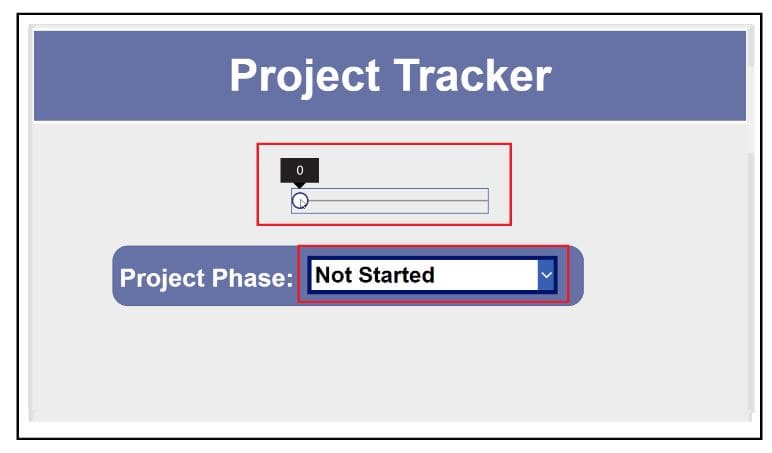
- In Power Apps, there is a Slider Control and a Dropdown control.
- When the user adjusts the slider, the dropdown items will be selected based on it.

To achieve this, follow the below steps:
- On the Power Apps screen, insert a Slider Control -> Set its OnChange property to:
If(
    Self.Value = 100,
    UpdateContext({varSetDrp: {Value: "Completed"}});
    Reset(drp_ProjectStatus),
    Self.Value < 2,
    UpdateContext({varSetDrp: {Value: "Not Started"}});
    Reset(drp_ProjectStatus),
    Self.Value < 100,
    UpdateContext({varSetDrp: {Value: "In progress"}});
    Reset(drp_ProjectStatus)
)
Where,
- varSetDrp = Variable name
- Completed = Dropdown value
- drp_ProjectStatus = Dropdown control name

- Insert a Dropdown control -> Set its Items property to:
varSetDrp.Value
- Save, Publish, and Preview the app. When the user moves the slider based on it, the dropdown value will be selected automatically.
This is how we can set a Power Apps dropdown value based on a variable.
Example 2: [Using SharePoint List]
I have a SharePoint list [Employee Details], which has various columns like:
| Column Name | Data Type |
|---|---|
| Employee ID | Title |
| Employee Name | Lookup |
| Employee Department | Lookup |
| Gender | Choice [Male, Female] |
| Joined Date | Date and time |

- In Power Apps, there is a Text input control, a Search icon, and a Dropdown control.
- The dropdown control has the values from a department column [IT, Marketing, Finance, HR].
- Whenever the user provides their Employee ID in the text input control and clicks on the search icon, the dropdown item for their department is selected by default.

Let’s see how to achieve this:
- On the Power Apps screen, insert a Text input control -> Set its Hint text property to:
"Provide Your Employee ID"
- Insert a Search icon -> Set its OnSelect property to:
Set(
    varEmpDepartment,
    LookUp(
        'Employee Details',
        Title = txt_EmployeeID.Text
    ).Department.Value
)
Where,
- varEmpDepartment = Variable Name
- Employee Details = SharePoint list name
- Title = SharePoint list column which has all the Employee ID
- txtEmployeeID = Text input control name
- Department = SharePoint list column name

- Insert a Dropdown control -> Set the below-mentioned dropdown properties to
Items = Distinct(
    'Employee Details',
    Department.Value
)

Default = varEmpDepartment 
- Save, Publish, and Preview the app. When you provide the employee ID and click on a search icon, the dropdown value will be selected based on the provided employee ID.

Conclusion
This Power Apps tutorial taught us how to set the dropdown value on a button click in Power Apps, along with a few examples.
You may like:
- Power Apps Delegation Warnings
- Navigate Function in Power Apps
- Bind Power Apps Text Input Values To a Dropdown Control
- Convert Textbox to Dropdown in Power Apps
- Get Dropdown Selected Value in Power Apps
- Bind Power Apps Text Input Values In A Dropdown Control

Preeti Sahu is an expert in Power Apps and has over six years of experience working with SharePoint Online and the Power Platform. She is the co-author of Microsoft Power Platform: A Deep Dive book. As a Power Platform developer, she has worked on developing various tools using Power Apps and Power Automate. She also makes Microsoft 365 videos and shares them on YouTube.

