
A marketing team I built an intranet for wanted this quarter’s campaign deck right on their home page. Their first try was a link to the file, and almost nobody clicked it. Once the slides were playing on the page itself, people actually flipped through them, and the team stopped fielding “where’s the latest deck?” emails.
SharePoint Online gives you two ways to show a PowerPoint presentation on a page: the File viewer web part and the Embed web part. In this tutorial, I’ll walk through both, explain which to choose, and cover the errors that come up.
Quick answer: Edit the page, add the File viewer web part (formerly called File and Media), and choose the presentation from the site, OneDrive, your computer or a link. Republish the page, and visitors can page through the slides without downloading the file. Alternatively, get the embed code from PowerPoint for the web (File > Share > Embed this Presentation) and paste it into an Embed web part.
Which method should you use?
| File viewer web part | Embed web part | |
|---|---|---|
| Setup | Pick the file; no code | Paste an iframe embed code |
| Permissions | Uses the file’s own SharePoint permissions | Viewers still need access to the file |
| Updates | Always shows the current version | Shows the current version |
| Best for | Almost every case | Presentations stored outside the site, or custom sizing |
I use File viewer for nearly everything. It’s simpler, it doesn’t depend on embed settings, and it works the same for Word, Excel and PDF files too.
Method 1: Use the File viewer web part
Step 1: Put the presentation in a library
Upload the presentation to a document library on the site, so it’s easy to find and update. Here it’s in the site’s Documents library:

Step 2: Add the web part to the page
Open the page and select Edit:

Hover where you want the slides, select the +, and search for file. Microsoft has renamed this web part a few times: it was Document, then File and Media, as in this screenshot, and it’s now called File viewer:

Step 3: Choose the presentation
Pick the file from Recent, OneDrive, the Site, Upload or From a link:

If you upload from your computer here, the file doesn’t go to the Documents library. SharePoint saves it in the Site Assets library, in a folder named after the page under SitePages. That’s why people later can’t find the file. Uploading to a library first, as in Step 1, avoids that.
Step 4: Set the start slide and publish
The presentation appears on the page. Select Edit properties (the pencil icon) to see the options for the file type; for PowerPoint, you can choose the slide people see first. Some users have reported that this setting doesn’t always stick, so check it after publishing. Then select Republish:

Visitors can now move through the slides on the page, as long as they have at least read access to the file. The web part doesn’t give anyone access they don’t already have.
Method 2: Use the Embed web part
The Embed web part shows content from an embed code. It’s useful when the presentation lives somewhere else, or when you need control over the size of the frame.
Step 1: Add the Embed web part
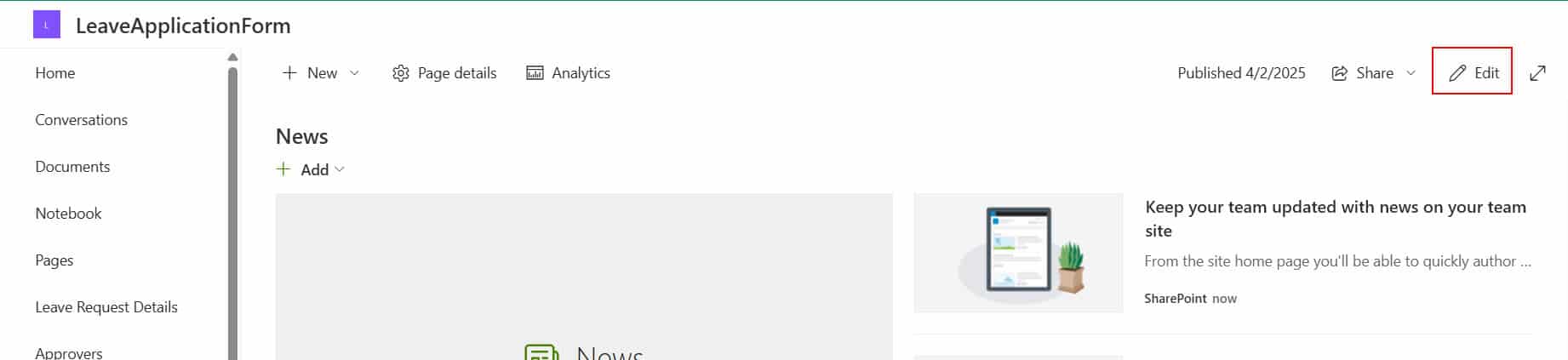
Edit the page:
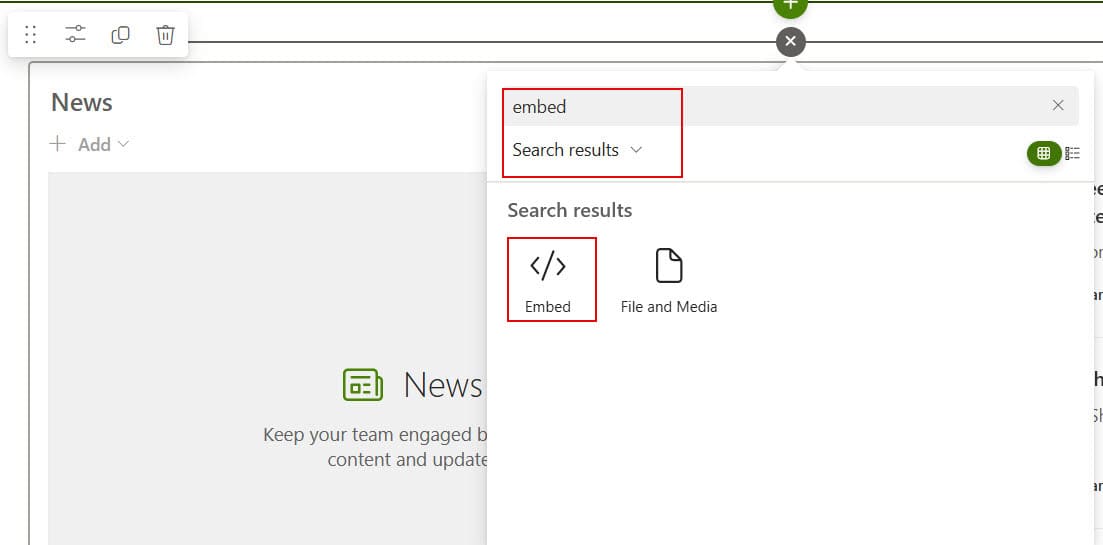
Select the + and search for Embed:
The empty web part asks for an embed code:

Step 2: Get the embed code from PowerPoint for the web
Open the presentation in PowerPoint for the web (in the browser), then select File > Share > Embed this Presentation. Choose a size and copy the code. The desktop PowerPoint app doesn’t offer this option, so it has to be the web version.
The code is an iframe that looks something like this:
<iframe src="https://contoso.sharepoint.com/sites/Marketing/_layouts/15/Doc.aspx?sourcedoc={...}&action=embedview"
        width="610px" height="367px" frameborder="0">
</iframe>
A plain sharing link copied from the library isn’t an embed code. It may work as a web address in some cases, but the code from PowerPoint for the web is the reliable way.
Step 3: Paste the code and publish
Select Add embed code (or Edit properties) and paste the code into Website address or embed code. The panel reminds you of the rules: the code must be iframe-based, script tags aren’t supported, and the address must use HTTPS:

Republish the page, and the presentation appears:

Troubleshooting
“Embedding content from this website isn’t allowed.” SharePoint only accepts embed codes from approved domains. A site collection administrator can check this at the root site under Settings > Site information > View all site settings > Site Collection Administration > HTML Field Security, and add the domain to the allowed list.
Visitors see an access error instead of slides. They don’t have permission to the file. Check the file’s permissions, or store it in a library everyone who visits the page can read.
The embed code is rejected. Make sure it starts and ends with an iframe tag, contains no script, and uses an https:// address.
The slides are out of date. Both web parts show the file’s current version, so edit the file itself; there’s no need to change the web part.
These SharePoint web part tutorials can help you build a better page:
- SharePoint Group Calendar Web Part – How to Use
- Create an Org Chart in SharePoint Online using Organization Chart Web Part
- Microsoft Forms Web Part in SharePoint Online
- SharePoint Quick Links Web Part – How to Use
- SharePoint People Web Part [With Examples]
- How to Display Excel Spreadsheet in SharePoint Online?
Frequently Asked Questions
How do I show a PowerPoint presentation on a SharePoint page?
Add the File viewer web part and choose the presentation. Microsoft describes the web part in its File viewer guide.
What happened to the File and Media web part?
It’s the same web part with a new name: File viewer. It was previously called Document and then File and Media.
Where do files uploaded through the File viewer web part go?
Into the Site Assets library, in a folder named after the page under SitePages, not into the Documents library.
Why does SharePoint say embedding content from this website isn’t allowed?
The domain in the embed code isn’t on the site’s allowed list. A site collection administrator can add it in HTML Field Security.

I have worked with Microsoft technologies for more than 18 years, including SharePoint, Microsoft 365 and the Power Platform (Power Apps, Power Automate and Power BI), at companies like HP, TCS and KPIT. I started EnjoySharePoint in 2011 to share the solutions I build in real projects with readers in the United States, Canada, the United Kingdom, Australia, New Zealand and beyond. Microsoft has recognized this work with the Microsoft MVP award 13 times since 2014.
Hi, how would you find the embed code to use for a Modern List? Thanks!
Hi, it should be possible to embed a specific slide (e.g. slide 8) in a deck. But how? Any light? Thanks.
If you use a file viewer web part on a modern page you can select the slide number to start from. Works on 2019 and SPO.
Hi, is there a way to remove/hide the border and the bottom slide navigation arrows and just show the actual slide content?
Yes. You can do it by using custom css.
Hi Can you let me know how to do that Custom css?
Rajkiran, you have no idea how long I searched until I found your solution to my embedding problem. Thank you so much for helping me make my blog easier for my readers to use!
Thanks for the lovely comment. Keep reading my article.. I am always here to help .
Hi Rajkiran,
I haven’t had any problems with embedding the PowerPoint into a SharePoint page however I’d actually like it to run and loop continuously as it does normally. I’ve found that animations work on each slide but it doesn’t transition from one page to next, as it would normally if viewing it in PowerPoint view, nor does it loop at the end of the show.
I don’t really wish to save it as a video as that functionality has been disabled at work for space saving purposes. Any ideas at all?
Best, Trevor
Thanks , tried this but my pp does not automatically play when i embed it into SharePoint