
A 320 MB video archive uploaded to my test library without a problem. A file with a long name in a deep folder failed instantly, and a 270 MB list attachment was rejected outright.
In this tutorial, I’ll walk you through the SharePoint file size limit and every smaller limit that actually stops uploads: path length, list attachments, browser previews, Excel for the web, Power Apps and Power Automate.
Quick answer: SharePoint Online accepts files up to 250 GB each in a document library. List item attachments max out at 250 MB, and the full path, including the file name, can’t pass 400 characters. Over a few GB, use the OneDrive sync app.
What You Need Before You Start
You don’t need admin rights to work within these limits. Here’s what I used for the tests in this post:
- A SharePoint Online site where you can add files (Edit or Member permission). My demo uses a regular SharePoint document library called ESP File Size Limits.
- A list with the Attachments column turned on. Mine is ESP File Size Attachments, with one item named Denver site inspection.
- The OneDrive sync app signed in with your work account, if you plan to move files bigger than a few GB.
- Optional: the SharePoint Administrator role, only to see total storage for the organization.
These numbers are for SharePoint in Microsoft 365. SharePoint Server (on-premises) has its own, much smaller defaults that a farm admin sets, so check with your server team if you’re on-premises.
Step 1: Know the 250 GB Upload Limit Per File
Microsoft sets one main ceiling for SharePoint Online: each file you upload can be up to 250 GB. The same limit applies to the Files tab in Microsoft Teams, OneDrive folders and Viva Engage conversations, because they all store files in SharePoint or OneDrive.
Note that 250 GB is a per-file limit, not your storage. A library can hold up to 30 million files and folders, as long as the site and organization still have storage left.
To test it, I uploaded Chicago Warehouse Walkthrough Nov 2026.zip, a 320,000,000-byte file, to the ESP File Size Limits library. It went through in about 96 seconds on my office connection, and the library’s File Size column shows it as 320000000, because that column counts plain bytes.
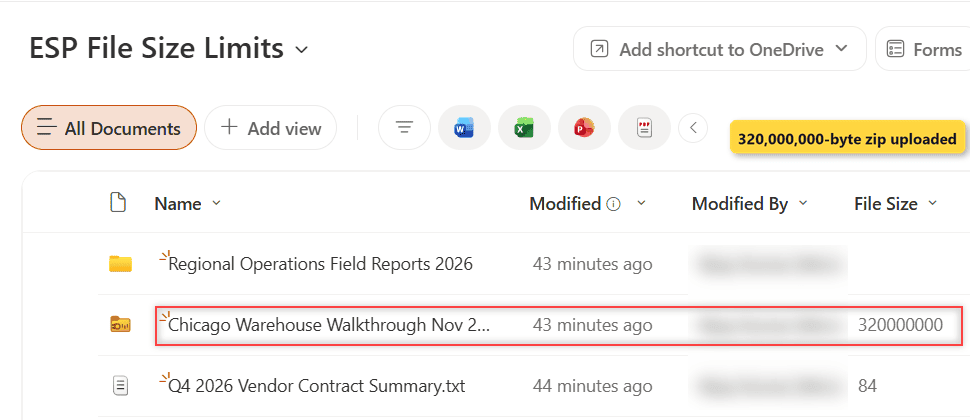
Note: SharePoint measures storage in binary units, so 1 GB is 2^30 bytes. That’s why Storage Metrics lists my 320,000,000-byte file as 305.2 MB instead of 320 MB (see the storage section below).
Step 2: Upload Large Files the Right Way
Hitting 250 GB in a browser is unrealistic. Microsoft’s own advice is to use the OneDrive sync app for any file larger than a few GB, because a browser upload only runs while the tab stays open, while the sync app keeps working in the background.
Here’s how I pick the upload method:
- Up to a few hundred MB: select Create or upload > Files upload in the library, or drag the file onto the page.
- A few GB and more: select Sync (in the library’s … menu), then copy the file into the synced folder in File Explorer. The sync app uploads it in the background. If you’re unsure which button to use, see how Sync differs from Add shortcut to OneDrive.
- Lots of files at once: sync or drag the whole folder. The OneDrive website copies at most 2,500 files in one go.
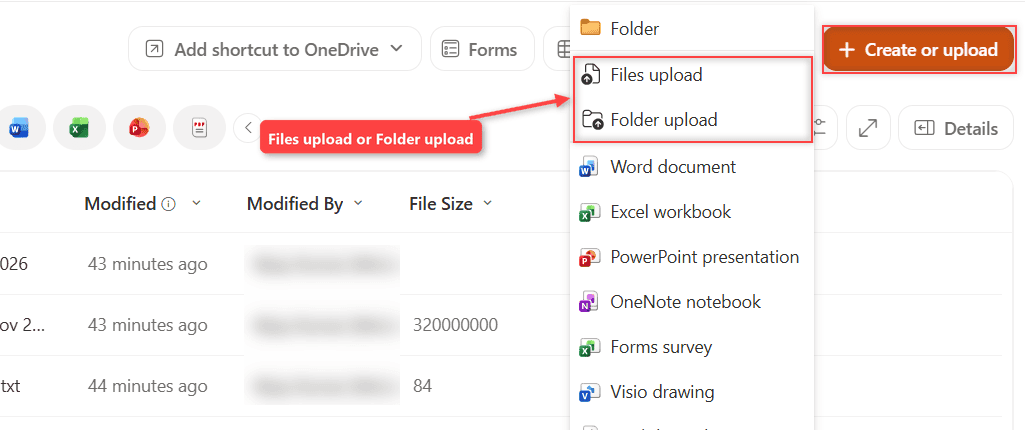
For syncing, Microsoft recommends staying under 300,000 files across all the libraries you sync. Past that, sync slows down, and the usual OneDrive sync problems show up more often.
Step 3: Keep the Full Path Under 400 Characters
In real projects, path length blocks far more uploads than file size does. SharePoint counts the entire decoded path, every folder plus the file name, and the total can’t be more than 400 characters.
I tested it with four nested folders in the ESP File Size Limits library. The folder path alone was 270 characters long:
/sites/enjoysharepoint/ESPFileSizeLimits/Regional Operations Field Reports 2026/Midwest Region Warehouse Inspections and Safety Audits/Chicago Distribution Center Building B Quarterly Compliance Reviews/November 2026 Fire Safety and Forklift Certification Records Folder/Inspection Notes ... .txtA file that brought the total to 398 characters uploaded fine. When I made the name seven characters longer (405 in total), SharePoint refused it with this message:
The specified file or folder name is too long. The URL path for all files and folders must be 400 characters or less (and no more than 400 characters for any single file or folder name in the URL). Please type a shorter file or folder name.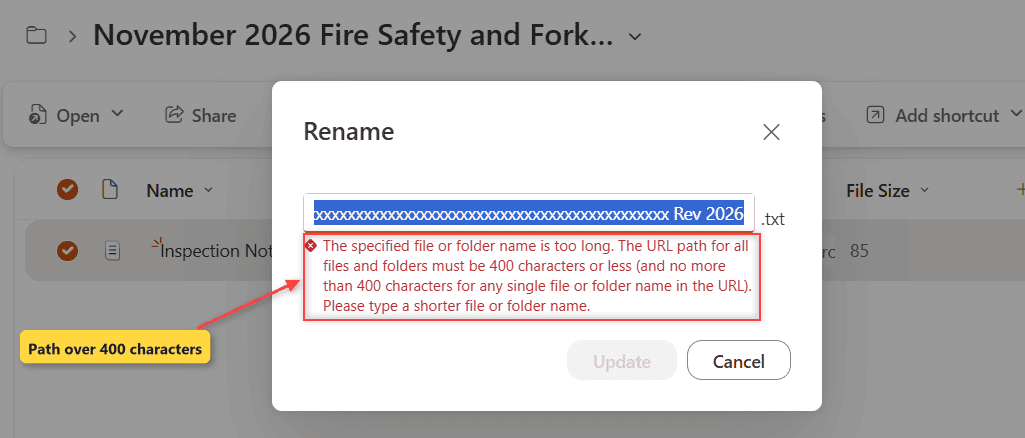
In my test, the 400 characters were counted from /sites/ onward. The https:// part and your tenant’s host name weren’t counted.
Three more path rules matter once files leave the browser:
- 260 characters on Windows. File Explorer and the Office desktop apps can’t open a file whose full local path is over 260 characters, even when the file is on your own drive.
- 255 characters per name. No single file or folder name can be longer than that.
- 520 characters for sync. The OneDrive sync app shows an error when the local path plus the OneDrive root folder passes 520 characters.
Spaces and special characters count extra, because SharePoint URL-encodes them (a space becomes %20). The quickest fix is shorter folder names near the top of the library. If a flow creates the files, rename the file in Power Automate before it lands in a deep folder.
Step 4: Check the Limit for List Attachments
Attachments on a list item have a much lower ceiling than library files: 250 MB per file. This applies to both SharePoint lists and Microsoft Lists, since they share the same platform.
In my ESP File Size Attachments list, a small checklist file attached without trouble. The 270,000,000-byte Denver Site Photos Nov 2026.zip was rejected. Through the API, the error spelled out the exact cutoff of 262,144,000 bytes, which is 250 MB in binary units:
The request message is too big. The server does not allow messages larger than 262144000 bytes.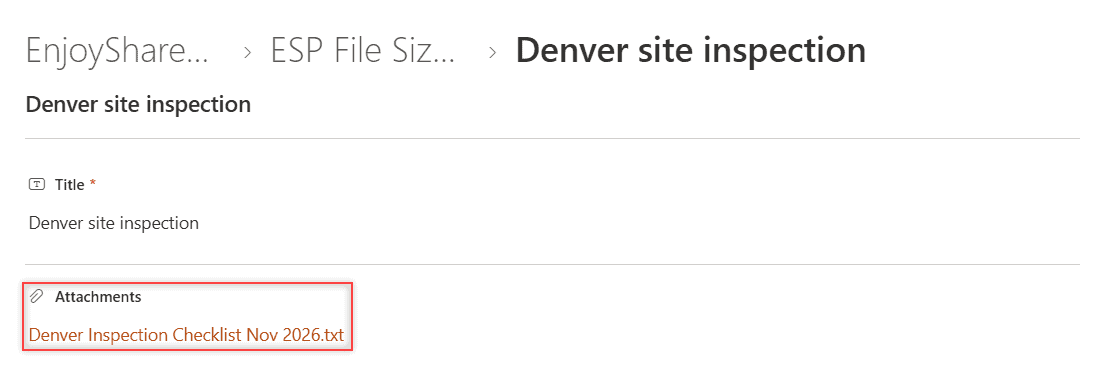
If people need to attach bigger files, store them in a document library instead and link them from the item. To move existing ones, save list attachments to a library with Power Automate. Make sure the Attachments column in the list is turned on first, or you won’t see the option at all.
Step 5: Plan for Power Apps and Power Automate Limits
Apps and flows add their own limits on top of SharePoint’s. These are the ones that catch makers most often.
Power Apps
- The SharePoint connector supports list item attachments up to 90 MB, below SharePoint’s own 250 MB.
- Image column uploads from Power Apps are capped at 90 MB too.
- The Attachments control has a MaxAttachmentSize property in MB (1 MB = 1,000,000 bytes). Set it to the largest size you want to accept, keeping the 90 MB connector cap in mind.
For files that belong in a library rather than on an item, I’d follow this Power Apps upload to a document library build instead.
Power Automate
A cloud flow can pass at most 100 MB in one message, and that counts the whole request, not just the file. Actions that support chunking can move up to 1 GB when you turn on Allow chunking under the action’s Settings > Content transfer.
So a flow that runs Get file content using path on a 320 MB file can fail, even though SharePoint stored the file happily. For big files, I move them with SharePoint’s own copy and move actions, which run on the server.
Step 6: Know What Opens, Previews and Downloads in the Browser
A file can be stored in SharePoint and still be too big to open or preview there. These are the browser limits I check before I promise users anything:
- Excel for the web: opens workbooks up to 100 MB stored in SharePoint. Bigger ones open only in the Excel desktop app.
- Thumbnails and previews: no thumbnails for images over 100 MB and no PDF previews for files over 100 MB.
- ZIP downloads: when you select several files and choose Download, the generated ZIP can be at most 20 GB.
- Move and copy across sites: up to 100 GB and 30,000 files in one operation (OneNote notebooks 2 GB). Check this before a big library move.
Pro Tip: If a big workbook won’t open in the browser, split the raw data into a separate file or a SharePoint list. Users get a faster workbook and you stay under 100 MB.
Cheat Sheet: SharePoint File Size and Upload Limits
| What | Limit | What I saw in my test |
|---|---|---|
| File in a document library | 250 GB per file | 320 MB zip uploaded in about 96 seconds |
| Full decoded path incl. file name | 400 characters | 398 OK, 405 rejected |
| Single file or folder name | 255 characters | – |
| Path in File Explorer / Office desktop | 260 characters | – |
| File attached to a list item | 250 MB | 270 MB zip rejected |
| Attachment through Power Apps | 90 MB | – |
| Power Automate message | 100 MB (1 GB with chunking) | – |
| Excel workbook in the browser | 100 MB | – |
| Image thumbnail / PDF preview | 100 MB | – |
| ZIP download of several files | 20 GB | – |
| Move or copy across sites | 100 GB, 30,000 files | – |
Common Mistakes to Avoid
- Blaming file size for a path problem. Most “file too large” complaints I see are really the 400-character path. Check the folder depth first.
- Uploading huge files through the browser. If the tab closes or the laptop sleeps, the upload stops. Use the sync app for anything over a few GB.
- Using list attachments as file storage. The 250 MB cap and the 90 MB Power Apps cap make attachments a poor fit for large files.
- Using illegal characters or names. SharePoint and OneDrive reject ” * : < > ? / \ |, leading or trailing spaces, and names such as CON, PRN, AUX, NUL, .lock or anything starting with ~$.
- Forgetting Windows. A file saved fine in the browser at 380 characters still won’t open in Excel desktop once it’s synced, because Office stops at 260.
Is There a Storage Limit Separate From the File Size Limit?
Yes. The 250 GB limit is per file, but storage is shared. Each organization gets 1 TB plus 10 GB per licensed user, and a single site can grow to 25 TB.
When a site runs out of its quota, uploads stop with the storage quota limit error. When the whole organization goes over, SharePoint can switch to read-only until you free space or buy more storage.
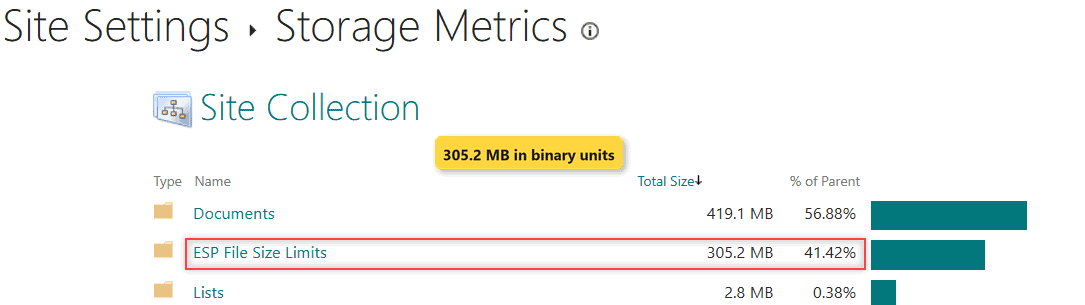
To see which libraries use the most space, open Site settings > Storage Metrics. My test library shows up there as 305.2 MB. For every other boundary (lists, groups, versions, users), see my full SharePoint limits and boundaries guide.
Next Steps
If storage, not size, is your real problem, the next step is cleanup. Start with deleting files older than three years with Power Automate, then empty the site Recycle Bin, because it counts toward storage too.
If you’re planning where big files should live in SharePoint, I’d read these next:
Frequently Asked Questions
What is the maximum file size I can upload to SharePoint Online?
250 GB per file, in a document library, the Teams Files tab or OneDrive. For anything over a few GB, upload with the OneDrive sync app rather than the browser.
Why does SharePoint say my file name is too long when the name is short?
SharePoint counts the whole path: every folder name plus the file name, with spaces encoded as %20. Once that passes 400 characters, the upload or rename fails. Move the file up a level or shorten folder names.
What is the file size limit for SharePoint list attachments?
250 MB per attachment on a SharePoint list or Microsoft Lists item. Through the Power Apps SharePoint connector the limit is 90 MB.
Can an admin raise the SharePoint Online file size limit?
No. The 250 GB per-file limit is fixed for every Microsoft 365 plan. Admins can add storage, but not raise this limit. Microsoft lists every value in its SharePoint limits service description.

I have worked with Microsoft technologies for more than 18 years, including SharePoint, Microsoft 365 and the Power Platform (Power Apps, Power Automate and Power BI), at companies like HP, TCS and KPIT. I started EnjoySharePoint in 2011 to share the solutions I build in real projects with readers in the United States, Canada, the United Kingdom, Australia, New Zealand and beyond. Microsoft has recognized this work with the Microsoft MVP award 13 times since 2014.