
Four clicks remove a SharePoint list: open the list, select Settings > List settings, choose Delete this list, then confirm with OK. The list and its items land in the site recycle bin, so a slip isn’t fatal.
In this tutorial, I’ll walk through each delete sharepoint list option (List settings, Site contents and the Microsoft Lists app), then show how to restore a list you removed by mistake and why the Delete option sometimes goes missing.
Quick answer: Open the list, select the gear icon > List settings > Delete this list > OK. You need owner or designer rights. The list goes to the site recycle bin, where you can restore it for up to 93 days.
Delete a SharePoint list from List settings
This is the route Microsoft documents. My sample is an old asset register with nine retired devices, the kind of SharePoint list that outlives its purpose.
- Open the list you want to remove.
- Select the Settings gear in the top-right corner, then List settings.
- Under Permissions and Management, select Delete this list.
- Select OK in the confirmation box.
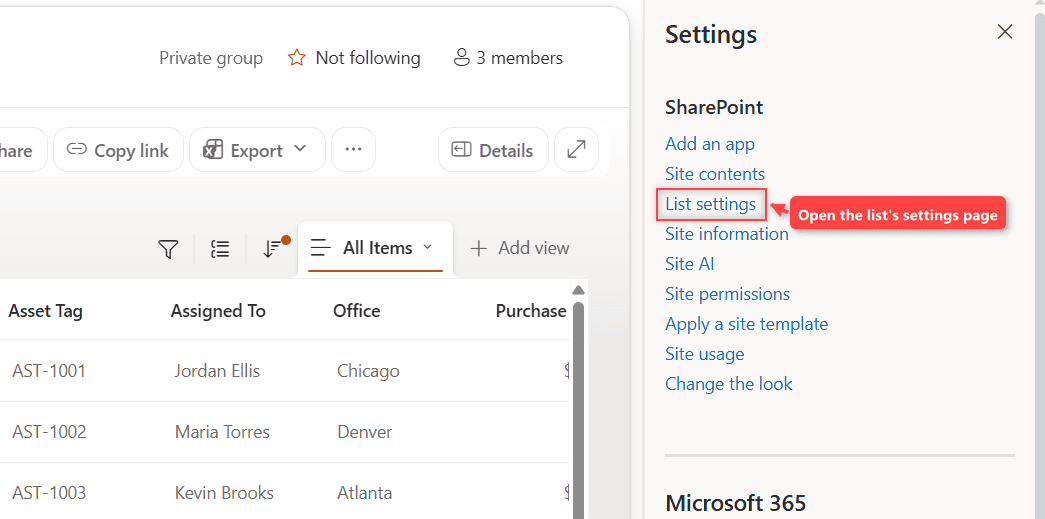
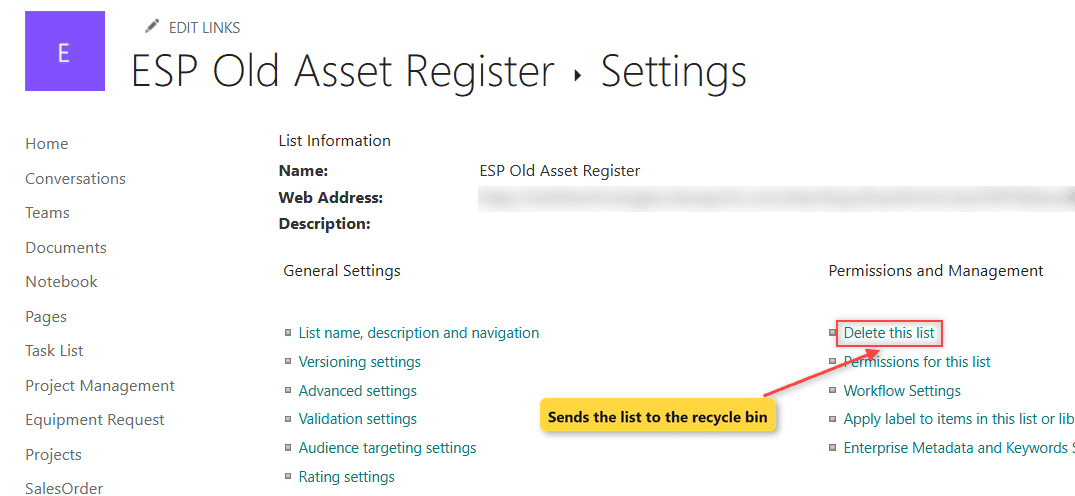
The browser box asks, “Are you sure you want to send this list to the site Recycle Bin?” After I selected OK, SharePoint opened Site contents, and ESP Old Asset Register was gone.
On a classic site, the path is the List tab > List Settings > Delete this list.
Delete a list from Site contents
Site contents skips opening the list. I used it for a blank list, ESP Retired Projects:
- Select the Settings gear > Site contents.
- Hover over the list name and select the three dots (…) next to it.
- Select Delete.
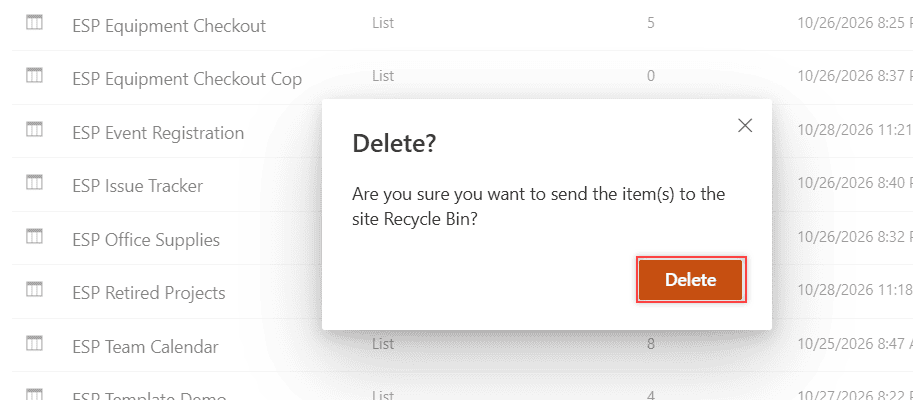
- Select Delete again in the confirmation box.
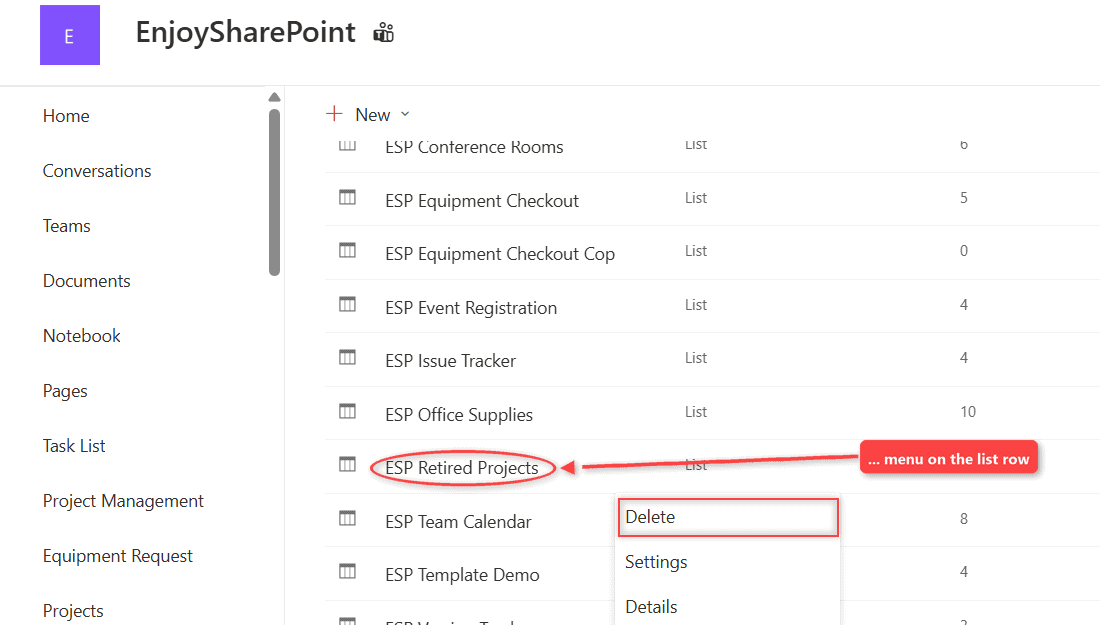
This time SharePoint shows its own box, “Are you sure you want to send the item(s) to the site Recycle Bin?”
Lists and libraries sit side by side here, so mind the difference between a list and a library before you select Delete.
Delete a list in the Microsoft Lists app
The Microsoft Lists app opens the same SharePoint list page, so deletion follows the same settings path.
- Open the list from the Microsoft Lists home page.
- Select Settings > List settings.
- Select Delete this list and confirm.
What gets deleted with the list?
Everything inside it goes together: all items, attachments, columns, list views and permission settings. Links, flows and apps that read the list stop working until you restore it.
In my test, all nine asset records (worth $8,187 at purchase) disappeared with the list.
How do I restore a deleted SharePoint list?
Open the site recycle bin from the left navigation, or from Site contents > Recycle bin in the top-right corner. Then:
- Select the circle next to the list name.
- Select Restore.
- Go back to Site contents and open the list.
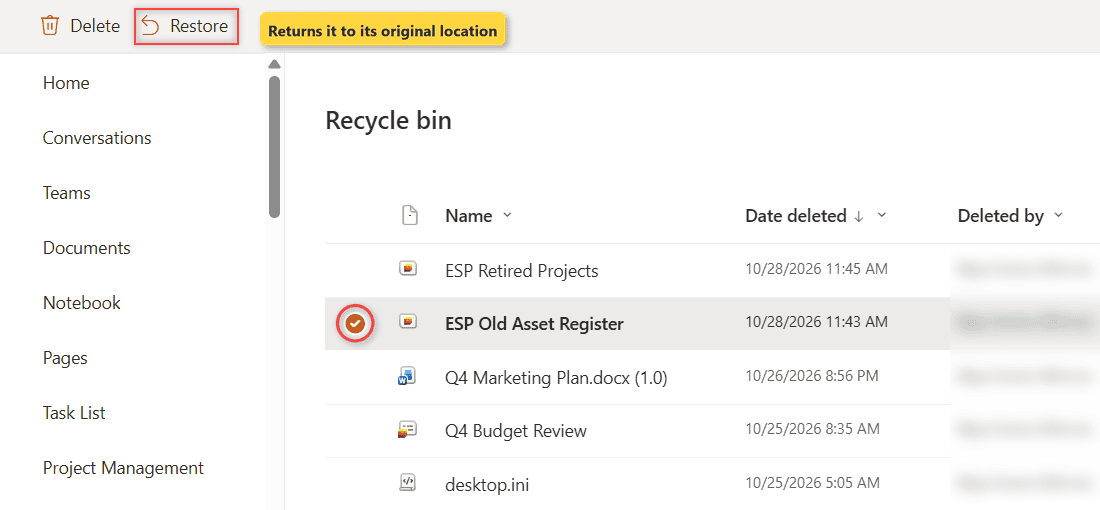
ESP Old Asset Register came back with all 9 items, its columns and its view, at the same URL and with the same list ID.
If someone emptied the recycle bin, the list moves to the second-stage recycle bin (the site collection recycle bin). Only a site collection admin can see and restore it there, so find the site owner or admin first. The Second-stage recycle bin link sits at the bottom of the site recycle bin.
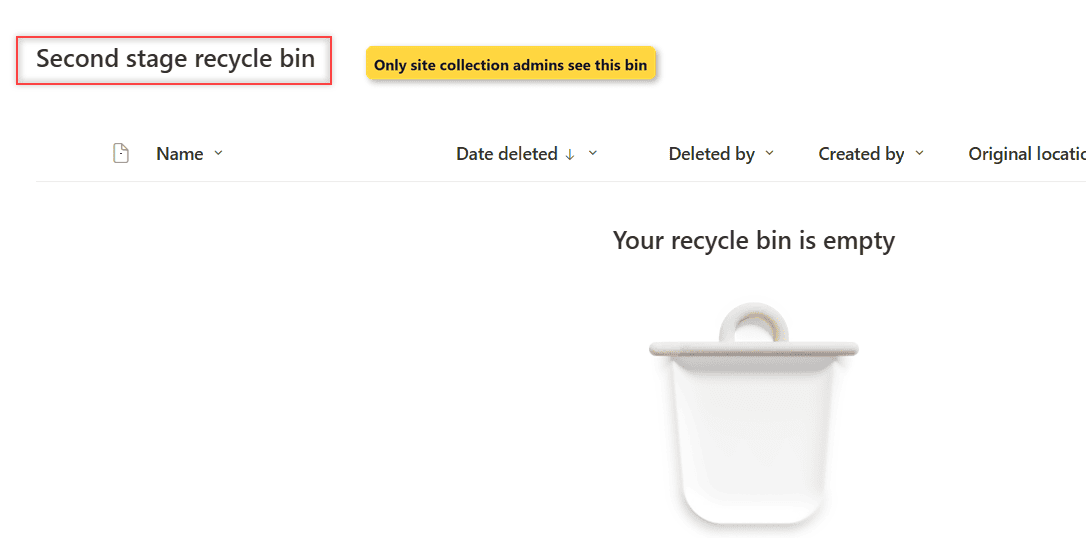
Important: The 93 days count from the original delete, not from when the list reached the second stage. After that, SharePoint deletes it permanently.
Empty the list but keep it
Want only the data gone? Select all items in the list view and choose Delete, or for thousands of rows, delete all list items with Power Automate. The columns, views and URL stay in place.
Why can’t I delete a SharePoint list?
When Delete this list is missing or throws an error, it’s almost always one of these:
- You don’t have enough permission. Members can edit items but can’t delete lists. Ask an owner, or review the SharePoint list permissions.
- A retention policy covers the site. Microsoft says users get an error when they delete a list, library or site that’s subject to retention.
- SharePoint protects the list. Some built-in libraries can’t be deleted at all. On my site, the default Documents library reports AllowDeletion as False.
- The site is locked. A site an admin set to read-only blocks every delete until it’s unlocked.
A few more posts for managing lists after a cleanup:
Frequently Asked Questions
Does deleting a SharePoint list delete it permanently?
No. It goes to the site recycle bin first, then to the second-stage recycle bin if someone empties the first. It’s permanently deleted 93 days after the original delete.
Who can delete a list in SharePoint?
Site owners and anyone with Design or Full Control permission. Members with Edit permission can add and delete items but can’t delete the list itself.
Why does one Microsoft page say 90 days and another 93?
Microsoft’s Delete a list support article says up to 90 days depending on your admin’s setup, while the recycle bin documentation gives 93 days across both stages. Treat 90 as the safe figure.

I have worked with Microsoft technologies for more than 18 years, including SharePoint, Microsoft 365 and the Power Platform (Power Apps, Power Automate and Power BI), at companies like HP, TCS and KPIT. I started EnjoySharePoint in 2011 to share the solutions I build in real projects with readers in the United States, Canada, the United Kingdom, Australia, New Zealand and beyond. Microsoft has recognized this work with the Microsoft MVP award 13 times since 2014.