
“User cannot be found in the directory” in SharePoint almost always means the site remembers an old copy of that person. Remove the stale entry from the site, then share again. One PnP PowerShell line does the removal:
Remove-PnPUser -Identity "i:0#.f|membership|jordan_fabrikam.com#ext#@<tenant>.onmicrosoft.com" -ForceIt removes that guest from the site’s hidden user list, not from your directory.
In this tutorial, I’ll show you why user cannot be found in directory sharepoint errors happen, the account check to try first, how to remove the old entry in the browser or PowerShell, and the admin fixes for an ID mismatch.
Quick answer: Open the link in an InPrivate window with the exact invited email. If it still fails, a site owner removes the person at /_layouts/15/people.aspx?MembershipGroupId=0 and shares again. Admins run the Site User Mismatch diagnostic.
What does “user cannot be found in the directory” mean?
The full message usually reads “That didn’t work” with “User cannot be found in the directory” under it.
Every site keeps a hidden SharePoint User Information List of people who visited it, matched by a directory ID. When the person’s sign-in no longer matches that entry, SharePoint can’t find them. Microsoft names three causes:
- The wrong account is signed in. The guest opens the link with a different email than the one you invited.
- The ID doesn’t match. The account was deleted and created again with the same name, so it got a new ID.
- Permissions are wrong. The person was never granted access, or lost it.
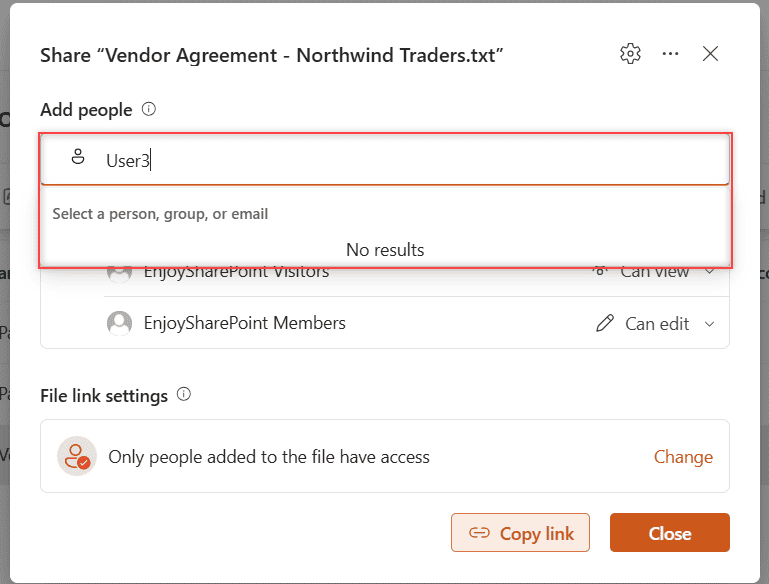
You can see the stale-entry case on my demo site. User3 was deleted from Microsoft Entra ID but is still in the site’s user list, so the Share box finds no one:
Check which account is signed in
Start here. Ask the person to open the link in an InPrivate or Incognito window and sign in with the exact address the invitation went to.
If the private window works, clear the SharePoint browser cache in their normal browser, including cookies and site data.
Remove the old user entry from the site
If the right account still fails, the site’s entry is stale. As a site owner, add this to the site URL:
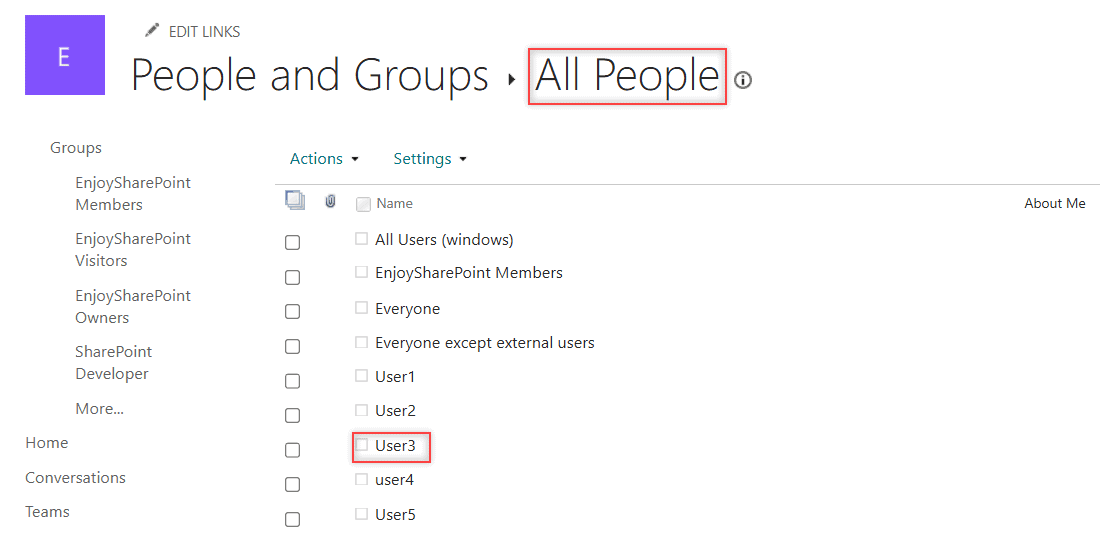
https://<tenant>.sharepoint.com/sites/EnjoySharePoint/_layouts/15/people.aspx?MembershipGroupId=0This opens the All People page. On my site, User3, user4 and User5 are still listed, although their accounts no longer exist:
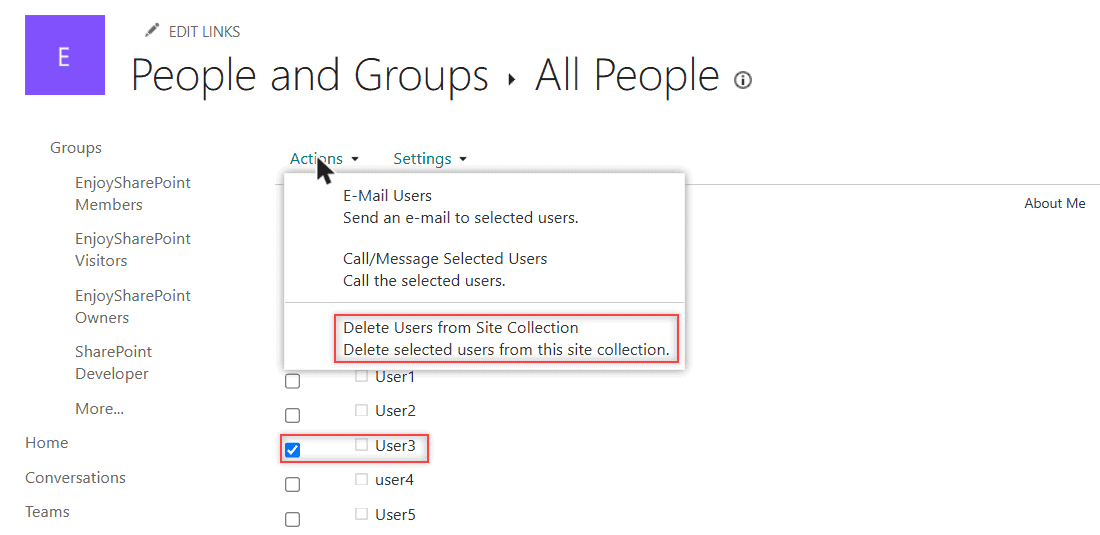
Select the person’s check box, then open Actions and choose Delete Users from Site Collection:
Now share the file or site again, or add the user to a SharePoint group.
How do I remove the user with PowerShell?
For several sites, PowerShell is faster. List the cached guest entries:
Connect-PnPOnline -Url "https://<tenant>.sharepoint.com/sites/EnjoySharePoint" -Interactive -ClientId "<app-id>"

Get-PnPUser | Where-Object LoginName -like "*#ext#*" | Select-Object Id, Title, LoginName
On my site this returned nothing, because no guest has visited it. Guests appear with #ext# in the login name. Pass that login name or the Id to the removal command:
Remove-PnPUser -Identity "i:0#.f|membership|jordan_fabrikam.com#ext#@<tenant>.onmicrosoft.com" -ForceAdmins can do the same with Remove-SPOUser -Site <site URL> -LoginName <user>. If you use unique permissions on a library, re-grant access there too.
Fix a site user ID mismatch (admins)
An ID mismatch happens when an account is deleted in the Microsoft 365 admin center and a new one is created with the same user principal name (UPN), the sign-in name. The new account gets a new ID, but each site still holds the old one.
A SharePoint administrator can run the Site User Mismatch diagnostic in the Microsoft 365 admin center. It removes the old ID; then you grant access again.
For guests whose home account changed, a User Administrator can open the guest in the Microsoft Entra admin center and select Reset redemption status. Read how external sharing works on a SharePoint site before you invite again.
Confirm the fix with Check Permissions
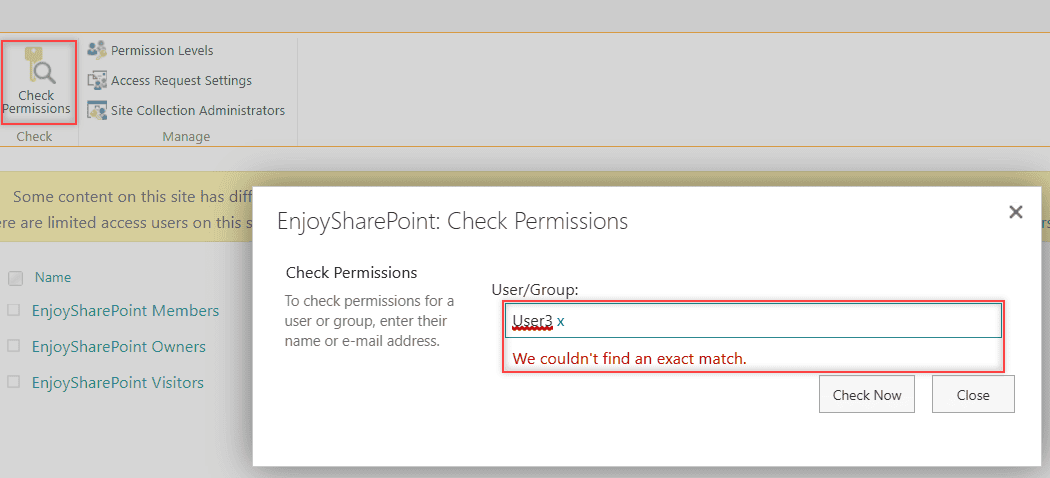
Go to Settings > Site permissions > Advanced permissions settings, then select Check Permissions on the ribbon. For the deleted User3, it couldn’t even resolve the name:
For a valid account like User1, select Check Now to see each permission level and the group that grants it:
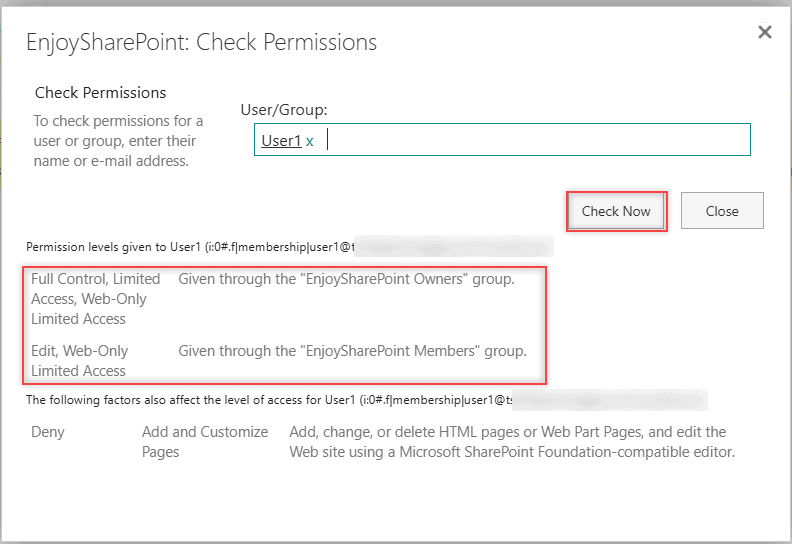
If it shows nothing, grant access again. When the site blocks the share, the cause is a policy, not the directory; see the organization policies sharing error.
These guides cover the other sharing and access messages you’ll meet:
Frequently Asked Questions
Why does a guest get “User cannot be found in the directory” after being invited?
Usually they opened the link with a different account than the invited email, or the site still holds an old entry for them. Try an InPrivate window first, then remove the old entry and share again.
Does deleting a user from the site collection delete their account?
No. Delete Users from Site Collection only removes the cached entry and the permissions on that site. The person’s Microsoft 365 or guest account stays in place.
What is a site user ID mismatch in SharePoint?
It happens when an account is deleted and re-created with the same sign-in name. The new account gets a new ID that the site doesn’t recognize. Microsoft explains the diagnostic in Fix site user ID mismatch.

I have worked with Microsoft technologies for more than 18 years, including SharePoint, Microsoft 365 and the Power Platform (Power Apps, Power Automate and Power BI), at companies like HP, TCS and KPIT. I started EnjoySharePoint in 2011 to share the solutions I build in real projects with readers in the United States, Canada, the United Kingdom, Australia, New Zealand and beyond. Microsoft has recognized this work with the Microsoft MVP award 13 times since 2014.