
Recently, I was building an SPFx Quiz Application web part using React. In this application, users can attempt a quiz and receive their results through email after submission.
To send emails, I used Microsoft Graph’s /me/sendMail endpoint through MSGraphClientV3. This endpoint requires the Mail.Send delegated permission.
Everything was working perfectly when internal users submitted the quiz. However, after giving guest users access to the SharePoint site, I noticed that guest users were unable to send emails after completing the quiz.
Instead, they received the following error:

If you are facing the same issue, don’t worry. In this article, I’ll explain why this happens and the different ways to fix it.
the mailbox is either inactive soft deleted or is hosted on premise graph api
When we use the /me/sendMail endpoint, Microsoft Graph sends the email on behalf of the currently logged-in user.
In simple words, when a user clicks the submit button, Microsoft Graph checks whether that logged-in user has a valid Exchange Online mailbox. If the mailbox exists, the email is sent successfully.
If the mailbox does not exist, Microsoft Graph cannot send the email and returns the following error:
"The mailbox is either inactive, soft-deleted, or is hosted on-premise."Why Does This Happen for Guest Users?
Guest users usually do not have an Exchange Online mailbox in your tenant.
Even though they have access to your SharePoint site, they are still external users. Since they don’t have a mailbox in your Microsoft 365 tenant, Microsoft Graph cannot use the /me/sendMail endpoint on their behalf.
This is why the email sending process fails.
A common misunderstanding is that Microsoft Graph cannot send emails to guest users. That is not true.
You can absolutely send emails to guest users.
The real issue is that the guest user is trying to send the email using their own identity through delegated permissions, and Microsoft Graph requires a mailbox for the sender.
Solution: The Mailbox Is Either Inactive, Soft-Deleted, or Hosted On-Premise
There are three common ways to solve this problem:
- Assign a Microsoft 365 license to guest users.
- Use Power Automate to send emails.
- Use Azure Functions with Microsoft Graph application permissions.
Let’s look at each option.
Solution 1: Assign a Microsoft 365 License to Guest Users
The first solution is to assign a Microsoft 365 license that includes Exchange Online to the guest users.
Once the guest user gets a mailbox in your tenant, the /me/sendMail endpoint will work because Microsoft Graph can now send emails on behalf of that user.
Pros
- Easy to implement.
- No code changes required.
- Works with the existing delegated permission approach.
Cons
- Additional licensing cost.
- Not practical when you have many guest users.
- Usually not recommended just for sending emails.
For most scenarios, this is not the preferred solution.
Solution 2: Use Power Automate to Send Emails
This is one of the easiest and most practical solutions.
In my case, the quiz responses are already being stored in a SharePoint list. The list contains all the required information, including the quiz results and a Submitted By Person field.
Instead of sending emails directly from the SPFx web part, I used Power Automate to send the email whenever a new quiz response is added to the SharePoint list.
Steps
- Open Power Automate and create a new Automated Cloud Flow.
- Select the SharePoint trigger: When an item is created.
- Configure the trigger by selecting:
- SharePoint Site Address
- Quiz Response List
- Add a Send an Email (V2) action.
- In the To field, select the email address from the Submitted By Email dynamic content.
- Since the email is being sent by the flow owner’s connection or a service account, there is no dependency on the guest user’s mailbox.
- Configure the Subject field as required. For example:
Quiz Results - [Quiz Name] - In the Body section, use the dynamic content from the SharePoint list item to build the email. For example, you can include:
- User Name
- Quiz Name
- Score
- Total Questions
- Percentage
- Submission Date
- Any additional information stored in the response list
- Save the flow and test it by submitting a quiz.
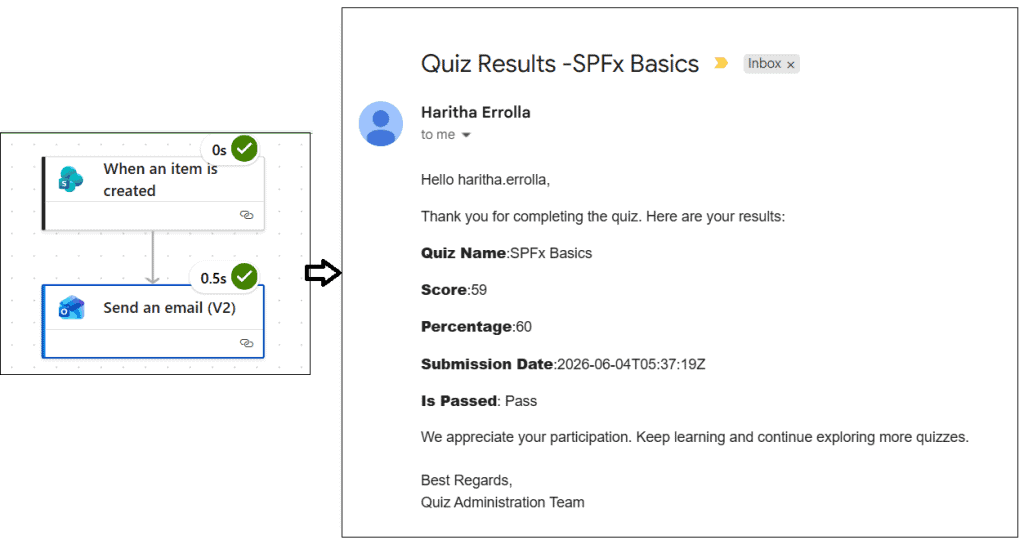
How It Works
- User submits the quiz.
- SPFx saves the response to the SharePoint list.
- Power Automate detects the newly created item.
- The flow retrieves the email address from the Submitted By field.
- The email is sent using the service account or the flow owner’s connection.
- The user successfully receives the quiz results.
Since the email is sent by Power Automate and not by the guest user, the guest user does not need an Exchange Online mailbox. This completely avoids the “The mailbox is either inactive, soft-deleted, or is hosted on-premise” error.
When Should You Use This Approach?
This solution is a good choice when:
- Your application already stores data in a SharePoint list.
- You need to support guest users.
- You do not want to manage Microsoft Graph application permissions.
- You want to avoid assigning Microsoft 365 licenses to guest users.
For most SPFx applications that store data in SharePoint lists, this is one of the simplest and easiest solutions to implement.
Solution 3: Use Azure Functions with Application Permissions
If you need a more scalable, enterprise-grade solution, Azure Functions is a great choice.
In this approach, the SPFx web part calls an Azure Function. The Azure Function then uses Microsoft Graph with application permissions to send the email.
Since application permissions are used, the email is sent by the application itself rather than the logged-in user.
How It Works
- User submits the quiz.
- SPFx sends the quiz data to an Azure Function.
- Azure Function authenticates using an App Registration.
- Azure Function calls Microsoft Graph.
- Microsoft Graph sends the email.
Required Permissions
In your Azure App Registration, grant application permissions such as:
- Mail.Send
After adding the permission, make sure to provide Admin Consent.
Pros
- Works for both internal and guest users.
- No mailbox required for guest users.
- Highly scalable.
- Suitable for enterprise applications.
Cons
- Requires Azure resources.
- Slightly more complex to set up.
- Requires backend development.
If your application has many users or requires advanced email functionality, this is usually the best long-term solution.
Which Solution Should You Choose?
The right solution depends on your requirements.
| Scenario | Recommended Solution |
|---|---|
| Small implementation and guest users have licenses | Assign M365 License |
| Simple and quick implementation | Power Automate |
| Enterprise application with better scalability | Azure Functions + Application Permissions |
In most SPFx projects, I recommend either Power Automate or Azure Functions with application permissions, because they avoid licensing guest users and work reliably for all users.
Conclusion
I hope you found this article helpful! The error “The mailbox is either inactive, soft-deleted, or is hosted on-premise” occurs because the Microsoft Graph /me/sendMail endpoint uses delegated permissions and expects the logged-in user to have an Exchange Online mailbox.
Since guest users typically do not have mailboxes in your Microsoft 365 tenant, Microsoft Graph cannot send emails on their behalf.
To solve this issue, you can either assign Exchange licenses to guest users, use Power Automate to send emails, or move the email functionality to an Azure Function that uses Microsoft Graph application permissions.
For most real-world SPFx applications, Power Automate or Azure Functions provide the best balance between cost, scalability, and maintainability.
Also, you may like:
- Modern Script Editor Web Part using SharePoint Framework (SPFx)
- Display Current User Name in SPFx Client Side Web Part
- SPFx Application Customizer Example
- Display SharePoint List Items in a SPFX Web Part [Tabular Format]

After working for more than 18 years in Microsoft technologies like SharePoint, Microsoft 365, and Power Platform (Power Apps, Power Automate, and Power BI), I thought will share my SharePoint expertise knowledge with the world. Our audiences are from the United States, Canada, the United Kingdom, Australia, New Zealand, etc. For my expertise knowledge and SharePoint tutorials, Microsoft has been awarded a Microsoft SharePoint MVP (12 times). I have also worked in companies like HP, TCS, KPIT, etc.

