
While working with a client, they recently needed the application to assign permissions to specific folders/subfolders within a document library. To do this, I need to display all user names so the client can select users and grant them permissions to particular folders or subfolders.
In this tutorial, I will show you how to retrieve all user names from Azure Active Directory (Azure AD) using the Microsoft Graph API. This approach allows you to get a list of user names and fetch detailed information about each user stored in Azure AD to the Windows Forms Application.
Get User Name From Azure AD using Microsoft Graph API
To display all user names from Azure Active Directory (Azure AD) in a Windows Forms application, we need to authenticate our app with the Microsoft Graph API using delegated or application permissions.
First, we need to register our application in the Azure Portal to get the Client ID, Tenant ID, and optionally a Client Secret. Then, use the Microsoft Authentication Library (MSAL) to authenticate and acquire a token.
Once authenticated, you can use the Microsoft Graph SDK to call the /users endpoint, which retrieves a list of users from Azure AD.
Register Application in the Azure Portal
I will show you how to get the Client ID, Tenant ID, and Client Secret from the Azure Portal.
- Go to the Azure Portal: https://portal.azure.com/ and select the App Registration.
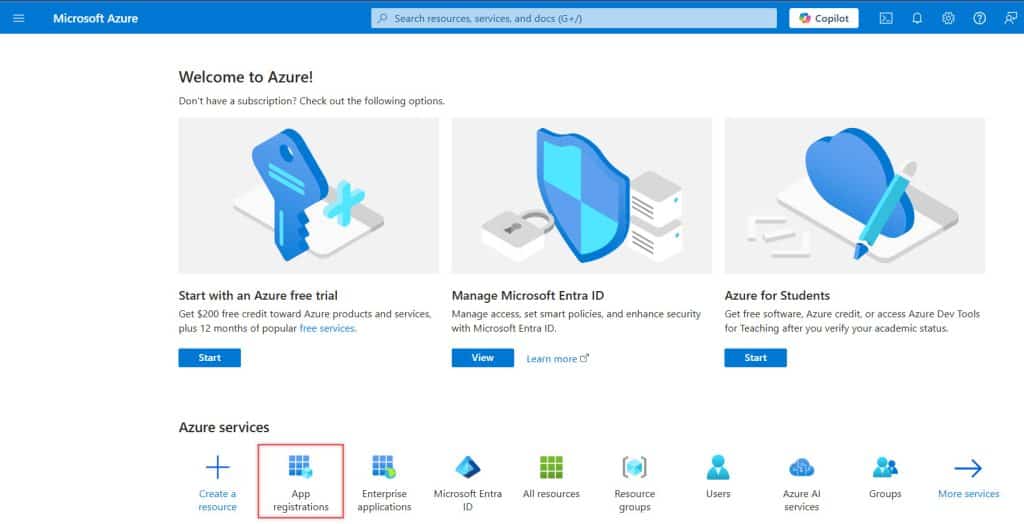
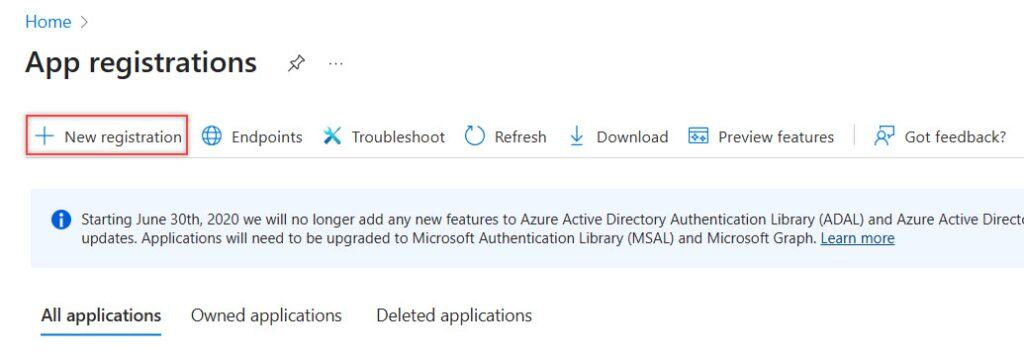
- Select your registered app (or create a new one).
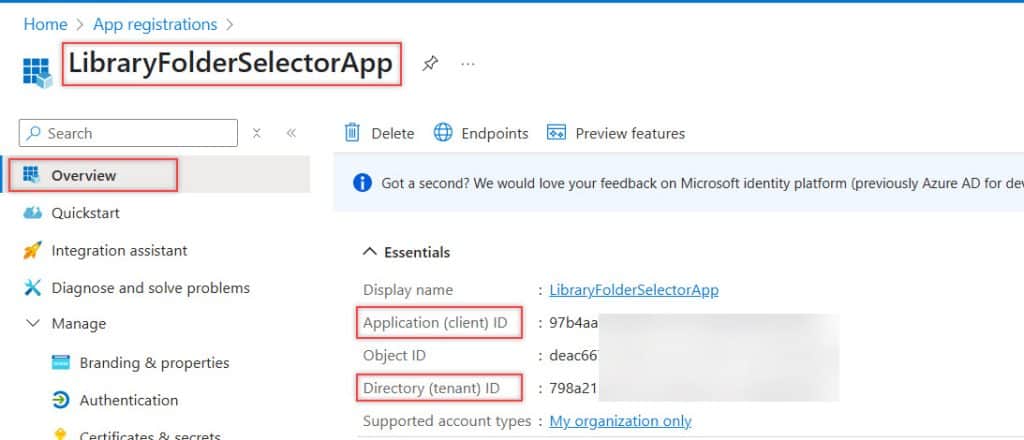
- Then, the Application client ID and tenant ID will appear on the app overview page.
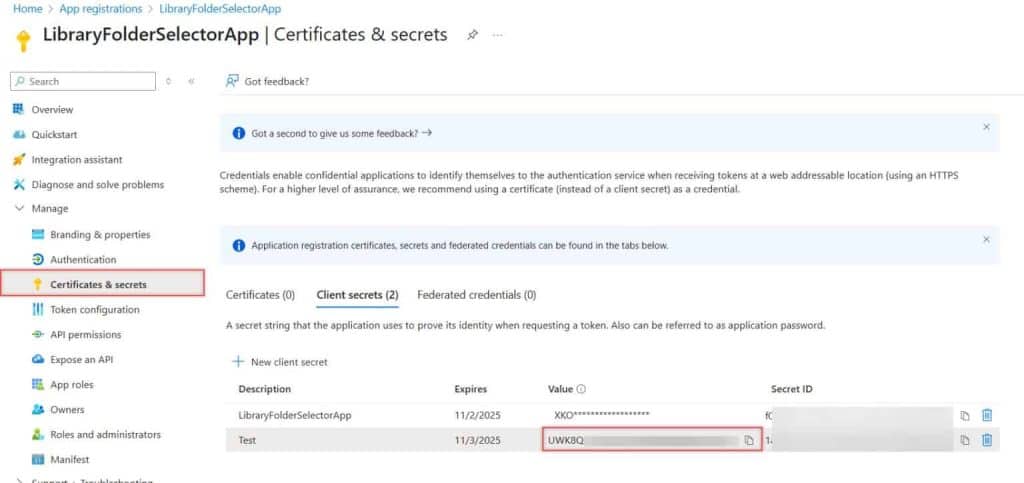
- To create a Client Secret:
- Go to Certificates & secrets in the left-hand menu.
- Click New client secret, add a description and expiry, then click Add.
- Once created, copy the value immediately; you can’t view it again later.
In the API permissions section, make sure that the app is granted Microsoft Graph -> User.Read.All application permissions.
Check out How to Use Microsoft Graph API in SPFx Web Parts
Display All User Names from Azure AD in a Windows Forms Application
Now that we have the Client ID, Tenant ID, and secret value, I will show you how to get all user names in Windows from the Application.
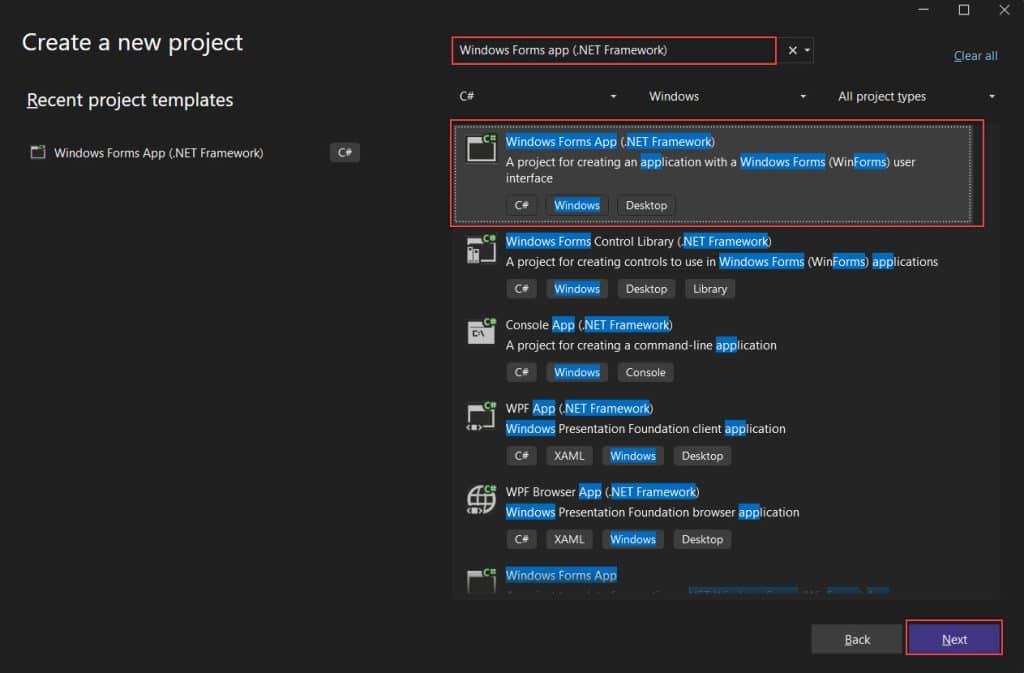
- Now open the Visual Studio Code comment, create a new project, and select the Windows Forms app (.NET Framework). Then create the App.
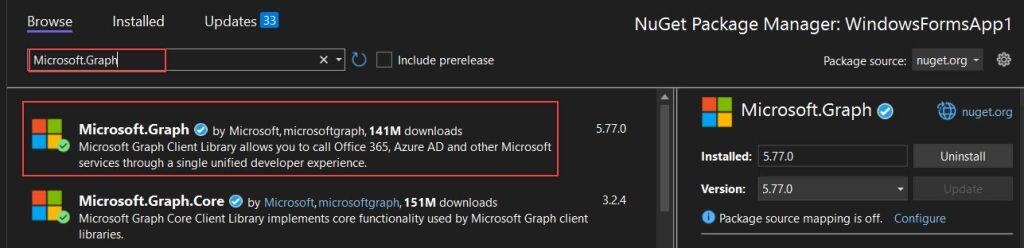
- Then we need to install the required NuGet Packages:
- Microsoft.Graph
- Microsoft.Identity.Client
- Azure.Identity
To install, right-click the application name under the Solution Explorer, then select the Manage NuGet packages. Then go to the Browser tab, search the package name, and install it.
Design the Form
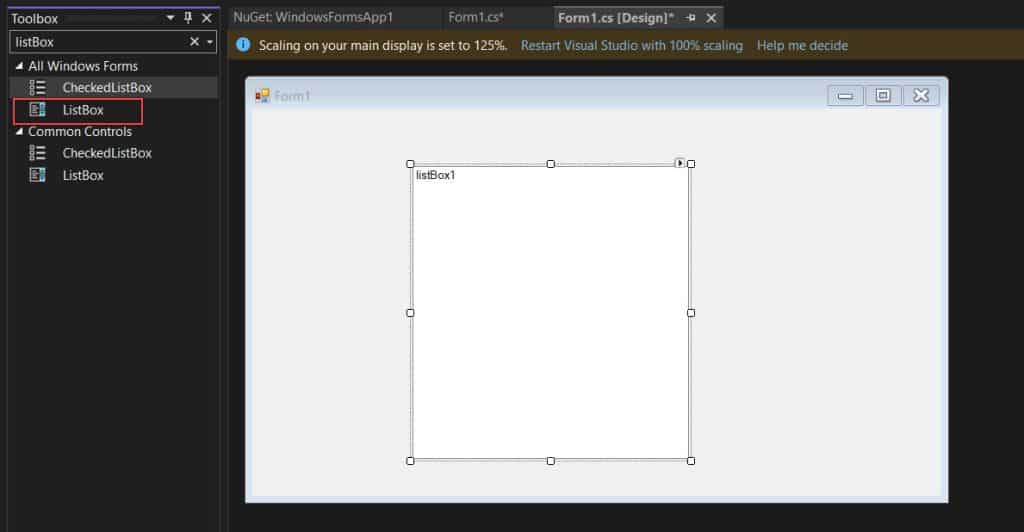
Now, we will design the form. I want to display only the name, so I will add a ListBox to the form.
- Go to Form Design and, on the left side, under the toolbox, search for and add a ListBox.
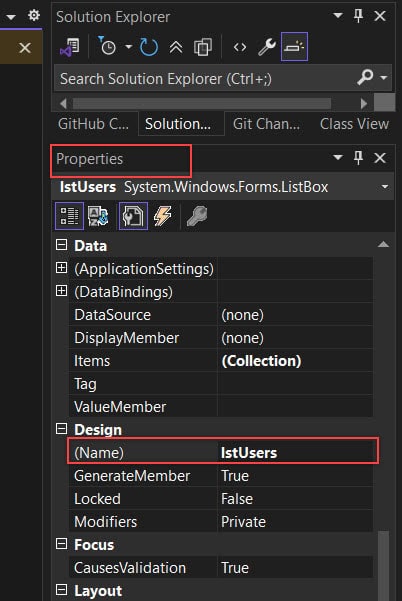
- You can change the list box format using the properties panel, but I only changed the name of the list box to lstUsers here.
Add the Code to Get All User Names
Now, double-click the form, and it will open the Form code file where you need to write the below code:
- At the top of your Form code file (Form1.cs), add the below Identity SDK.
using Microsoft.Graph;
using Azure.Identity;
These libraries are needed to interact with the Microsoft Graph API (which gives access to Azure AD data) and authenticate your app using Azure credentials.
- You can see the using statements below.
using Microsoft.Graph;
using Azure.Identity;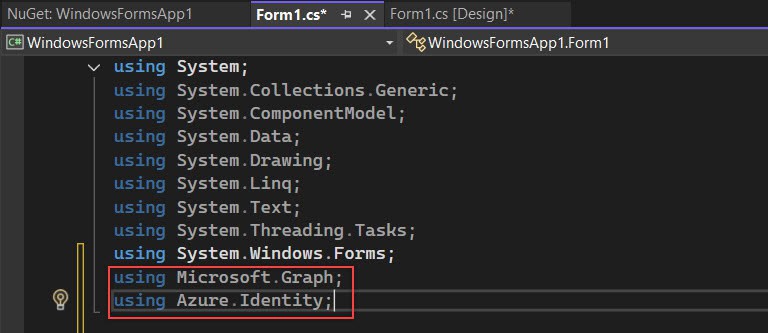
- Now I will add an asynchronous method that helps me connect to Azure Active Directory and load user information.
private async Task LoadUsersFromAzureAD()
    {

}
- Inside the method and the below code to Azure AD with our app credentials, and setting up a tool (graphClient) to fetch data like users.
        string tenantId = "YOUR_TENANT_ID";
        string clientId = "YOUR_CLIENT_ID";
        string clientSecret = "YOUR_CLIENT_SECRET";

        var credential = new ClientSecretCredential(
            tenantId,
            clientId,
            clientSecret
        );

        var graphClient = new GraphServiceClient(credential);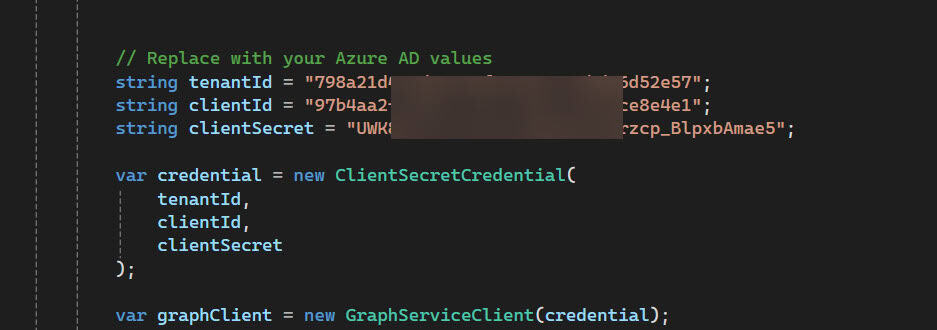
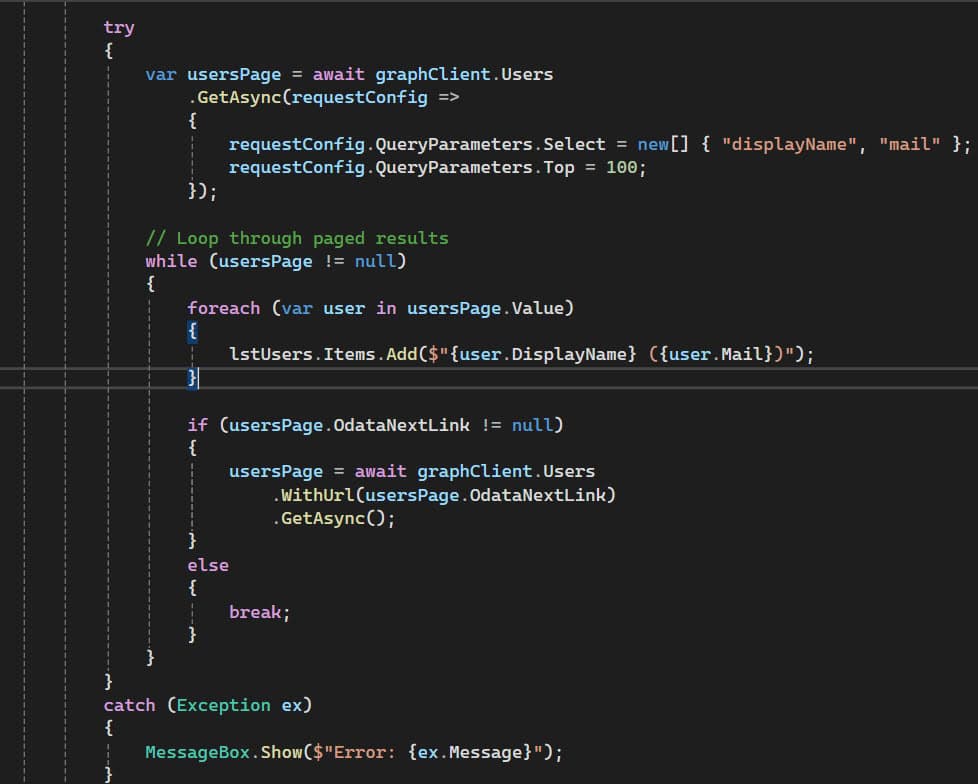
- Now that the connection to Azure AD is ready using graphClient, we’ll write the code to fetch the users and display their names in the ListBox. Add the following code inside the LoadUsersFromAzureAD() method:
try
{
    var usersPage = await graphClient.Users
        .GetAsync(requestConfig =>
        {
            requestConfig.QueryParameters.Select = new[] { "displayName", "mail" };
            requestConfig.QueryParameters.Top = 100;
        });

    // Loop through paged results
    while (usersPage != null)
    {
        foreach (var user in usersPage.Value)
        {
            lstUsers.Items.Add($"{user.DisplayName} ({user.Mail})");
        }

        if (usersPage.OdataNextLink != null)
        {
            usersPage = await graphClient.Users
                .WithUrl(usersPage.OdataNextLink)
                .GetAsync();
        }
        else
        {
            break;
        }
    }
}
catch (Exception ex)
{
    MessageBox.Show($"Error: {ex.Message}");
}
Here:
- Sends a request to Microsoft Graph to get a list of users from Azure AD.
- It only requests the user’s name and email to keep the response fast.
- If more than 100 users are present, it will automatically continue fetching the next pages using a while loop and OdataNextLink.
- Each user’s name and email are added to the lstUsers ListBox for easy selection.
- If there’s any issue, it will show a pop-up error message.
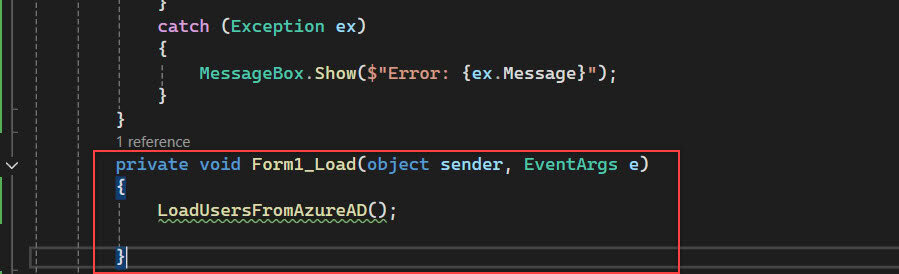
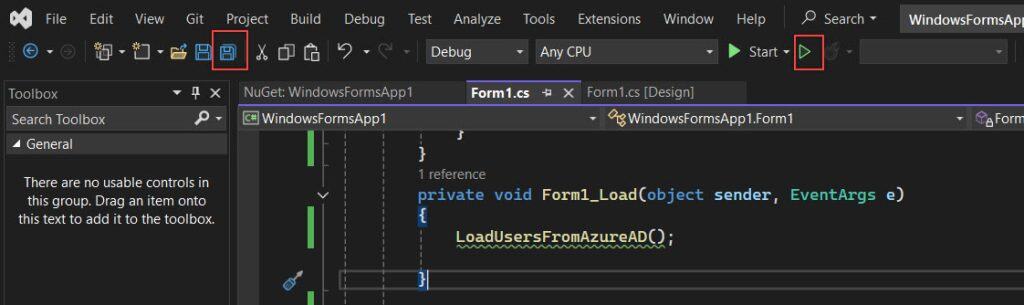
- Then, out of the method, provide the below code to ensure the list loads as soon as the form starts, modify your Form1_Load event like this:
 private void Form1_Load(object sender, EventArgs e)
 {
     LoadUsersFromAzureAD();

 }
- Now, click the Save all button to save the code. To run the application, click Start Without Debugging. You can also click Start to debug the application.
- Then, it will open the form, where you can see all the user names and email addresses in the list box.
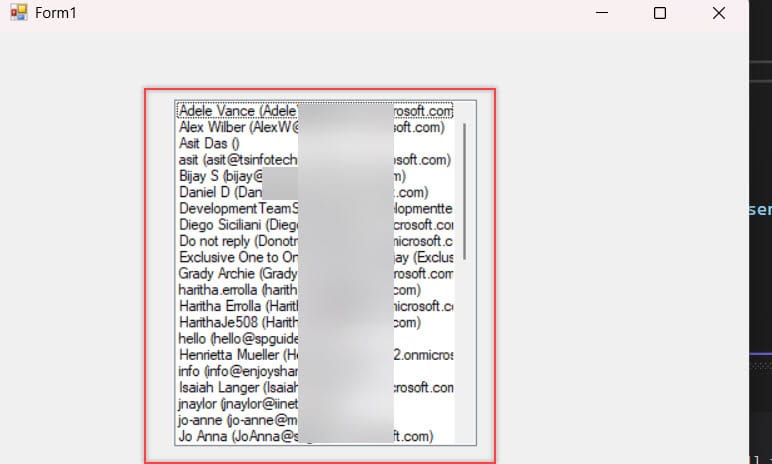
In this tutorial, we learned how to connect a Windows Forms application to Azure Active Directory using the Microsoft Graph API. We retrieved all user names and email addresses and displayed them in a ListBox.
You may like the following tutorials:
- Microsoft Office 365 E5 30 days Free trial Subscription
- Visual Studio 2022 Community Edition Download Tutorial
- Connect-SPOService : The Remote Server Returned An Error: (403) Forbidden.
- Bind Dropdown from SharePoint List in SPFx (SPHttpClient, PnPJS, Graph)

After working for more than 18 years in Microsoft technologies like SharePoint, Microsoft 365, and Power Platform (Power Apps, Power Automate, and Power BI), I thought will share my SharePoint expertise knowledge with the world. Our audiences are from the United States, Canada, the United Kingdom, Australia, New Zealand, etc. For my expertise knowledge and SharePoint tutorials, Microsoft has been awarded a Microsoft SharePoint MVP (12 times). I have also worked in companies like HP, TCS, KPIT, etc.

