
SharePoint web applications are the backbone for organizing and accessing content in SharePoint Server. They work as top-level containers, holding sites and content—pretty much the essential building blocks for any SharePoint setup.
A SharePoint web application uses an Internet Information Services (IIS) website to create a logical unit for managing content and user access.
With SharePoint, web applications let organizations set up different zones for different users. This flexibility means companies can share information with employees, partners, and customers on one platform while maintaining the right security controls.
You can also customize and extend SharePoint web applications to fit specific business needs, which is pretty handy.
Usually, creating a SharePoint web application is the first step in setting up your SharePoint environment. Once you’ve got the web application, admins can build site collections within it to organize content.
This hierarchy makes it easier to manage permissions and content across the organization in a way that actually makes sense.
Understanding SharePoint Web Applications
SharePoint web applications sit at the foundation of the SharePoint infrastructure. They provide the framework that hosts site collections and sites, so organizations can create and manage content without too much hassle.
What Is a SharePoint Web Application?
A SharePoint web application is basically an IIS website that acts as the container for SharePoint sites and content. It organizes site collections and connects users to SharePoint content.
Web applications define how users get to content using URLs and authentication methods. Each web application has its own IIS application pool, which keeps things separate and secure between different SharePoint setups.
Creating web applications is usually one of the first admin tasks when setting up SharePoint. You can configure these applications for different uses, like intranet portals, document management, or collaboration spaces.
SharePoint web applications handle important things like security boundaries, authentication, and content isolation. They also decide how content is accessed across the organization.
SharePoint Web Application Architecture
The architecture of a SharePoint web application consists of several key parts working together. At its core, a web application is an IIS website with SharePoint-specific configurations.
Each web application runs in its own application pool, giving it process isolation and a separate memory space. This setup boosts security and performance by keeping problems in one application from messing with others.
Web applications include:
- Content databases: Store site collections and content
- Service applications: Provide features across sites
- Authentication providers: Control user access
Web application settings define things like:
- URL mappings
- Authentication methods
- Resource throttling
- Permission policies
Web applications talk to various SharePoint service applications to bring in features like search, user profiles, and managed metadata.
Web Application vs. Site Collection
Web applications and site collections are different levels in SharePoint’s hierarchy. A web application can have multiple site collections, and each site collection has one top-level site plus as many subsites as you want.
Key differences:
| Web Application | Site Collection |
|---|---|
| IIS website container | Group of SharePoint sites |
| Managed by farm administrators | Managed by site collection administrators |
| Defines security boundaries | Shares permissions and features |
| Contains multiple site collections | Contains multiple sites |
| Configured at server level | Created within web applications |
Site collections share content databases, permissions, features, and navigation. They help you organize related content while keeping things manageable from an admin perspective.
Web applications set the bigger boundaries for security, authentication, and content isolation. If you change something at the web application level, it affects all site collections inside it. Changes to a site collection only impact sites within that collection.
Check out SharePoint ULS Logs
Core Components and Architecture
SharePoint web applications rely on a structured architecture made up of several key pieces. These parts work together to deliver content, manage data, and keep the server running smoothly for good performance and reliability.
Application Pool Association
Application pools in SharePoint give web applications isolation and dedicated resources. Each SharePoint web application connects to its own application pool in IIS. This separation keeps issues in one application from spreading to others.
Application pools handle memory, process recycling, and security settings. When you create a new SharePoint web application, you decide whether to use an existing application pool or spin up a new one.
Best practice? Use separate application pools for your most important web applications. It’s a solid way to improve security and reliability. For instance, your main intranet portal should probably have a different application pool than your records management system.
The application pool identity (the account it’s running under) needs specific permissions to work right. Usually, this is set up as a managed service account with just the privileges it needs—nothing more.
IIS Web Site Integration
SharePoint works closely with IIS, Microsoft’s web server technology. Every SharePoint web application lines up with an IIS website, which handles HTTP requests from users.
IIS takes care of web server basics like request processing, authentication, and connection limits. When you create a SharePoint web application, the system sets up the IIS settings for you.
The IIS website defines things like bindings, which say what protocols, IPs, and ports the site responds to. Most SharePoint setups use HTTPS (port 443) for secure access.
IIS also manages web.config files that control how applications behave. SharePoint handles most of these settings, but sometimes you might need to tweak IIS manually for advanced scenarios.
Web admins should avoid making direct changes to IIS settings for SharePoint sites unless they’ve planned it out—otherwise, you can easily break stuff.
Content Databases
Content databases hold almost all SharePoint content—documents, list items, site configurations, user permissions, you name it. Each web application connects to one or more content databases on SQL Server.
One SharePoint farm can have dozens or even hundreds of content databases. The database name usually follows a pattern like WSS_Content_ApplicationName so you can tell what’s what.
When planning your architecture, keep these database limitations in mind:
- Maximum recommended size: 200GB (can go bigger with careful planning)
- Maximum sites per database: depends on how you use it
- Recovery time objectives affect how many databases you need
Put your content databases on fast storage and back them up regularly. DBAs should keep an eye on growth and performance to keep things healthy.
SharePoint connects to these databases using SQL, so make sure the farm account has the right permissions. For big setups, the database server often becomes the main performance bottleneck.
Host Header and Load Balanced URL
Host headers let multiple SharePoint web applications share the same port and IP address. When you create a web application, you set a host header like “intranet.company.com” to tell it apart from others.
This is a smart way to make the most of server resources. A single server can host several web applications (like HR, knowledge base, project sites) all on port 443 but using different host headers.
Load balanced URLs spread traffic across multiple web front-end servers for better performance and redundancy. This setup involves:
- DNS entries pointing to the load balancer
- Load balancer configuration to distribute requests
- Identical SharePoint installs on each server
In production, load-balanced URLs are a must. They provide fault tolerance and help keep things running smoothly when usage spikes.
The load balancer usually checks each server’s health to send requests only to working systems. Most organizations use either hardware or software load balancers, depending on their needs and budget.
Check out SharePoint Limits and Boundaries
Create a SharePoint Web Application using PowerShell
We can use the new-SPWebApplication cmdlets in PowerShell to create a web application in SharePoint Server.
Below is the minimum syntax to create a web application in SharePoint. These are the minimum parameters:
New-SPWebApplication -ApplicationPool <String> -Name <String>Here is the complete PowerShell script to create a web application in SharePoint Server.
Add-PSSnapin "Microsoft.SharePoint.PowerShell"
$authentication = New-SPAuthenticationProvider -UseWindowsIntegratedAuthentication -DisableKerberos
New-SPWebApplication -Name "My SP2016 Web App" -Port 33779 -ApplicationPool "MySP2016AppPool" -ApplicationPoolAccount (Get-SPManagedAccount "MYSP\Administrator") -AuthenticationMethod NTLM -AuthenticationProvider $authentication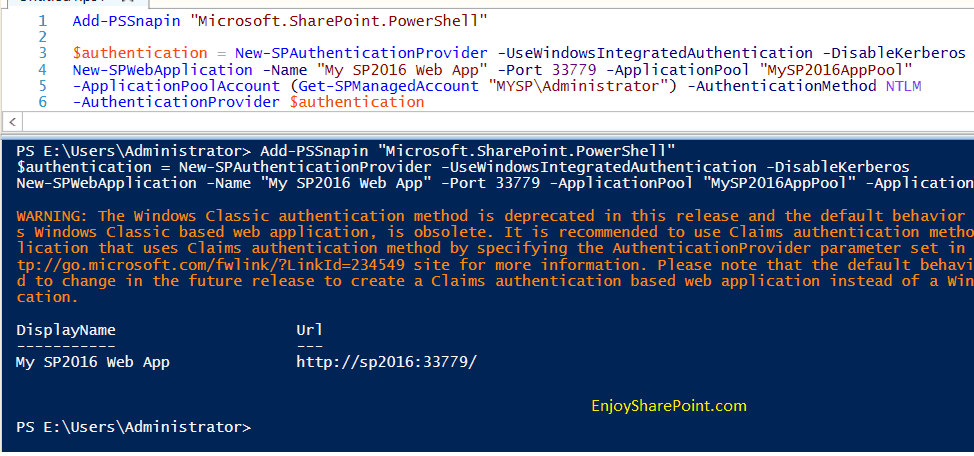
Create a Web Application in SharePoint from Central Administration
We can create a web application by using the SharePoint central administration website.
To create a web application, the user must be a member of the Farm Administrators SharePoint group. To verify, open the SharePoint central administration website. Then click on “Manage the farm administrators group,” which is under the Security section.
To create a web application, click on the “Manage web applications” link from the SharePoint Central Administration home page, under “Application Management”.

Then, from the Ribbon, click on New Web Application to create a new web application. In the Create New Web Application dialog box, fill in the following to create a new SharePoint web application.
Claims Authentication Types
Choose Enable Windows Authentication and Integrated Windows authentication [NTML]

Sign In Page URL
In the Sign in Page URL, choose Default Sign In Page.

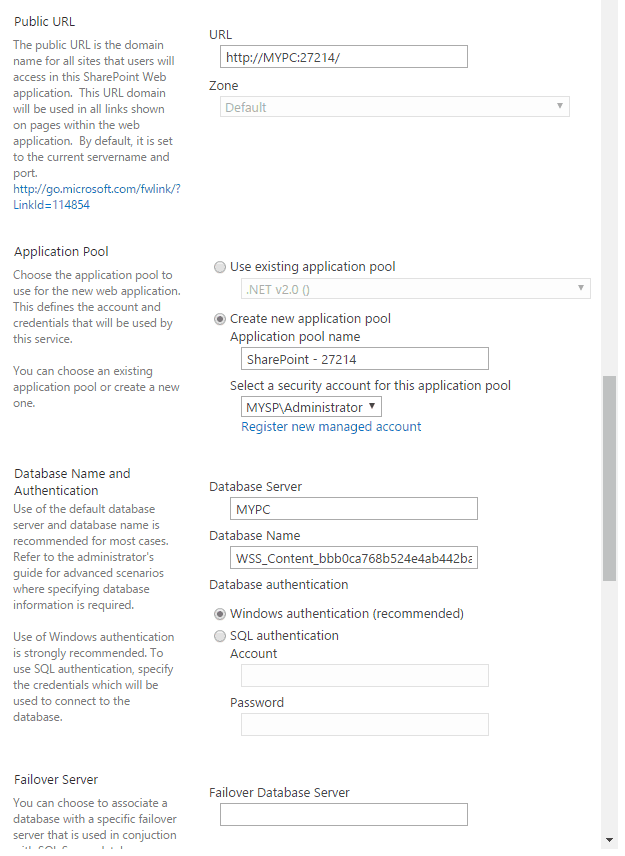
Public URL: Give a public URL for the web application, by default it will come as http://ServerName:Port
Ex: http://MYPC:27214/
Application Pool:
Choose Create new application pool.
By default, it will create an application pool with the same name as your web application.
Provide a Security Account for an application pool.
Database Name and Authentication:
Give the Database Server name
And Database Name
Choose Windows Authentication
Failover Server:
Leave Blank
Service Application Connections
Select the service applications you want to activate the Customer Experience Improvement Program:
Choose No.

Then click on OK to create the web application. It will take some time to create a web application. Once created successfully, it will display a message. Once the web application is ready, we can create our site collection.
Read SharePoint Event Receiver Example
Authentication and Security Configuration
SharePoint web applications need proper authentication and security to keep your content safe. The platform offers several authentication methods and flexible permission controls, which you can set at the site, list, or even item level.
Authentication Methods: NTLM and Kerberos
SharePoint supports two main Windows authentication protocols: NTLM and Kerberos. NTLM (NT LAN Manager) is easier to set up and works great for smaller deployments. It doesn’t need extra infrastructure but isn’t as secure as Kerberos.
Kerberos uses ticket-based authentication for stronger security and supports delegation scenarios. It does require proper Service Principal Name (SPN) setup and access to a domain controller. Most organizations pick Kerberos for production environments.
You can set up both protocols when creating or extending web applications through Central Administration. Admins can also go with claims-based authentication, which lets you use multiple identity providers beyond just Windows authentication.
| Authentication Type | Strengths | Best For |
|---|
| NTLM | Simple setup, widely compatible | Development, small deployments |
| Kerberos | More secure, supports delegation | Production environments |
| Claims-based | Flexible, supports multiple providers | Organizations with diverse authentication needs |
Security Accounts and Permissions
SharePoint relies on several key security accounts to function properly. The Farm Account needs permission to access resources across servers.
Service application accounts run specific services, but with limited privileges. The application pool identity account handles the web application processes.
This account should stick to the principle of least privilege. Never use the local administrator account for any SharePoint services—seriously, just don’t do it.
SharePoint permissions operate at a few different levels:
- Site Collection: Site collection administrators manage this
- Site: Controls who can access individual sites
- List/Library: Sets permissions for content containers
- Item: Gives granular control down to a single document
Breaking permission inheritance lets you build flexible security models, but it does make things harder to manage. Regular security audits can spot inappropriate access levels.

Check out SPServices in SharePoint
Create a SharePoint Web Application using PowerShell
PowerShell gives you a direct, flexible way to create SharePoint web applications. You don’t have to touch the Central Administration interface at all.
This method is handy if you need to automate deployments or spin up several web applications simultaneously. It’s honestly a massive time-saver for administrators.
First things first, add the SharePoint PowerShell snap-in to your session:
Add-PSSnapin Microsoft.SharePoint.PowerShell -ErrorAction SilentlyContinueThe main command you’ll use here is New-SPWebApplication. Here’s a basic example:
New-SPWebApplication -Name "Contoso Intranet" -Port 80 -HostHeader "intranet.contoso.com" -URL "http://intranet.contoso.com" -ApplicationPool "ContosoAppPool" -ApplicationPoolAccount (Get-SPManagedAccount "DOMAIN\account")You can tweak your web application by adding extra parameters. Maybe you want to adjust the authentication method, database name, or security options? Just specify those as needed.
If you need a web application with a host header, here’s how you’d do it:
New-SPWebApplication -Name "Contoso Public" -HostHeader "sharepoint.contoso.com" -URL "http://www.contoso.com" -Port 80 -ApplicationPool "ContosoPublicPool"Once you’ve created the web application, the next step is usually to create a site collection inside it. That’s where users will actually start working in SharePoint.
Save your PowerShell scripts for later. You’ll appreciate having them on hand if you need to deploy across several environments or manage more than one farm.
Check out SharePoint Rest API Tutorial and Examples
Best Practices for SharePoint Web Applications
Here are some best practices for SharePoint web applications.
Planning Your Web Application Structure
One mistake I frequently see organizations make is creating too many web applications. In most cases, you should keep the number of web applications to a minimum. Here’s why:
- Each web application consumes additional memory and resources
- More web applications mean more complexity in management
- Service application connections need to be configured for each web application
Instead, use site collections within fewer web applications to organize content. In my experience, most organizations only need 2-4 web applications for:
- Intranet (internal-facing content)
- Extranet (partner-facing content)
- Internet (public-facing content)
- My Sites/OneDrive for Business
Authentication Considerations
SharePoint web applications support various authentication methods:
- Windows Authentication (NTLM/Kerberos): Best for internal networks
- Forms-Based Authentication: Suitable for external users
- SAML/Federated Authentication: Ideal for enterprise SSO scenarios
- OAuth/App Authentication: For application-to-application scenarios
Pro tip: Since SharePoint 2013, you should almost always use Claims-based authentication rather than Classic mode authentication, regardless of which provider you choose.
Extending Web Applications
One powerful yet often misunderstood feature is the ability to extend SharePoint web applications to multiple IIS websites, each with its own URL and authentication method. I’ve used this technique countless times to solve complex requirements:
# Example PowerShell to extend a web application
New-SPWebApplicationExtension -Name "Extranet" -Zone "Extranet" -URL "https://extranet.company.com" -AuthenticationProvider $authProvider -HostHeader "extranet.company.com" -Port 443
This allows you to have:
- https://intranet.company.com (internal, Windows authentication)
- https://extranet.company.com (external, forms authentication)
- https://public.company.com (public, anonymous access)
All pointing to the same content, but with different access methods.
I hope you learn about SharePoint web applications. I have explained how to create one from the SharePoint central admin and how to use PowerShell.
You may also like:
- Create a Custom Calendar in Power Apps
- Reset Id In SharePoint List
- Visual Studio 2022 Community Edition Download Tutorial
- SharePoint 2010 to SharePoint 2013/2016/2019 Migration Steps (Database attach method)

I am Krishna.Vandanapu a SharePoint architect working in IT from last 13+ years, I worked in SharePoint 2007, 2010, 2013, 2016 and Office 365. I have extensive hands on experience in customizing SharePoint sites from end to end. Expertise in SharePoint migration tools like Sharegate, Doc Ave and Metalogix. Migrated SharePoint sites from SharePoint 2007 to 2010 and 2010 to 2013 several times seamlessly. Implementing CSOM with Microsoft best practices. Spent quality time in configuring SharePoint application services like User Profile, Search, Managed Meta data services etc. Now exploring SharePoint Framework and SharePoint 2019

