
In this tutorial, I will discuss how to convert UTC to local time zone in Power Automate. Apart from that, we will also see the three various ways to convert UTC to local time using Power Automate. Such as:
- Power Automate convert UTC to local time Convert time zone action
- Power Automate convert UTC to local time using the ConvertFromUtc() function
- Power Automate convert time in SharePoint List using Convert time zone action
Power Automate convertFromUtc() Function
When working with different geographical locations globally, converting the timezone to their local time is essential. Usually, Power Automate operates in Coordinated Universal Time (UTC).
The Power Automate convertFromUtc() function helps convert the coordinated universal timezone to the destination timezone.
The return value from this function will give the destination timezone timestamp with the specified format.
This is the overview of the Power Automate convertFromUtc() function.
Power Automate convertFromUtc() Function Syntax
The syntax for the Power Automate convertFromUtc() function is given below.
convertFromUtc('timestamp', 'destinationTimeZone', 'format')Parameters:
- Timestamp: It is a required field where a user can provide a timestamp in UTC that needs to be converted.
- Destination Time Zone: A mandatory field in which the timestamp is converted into the targeted timezone.
- Format: It is an optional field where a user can provide a custom timestamp format. It will take the default format[yyyy-MM-ddTHH:mm: ss.fffffffK] if not provided.
Example:
convertFromUtc(utcNow(), 'India Standard Time','dd-MM-yyyy hh:mm tt' )Now, Universal Coordinated Time has been converted into India’s standard timezone. UTC value is 2024-01-03T06:03:56.8584728Z.
Note:
The presence of the uppercase letter Z in the timestamp indicates whether the timezone is UTC or not.
Here, the return value from convertFromUtc() will be 03-01-2024 11:27 AM, which is in India Standard Format.

This is how to use the syntax of the Power Automate convertFromUtc() function.
Power Automate convertFromUtc() to Local Time
Here is an example of how the convertFromUtc() function can be utilized in Power Automate.
Example
Let’s assume the current date and time are in UTC() format. Now, I want to convert this time zone to Pacific Standard Time.
- utcNow() timestamp is = 2024-01-03T04:24:53.7767088Z.
- Pacific Standard Time will show 02-01-2024 08:24 PM.

Follow the step-by-step guide to convertFromTime() to the desired local time zone.
1. Navigate to make.powerautomate.com in the browser to open the Power Automate Home page -> Tap on +Create -> Select Instant cloud flow -> Take Manually trigger a flow and enter a flow name -> Click Create.
2. Next, add an Initialized variable flow action to initialize the utcNow() and set the following details.
- Name: Give a name for the variable as utcNow().
- Type: Set data type as ‘String’ from the drop-down.
- Value: Provide the utcNow() expression as shown below.
utcNow()
Note:
Different Power Automate Timezones that can be used for conversions.
3. After that, to convert UTC to Pacific Standard Time, add a Compose flow action. Then provide the below information:
- Inputs: Select the field -> Click Expression -> Give the expression provided in the code below.
convertFromUtc(utcNow(),'Pacific Standard Time','dd-MM-yyyy hh:mm tt')After that, Select OK.

4. At this step, Save and Test the flow manually.
5. After running the flow successfully, you can see that the UTC() timezone is converted into the Pacific Standard Time, as shown below.
- The result will be like 02-01-2024 08:24 PM.

Here’s a guide on converting the UTC zone to the destination time zone using Power Automate.
Power Automate convertFromUtc() of Date Variable
Now, I will give you an example of converting the date variable in the UTC format to the destination time zone.
Example
Let’s consider the date variable in the UTC timezone with the format “2024-01-03T08:00:00.0000000Z“. Now, I wanted to convert this timezone to Greenwich Standard Time. Then, the result will be with the specific format and desired timezone, like 03/01/2024T08:00:00.

To achieve this, Follow the below-mentioned steps:
1. Take an ‘Initialized variable‘ flow action on the Instant cloud flow in Power Automate. Ensure to provide the details for the variable like below:
- Name: Enter a name for the variable manually as Date.
- Type: Select the data type as ‘String’ from the drop-down.
- Value: Provide the value that is given in the below code manually.
2024-01-03T08:00:00.0000000Z
2. Next to that, add a Compose flow action. In the Inputs section, provide the expression for the convertFromUtc() function.
- Inputs: Select the field -> Click Expression -> Insert the expression.
convertFromUtc(variables('Date'),'Greenwich Standard Time','dd/MM/yyyyTHH:mm:ss')Then, Select OK.

3. Now, it’s time to Save and Run the flow. Test the flow Manually.
4. After the flow runs successfully, you can see the return value in compose outputs from the convertFromUtc() function in the desired format with the targeted timezone.
- The result will be Greenwich Standard Time with 03/01/2024T08:00:00 format.

This is how to convert the date variable in the UTC() time zone to the local time zone using the Power Automate convertFromUtc() function.
Important Key Note:
By default, SharePoint stores date and time values in UTC format. However, you can modify the time zone for date and time values displayed in SharePoint lists and libraries at the site level.
However, the SharePoint list date column values do not have the presence of the uppercase letter Z in the timestamp, which indicates the UTC timezone. So, the Power Automate flow fails and generates an error.
In this case, you can use the convertTimeZone() function to convert the timezone into the targeted timezone.
How to Convert UTC to Local Time Zone in Power Automate
The “Convert time zone” action is a built-in function that allows you to convert date and time values from one time zone to another within your automated flows. This action typically involves specifying the source and target time zones.
Let’s see how Power Automate converts UTC to local time using Power Automate Convert time zone action.
1. Navigate to https://make.powerautomate.com in your browser to open the Power Automate home page, click on + Create -> Then select the Instant cloud flow -> Provide the flow name and choose the trigger’s flow (Manually trigger the flow).

2. Add the ‘Convert time zone’ action to convert date and time values from one time zone to another within your automated flows. Set all the required details:
- Base time: I have given the expression utcNow() from Expression.
- Format string: Select the exact format string patterns.
- Source time zone: Provide the value in which the base time is currently expressed.
- Destination time zone: Select the time zone where you want to convert the base time.

3. Add the ‘Compose’ flow action and set the required field.
- Inputs: Here, I have given Converted time from dynamic content.

4. Now click Save and Test -> Test it Manually -> Then the Compose flow action will display the output according to the convert time zone action output.
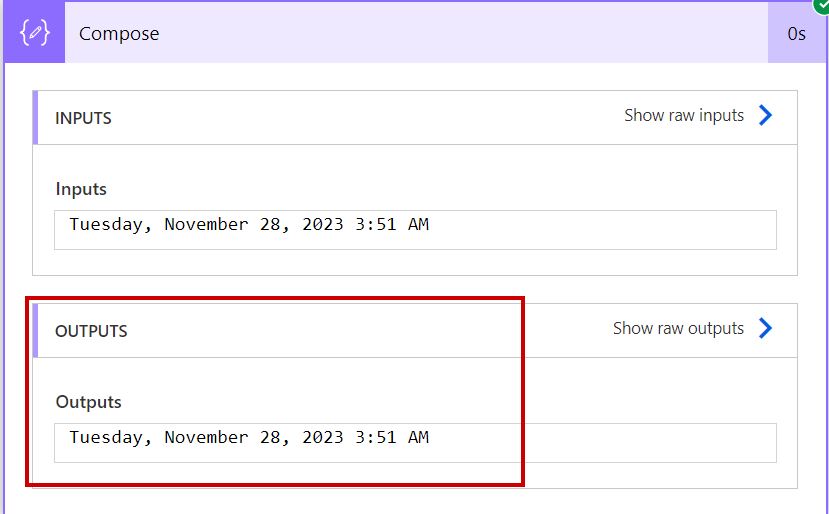
This is how Power Automate converts UTC to local time using the Convert time zone action.
Power Automate Convert UTC to Local Time Using ConvertFromUtc() Function
I will show you how to convert UTC to local time using the ConvertFromUtc() Function. To work around this, follow the steps below.
1. Open the Power Automate home page, click + Create -> Select the Instant cloud flow -> Enter the flow name and choose the trigger’s flow (Manually trigger the flow).

2. Next, add the ‘Initialize variable’ to store the text value during the flow and set the required fields. Set all the required details.
- Name: Provide the name of the initialized variable.
- Type: Select the type of variable as String.
- Value: Here, I have given the expression utcNow() from Expression.
utcNow()
3. Add the ‘Compose’ flow action to convert UTC to local time expression.
convertFromUtc(utcNow(), 'Eastern Standard Time','dd-MM-yyyy hh:mm tt' )
4. Now, it’s time to Save and Test. Test it Manually -> The Compose flow action will display the output according to the expression below.

This is how Power Automate converts UTC to local time using the ConvertFromUtc() expression.
Power Automate Convert time in SharePoint List using Convert time zone action
In this part, I will show you how to convert time in a SharePoint list using the Convert time zone action.
Here, I will show how to convert the time of a created column in a SharePoint list and display when the SharePoint item is created with day, date, and time with the local time zone.

To work around this, follow the steps below.
1. Navigate to https://make.powerautomate.com in the browser to open the Power Automate home page. Click on + Create -> Select the Automated cloud flow -> Provide the flow name and choose the trigger’s flow(When an item is created and modified).
- In this trigger, provide the Site Address and List Name.

2. Then add the ‘Convert time zone’ flow action to convert date and time values from one time zone to another within your automated flows and set the required field.
- Base time: Select the value you want to convert.
- Source time zone: Provide the value in which the base time is currently expressed.
- Destination time zone: Set the time zone to which you want to convert the base time.
- Format string: Select the exact format of the string pattern as per your scenario.

3. Add the ‘Update items’ flow action to modify or update specific properties of an item in a data source and set the required fields.
- Site Address: Provide the SharePoint site URL.
- List Name: Select the name of the SharePoint list.
- Id: Select the item Id of a SharePoint list.
- Event Post Date&Time: Here, I have given Converted time from dynamic content.

4. Now, click on Save and Test. Select Manually and test it. Then open the SharePoint list, which displays the output according to the Convert time zone action.

This is how Power Automate Convert time in SharePoint List using Convert time zone action.
Conclusion
I hope you find this Power Automate tutorial helpful. This article taught us how to convert UTC to local time using the Convert time zone action and the ConvertFromUtc() function.
Moreover, I have explained how to convert time in a SharePoint list using the Convert time zone action in Power Automate
Also, you may like some more Power Automate tutorials:
- Get Current Date in Power Automate
- Get Current and Previous Month in Power Automate
- Export SharePoint List to Excel and Send an Email Using Power Automate
- Create SharePoint List Using Power Automate

Preeti Sahu is an expert in Power Apps and has over six years of experience working with SharePoint Online and the Power Platform. She is the co-author of Microsoft Power Platform: A Deep Dive book. As a Power Platform developer, she has worked on developing various tools using Power Apps and Power Automate. She also makes Microsoft 365 videos and shares them on YouTube.

