
I got a requirement from my client to extract email from a SharePoint person or group field. You can do this using JSON in SharePoint.
In this tutorial, I will explain how to use JSON to retrieve an email address from a person or group field in a SharePoint Online list.
To extract the email address from a people picker column of a SharePoint list, you can use Power Automate or JSON formatting.
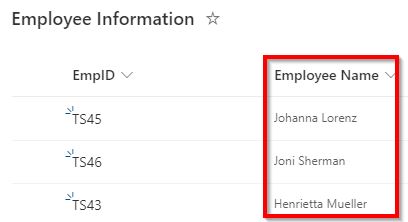
Here, you can see that I have a SharePoint Online list as “Employee Information”; it has a person column as Employee Name.
Based on that column, I will show you how to apply JSON formatting to retrieve email addresses from the person column by creating an additional column.
Get an Email Address from a SharePoint Person Column using JSON
Follow the steps below to get an email address from a person or group column in a SharePoint list using a JSON statement.
- Open a SharePoint list where you need to retrieve email addresses from the person column.
- Now, click on +Add column -> Select Single line of Text -> Click on Next button.

- On the Create a Column page, give a Name for the column and click on Save.

- Now, click on the column header of an Employee Email, Select Column settings, and click on Format this column.

- In the Format column property pane, click on the Advanced mode link.

- In the Format columns, I have applied the following JSON code to retrieve an email address.
- EmployeeName is the internal name of a people picker column.
{
  "$schema": "https://developer.microsoft.com/json-schemas/sp/v2/column-formatting.schema.json",
  "elmType": "div",
  "txtContent": "[$EmployeeName.email]"
}
- Now, you can see that email addresses have been retrieved from the person column in a SharePoint list, as shown below:

This is how to get an email address from a SharePoint list person column using JSON Condition.
I hope you now know how to retrieve an email address from a SharePoint person or group field column using JSON code.
You may also like the following tutorials:
- Create a Custom ID Column in SharePoint List using JSON
- Convert JSON to Custom Object in Power Automate Desktop
- Gantt Chart View in SharePoint Online Modern List Using JSON
- Format a SharePoint Online List Column using JSON

Preeti Sahu is an expert in Power Apps and has over six years of experience working with SharePoint Online and the Power Platform. She is the co-author of Microsoft Power Platform: A Deep Dive book. As a Power Platform developer, she has worked on developing various tools using Power Apps and Power Automate. She also makes Microsoft 365 videos and shares them on YouTube.

