
In my recent Power Automate project, I needed to embed an image directly into an email. After some research, I found that using HTML image tags within Power Automate can do this.
In this tutorial, I will discuss the five easiest ways to embed an image into an email in Power Automate: Content ID (CID) Embedding, Data URI Embedding, Full URL Path, and Base64 Encoding.
Embedding an Image Using the Content ID (CID) Method in Power Automate
Imagine you are sending a marketing email from Power Automate, and you want your company logo to appear directly in the email’s body rather than as an attachment or link. The Content ID (CID) method is perfect for this. It allows you to attach the image to the email with a special identifier (the “CID”) to display inline as part of the email content.
For this example, I created a SharePoint document library called Embed Images and added our company logo to it.

Now follow the steps below:
1. Create an Instant cloud flow, provide a name for the flow, and select the trigger (Manually trigger a flow). Next, add the Get file content using path action to retrieve the company logo. Set the Site Address to where the image is stored, then specify the File Path and select the image.
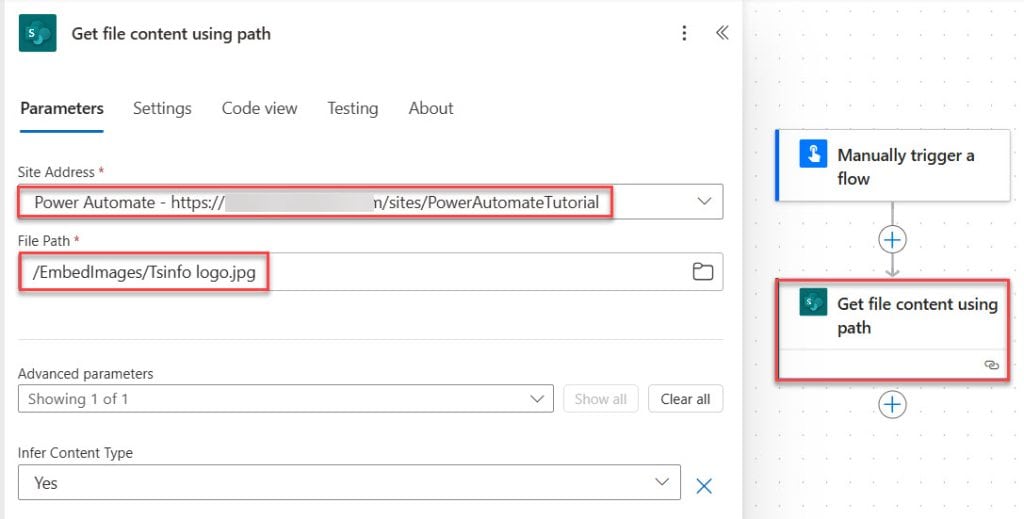
2. Next, add a compose action and provide the following HTML:
<img src='cid:Tsinfo logo.jpg' />
3. Lastly, add a Send an email action and provide parameters below:
- To: Provide the recipient’s email address.
- Subject: Enter a subject line for the email.
- Body: Use the output of the Compose action.
Then, click Show all to access the advanced parameters.
- Attachments: For the attachment, set the name to something like “Tsinfo logo” and use the dynamic content from File Content as the attachment content.

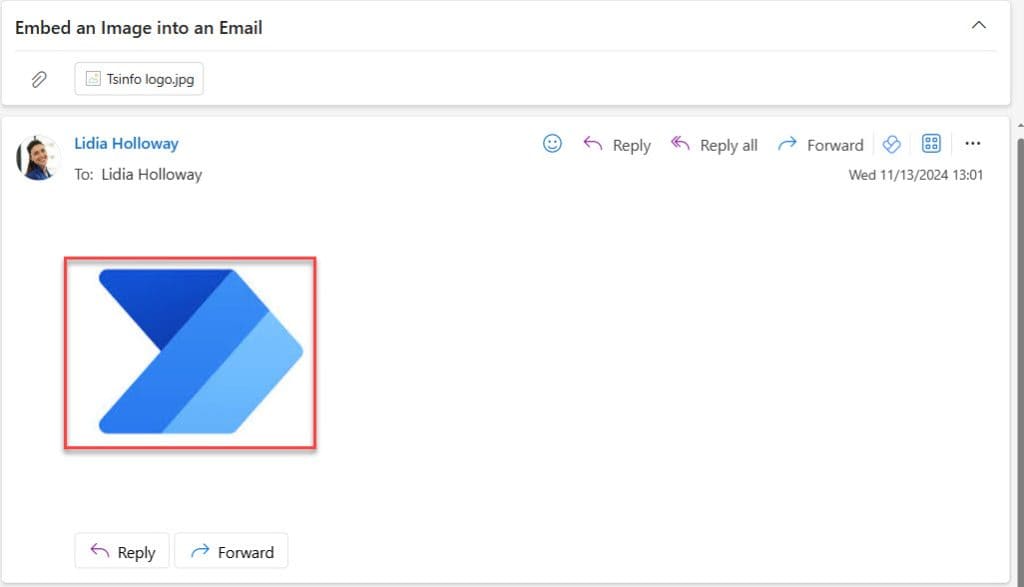
Now, we test our flow to do this. Click on Test Select Manually -> Click on Test inside the Test Flow tab. After the flow runs successfully, check the outlook you see, like the screenshot below.

Embed an Image in an Email Using the dataUri Approach in Power Automate
Let’s say you’re sending an email from Power Automate and want to embed an image directly without adding any attachments or external links. The Data URI Approach is a great solution because it allows you to encode your image into a string format (Base64) and embed that string directly into your email.
Create an instant cloud flow, and then retrieve the image file from a location like SharePoint, OneDrive, or another source. The “Get file content” or “Get file content using path” action is used to fetch the image file. For this example, my image is present in onedrive, so I use the ” Get file content using path” action from onedrive, then select the image.

Then add a compose action and provide the following:
<img src="@{dataUri(body('Get_file_content_using_path'))}">
Next, add a Send an email action and provide the parameters below:
- To: Provide the recipient’s email address.
- Subject: Enter a subject line for the email.
- Body: Use the output of the Compose action.

To test our flow, click Test, select Manually, and then Test inside the Test Flow tab. After the flow runs successfully, check your Outlook inbox. As the screenshot shows, you should see the email embedding an image.
Embed an Image in an Email Using a Full URL Path in Power Automate
Imagine you’re sending a monthly newsletter and want to include a banner image stored in a SharePoint document library.

Using the Full URL Path method, we can get the image’s URL from SharePoint and include it in your email’s HTML body. To do this, follow the steps below:
Add a Get file metadata using path action in an instant cloud flow and provide the Site Address and File Path.

Then, adda send an email action and provide the following parameters:
- To: Provide the recipient’s email address.
- Subject: Enter a subject line for the email.
- Body: Provide the below HTML code:
<img src="Your Site Address@{outputs('Get_file_metadata_using_path')?['body/Path']}">
To test our flow, click Test, select Manually, and then Test inside the Test Flow tab. After the flow runs successfully, check your Outlook inbox. As the screenshot shows, you should see the email embedding an image.

Embed Image into an Email Using Base64 Encoding in Power Automate
Let’s say you’re sending an email with an image stored in a SharePoint library. Instead of linking to or attaching the image, you embed it directly in the email body using Base64 encoding.
Add a Get file content action in an instant cloud flow and provide the Site Address and File Identifier.

Then, add a send an email action and provide the following parameters:
- To: Provide the recipient’s email address.
- Subject: Enter a subject line for the email.
- Body: Provide the HTML code below with the expression:
<img src="data:@{body('Get_file_content')?['$content-type']};base64,@{body('Get_file_content')?['$content']}">
Now, it’s time to save the flow. Click on Test -> Select Manually. After the flow runs successfully, check your Outlook inbox.

Embed Image into an Email Using HTTP Request in Power Automate
Now, I will show you how to send an email using an http request. In that email, I need to embed the image.
To do this, follow the steps below:
1. Create an Instant cloud flow, provide the flow name, and choose the flow trigger (manually trigger a flow).

2. Add the Get file metadata using path action and provide the site address and file path.

3. Add Send an HTTP request to SharePoint action with the following parameters:
- Site Address: Select your SharePoint site address
- Method: Select POST from the drop-down
- Uri: Put the below send email endpoint code:
_api/SP.Utilities.Utility.SendEmail- Headers:
- Accept: application/json;odata=nometadata
- Body: Provide below:
{
'properties':
{
'To':['[email protected]'],
'Subject':'Embed Images in Emails',
'Body': '
<img src ="Site Address/@{outputs('Get_file_metadata_using_path')?['body/Path']}" >
'
}
}
Now, it’s time to save the flow. Click on Test -> Select Manually. When the flow runs successfully, it will send an email notification when you see the embedded image.

In this tutorial, I covered five ways to embed images directly into an email using Power Automate. We looked at the Content ID (CID) method, the Data URI embedding approach, using a Full URL Path, Base64 encoding, and using an HTTP request. Each method allows you to display images inline within your email, whether the image is stored in SharePoint, OneDrive, or another location.
Additionally, you may like some more Power Automate tutorials:
- formatDateTime() Function in Power Automate
- Create Different Columns in a SharePoint Library Using Power Automate
- Save an Email Message to SharePoint Using Power Automate
- Get Email Address From Name in Power Automate
- Send Birthday Emails from Excel Using Power Automate
- Send a No Reply Email from a Specific Sender Name in Power Automate
- Export SharePoint List to Excel and Send an Email Using Power Automate

Preeti Sahu is an expert in Power Apps and has over six years of experience working with SharePoint Online and the Power Platform. She is the co-author of Microsoft Power Platform: A Deep Dive book. As a Power Platform developer, she has worked on developing various tools using Power Apps and Power Automate. She also makes Microsoft 365 videos and shares them on YouTube.

