
Would you like to learn how to enable the app catalog in SharePoint? I will explain everything about the SharePoint app catalog site. Its purpose and how to work with it.
I will explain how to create an app catalog site in SharePoint Online and SharePoint on-premises.
What is the SharePoint App Catalog?
The SharePoint App Catalog is a special site collection in SharePoint that acts as a central repository for managing, storing, and distributing custom apps (now commonly referred to as SharePoint Add-ins or SharePoint Framework (SPFx) solutions) within your organization. Think of it as an internal app store for your company’s SharePoint environment.
There are two types of App Catalogs in SharePoint:
- Tenant App Catalog: A centralized catalog available to all site collections in your SharePoint Online tenant.
- Site Collection App Catalog: A localized app catalog scoped to a specific site collection, providing flexibility for unique business units or departments.
The primary purpose of the App Catalog is to provide a controlled and secure way to distribute custom solutions and third-party apps within your SharePoint environment.
Administrators can manage all custom and third-party apps from a single location, making it easy to update, remove, or audit solutions.
Once an app is uploaded to the App Catalog, it can be installed on any site collection (or within the scope of a site collection app catalog), saving time and effort compared to manual deployments.
Departments or teams can have their own site collection app catalogs to manage solutions specific to their needs without impacting the entire organization.
What Can You Store in the SharePoint App Catalog?
In a SharePoint app catalog, you can store different types of solutions, such as:
- SharePoint-hosted apps
- Provider-hosted apps
- SharePoint Framework (SPFx) solutions
- Third-party apps purchased from the Microsoft Store
How Does the SharePoint App Catalog Work?
1. Creating the App Catalog
A SharePoint administrator creates the App Catalog site collection. In SharePoint Online, this is typically done through the SharePoint admin center. For on-premises environments, it’s created through Central Administration.
2. Uploading Apps
Developers or administrators upload custom apps or SPFx packages to the App Catalog. This is similar to uploading a document to a document library, making the process straightforward and familiar to SharePoint users.
3. Making Apps Available
Once uploaded, these apps become available for installation on all site collections (for the tenant app catalog) or within the specific site collection (for the site collection app catalog). Site owners can then add these apps to their sites as needed.
4. Managing and Updating Apps
Apps can be updated or removed from the App Catalog at any time. When an app is updated, you can choose to push the update to all sites where the app is installed, ensuring consistency and reducing maintenance overhead.
Create an App Catalog in SharePoint Online
To create an App Catalog in SharePoint Online, follow these steps:
- Go to the SharePoint Admin Center. Under More features, select Apps.
- Click on App Catalog and follow the prompts to create the site collection.

- Next, it will ask to create a new catalog site; for this, you need to provide the details like below:

- Now the new App Catalog site has been created successfully. This is now ready to use.

- I have just uploaded my new SPFX web part (.sspkg) to this library and activated it, so we can use it in our other site collections in SharePoint Online.

This is how to use the app catalog in SharePoint Online.
Create an App Catalog in SharePoint On-Premises
Follow the steps below to create an app catalog in SharePoint on-premises.
- Open SharePoint Central Administration. Then, choose “Apps” from the left-hand side, and this will open the Apps page. Click on Manage App Catalog from the App Management section on the Apps page.

- Then, on the Manage App Catalog page, click Create a New App Catalog Site and then click OK. Before that, you can also check the Web Application, or if you want, you can change the web application.
- Then this will open the Create App Catalog page, where you can enter the Title, Description, URL, and Site Collection Administrator, and then click on “Create“.
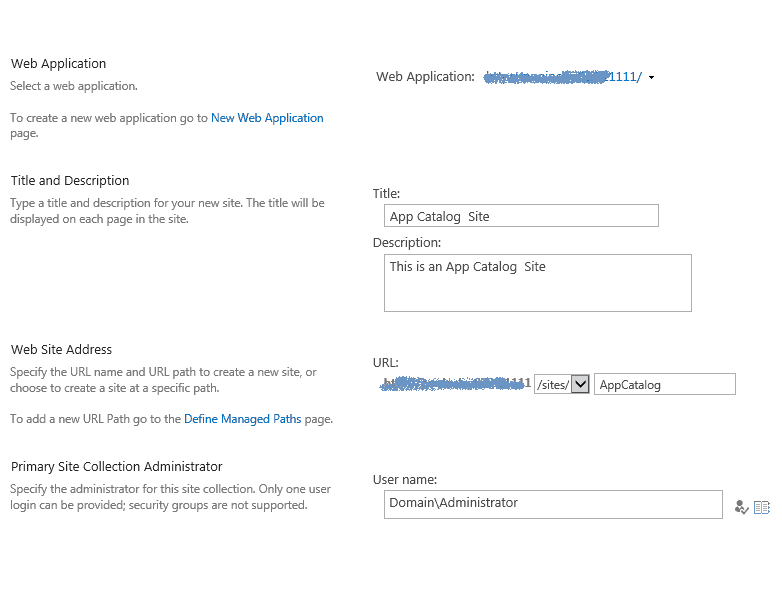
Once the SharePoint app catalog is created, you can upload your apps into it.
If you have access to PowerShell, you can also use the cmdlet below to create an app catalog site collection in SharePoint on-premises.
New-SPSite -Url http://sp:1001/sites/AppCatalog -OwnerAlias "serverName\sp_admin" -Name "App Catalog site" -Template "APPCATALOG#0"The SharePoint App Catalog is used for managing and deploying custom solutions in SharePoint Online and SharePoint on-premises versions. I hope you now learn how to use the app catalog in SharePoint. Do let me know if you have any questions.
You may also like the following tutorials:
- Create Remote Event Receiver in SharePoint Online
- SharePoint Script Editor Web Part
- Create a Folder in SharePoint using REST API
- SharePoint REST API CRUD Operations [With Examples]

After working for more than 18 years in Microsoft technologies like SharePoint, Microsoft 365, and Power Platform (Power Apps, Power Automate, and Power BI), I thought will share my SharePoint expertise knowledge with the world. Our audiences are from the United States, Canada, the United Kingdom, Australia, New Zealand, etc. For my expertise knowledge and SharePoint tutorials, Microsoft has been awarded a Microsoft SharePoint MVP (12 times). I have also worked in companies like HP, TCS, KPIT, etc.

