
Contoso’s PMO tracked two 2026 projects, a website redesign and a CRM rollout, in a spreadsheet that nobody outside the team opened. They already used Power BI for sales, so I built a Gantt chart in Power BI next to those reports. Now leadership sees every task, owner and percent complete on one timeline.
Power BI doesn’t include a Gantt chart out of the box, so the first step is adding one. In this tutorial, I’ll walk you through the free Gantt visual by Microsoft, from preparing the task data to mapping every field, formatting the timeline and fixing the usual problems.
Quick answer: In Power BI Desktop, select the … (More options) in the Visualizations pane > Get more visuals, search for Gantt, and add Gantt by Microsoft Corporation. Then add the visual and put your task name in Task, the start date in Start Date, and either End Date or Duration. Optional fields add the project (Parent), owner (Resource) and % Completion.
What a Gantt chart shows
A Gantt chart is a horizontal bar chart on a timeline. Each row is a task, the bar starts on the task’s start date and ends on its end date, and the shaded part of the bar shows how much is done. Grouping rows by project or phase turns it into a simple roadmap.
You could fake it with a native bar chart, which I cover later, but a real Gantt visual handles dates, grouping and progress for you. If you need a refresher on the visual pane itself, see how to use Power BI Desktop first.
Prepare the task data
You need one row per task. Here’s the Tasks table I used, loaded from an Excel workbook:
| Column | Type | Example |
|---|---|---|
| Task ID | Text | T-101 |
| Project | Text | Website Redesign |
| Phase | Text | Planning, Design, Build, Test, Launch |
| Task | Text | Gather requirements |
| Owner | Text | Megan Bowen |
| Start Date | Date | 01/05/2026 |
| End Date | Date | 01/16/2026 |
| Duration (Days) | Whole number | 12 |
| % Complete | Decimal (0 to 1) | 1.00 = 100% |
Check the data types in Table view before you build anything. The dates must be Date type, not text, and % Complete must be a decimal such as 0.75, not 75. If your tasks live in a SharePoint list, you can create a Power BI report from a SharePoint list and use the same columns.
Add the Gantt visual from AppSource
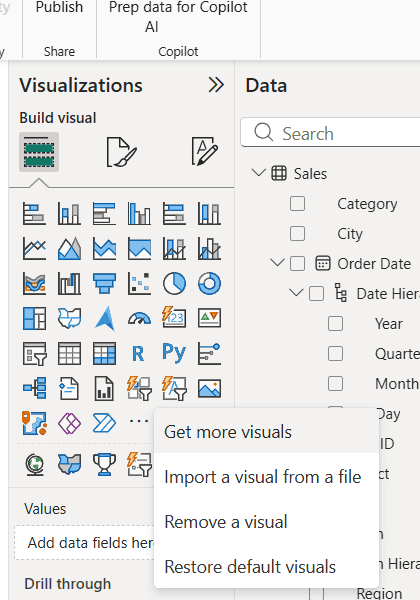
- In the Visualizations pane, select the … (More options) icon under the visual icons.
- Select Get more visuals. Sign in with your work or school account if Power BI asks.
- In the Power BI visuals window, search for Gantt.
- Select Gantt by Microsoft Corporation. It has the blue certified badge, which means Microsoft tested it and it doesn’t call outside services.
- Select Add. You’ll see Import successful, and a new Gantt icon appears at the end of the visual icons.
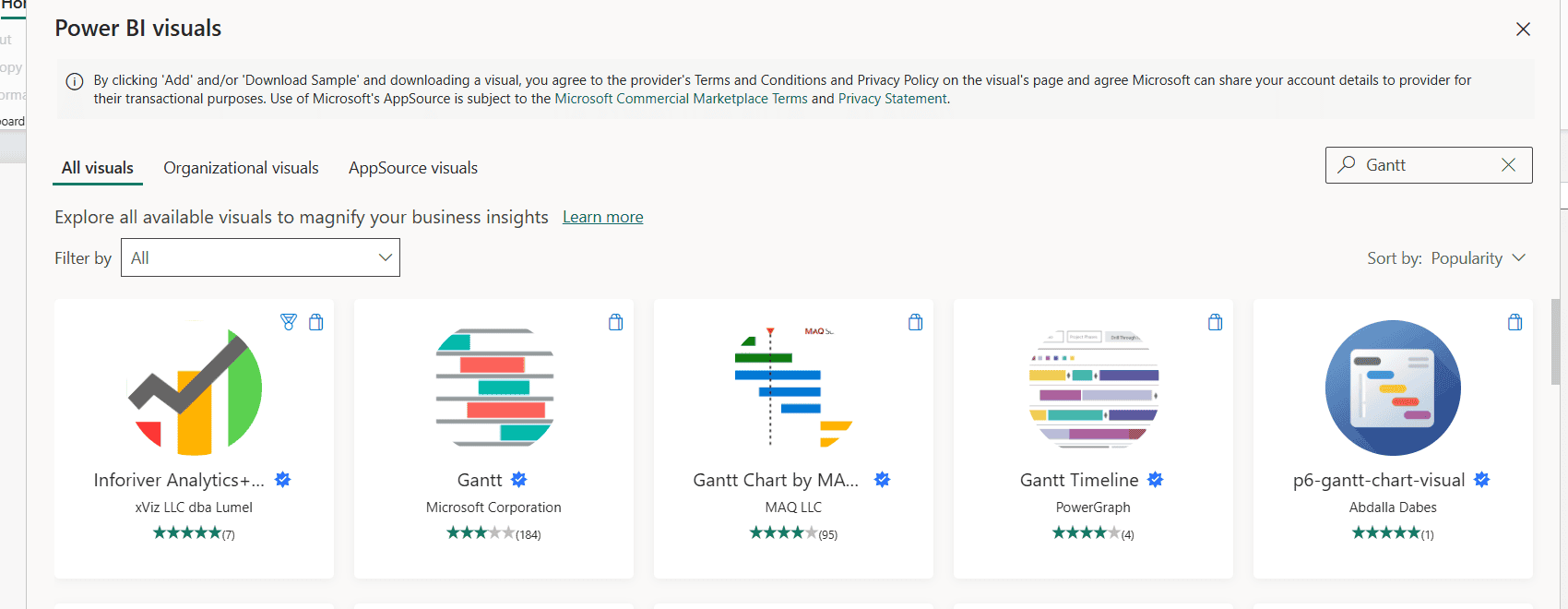
When I added it on 10/29/2026, the listing showed version 3.4.8.0 and the PBI Certified label. Selecting Add means you accept the provider’s terms shown at the top of the window.
Two other routes are worth knowing. The Organizational visuals tab lists visuals your Power BI admin approved for the company, and Import a visual from a file loads a downloaded .pbiviz file. If Get more visuals is blocked, your admin has turned off AppSource visuals for the tenant; ask them to add Gantt as an organizational visual.
Map the fields
Select the new Gantt icon to add the visual, then fill its wells. Here’s what each one does:
| Well | Field I used | What it does |
|---|---|---|
| Task | Task | One row per task (required) |
| Parent | Project | Groups tasks under a collapsible parent row |
| Start Date | Start Date | Where each bar starts (required) |
| End Date | End Date | Where each bar ends |
| Duration | (empty) | Use instead of End Date, in the unit set under General |
| % Completion | % Complete | Darker shading for the finished part |
| Resource | Owner | Name shown next to each bar |
| Legend | Phase | Colors bars by phase |
| Milestones | (optional) | Marks key dates such as Go live |
| Tooltips | (optional) | Extra fields on hover |
Drag each field into its well. Checking boxes in the Data pane is faster, but with this visual it dropped Task into Legend and End Date into Resource for me, so check the wells afterward.
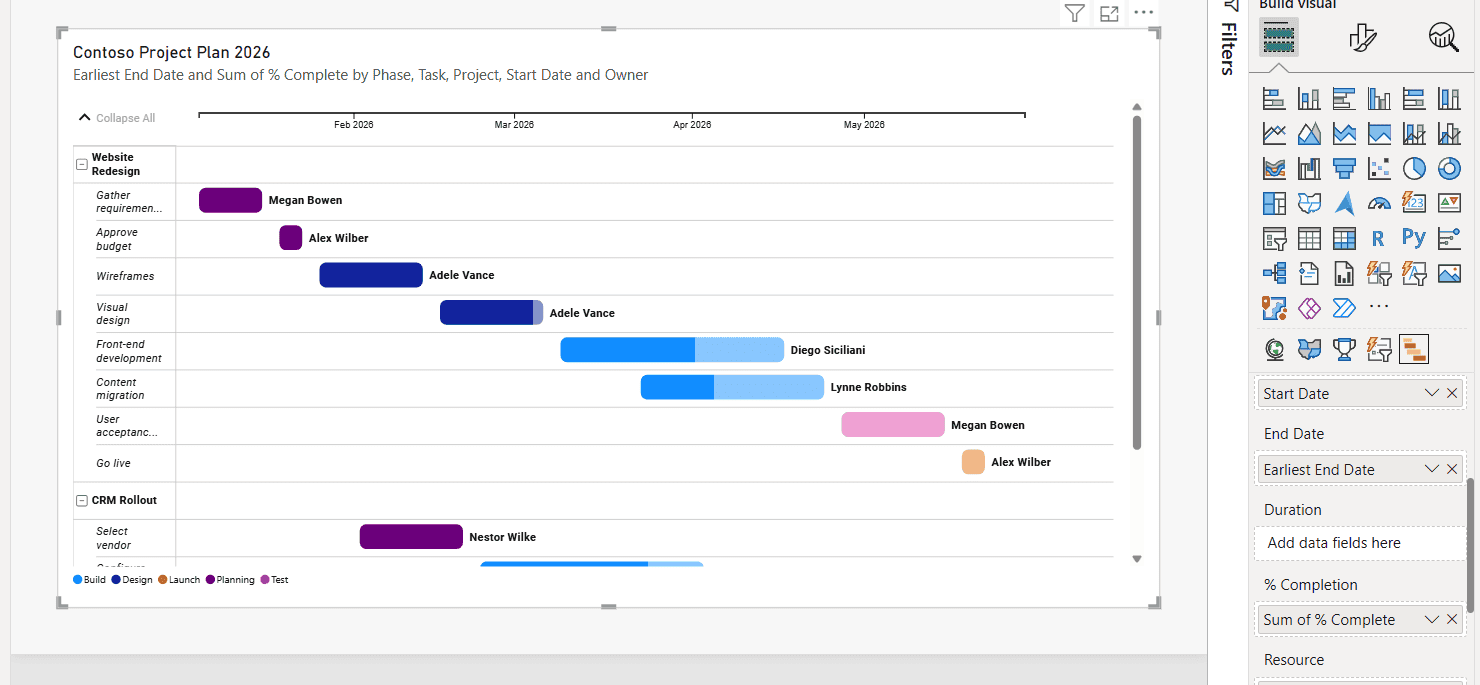
Each project is a parent row with its tasks under it, the bar colors show the phase, and the owner’s name sits at the end of each bar. The darker part of Front-end development shows it’s 60% done.
If a bar doesn’t appear, check the Start Date well. When Auto date/time is on, Power BI may add the field as a Date Hierarchy. Select the drop-down on the field in the well and choose Start Date instead of Date Hierarchy. Do the same for End Date.
Format the Gantt chart
Open Format visual > Visual. These are the cards I change on every Gantt:
- Date type > Type: switch from Week to Month or Quarter so the whole project fits. Show today line adds a marker for the current date.
- Category Labels: turn on Wrap label text so long task names aren’t cut off.
- General: set the Duration unit (Days by default) when you use Duration instead of End Date, and turn on Group Tasks to put tasks with the same name on one row.
- Task Completion and Data Labels: show or hide the progress shading and the resource labels.
- Legend: move or hide the phase colors.
Then go to the General tab > Title and replace the long automatic title with something like Contoso Project Plan 2026. Add a slicer for Owner or Project next to the chart; the guide to Power BI slicers shows the options, and you can sync slicers across pages if the plan spans several pages.
Show milestones
Add a text column such as Milestone Type (Kickoff, Go live) to the Tasks table and drag it into Milestones. Power BI draws a marker on the task’s start date and adds a Milestones card in the Format pane, where you pick the shape and color for each type.
Keep milestones to a few key dates, or the chart gets busy. A date range slicer in Power BI also helps readers zoom into one quarter.
Alternative: a Gantt chart without a custom visual
If your company blocks AppSource visuals, you can fake a Gantt with a native stacked bar chart:
- Create a measure for the days from the project start to each task’s start, for example DATEDIFF from the earliest Start Date to the task’s Start Date.
- Add a stacked bar chart with Task on the Y-axis, and the offset measure plus Duration (Days) on the X-axis.
- In Format visual > Bars, select the offset series and set its color to fully transparent, so only the duration bar shows.
The axis shows days, not dates, and there’s no grouping or progress shading, so I only use it when the custom visual isn’t allowed. The steps for the base visual are in the post on how to create a stacked bar chart in Power BI.
Limitations and troubleshooting
- No task dependencies: the Microsoft Gantt visual doesn’t draw arrows between tasks. Paid visuals in AppSource add dependencies and critical path.
- Blank visual: Start Date is a Date Hierarchy, or the date column is text. Switch the well to the plain column and check the data type.
- Bars are one day long: End Date isn’t in the End Date well, or a number field ended up there instead.
- Progress shading is missing or full: % Complete is stored as 0-100 instead of 0-1.
- The visual disappears for report viewers: your admin blocked uncertified or AppSource visuals in the service. Ask for it as an organizational visual.
- Too many rows to read: turn on the Parent well and collapse projects, or filter by owner.
For the rest of a project dashboard, these tutorials pair well with a Gantt:
Frequently Asked Questions
Does Power BI have a built-in Gantt chart?
No. You add one from AppSource with Get more visuals. The free Gantt by Microsoft Corporation is certified; the Microsoft Learn article on Power BI visuals from AppSource explains how imported visuals work.
What fields does the Power BI Gantt chart need?
At minimum Task and Start Date, plus either End Date or Duration. Parent, % Completion, Resource, Legend, Milestones and Tooltips are optional.
Why is my Power BI Gantt chart blank?
Usually the start date is a Date Hierarchy or text. Switch the field in the Start Date well to the plain date column and make sure its type is Date.
Can the Power BI Gantt chart show dependencies?
Not the Microsoft visual. For dependency arrows or a critical path, you need a third-party Gantt visual from AppSource, which may require a license.
Can I build a Gantt chart without AppSource?
Yes, with a stacked bar chart: one invisible series for the start offset and one visible series for the duration. It lacks dates on the axis and grouping.

Preeti Sahu is a Microsoft MVP for Power Apps with over six years of experience working with SharePoint Online and the Power Platform. She is the co-author of the book Microsoft Power Platform: A Deep Dive. As a Power Platform developer, she has built various tools with Power Apps and Power Automate, and she makes Microsoft 365 videos for YouTube.