
When you work with SharePoint regularly, you may find yourself opening the same document library again and again. This happened to me during one of my client projects, where different teams stored their files in multiple libraries. Instead of browsing through the site every time, I pinned the most frequently used libraries to Quick Access in the SharePoint library.
It made daily work much easier, especially for users who were not familiar with navigating SharePoint sites. With just one click, they could open the right library instantly and start working.
In this tutorial, I will show you how to Pin to Quick Access in a SharePoint Document Library with a simple example. Additionally, we will see the process of unpinning a Document library from the Quick Access step by step.
Additionally, you will learn how to pin and unpin files and folders for quick access in the SharePoint Document library.
Pin to Quick Access in a SharePoint Document Library
NOTE:
The Pin to Quick access feature is available only for SharePoint document libraries. It does not work for SharePoint lists.
Let’s navigate to the specific SharePoint Document library that you want to pin. On the top command bar, in the right section, you will see an option called ‘Pin to Quick access‘, as shown below. Click on it.

Now your SharePoint library is pinned to quick access. Below you can see a notification. Click on the Quick access link.

You will be redirected to the OneDrive page, which will open directly with the specific SharePoint document library you have pinned.

Unpin a SharePoint Document Library From Quick Access
Next, we will see how to unpin the SharePoint library from the Quick Access.
Under the OneDrive Quick access section, locate your SharePoint library and click the Unpin icon, as shown in the image below.

You can see a notification that your library is unpinned from Quick access at the bottom.

Pin SharePoint Document Library Files to Quick Access
Suppose you want to pin a specific important document or file from a SharePoint library. In this case, you can pin the file to the top. There are two ways to do it: (Same steps you can follow for the SharePoint Folder)
- From the Top Command Bar: Select the file from the library -> click Pin to top from the command bar.
- From More Actions: Select the file from the library -> click More actions -> Pin to top as shown below.
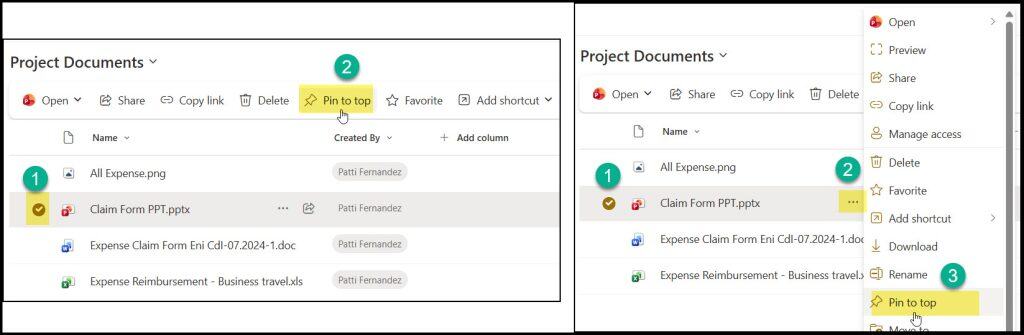
Now your important document is pinned and will display on top of the library.

Unpin SharePoint Library Files From Quick Access
Similarly, if you want to unpin this specific SharePoint file, there are two approaches to do it: (Same steps you can follow for the SharePoint Folder)
- From the Top Command bar: Select the file from the library -> Expand Edit pin -> Click Unpin from the command bar.
- From More Actions: Select the file from the library -> click More actions -> Edit pin -> Unpin as shown below.
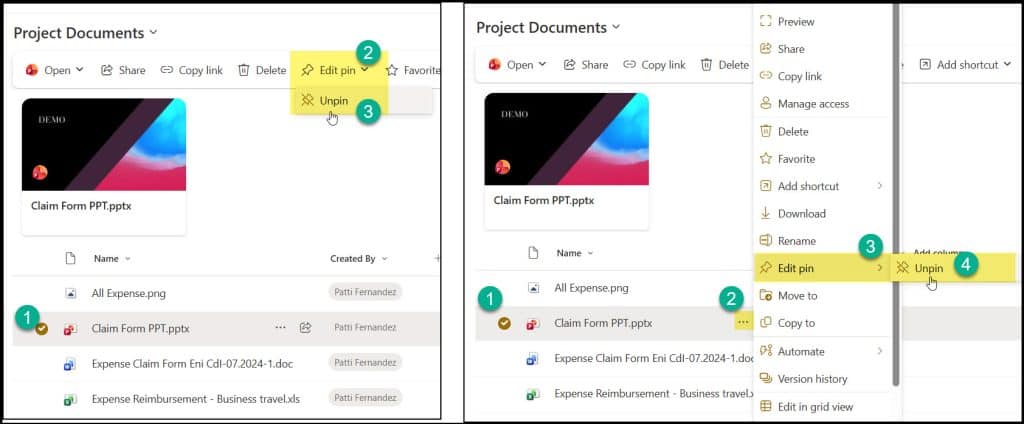
You can now see a notification below indicating that your file/document has been unpinned.

I hope this tutorial helped you to learn how to pin and unpin for quick access in the SharePoint Document library. Moreover, we learned how to pin and unpin files and folders for quick access in the SharePoint library using various approaches.
You may also like some more SharePoint tutorials:
- Change SharePoint Site URL and Name
- Enable Audience Targeting in SharePoint Site Left Navigation
- Get SharePoint Site Owner
- Modern Script Editor Web Part using SharePoint Framework

Preeti Sahu is an expert in Power Apps and has over six years of experience working with SharePoint Online and the Power Platform. She is the co-author of Microsoft Power Platform: A Deep Dive book. As a Power Platform developer, she has worked on developing various tools using Power Apps and Power Automate. She also makes Microsoft 365 videos and shares them on YouTube.

