
While working with Power Automate, I only needed to send an email if certain conditions were met. This is where the If condition comes in handy. It lets you check if something is true or false and, based on that, decide whether to send an email. For example, you could set up a flow to send an email only if a request is approved or a specific value is reached. It’s a simple way to make your automation smarter and only send emails when needed.
In this tutorial, I will show you how to send email using If condition in Power Automate. I will also explain how to send an email based on a field value using Power Automate.
Send Email Using If Condition in Power Automate
I have a SharePoint list called Task Tracker with a column named Due Date that records the deadline for each task. If the Due Date is blank, I want to email the assigned person, letting them know the task hasn’t been given a deadline yet.

Now follow the below steps:
1. Navigate to the Power Automate Home page, click + Create, and select the Scheduled Cloud Flow. Then provide the following information:
- Starting: Provide on which date you want to run your flow.
- at: Provide the time you want to run the flow, in my case, at 9:00 AM.
- Repeat every: We want to run the flow daily.

2. Then add the Get items action to retrieve the item in the SharePoint list and provide the below parameters:
- Site address: Select a specific site address from the drop-down.
- List Name: Select a specific list from the drop-down.

3. Add the Condition action to check whether the task’s Due Date is null.
In the Condition action, set the condition to check if the Due Date (from the Get items action) is equal to null.

4. Then, Add the Send an email action inside the true section and provide the below parameters:
- To: Assigned To email address from the dynamic content.
- Subject: Task Deadline Not Set.
- Body: Provide an email body.

Now, save the flow and run it manually. After the flow runs successfully, you will see that the assigned people receive an email.

Send an Email Based on Field Value using Power Automate
I am using the same SharePoint list Task Tracker, where you notice each task has a “Status” field with values such as “In Progress,” “Completed,” and “Pending.” Based on the task status, I want to send an email notification to the assigned person.
For example:
- If the status is “Pending,” send a reminder email to follow up on the task.
- If the status is “In Progress,” email the task owner to notify them of the ongoing task.
- If the status is “Completed,” send a different email congratulating them on finishing the task.
To do this, follow the below steps:
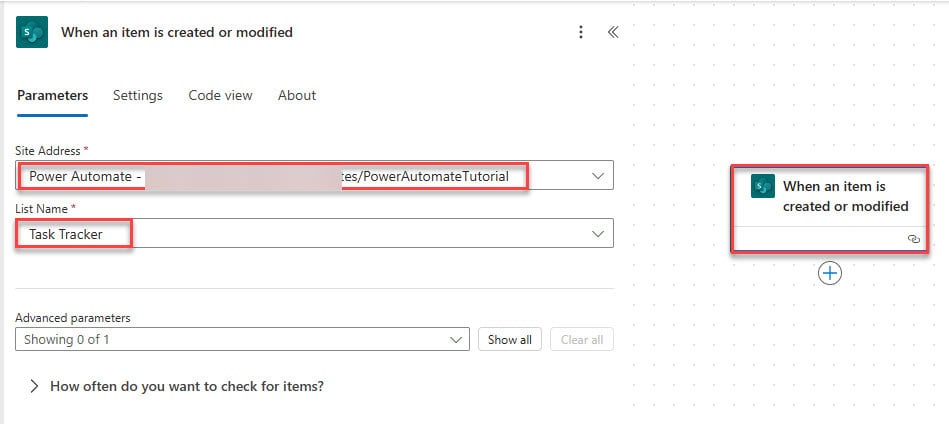
1. Create an automated cloud flow. Give the flow name and select the trigger When an item is created or modified. Also, provide the Site Address and List Name.
2. As you can see, I will use a switch condition when there are multiple conditions.
Add a Switch control flow action. Provide the below parameter:
- On: Take Status Value from the dynamic content.
By default, it displays with the Add Case icon and Default section.

3. Click + Add case to add the first case. Manually enter the value Pending inside the parameter.

4. Then, Add the Send an email action and provide the below parameters:
- To: Assigned To email address from the dynamic content.
- Subject: Task Pending Reminder.
- Body: Provide an email body.

5. Click + Add case to add the second case. Manually enter the value Low inside the parameter.

6. Then, Add the Send an email action and provide the below parameters:
- To: Assigned To email address from the dynamic content.
- Subject: Task in Progress.
- Body: Provide an email body.

7. Again, click + Add case to add the third case. Manually enter the value Completed inside the parameter. Then add a send an email action.

Now click on Save and run the Flow manually. Once the flow runs, modify the status column.

After the flow runs successfully, you can see that assigned people can get an email.

In this tutorial, I covered how to send an email based on specific conditions in Power Automate. First, I showed how to send an email if a SharePoint list field, like the “Due Date,” is blank using an If condition. Then, I explained how to send different emails based on the value of the “Status” field in the same list, using a Switch condition.
Related Power Automate articles:
- Check If a String is Empty in Power Automate
- Check the Condition If Blank in Power Automate
- Set Variable Based on Condition in Power Automate
- Save an Email Message to SharePoint Using Power Automate
- Update SharePoint List Items Based On Condition Using Power Automate

After working for more than 18 years in Microsoft technologies like SharePoint, Microsoft 365, and Power Platform (Power Apps, Power Automate, and Power BI), I thought will share my SharePoint expertise knowledge with the world. Our audiences are from the United States, Canada, the United Kingdom, Australia, New Zealand, etc. For my expertise knowledge and SharePoint tutorials, Microsoft has been awarded a Microsoft SharePoint MVP (12 times). I have also worked in companies like HP, TCS, KPIT, etc.

