
If you manage SharePoint Online, you’ll often need a clean list of who has access to a SharePoint site. In this tutorial, you’ll learn different ways to get SharePoint site members using PowerShell, with both SharePoint Online Management Shell and PnP PowerShell.
Use an editor such as Visual Studio Code or Windows PowerShell ISE to run the PowerShell commands.
NOTE:
Only SharePoint site administrators or those with admin access to Microsoft 365(Global administrators) can access the SharePoint site members.
Prerequisites and Setup
Before running any script, make sure you have:
- A SharePoint Online site URL (for example,
https://tenant.sharepoint.com/sites/Marketing). - Admin permissions on the site (Site Collection Admin or SharePoint Admin).
- PowerShell installed on your machine (Windows PowerShell 5.x or PowerShell 7+).
- The right modules are installed.
Now, let me show you how to install the required modules.
- SharePoint Online Management Shell module (to use
Get-SPOUser):
Install-Module -Name Microsoft.Online.SharePoint.PowerShell- PnP PowerShell module (to use
Get-PnPUser):
Install-Module -Name PnP.PowerShellIf you’re on a locked‑down machine, you may need to run PowerShell as Administrator.
Method 1: Get Site Members using SharePoint Online Management Shell
The main cmdlet here is Get-SPOUser. It returns users and security groups from the SharePoint site collection’s User Information List.
Connect to SharePoint Online
First, connect to your Microsoft 365 tenant:
Connect-SPOService -Url https://yourtenant-admin.sharepoint.comYou’ll get a sign‑in prompt. Use an account that has SharePoint admin permissions.
Syntax of Get-SPOUser
Basic syntax:
Get-SPOUser -Site <SiteUrl> [-Group <GroupName>] [-Limit <String>] [-LoginName <UserPrincipalName>]Key parameters:
-Site– site collection URL.-Group– SharePoint group name in that site.-Limit– number of results; default is 500, use"All"for everything.-LoginName– user UPN or login name.
Example 1: Get all Members of a SharePoint Site
To get all the SharePoint site members, use the following PowerShell cmdlets.
$siteUrl = "https://yourtenant.sharepoint.com/sites/SalesDepartmentTeam"

Get-SPOUser -Site $siteUrl
This returns all user and group accounts that exist in that SharePoint site collection. You can see the exact output in the screenshot below:

Example 2: Get members of a specific SharePoint group
Let’s say you only want “Planning Team Members”:
$siteUrl   = "https://yourtenant.sharepoint.com/sites/SalesDepartmentTeam"
$groupName = "Planning Team Members"

Get-SPOUser -Site $siteUrl -Group $groupName
This is useful when you want to check only a specific permission level, such as Members or Visitors. You can see the exact output in the screenshot below:

Example 3: Get a limited number of users
If you just want to sample the first 10 entries:
$siteUrl = "https://yourtenant.sharepoint.com/sites/SalesDepartmentTeam"

Get-SPOUser -Site $siteUrl -Limit "10"
To fetch everything, set -Limit "All".

Example 4: Get a specific user from a SharePoint site
You can quickly check if a user is registered on a SharePoint site:
$siteUrl   = "https://yourtenant.sharepoint.com/sites/SalesDepartmentTeam"
$loginName = "[email protected]"

Get-SPOUser -Site $siteUrl -LoginName $loginName
This returns the matching user object if the account exists in that SharePoint site’s user list. Here is the exact output in the screenshot below:

Example 5: Get Members from a SharePoint Communication Site
It works the same way for a communication site in SharePoint:
$siteUrl = "https://yourtenant.sharepoint.com/sites/ITSoftware"

Get-SPOUser -Site $siteUrl -Limit "All"
You can use the same cmdlets for classic team sites, modern team sites (with or without Microsoft 365 groups), and communication sites. Here is the exact output in the screenshot below:

Execute the above command. You will get exactly the specified limited members in the console. To get all the SharePoint site members, set the Limit parameter value to “All.”
Export SharePoint Site Members to CSV
For reporting, sometimes you may need to export the result to a CSV file:
$siteUrl = "https://yourtenant.sharepoint.com/sites/SalesDepartmentTeam"
$output  = "C:\Reports\SalesDepartmentTeamMembers.csv"

Get-SPOUser -Site $siteUrl -Limit "All" |
    Select DisplayName, LoginName, Email, IsSiteAdmin |
    Export-Csv -Path $output -NoTypeInformation
Now you can filter and share this report easily in Excel.
NOTE:
Follow the same PowerShell commands to get all the members of different SharePoint sites, like team site connected to the Microsoft 365 group, classic team site, communication site, and the team site without connected to the Microsoft 365 group.
Check out Create a SharePoint Online Site Using PowerShell
Method 2: Get SharePoint Site Members using PnP PowerShell
Now, let us see how to get SharePoint site members using PnP PowerShell.
Connect to the SharePoint site with PnP
Use Connect-PnPOnline to connect to a specific SharePoint site:
$siteUrl = "https://yourtenant.sharepoint.com/sites/SalesDepartmentTeam"

Connect-PnPOnline -Url $siteUrl -Interactive
The -Interactive switch opens a modern sign‑in window and supports MFA.
Syntax of Get-PnPUser
The Get-PnPUser command is used to get the list of SharePoint site members in PnP PowerShell. We can also retrieve the SharePoint site members based on their permissions.
Syntax:
Get site members based on their identity:
Get-PnPUser [-Identity <UserPipeBind>] [-Connection <PnPConnection>] Get site members who have specific access to the current site, including lists and libraries:
Get-PnPUser [-WithRightsAssigned] [-Connection <PnPConnection>]
Get site members details who have specific access to the current site, including lists and libraries:
Get-PnPUser [-WithRightsAssignedDetailed] [-Connection <PnPConnection>]Where;
- Identity: It specifies the user ID, login name, or Microsoft account for the user identification.
- Connection: You may optionally connect to a different site by executing the “Get-PnPConnection” or “Connect-PnPOnline” command.
- WithRightsAssigned: It specifies the members with specific access to the current site, including lists and libraries.
- WithRightsAssignedDetailed: It specifies the details of site members with specific access to the current site, including lists and libraries.
To get SharePoint site members, you need to establish a direct connection between the SharePoint Online site and PowerShell.
Check out Add SharePoint Online List Items Using PnP PowerShell
Example 1: Get all users from the SharePoint site collection
To get all the SharePoint site members using PnP PowerShell, you can use the following command:
Connect-PnPOnline -Url "https://yourtenant.sharepoint.com/sites/SalesDepartmentTeam" -Interactive

Get-PnPUser
To execute the above command, click on the RUN button. It will display SharePoint site members in the TERMINAL, as shown in the screenshot.
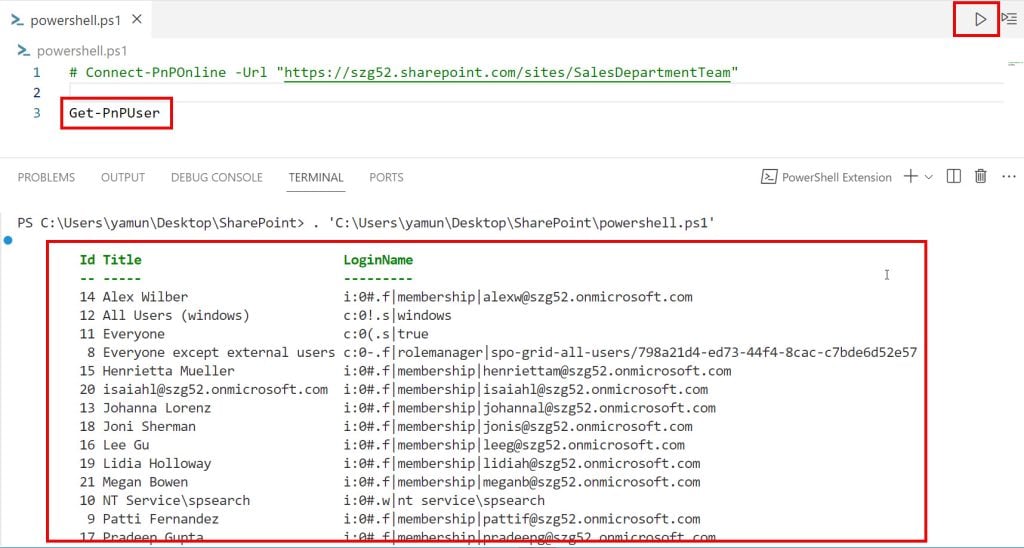
This returns all users recorded in the User Information List for that SharePoint site collection.
Example 2: Get a user by identity (ID or login name)
Follow this command to get specific SharePoint site members based on their identity, such as user ID, title, login name, and email. You can also check whether the member is present or not using this identity.
Using ID:
Get-PnPUser -Identity "13"After executing the above command, you will see a respected SharePoint site member in your TERMINAL, as shown below screenshot.

If the given identity is not found on the SharePoint site, it will show the “User cannot be found” error message.
Using login/claim name:
Get-PnPUser -Identity "i:0#.f|membership|[email protected]"Both forms return a single user, if found.
You can also find by email using standard PowerShell filtering:
Get-PnPUser | Where-Object Email -eq "[email protected]"This pattern is handy when you only know the email address.
Read Delete a SharePoint Online Site Using PowerShell
Example 3: Get only users who currently have access
If you care about current permissions (not historical), run the command below in PnP PowerShell to get all SharePoint site members with permissions to access the current site, including lists and libraries.
Get-PnPUser -WithRightsAssignedThis gives you users who have some level of rights on the current site, either directly or through SharePoint/AD groups. You can see the screenshot below:

You can see a list of all the members with the necessary permission to access the SharePoint site.
You can also target a specific subsite with -Web:
Get-PnPUser -WithRightsAssigned -Web "subsite1"Read Get SharePoint Site Storage Size Using PowerShell
Example 4: Get detailed permission information
To see where users are getting their access from in the SharePoint site:
Get-PnPUser -WithRightsAssignedDetailedClick the RUN button to execute the above command. After execution, you will get all the individual SharePoint site member details in the TERMINAL, as shown in the figure.
This returns detailed permission entries, including site, lists, and items.
Very useful when troubleshooting “why does this person see this library?” type issues.

Example 5: Get SharePoint Sommunication Site Members using PnP
To get all the SharePoint communication site members, first connect the communication site with PnP PowerShell. Then, you can use the PnP PowerShell command to get site members.
$siteUrl = "https://yourtenant.sharepoint.com/sites/ITSoftware"

Connect-PnPOnline -Url $siteUrl -Interactive

Get-PnPUser -WithRightsAssigned
You now have all users who actually have access to that SharePoint communication site. Here is the exact output in the screenshot below:

Check out Get the SharePoint Site Owner Using PowerShell
Export PnP Users to CSV
Here’s a practical example that exports all active users on a SharePoint site:
$siteUrl = "https://yourtenant.sharepoint.com/sites/SalesDepartmentTeam"
$output  = "C:\Reports\SalesTeamMembers_PnP.csv"

Connect-PnPOnline -Url $siteUrl -Interactive

Get-PnPUser -WithRightsAssigned |
    Select Title, Email, LoginName |
    Export-Csv -Path $output -NoTypeInformation
You can then hand this file to business owners as a clean access report.
Get Users Group‑wise for a Site (PnP PowerShell)
Sometimes you want: Group name → list of users. You can do that easily with PnP PowerShell.
$siteUrl = "https://yourtenant.sharepoint.com/sites/Marketing"
$output  = "C:\Reports\Marketing_GroupsAndUsers.csv"

Connect-PnPOnline -Url $siteUrl -Interactive

$groups    = Get-PnPGroup | Where-Object { $_.OwnerTitle -ne "System Account" }
$groupData = @()

foreach ($group in $groups) {
    $groupData += [PSCustomObject]@{
        "GroupName" = $group.Title
        "Users"     = ($group.Users.Title -join "; ")
    }
}

$groupData | Export-Csv -Path $output -NoTypeInformation
This gives you a nice “which users are in which group” report.
Classic SharePoint Server: Using Get-SPUser (On‑Premises)
If you’re still on SharePoint Server (on‑prem), there’s a similar cmdlet: Get-SPUser in the SharePoint Management Shell.
Example to get users in a group:
Get-SPUser -Web "https://sharepoint.contoso.com/sites/Portal" -Group "Viewers"Example to get a specific user:
Get-SPUser -Identity "contoso\jdoe" -Web "https://sharepoint.contoso.com/sites/Portal"This is not used for SharePoint Online, but it’s good to know if you manage hybrid environments.
Best Practices and Tips
A few practical tips when working with SharePoint site members and PowerShell:
- Always test scripts in a non‑production site first, especially when you extend them to update or remove users.
- Prefer PnP PowerShell for reporting and automation; it’s more feature‑rich and actively maintained. So, you should always try to use PnP PowerShell cmdlets.
- Use
-Limit "All"withGet-SPOUserwhen you need complete reports, otherwise you might get truncated results. - For large tenants, consider looping through multiple sites and exporting to CSV, then combining reports in Excel or Power BI.
- Use filters by email, login name, or group when you’re troubleshooting a specific user to keep the output readable.
Conclusion
You now have multiple, easy ways to get SharePoint site members using PowerShell, whether you prefer the native SharePoint Online Management Shell or the more flexible PnP PowerShell module.
Use Get-SPOUser when you want a quick view of users and groups for a site, and switch to Get-PnPUser when you need richer reports, filters, and detailed permission insights.
Do let me know if this helps.
You may also like the following tutorials:
- Get All Microsoft 365 Group Connected SharePoint Sites using PowerShell
- Upload Single or Multiple Files to SharePoint with Metadata Using PnP PowerShell

After working for more than 18 years in Microsoft technologies like SharePoint, Microsoft 365, and Power Platform (Power Apps, Power Automate, and Power BI), I thought will share my SharePoint expertise knowledge with the world. Our audiences are from the United States, Canada, the United Kingdom, Australia, New Zealand, etc. For my expertise knowledge and SharePoint tutorials, Microsoft has been awarded a Microsoft SharePoint MVP (12 times). I have also worked in companies like HP, TCS, KPIT, etc.

