
This Power BI tutorial will show how to filter measure in Power BI.
Recently, I worked on a Power BI report where I utilized a measure to filter the data essential for the report.
In this tutorial, I will tell you how to filter measures in Power BI with the help of two different scenarios.
How to Filter Measure in Power BI
Here, we will explore how to filter a measure in Power BI.
Example – 1 [Filter Measure in Power BI Slicer]
In this example, I will create a Power BI slicer, define a measure, and apply this measure in the filter pane. To do this, follow the below steps.
1. Open Power BI Desktop. Then go to Table view.

2. Under the Home tab, click the New table.

3. In the formula bar, click the below expression. Then click the Commit button.
Year Table = GENERATESERIES(1980,2030,1)Where:
- Year Table = Name of the table
- GENERATESERIES = DAX function, which returns a single-column table containing the values of an arithmetic series
- 1980 = Start Value
- 2030 = End value
- 1 = Increment Value

4. After that, you will observe a list of the years created, with the column name displayed as “Value.” Double-click on the column and rename it to “Year.”

5. Click the Report view -> Click the Home tab -> expand Visual gallery(black box) -> Click the Slicer visual.

6. Then, using the +Add data option, add the Year into the Field.

7. Then, under the Home tab, click the New measure.

8. In the formula bar, click the below expression. Then click the Commit button.
Filter Slicer =
IF(
		VALUES('Year Table'[Year]) < YEAR(TODAY()) - 5 && VALUES('Year Table'[Year]) > YEAR(TODAY()) - 20,
		1,
		0
)Where:
- Filter Slicer = Name of the measure
- IF = DAX Function
- VALUES = DAX Function
- Year Table = Name of the table
- Year = Name of the column
- TODAY() = DAX Function, which returns today’s date

9. Select the Slicer -> Expand the Filters panel. Then drag the Filter Slicer(Measure) into the Filter on this visual.

10. In the Filters pane, select Show items when the value -> is -> 1. Then click Apply filter.

11. After applying a filter on the slicer, it looks like the screenshot below.

This way, you can use the filter as a measure in Power BI.
Example – 2 [Filter Measure in Power BI Table visual]
This example will explore filtering a measure within a Power BI table visual.
Here I have a SharePoint list (Super mart) that contains below columns with various data types:
| Column | Data Types |
|---|---|
| Region | Sinfle line of text |
| Product Name | Single line of text |
| Sales | Currency |

1. Open Power BI Desktop and load the data. Then, your data set will be shown in the Data pane.

2. Then go to Table view -> Under the Home tab, click the New table -> In the formula bar, click the below expression. Then click the Commit button.
New Sales = GENERATESERIES(10,2000,50)Where:
- New Sales = Name of the table
- GENERATESERIES = DAX function
- 10 = Start Value
- 2000 = End value
- 50 = Increment Value

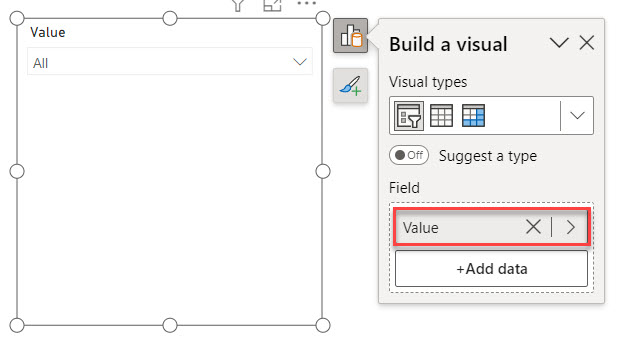
3. Click the Report view -> Click the Home tab -> Expand Visual gallery(black box) -> Click the Slicer visual -> Then, using the +Add data option, add the Value into the Field.
3. Under the Home tab, Expand Visual gallery(black box) -> Click the Table visual -> Then, using the +Add data option, add the Product Name, Region, and Sales in the Column field.

4. Then, under the Home tab, click the New measure.-> In the formula bar, click the below expression. Then click the Commit button.
Filter Sales =
IF(
		SUM('Super mart'[Sales]) > SELECTEDVALUE('New Sales'[Value]),
		1,
		0
)Where:
- Filter Sales = Name of the measure
- IF = DAX Function
- Sum = DAX Function
- SELECTEDVALUE = DAX Function
- Super mart, New Sale = Name of the table
- Sales, Value = Name of the column

5. Select the Table -> Expand the Filters panel. Then drag the Filter Sales(Measure) into the Filter on this visual. Then, In the Filters pane, select Show items when the value -> is -> 1. Then click Apply filter.

6. Afterward, when you select any value in the slicer, the table visual will display the increased sales figures associated with that value.

This way, you can use the filter as a measure in Power BI.
Conclusion
I hope this tutorial helps you to use the filter as a measure in Power BI.
In this tutorial, we covered using measures as filters in Power BI. Also, we see different examples, such as filtering measures using a Power BI slicer and a Power BI table visual.
Moreover, you may like some more Power BI tutorials:

Preeti Sahu is an expert in Power Apps and has over six years of experience working with SharePoint Online and the Power Platform. She is the co-author of Microsoft Power Platform: A Deep Dive book. As a Power Platform developer, she has worked on developing various tools using Power Apps and Power Automate. She also makes Microsoft 365 videos and shares them on YouTube.

