
I was recently working with Power Automate string() functions, where I got a task to remove special characters from a string in Power Automate.
With the help of the Power Automate string() functions, one can easily remove all the invalid characters that a string contains.
This tutorial will explain to you:
- How to remove a single special character from strings in Power Automate.
- Remove multiple special characters from a string using Power Automate.
- Example of Power Automate removing special characters from a string from a SharePoint list.
Remove a Specific Character from a string in Power Automate
Now, let’s discuss removing a single special character from a string in Power Automate.
Example:
| Input | Output |
| Washington DC ! | Washington DC |
I will create an Instant cloud flow in Power Automate that will trigger manually.
Follow the below steps:
1. To create an Instant cloud flow, navigate to https://make.powerautomate.com.
In the Power Automate Home page, Select the Instant cloud flow -> Provide the flow name, and choose the trigger’s flow (Manually trigger a flow) -> Click the Create button.
- Inside the trigger, add a text input.

2. Next, add an Initialize variable flow action to initialize the text input value. Configure the below properties:
- Name: Give a name for a variable.
- Type: Select type as String.
- Value: Choose Text Input value from dynamic content.

3. Take a Compose flow action to give the replace() expression.
- Inputs: Add the below code in the inputs section.
replace(variables('Text'),'!','')Note:
If you needs to remove any other special character other than exclamation, replace that special character with exclamation in the above expression.

4. Once the flow is ready, click on Save. Then, run the flow manually. In the Run flow window, take the text with any special character. Click Runflow.

5. When the flow runs successfully, it will give the output without any special character.
Refer to the image below:

This is how to remove a specific character from a string in Power Automate using the replace() function.
Power Automate Remove Multiple Special Characters from a String
In this section, I will explain how to remove multiple special characters from a string with the help of Power Automate.
Follow the above example steps to build an Instant cloud flow.
1. First, we need to initialize all the special characters and create them as an Array. Take an Initialize variable flow action.
Set the below details:
- Name: Provide a name.
- Type: Select datatype as Array.
- Value: Include the below expression to create an array.
createArray('.','@','ß','²','³','µ','`','´','°','^','=','(',')','&','$','§', '~','#','%','*',':','<','>','?','/','|','!',''',''','+','-','%',':')You can add any other special characters that you need.

2. Take one more Initialize variable flow action to initialize the text input, where we can provide a string containing special characters.
- Name: Provide a name.
- Type: Select datatype as String.
- Value: Take the value of Text input from the dynamic content.

3. Again, take an Initialize variable flow action. Provide details like Name and Type value as shown in the figure below.

Add Apply to each loop, and Select An Output From Previous Steps as a List of special characters from the dynamic content.

4. Add a Set variable flow action to replace the string with special characters. Add the below details:
- Name: Select the variable from the drop-down as ‘Repeat‘.
- Value: Provide the value as given in the code below.
replace(variables('Text'),item(),'-')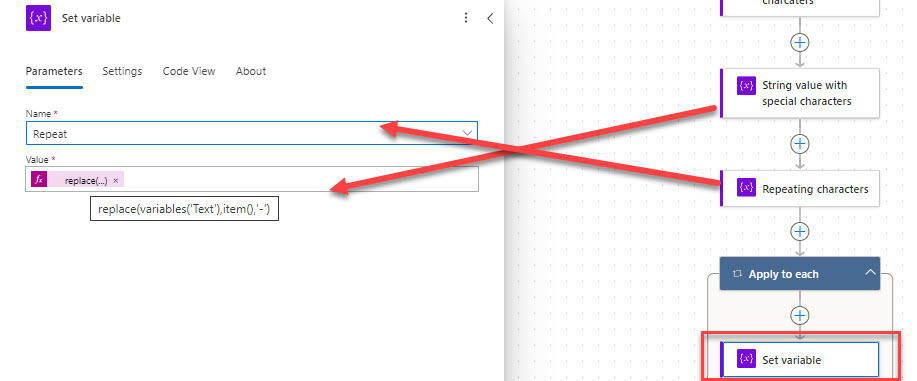
5. Again, take a Set variable flow action to set the value for a string. Configure the properties:
- Name: Choose the variable with the string with special characters from the drop-down.
- Value: Provide the below-given value.
replace(variables('Repeat'),'-','')
6. Next, add a Compose flow action to the outside of a loop.
- Inputs: Take the value of Text variable from the dynamic content.

7. In the same way, save and run the flow manually. Take a text input value with multiple special characters in the Runflow window.

Click Runflow.
Output:
The output of the compose action will give the text without any special characters, as shown in the screenshot below.

This is how to remove multiple special characters from strings in Power Automate using expressions.
Remove Special Character from a String from a SharePoint list in Power Automate
In this example, I will show you how to remove a special character from a SharePoint list column using the Power Automate replace() function.
Example
Now, I have taken a SharePoint list with two columns:
- Full Name: Single line of text [Title column]
- Preferred Email: Single line of text

| Input | Output |
| Lidia*@szg52.onmicrosoft.com! | [email protected] |
Follow the below steps:
1. In the Power Automate Home page, Select the Automated cloud flow -> Provide the flow name, and choose the trigger’s flow (When an item is created) -> Click the Create button.
- Site Address – select the SharePoint site address from the dropdown.
- List Name – Choose the specific SharePoint list.

2. Next, add a Compose flow action to give the expression to remove special characters.
- Inputs: Add the below given expression.
replace(replace(item()?['PreferredEmail'],'*',''),'!','')Click on the Add button.
Then, For each loop will be added automatically.

Note:
In the above expression, replace the specified special characters characters that you want to exclude.
3. Once the flow is ready, click on Save. Then, test the flow manually.
In the SharePoint list, add a new item with special characters as shown below:

4. When the flow runs successfully, it will display the string output after eliminating all the invalid characters.
You can check the below image:

This is how to remove special characters from a SharePoint list column using a Power Automate flow.
Conclusion
I hope you get an idea to remove all the special characters from a string using Power Automate.
I have covered examples like:
- How to remove a single special character from a string using Power Automate
- Stripping all the special characters in Power Automate
- Example of removing special characters from a SharePoint list by Power Automate
You may also like:
- How to Check Condition Contains String in Power Automate?
- How to Check If a row exists in Excel using Power Automate?
- Power Automate toLower() Function
- Power Automate toUpper() Function
- How to Use Power Automate trim() Function?

I have worked with Microsoft technologies for more than 18 years, including SharePoint, Microsoft 365 and the Power Platform (Power Apps, Power Automate and Power BI), at companies like HP, TCS and KPIT. I started EnjoySharePoint in 2011 to share the solutions I build in real projects with readers in the United States, Canada, the United Kingdom, Australia, New Zealand and beyond. Microsoft has recognised this work with the Microsoft MVP award 13 times since 2014.