
A project manager I worked with posted SharePoint task descriptions to a Teams channel with a flow. The first message arrived full of tags, something like <div class="ExternalClass..."><p>Review the budget</p></div>, and the team spent more time reading around the markup than reading the task. One action fixed it: Html to text.
Rich text in SharePoint, email bodies in Outlook and description fields in Dataverse are all stored as HTML, so this comes up constantly. In this tutorial, I’ll show you how the action works, how to deal with the line breaks it adds, and how to use it with SharePoint, Outlook and Dataverse.
Quick answer: Add the Html to text action from the Content Conversion connector and put your HTML in its Content field. It returns plain text: tags are removed, links become text[link], and lines wrap at 80 characters. To remove the extra line breaks, use replace(body('Html_to_text'), decodeUriComponent('%0A'), ' ').
How the Html to text action works
Html to text belongs to the Content Conversion connector, a standard connector from Microsoft that’s still labeled as a preview. It has one field, Content, and returns the plain text.
It doesn’t just delete tags; it follows a few formatting rules, and knowing them saves a lot of confusion:
- Lines are wrapped at 80 characters, so long paragraphs come back as several lines.
- A link such as
<a href="https://contoso.com">Details</a>becomes Details[https://contoso.com]. Links that point to # are ignored. - Headings and table header cells are converted to uppercase.
- Bulleted lists use an asterisk (*) for each item.
- Table columns are separated by three spaces, with no blank lines between rows.
- Line breaks typed into the HTML source are treated like spaces, and empty lines are trimmed.
There are limits, too: the content can be up to 5 MB, and the HTML can be nested up to 70 levels deep. Microsoft notes that unexpected line breaks or formatting are by design, and suggests cleaning the output with string functions, which is what we’ll do below.
Example 1: Convert HTML to text and email it as a file
Step 1: Create the flow
Create an instant cloud flow called Convert HTML to Text, with the Manually trigger a flow trigger:

Add a Text input to the trigger. When you run the flow, you’ll paste the HTML into it:

Step 2: Convert the HTML
Add a Compose action with the Text input, so the HTML is easy to find in the run history. Then add Html to text and put the Compose output in Content:

Step 3: Send the text as an attachment
Add Send an email (V2) with the recipient, a subject and a short message. Under the advanced parameters, add an attachment named output.txt and set its content to The plain text content from Html to text:

Step 4: Test it
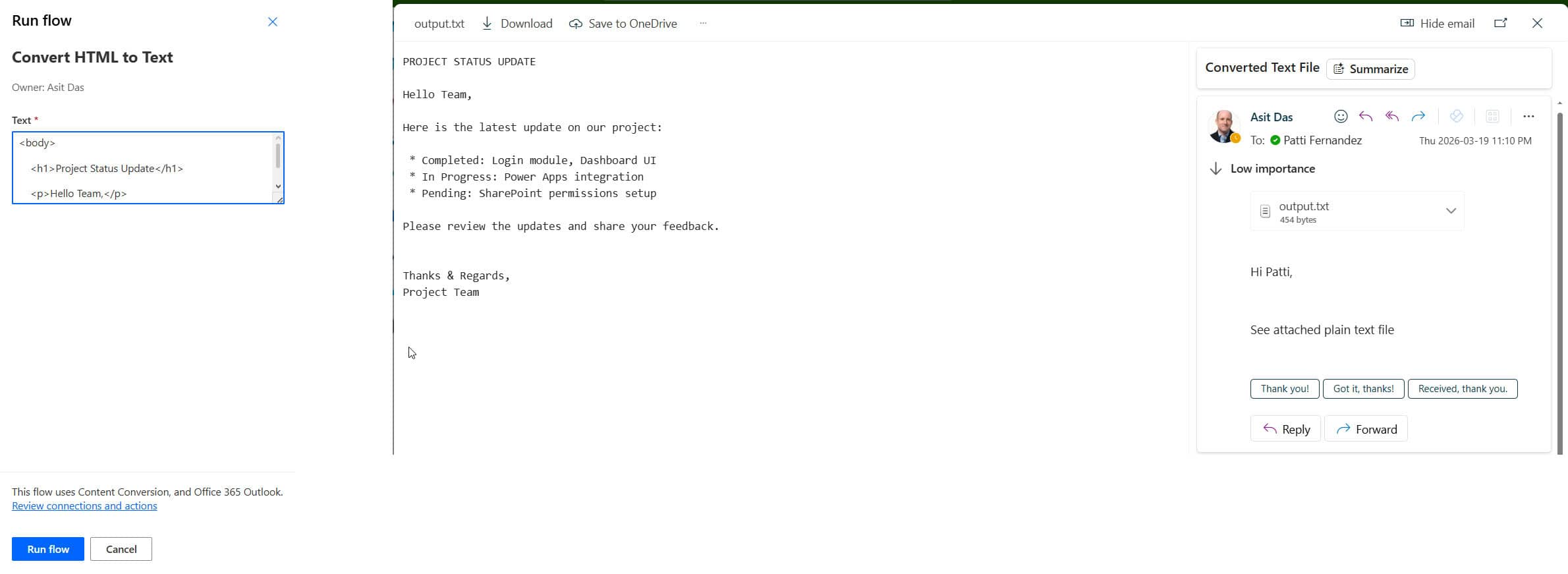
Save the flow, select Test, and run it with some HTML in the input. The email arrives with a text file containing the content, without the tags; the heading appears in uppercase and the list items start with an asterisk:
Example 2: Remove the line breaks from the result
The most common complaint about Html to text is the line breaks. <br> tags and paragraphs become new lines, and long lines are wrapped at 80 characters, which looks odd in an email or a Teams message. Here’s the HTML for this example:
<p>Hello,<br>This is a test.<br>Thank you.</p>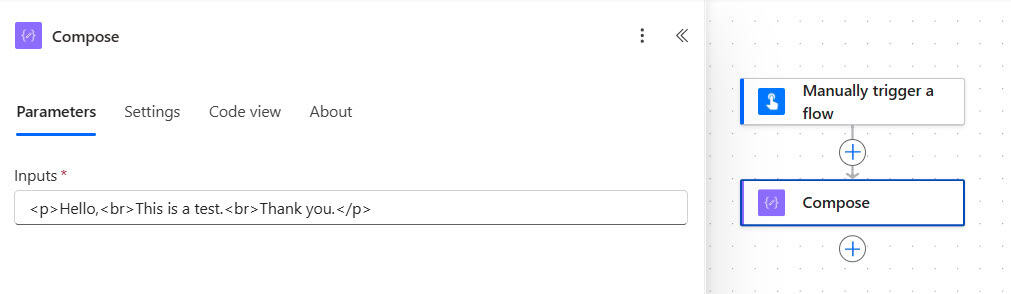
Remove the line breaks with an expression
After Html to text, add a Compose with this expression. decodeUriComponent('%0A') produces a line break character, so the expression replaces each line break with a space:
replace(body('Html_to_text'), decodeUriComponent('%0A'), ' ')Don’t use '\n' for this. Power Automate expressions don’t treat it as a line break, so the replace finds nothing.
The Compose trick shown in the screenshots
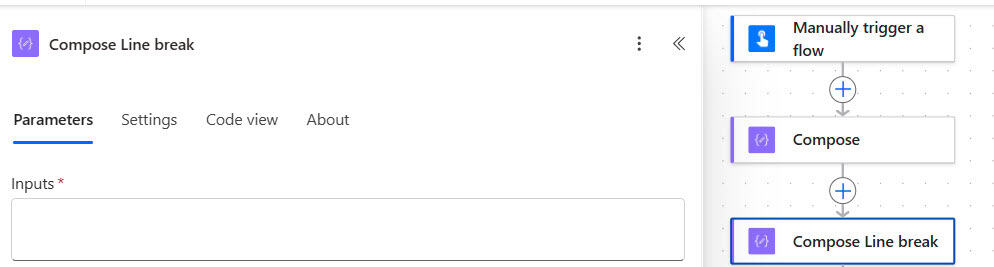
Another way to get a line break character is a Compose action whose input is just a press of the Enter key. I named it Compose Line break:
Convert the HTML with Html to text:

Then replace the line breaks with the output of that Compose:
replace(outputs('Html_to_text')?['body'], outputs('Compose_Line_break'), '')
Send the result in an email:

The line breaks are gone:
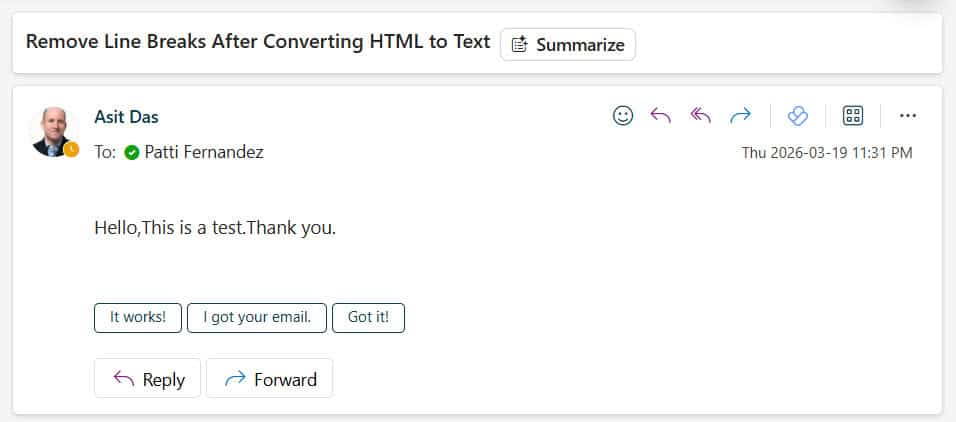
Notice the sentences run together (“Hello,This is a test.”) because each break was replaced with nothing. Replacing it with a space, as in the expression above, reads better.
Clean SharePoint rich text
Multiple lines of text columns with rich text are stored as HTML. In this Employee Onboarding list, the Description column holds formatted notes:
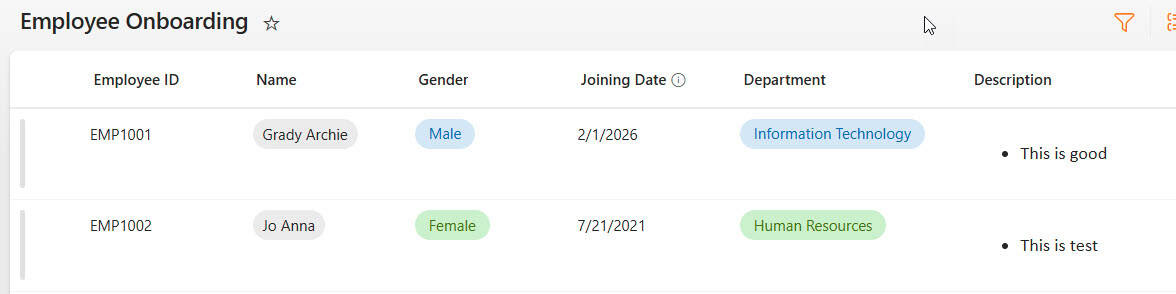
With the trigger When an item is created or modified, add Html to text and select the Description column in Content. The output is ready for a Teams message, an email or a plain text column:

Clean an Outlook email body
With the Outlook trigger When a new email arrives (V3), the Body is usually HTML, even when the message looks like plain text. The trigger also returns Is HTML, so you can check it first. Add Html to text with the Body in Content:

Use the clean text to log messages to a SharePoint list or Excel, or to pass them to another system.
Clean a Dataverse description field
In Dataverse, the email activity’s Description column holds the email body as HTML. With the trigger When a row is added, modified or deleted on the Email Messages table, add Html to text with the Description column:

Common problems
The output is empty. The Content field was blank. Add a Condition before the conversion that checks empty(...) on the field, and skip the step when it’s empty.
Non-breaking spaces show up as odd blanks. Replace them with regular spaces: replace(body('Html_to_text'), decodeUriComponent('%C2%A0'), ' ').
An xpath() expression fails on HTML. The xml() and xpath() functions need well-formed XML, which most HTML isn’t. Use Html to text instead.
The action isn’t available. The Content Conversion connector isn’t available for new implementations in US Government (GCC and GCC High) environments. If you’re on one of those, clean the text with replace() expressions instead.
If you’re working in a canvas app rather than a flow, Power Apps has its own function for this: PlainText(), which removes most HTML tags from a text value.
These Power Automate guides go well with converting HTML:
- Power Automate String Functions + 10 Examples
- How to Replace Multiple Strings using Power Automate?
- How to Use Power Automate Send an Email (V2) Action?
- How to Update SharePoint List Items Based On Condition Using Power Automate?
- Power Automate: Get Attachments From a SharePoint List Item and Send by Email
- Power Automate Split String into Array + Examples
Frequently Asked Questions
Which connector has the Html to text action?
It’s part of the Content Conversion connector, a standard connector from Microsoft. The connector reference lists its limits and formatting rules.
Why does Html to text add line breaks?
It turns paragraphs and
tags into line breaks and wraps lines at 80 characters by design. Remove them with replace(body(‘Html_to_text’), decodeUriComponent(‘%0A’), ‘ ‘).
How does Html to text handle links and tables?
A link becomes the link text followed by the address in square brackets. Table columns are separated by three spaces, and header cells are uppercased.
How do I remove HTML tags in Power Apps?
Use the PlainText() function in your canvas app, for example PlainText(ThisItem.Description).

I have worked with Microsoft technologies for more than 18 years, including SharePoint, Microsoft 365 and the Power Platform (Power Apps, Power Automate and Power BI), at companies like HP, TCS and KPIT. I started EnjoySharePoint in 2011 to share the solutions I build in real projects with readers in the United States, Canada, the United Kingdom, Australia, New Zealand and beyond. Microsoft has recognized this work with the Microsoft MVP award 13 times since 2014.