
An HR coordinator I worked with kept onboarding documents as attachments on each employee’s item in a SharePoint list: signed forms, ID copies, benefit elections. Whenever a manager asked for someone’s paperwork, the coordinator downloaded every file and attached it to an email by hand. We turned that into a flow: type an employee ID, and every attachment on that employee’s item arrives in one email.
The flow looks simple, but it has a couple of traps, mainly the format the email action expects and the loop you need to collect the files. In this tutorial, I’ll build it step by step and cover the errors people run into most.
Quick answer: Use Get items (or the trigger) to find the list item, Get attachments to list its files, and Get attachment content inside a loop to read each file. Add each file to an array variable with Append to array variable, using {"Name": ..., "ContentBytes": ...}. Then pass the whole array to the Attachments field of Send an email (V2), outside the loop.
What we’re building
The list is called Employee List. It has an Employee ID (the Title column), Employee Name, Employee Status, and files attached to each item.
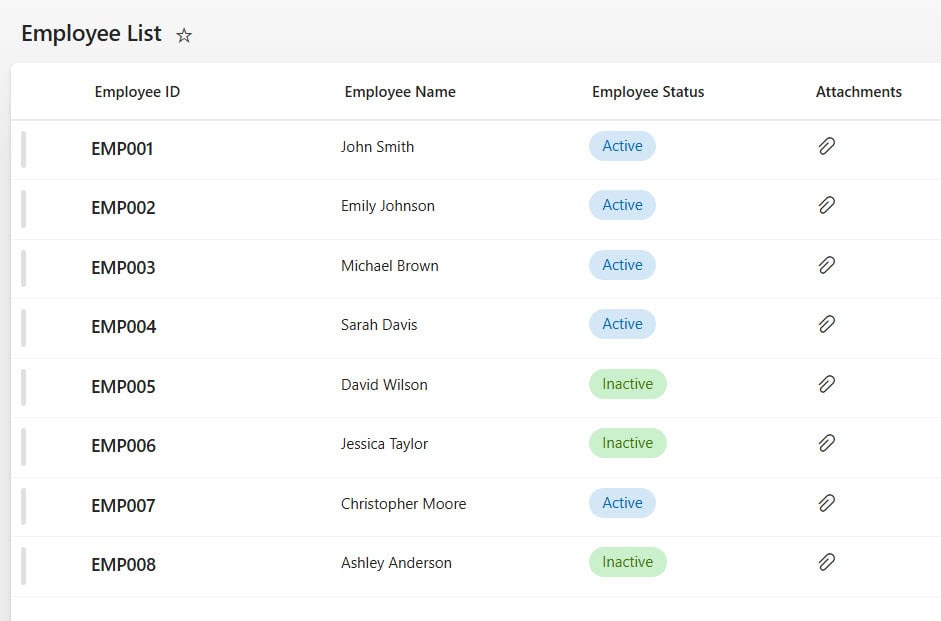
The flow will ask for an employee ID, find that employee’s item, collect all of its attachments, and email them in a single message.
Before you start
Make sure attachments are allowed on the list: open List settings > Advanced settings and check that Attachments to list items are enabled. Add a test item with two or three files attached, so you can see the flow collect more than one.
Step 1: Create the flow with a text input
Create an instant cloud flow with Manually trigger a flow. Add a Text input and name it EmployeeID. The person running the flow types the ID here.
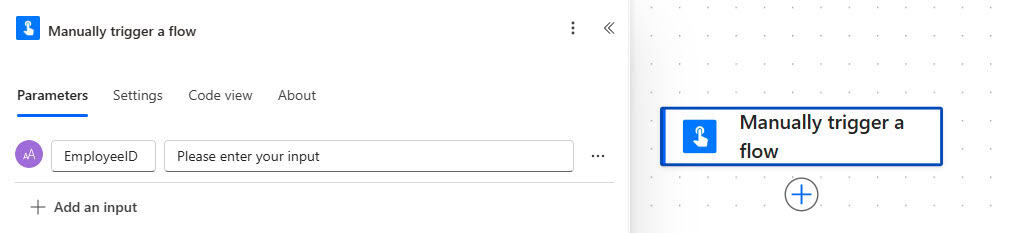
Step 2: Create an array variable for the files
Add Initialize variable. Name it AttachmentsArray, set the type to Array, and leave the value empty. You’ll add each file to it as the flow finds them.
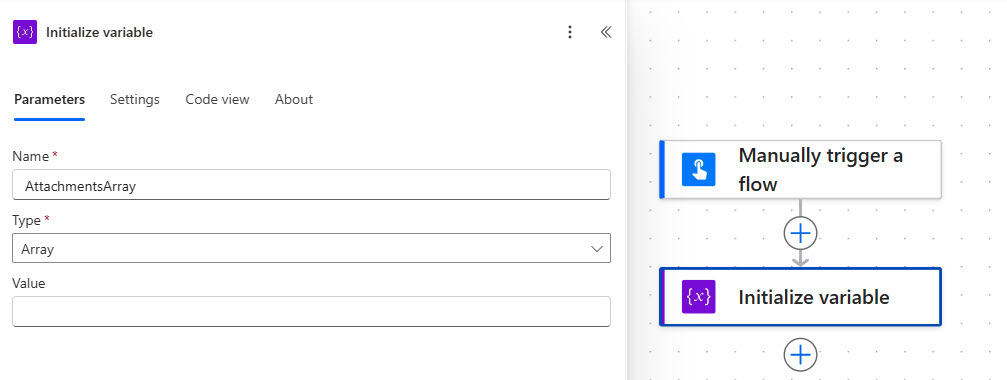
Step 3: Find the employee’s list item
Add the SharePoint Get items action, choose the site and Employee List, and enter a Filter Query under the advanced parameters:
Title eq '@{triggerBody()?['text']}'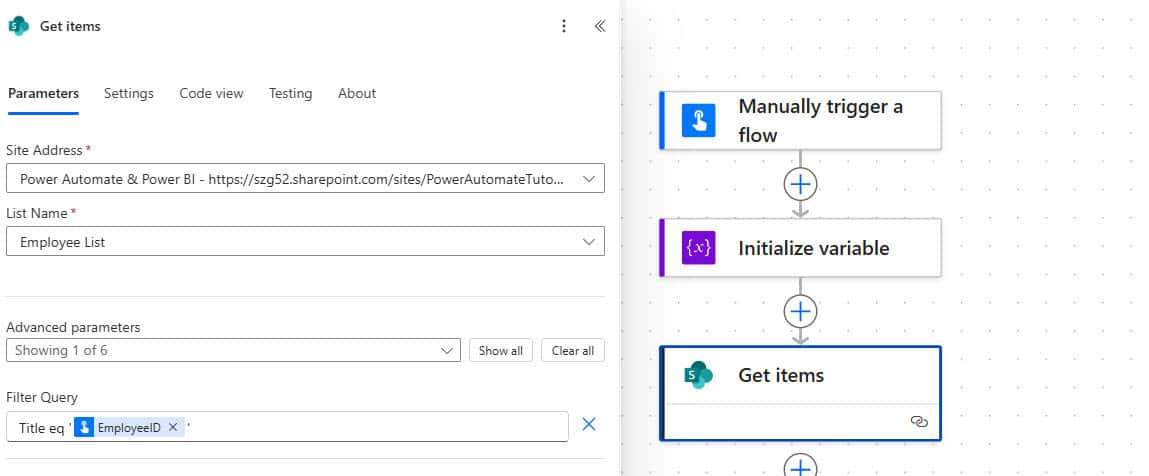
Title is the internal name of the Employee ID column, and the single quotes are needed because it’s a text column. The input’s internal name stays text even though you renamed it EmployeeID. If you filter on a number column instead, leave out the quotes, for example EmployeeNumber eq @{triggerBody()?['text']}.
Step 4: Collect every attachment
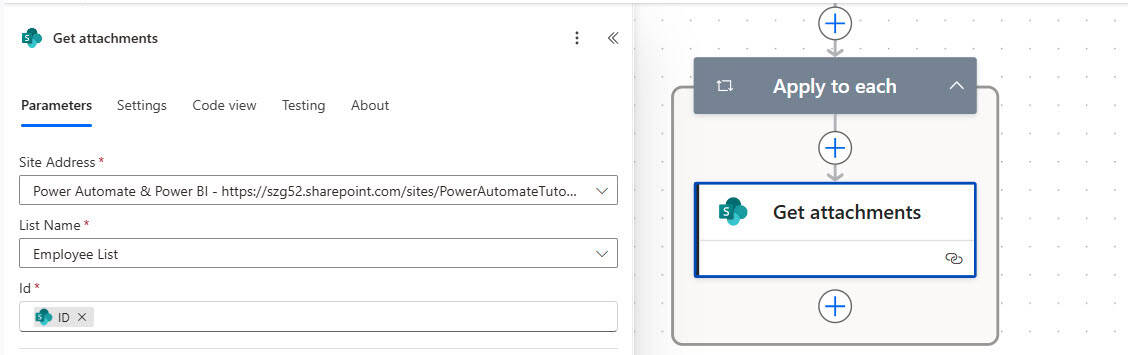
Get the list of attachments
Add Get attachments with the same site and list, and set Id to the ID from Get items. Because Get items returns a list of items, Power Automate wraps the action in a For each loop. Get attachments returns the name and identifier of each file, not the file itself.
Read each file’s content
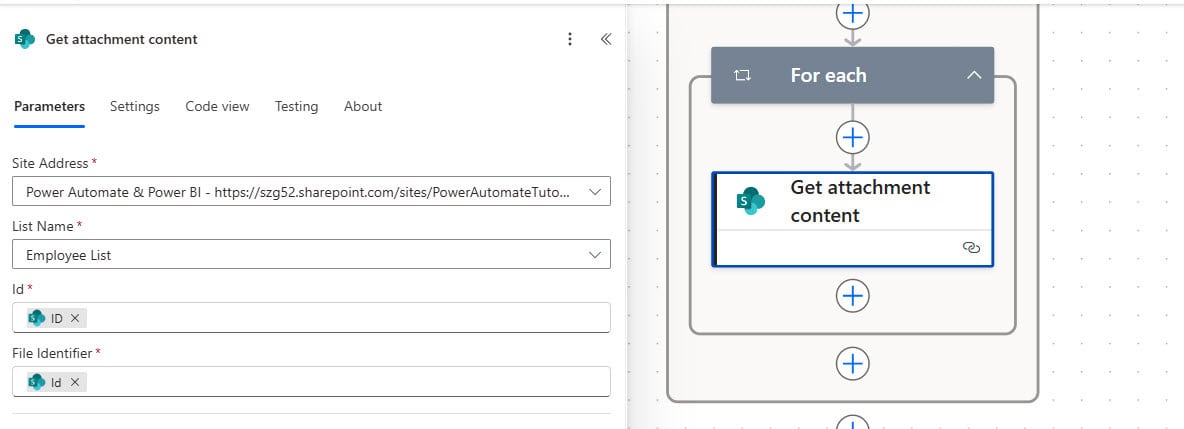
Add Get attachment content. Set Id to the same item ID and File Identifier to the Id from Get attachments. Power Automate adds a second loop around it, so the action runs once for every file.
Add each file to the array
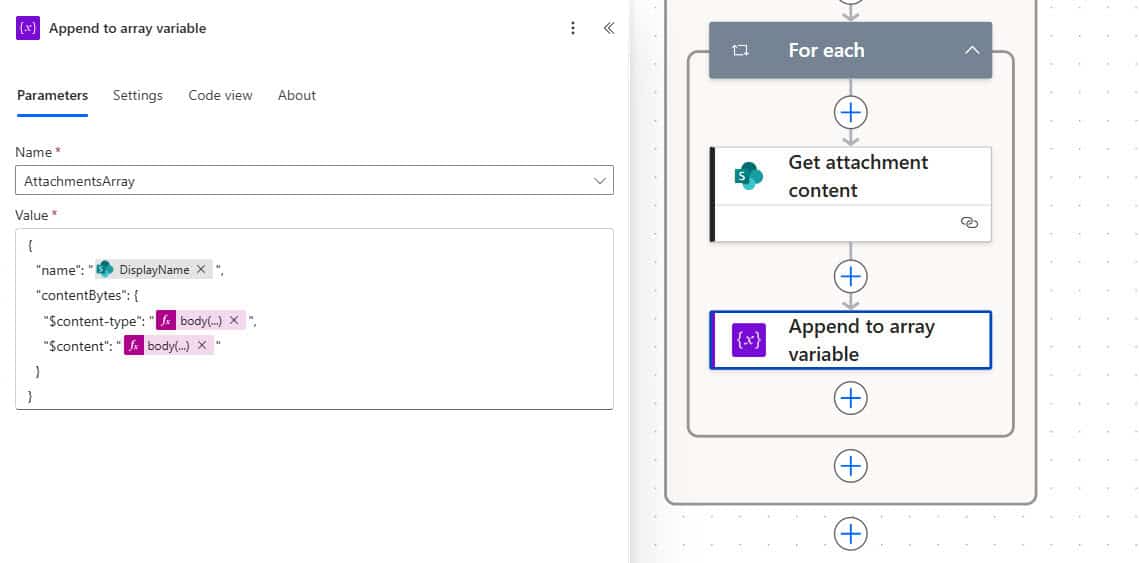
Inside that inner loop, add Append to array variable, choose AttachmentsArray, and enter this value. The two property names, Name and ContentBytes, are what Send an email (V2) expects:
{
  "Name": "@{items('For_each_1')?['DisplayName']}",
  "ContentBytes": @{body('Get_attachment_content')}
}
Replace For_each_1 with the name of your inner loop; hover over the loop to see it, or insert DisplayName from the dynamic content so Power Automate fills in the right name. The screenshot builds ContentBytes from the $content-type and $content parts of the file content; passing the whole content, as above, gives the same result with less typing.
Step 5: Send the email with all the attachments
Add Send an email (V2) outside both loops, so it runs once. Fill in To, Subject and Body, then open the advanced parameters, find Attachments, and switch it to accept an entire array. Put AttachmentsArray in the field.
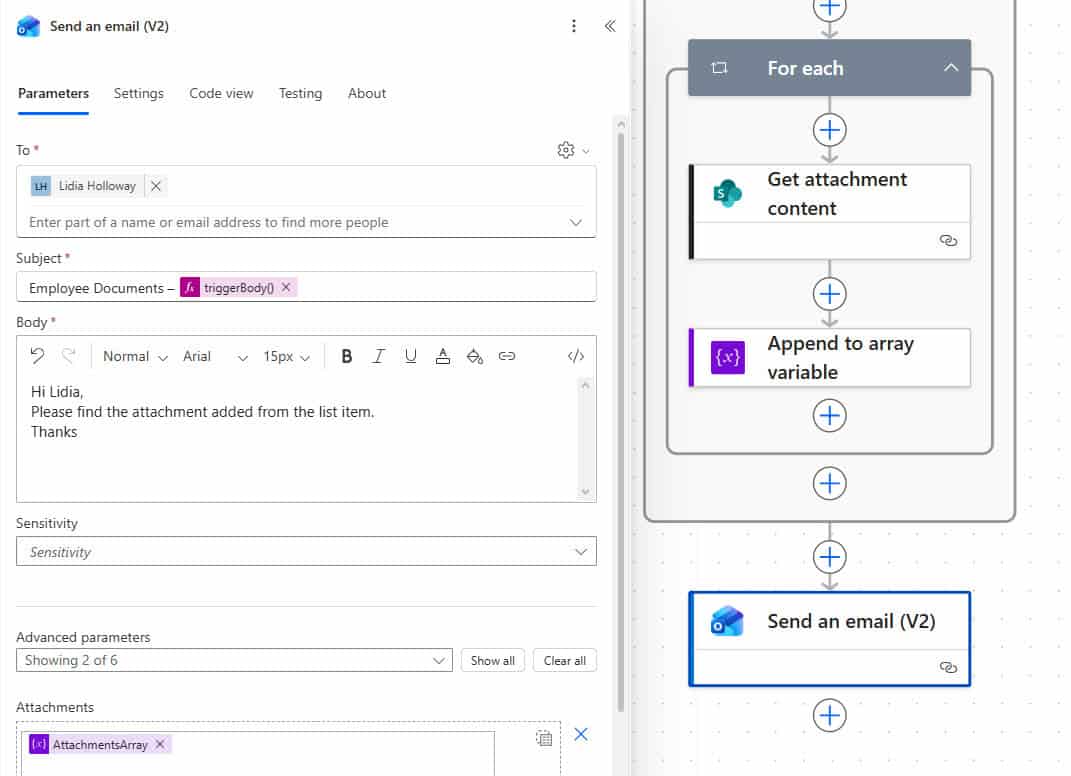
Building an array and passing it in one go is also Microsoft’s recommended approach: the Outlook connector notes that sending several attachments any other way can produce invalid files.
Step 6: Test the flow
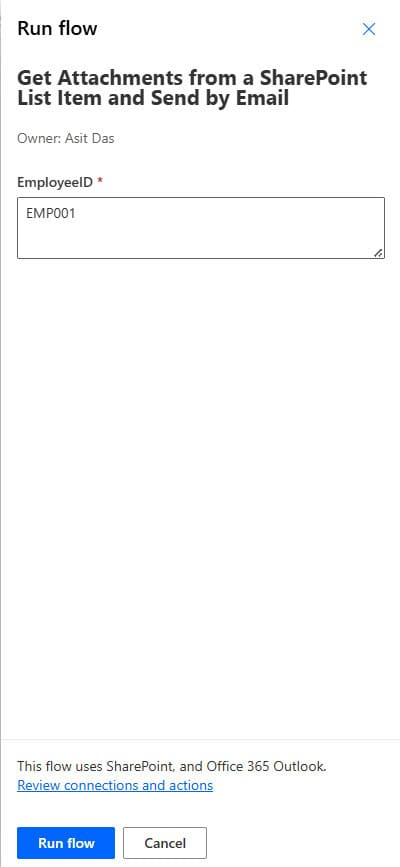
Save the flow, select Test, and run it with an employee ID that has attachments:
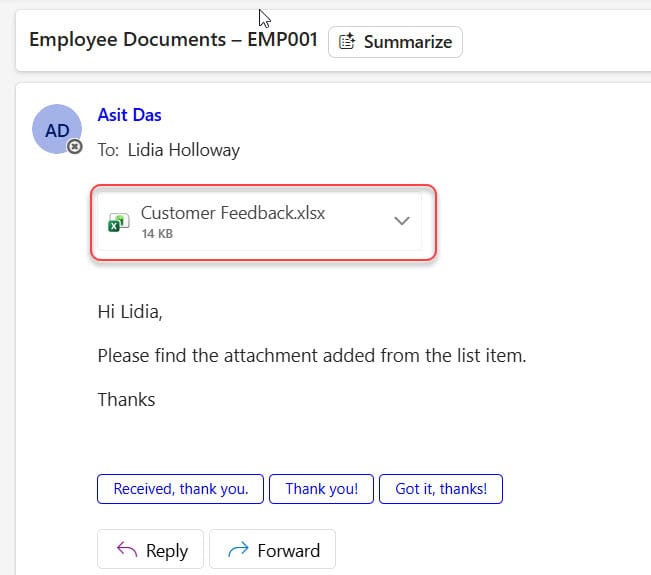
The email arrives with every file from that list item attached:
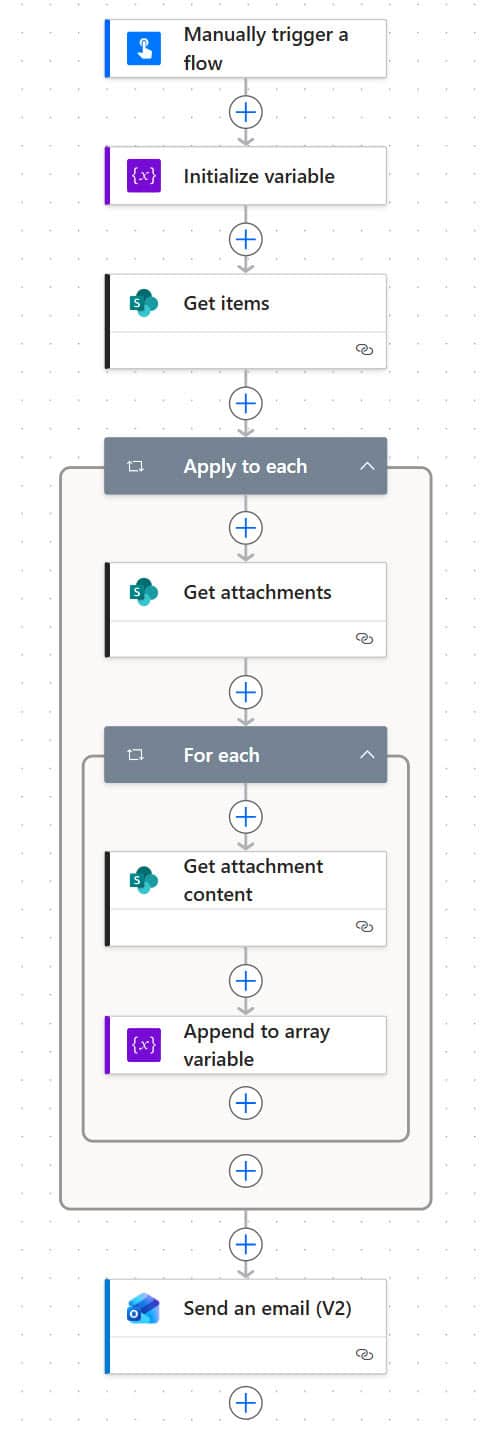
Here’s the structure of the finished flow:
Common errors and how to fix them
Get attachments returns an empty array
If you switch to the When an item is created trigger, the flow can start before SharePoint has saved the attachments, so it finds none. Add a Delay of 30 seconds or so right after the trigger. Also check that attachments are enabled on the list and that the test item really has files.
Get items returns no items
Check the Filter Query. Text columns need the value in single quotes, number columns don’t, and the column must be its internal name, not its display name. You’ll find the internal name at the end of the address when you open the column in List settings.
The email fails because it’s too large
The Outlook connector accepts up to 49 MB of content, and your organization’s send limit usually applies first; in Exchange Online, the default is 35 MB. Keep in mind that attachments grow by about a third when they’re encoded for email. For large files, save them to OneDrive or a document library and email a link instead.
The expression doesn’t find the loop
If you see an error about an action or loop that doesn’t exist, the name in items('...') doesn’t match your flow. Insert the value from the dynamic content instead of typing it, or rename the loop and update the expression.
Actions run too often
Anything placed inside the inner loop runs once per file, and anything inside the outer loop once per item. The Append action belongs in the inner loop; Send an email belongs outside both.
Variations
Run it automatically when an item changes
Swap the manual trigger for When an item is created or modified, or When an item or a file is modified if it should only run on edits. You won’t need Get items, because the trigger already gives you the item’s ID. Keep in mind that Get attachments always returns every attachment, not just new ones.
Email the address stored in the list
If the list has a Person or email column, use its Email value in the To field instead of a fixed address.
Send only PDF files
Inside the inner loop, before the Append action, add a Condition that checks whether the file name ends with .pdf, and put the Append action in the True branch. The endsWith() check isn’t case-sensitive, so .PDF matches too.
Save the files instead of emailing them
Replace the email with a OneDrive or SharePoint Create file action inside the inner loop, using the attachment’s DisplayName as the file name and the attachment content as the file content.
For attachments in an approval request, note that the Approvals action uses lowercase name and content instead of Name and ContentBytes, and every file name must be unique. For more email options, see the Send an email (V2) guide.
These guides cover related SharePoint and email flows:
- How to Use Power Automate Send an Email (V2) Action?
- How to Send Emails to Multiple Recipients from a SharePoint List Using Power Automate?
- Send Outlook Email with Attachments using Power Automate Desktop
- Import Data From Excel to a SharePoint List Using Power Automate [2 Methods]
- Power Automate Read Excel File From SharePoint
- 5 Easiest Ways to Embed an Image into an Email in Power Automate
Frequently Asked Questions
How do I get attachments from a SharePoint list item in Power Automate?
Use Get attachments with the item’s ID to list the files, then Get attachment content with each file’s identifier to read the content.
How do I send multiple SharePoint attachments in one email?
Add each file to an array variable as {“Name”: …, “ContentBytes”: …} inside the loop, then pass the whole array to the Attachments field of Send an email (V2) after the loop.
Why does my flow find no attachments on a new item?
With the When an item is created trigger, the flow can start before the attachments are saved. Add a short Delay after the trigger.
How large can SharePoint list attachments be?
SharePoint list attachments can be up to 90 MB through the connector, but an email can carry far less. Microsoft lists the SharePoint limits in the SharePoint connector reference.

I have worked with Microsoft technologies for more than 18 years, including SharePoint, Microsoft 365 and the Power Platform (Power Apps, Power Automate and Power BI), at companies like HP, TCS and KPIT. I started EnjoySharePoint in 2011 to share the solutions I build in real projects with readers in the United States, Canada, the United Kingdom, Australia, New Zealand and beyond. Microsoft has recognized this work with the Microsoft MVP award 13 times since 2014.