
I recently worked with a client who needed an easy way to add data to their SharePoint list without manually entering each entry. They were looking for a way to save time and avoid mistakes. Power Automate made this process easy to set up.
In this tutorial, I will show you how to add item to SharePoint list using Power Automate. Additionally, we will discuss how to add items to a SharePoint list from Excel using Power Automate with a few examples.
Add Item to SharePoint List Using Power Automate
Suppose you are working for a company that handles customer support requests.

Your team tracks all support tickets in a SharePoint list called “Support Tickets.” Whenever a customer submits a new request through an online form, you want that data to automatically be added to your SharePoint list so your team can immediately take action.
Check the below screenshot of the SharePoint list:

Now follow the below steps:
1. Create an automated cloud flow. Give the flow name and select the trigger When a new response is submitted. Also, provide the Form ID, which, in my case, is the Support Tickets.

2. To retrieve the response, add the Get response details action from the Microsoft Forms connector. Then, provide the Form ID from the dropdown menu and select the Response ID from the dynamic content of the When a new response is submitted trigger.

3. Then, add the Create item action from the SharePoint connector. Provide the Site Address and List Name from the drop-down menu. Next, expand the Advanced options and provide the following details:
| Client Name | @{outputs(‘Get_response_details’)?[‘body/r107b0d7db8b74087bb5349f11647a384’]} |
| Client Email | @{outputs(‘Get_response_details’)?[‘body/rbd66960464d9407d9d3c243a4c01fd39’]} |
| Client Phone Number | @{outputs(‘Get_response_details’)?[‘body/r083cde5fb2c0465f96d2016c53d5e37e’]} |
| Issue Description | @{outputs(‘Get_response_details’)?[‘body/re721cedb943905cfb0270e45be9bae16’]} |
| Priority Value | @{outputs(‘Get_response_details’)?[‘body/r9dbe9402c520413aaff1f574b1e4899c’]} |
| Status Value | Select Open |

Let’s save the flow and test it manually. Then, add a response to the Microsoft Form.

When the flow runs successfully, go to the SharePoint list, and you will see that the item has been created successfully.

Add Items to SharePoint List From Excel Using Power Automate
Imagine you’re managing a project tracking system. Your team maintains an Excel file to log details about new projects, including the Project ID, Project Name, Start date, manager, and status.

I want this data to be moved to a SharePoint list using Power Automate. Before explaining how to add the above Excel rows into a SharePoint list, ensure you have created a SharePoint list and added the necessary columns mentioned above.

To do this, follow the below steps:
1. In the Power Automate, click the Instant Cloud flow, enter the Flow name, and choose the trigger flow (i.e., manually trigger a flow).

2. To get the date from Excel, add List rows present in a table action and Provide the below parameters:
- Location: Select the SharePoint site address.
- Document Library: Choose the document library.
- File: Select the Excel file.
- Table: Choose the Excel table value.

3. Now, to store the data, add an Initialize variable action and configure it as follows:
- Name: Provide as varStartDate.
- Type: String from drop-down.
- Value: leave blank.

4. Add Apply to each action to apply each output value of the “List rows present in a table”.

5. Add a Compose action and set its input to the Status field from the dynamic content of the ‘List rows present in a table’ action.

5. Add a ‘set variable‘ action and provide the below parameters:
- Name: Select varStartDate from the drop-down.
- Value: Select the desired value from the dynamic content of the ‘List rows present in a table’ action.

6. Then, add the Create item action from the SharePoint connector. Provide the Site Address and List Name from the drop-down menu. Next, expand the Advanced options and provide the following details:
| Peoject ID | @{items(‘For_each’)?[‘Project ID’]} |
| Project Name | @{item()?[‘Project Name’]} |
| Project Manager | @{item()?[‘Project Manager’]} |
| Status Value | @{outputs(‘Compose’)} |
| Start Date | @{addDays(‘1899-12-30’,int(variables(‘varStartDate’)),’yyyy-MM-dd’)} |
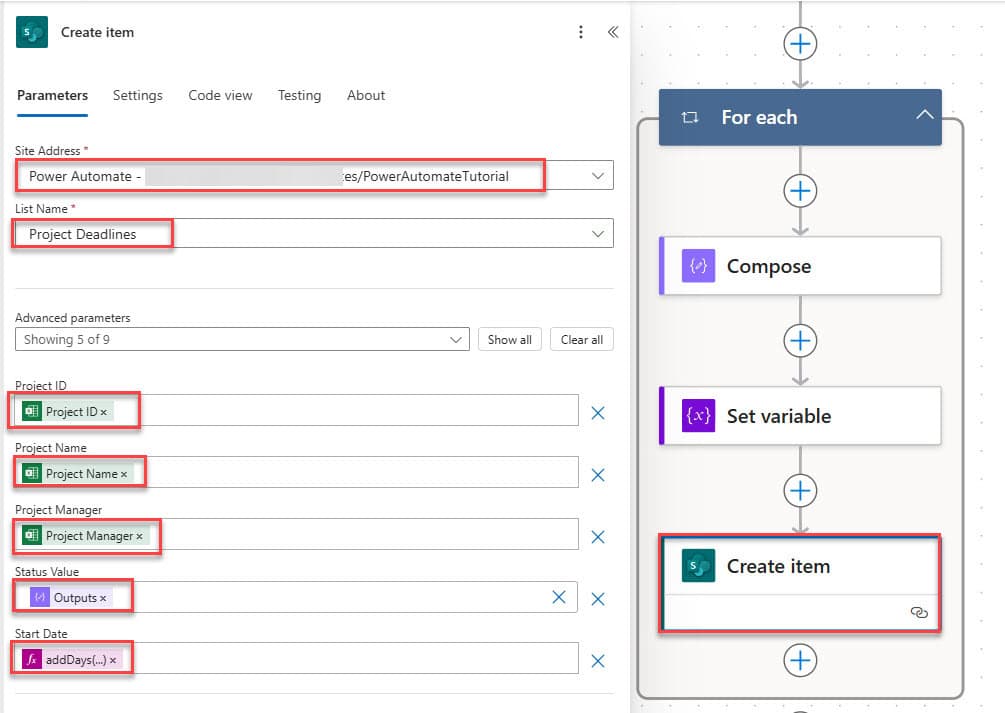
Save and Test the flow manually. Once the flow ran successfully, we can see that items have been added to the SharePoint list from the Excel file.

Add Items to SharePoint List From CSV File Using Power Automate
I’ve got you covered if you want to add items to a SharePoint list from a CSV file using Power Automate! I’ve already written a detailed post explaining the entire process step by step. It includes everything from setting up the flow, parsing the CSV file, and adding the data to your SharePoint list.
Conclusion
In this tutorial, we explored how to automate adding items to a SharePoint list using Power Automate. We started with adding items from a Microsoft Form to a SharePoint list, then moved on to adding data from an Excel file. Finally, we discussed using Power Automate to add SharePoint items from a CSV file.
Moreover, you may like some more Power Automate tutorials:
- Convert CSV to Excel in Power Automate
- Remove Duplicate Items From SharePoint List Using Power Automate
- Import Data from Excel to a SharePoint list using Power Automate
- Create an Excel file from SharePoint list items using Power Automate
- Create an Excel File When an Item is Created in SharePoint List Using Power Automate

After working for more than 18 years in Microsoft technologies like SharePoint, Microsoft 365, and Power Platform (Power Apps, Power Automate, and Power BI), I thought will share my SharePoint expertise knowledge with the world. Our audiences are from the United States, Canada, the United Kingdom, Australia, New Zealand, etc. For my expertise knowledge and SharePoint tutorials, Microsoft has been awarded a Microsoft SharePoint MVP (12 times). I have also worked in companies like HP, TCS, KPIT, etc.

