
Labels are the most common control in almost every Power Apps screen I build. Screen titles, field captions, totals, status messages, a clickable “Need help?” link: they’re all labels. They’re simple, but a few details, like line breaks and making a label clickable, trip people up.
In this tutorial, I’ll cover the Label control’s key properties, how to show text from an input or a SharePoint list, how to format currency and dates, how to add line breaks and links, and how the newer modern Text control differs.
Quick answer: Insert a Text label (under Display in the Insert pane) and set its Text property to a string, such as "Los Angeles", or a formula, such as TextInput1.Text. Use Char(10) for a line break, Text(Value, "$#,##0.00") for currency, and Launch("https://...") in OnSelect to make it a link.
What the Label control does
A label shows read-only information: text you type, or the result of a formula, such as a number, date, currency amount or a value from a data source. People can’t edit it, which makes it the right choice for titles, captions and calculated results. In the Insert pane, it’s called Text label:

Key properties
| Property | What it does |
|---|---|
| Text | The text to show, either in quotes or as a formula |
| Color / Fill | Text color and background color |
| Font, Size | Font family and font size |
| FontWeight | Bold, Semibold, Normal or Lighter |
| Italic, Underline, Strikethrough | Text styling, true or false |
| Align, VerticalAlign | Horizontal and vertical alignment |
| Wrap | Wraps long text onto more lines |
| AutoHeight | Grows the label to fit all the text; if false, the text is cut off |
| Overflow | Shows a scroll bar when wrapped text doesn’t fit |
| OnSelect | Actions to run when someone selects the label |
| Role | Marks the label as a heading (Heading 1 to 4) for screen readers, without changing its look |
| Live | Whether screen readers announce changes: Off, Polite or Assertive |
You’ll see TextWeight in some older tutorials. That property doesn’t exist; it’s FontWeight.
Add a label to a screen
Create an app with Create > Create from blank, and pick Responsive, Tablet size or Phone size. Then select Insert, and choose Text label from Popular or Display. This screenshot shows the older Insert tab; the list of controls is the same:

Set the Text property to what you want to show. Text in quotes appears exactly as typed:
"Los Angeles"
Show what someone types in a text input
Add a Text input control and set the label’s Text to the input’s text:
TextInput1.Text
Press F5 to preview (you don’t need to publish to test). The label updates as you type:

You can combine text and values with &, for example "Hello, " & TextInput1.Text, or "Welcome, " & User().FullName for the signed-in user.
Show a value from a SharePoint list
This Products List has a title, order date, manufacturer and price for each product:
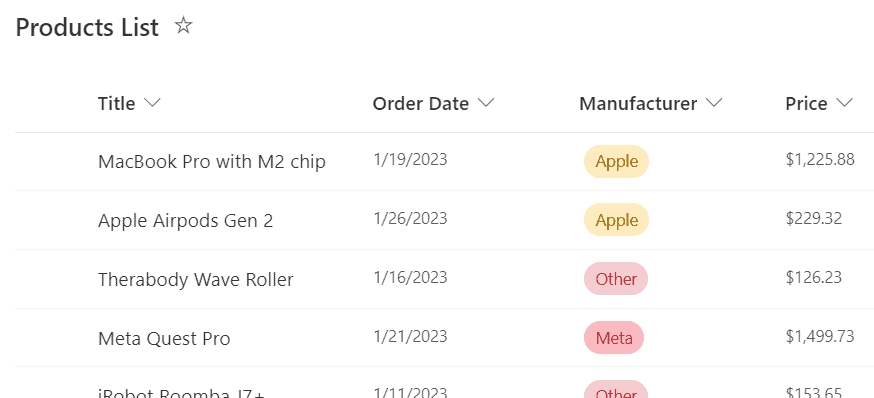
Connect it with Data > Add data > SharePoint, pick the site and the list, and select Connect. In my app, a data table shows all the titles:

To show one value in a label, pick a record and a column. This shows the first product’s title:
First('Products List').Title
In real apps, you’ll usually show the item someone selected, such as Gallery1.Selected.Title, or a specific item, such as LookUp('Products List', Title = "Google Pixel 7").Manufacturer.Value. For more, see how to get the selected value from a gallery.
Format currency, numbers and dates
A label shows numbers and dates in a basic format unless you format them with the Text() function:
| To show | Text property | Result |
|---|---|---|
| Currency | Text(ThisItem.Price, "$#,##0.00") | $1,225.88 |
| Whole number with commas | Text(12500, "#,##0") | 12,500 |
| Percentage | Text(0.256, "0.0%") | 25.6% |
| US date | Text(ThisItem.'Order Date', "mm/dd/yyyy") | 01/19/2026 |
| Long date | Text(Today(), "mmmm d, yyyy") | September 27, 2026 |
For more number formats, see how to format numbers with commas and decimals in Power Apps.
Add a line break
Long text in one label runs together on one line:

You don’t need HTML for a line break. Use Char(10), and turn on Wrap and AutoHeight:
"Hey, Scott." & Char(10) & "How are you?"If you also want bold or other formatting, use an HTML text control instead, and set its HtmlText property. The line-break tag is <br>:
"Hey, <b>Scott</b>.<br><br>How are you?"
An HTML text control can’t be reached with the keyboard and ignores OnSelect for links inside the HTML, so use a label for anything people need to click.
Make a label a clickable link
Style the label like a link: set Color to blue and Underline to true:

Then add the link to OnSelect:
Launch("https://www.enjoysharepoint.com/category/power-apps/")
In the browser, Launch opens the page in a new tab:
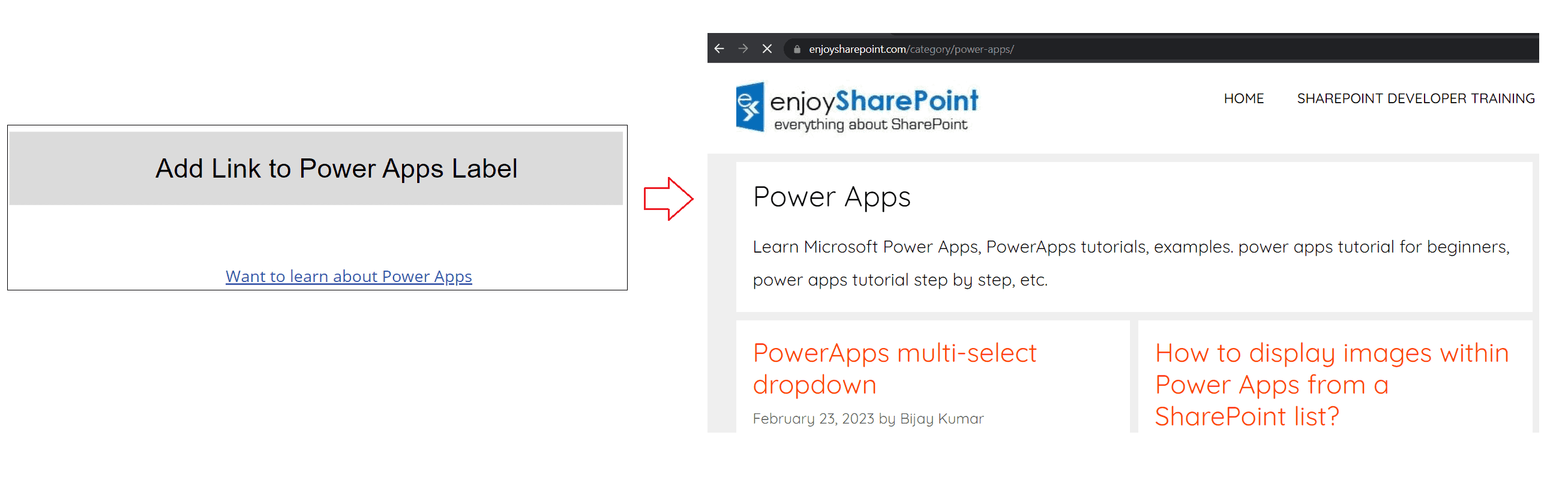
For keyboard and screen reader users, also set TabIndex to 0 so the label can be reached with Tab, and give HoverColor a different color so people can see it’s clickable. For in-app navigation, use Navigate(Screen2) in OnSelect instead.
The modern Text control
If you turn on modern controls (Settings > Updates > Modern controls and themes), you get the Text control, the modern version of the label. It works the same way, with a few differences:
| Classic Label | Modern Text |
|---|---|
| Color | Color (same) |
| Size | Size (default 15) |
| FontWeight | FontWeight, using values like FontWeight.Semibold |
| DisplayMode | Removed |
| BorderRadius | RadiusTopLeft, RadiusTopRight, RadiusBottomLeft, RadiusBottomRight |
| OnSelect | OnSelect, which also runs on Enter or Space |
With modern controls on, the classic label moves to the Classic category in the Insert pane. Both are supported, so use whichever fits the rest of your app.
These Power Apps control tutorials go well with labels:
- HTML text control in Power Apps
- How to Get Value from Text input in Power Apps
- Power Apps Format Number With Commas and Decimal Places [6 Best Approaches]
- How To Get Selected Value From Gallery In Power Apps?
- How to Use Navigate Function in Power Apps? [With Useful Examples]
- Gallery Control in Power Apps – How to Use
Frequently Asked Questions
How do I add a line break in a Power Apps label?
Use Char(10) in the Text property, such as “Line 1” & Char(10) & “Line 2”, and turn on Wrap and AutoHeight. Microsoft documents the label’s properties in the Label control reference.
How do I make a label bold in Power Apps?
Set the FontWeight property to Bold. In the modern Text control, use FontWeight.Bold.
Can a Power Apps label be clickable?
Yes. Put an action like Launch or Navigate in its OnSelect property, and set TabIndex to 0 so keyboard users can reach it.
How do I show currency in a Power Apps label?
Use Text(Value, “$#,##0.00”) in the Text property.
What’s the difference between a label and a text input?
A label only displays information. A text input lets people type, and its Text property holds what they entered.

I have worked with Microsoft technologies for more than 18 years, including SharePoint, Microsoft 365 and the Power Platform (Power Apps, Power Automate and Power BI), at companies like HP, TCS and KPIT. I started EnjoySharePoint in 2011 to share the solutions I build in real projects with readers in the United States, Canada, the United Kingdom, Australia, New Zealand and beyond. Microsoft has recognized this work with the Microsoft MVP award 13 times since 2014.