
One of the first SharePoint projects I helped with was a small sales team that tracked orders in a list. Every order had the customer’s name, email and phone number typed in by hand, so the same customer appeared in a dozen slightly different spellings, and when a customer changed their email address, someone had to find and fix every order.
The fix was to move the customers into their own list and connect the two lists with a lookup column.
With a lookup column, people pick a customer from a dropdown instead of typing, and SharePoint can show the customer’s other details, such as their email, automatically. When a customer’s details change, you update them once, and every order shows the new information.
Quick answer: Open the list that should show the data, select + Add column > Lookup, choose the source list under Select a list as a source and the column under Select a column from the list above, then select Save. The source list must be on the same site, and the column you look up must be a Single line of text, Number or Date and Time column.
In this tutorial, I’ll use a Customer list and a Sales Order list to show you how to create and use a lookup column, show extra columns, allow multiple values and set delete rules, as well as the limits you should plan for.
What is a lookup column in SharePoint?
A lookup column takes its values from a column in another list, called the source list, and offers them as a dropdown in the list you’re working in, the target list. That creates a relationship between the two lists, so shared information such as customers, products or projects is kept in one place and reused wherever it’s needed.
Typical examples are a Customer lookup in a Sales Orders list, a Product lookup in an Orders or Inventory list, and a Project lookup in a Tasks or Issues list.
Microsoft calls these list relationships, and explains them in Create list relationships by using lookup columns.
Which columns can you look up?
Not every column type can be used as the source of a lookup, which is worth checking before you design your lists. This table shows which types work and which don’t:
| Can be looked up | Can’t be looked up |
|---|---|
| Single line of text | Multiple lines of text |
| Number | Choice |
| Date and Time | Person or Group |
| Lookup (single value) | Yes/No, Currency, Calculated |
| Hyperlink or Picture, multi-value Lookup, custom columns |
The source list also has to be on the same site as the target list. If you need data from a list on another site, you’ll need a different approach, such as copying the data across with Power Automate.
Example: Customer list and Sales Order list
For this tutorial, I’m using two lists. The source list, Customer List, has the columns Customer ID, Name, Region, Phone Number and Email. The target list, Sales Order List, has Order ID, Order Date, Product Name and Quantity. The goal is for each sales order to point to a customer, so we’ll add a lookup column to the Sales Order List.
How to create a lookup column in SharePoint Online
Open the Sales Order List and select + Add column at the end of the column headers. Choose Lookup and select Next. If Lookup isn’t in the short list, select See all column types to find it.
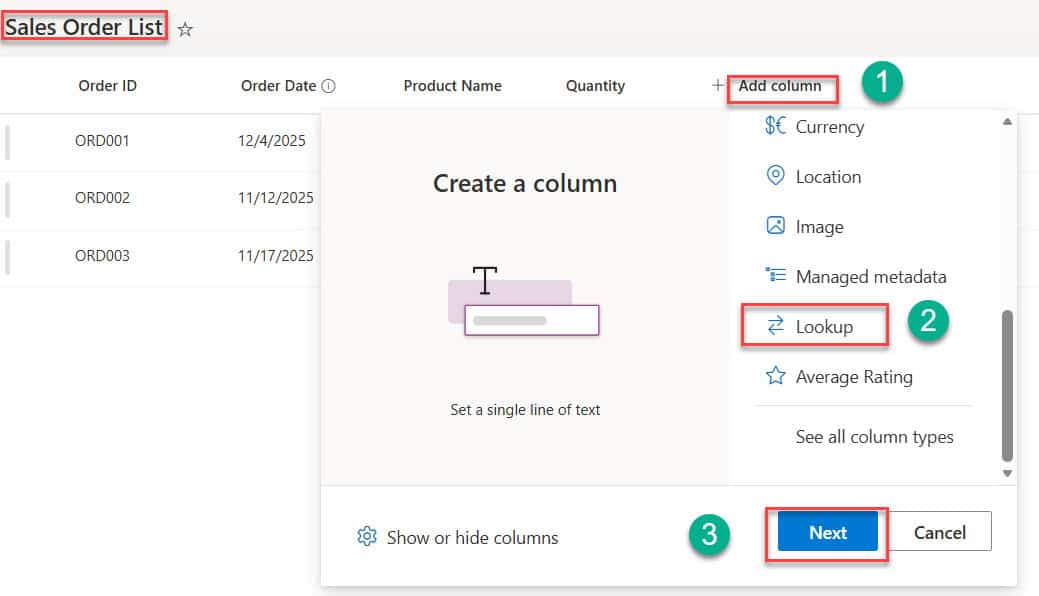
In the Create a column panel, enter a Name for the column, for example Customer. You can also add a description to help people understand what to pick.

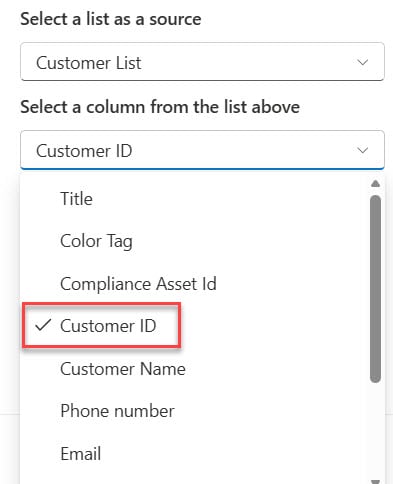
Next, tell SharePoint where the values come from. Under Select a list as a source, choose Customer List, and under Select a column from the list above, choose Customer ID. I prefer to look up an ID rather than a name, because IDs are unique and don’t change.
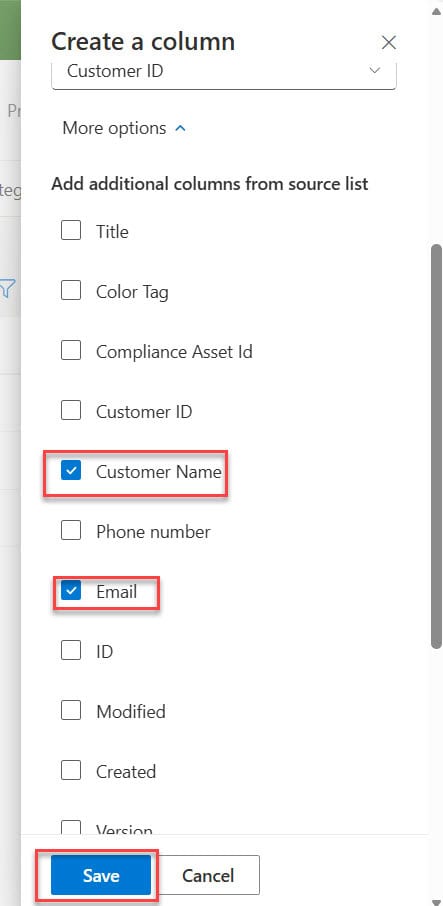
Then expand More options. Here you can pick extra columns from the source list to show alongside the lookup, such as Name and Email. Each one becomes a read-only column in the Sales Order List, filled in automatically from the customer you pick. Select Save when you’re done.
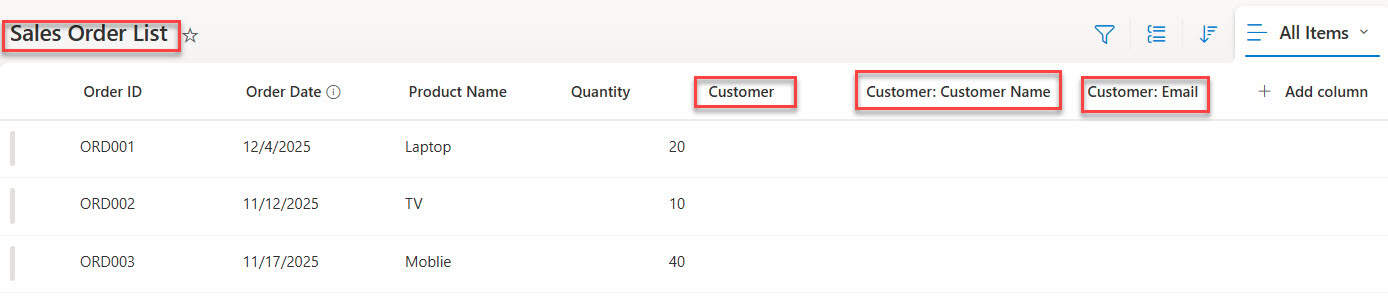
The Customer lookup column now appears in the list, together with the extra Name and Email columns:
How to use the lookup column
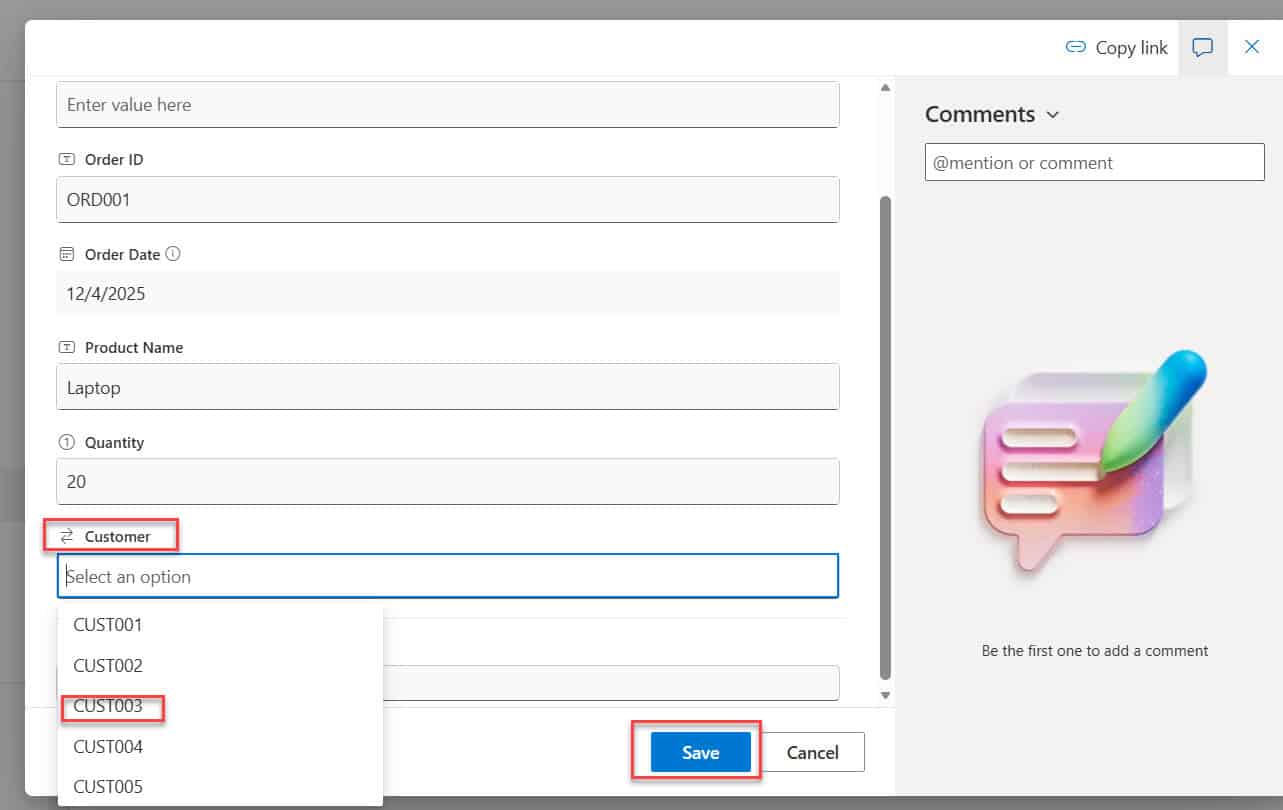
To link an order to a customer, select the item and choose Edit. In the Customer field, open the dropdown and pick a Customer ID, then select Save.
As soon as you save, the customer’s name and email appear in the extra columns, without anyone having to type them:
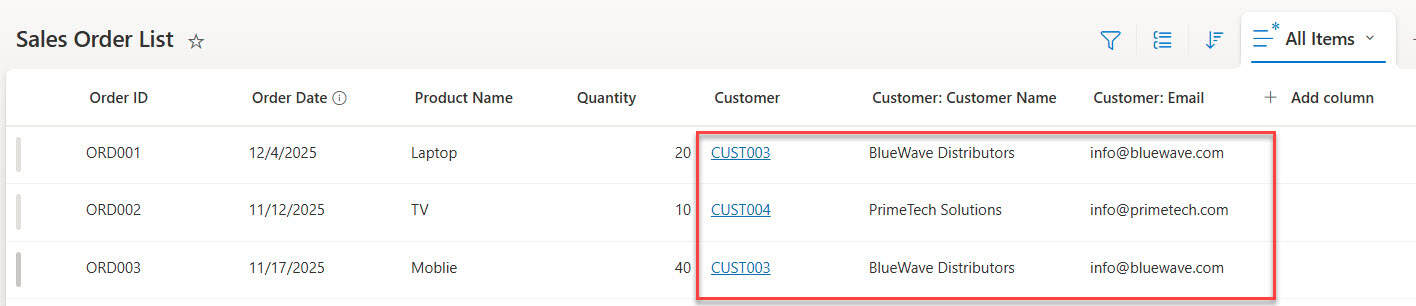
This is where the real benefit shows. If a customer’s email changes later, you update it once in the Customer List, and every order that points to that customer shows the new email straight away.
Filter a list by the lookup column
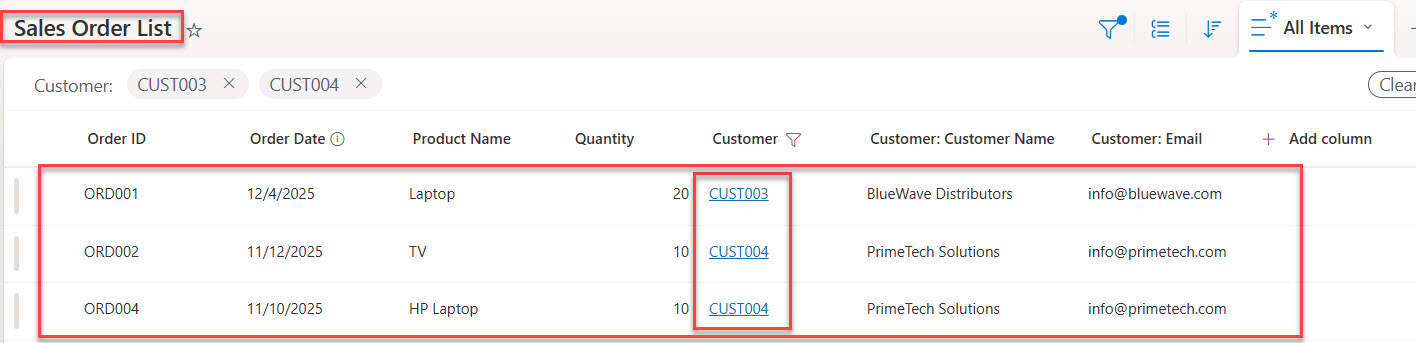
Lookup columns can be filtered just like any other column. Select the Customer column header and choose Filter by. Then select the values you want to see, for example CUST003 and CUST005, and apply the filter.

The list now shows only the orders for those two customers:
Allow multiple values in a lookup column
Sometimes one item genuinely belongs to more than one record, for example a joint order shared by two customers. To allow that, select the Customer column header and choose Column settings > Edit. Expand More options, turn on Allow multiple selections, and select Save.
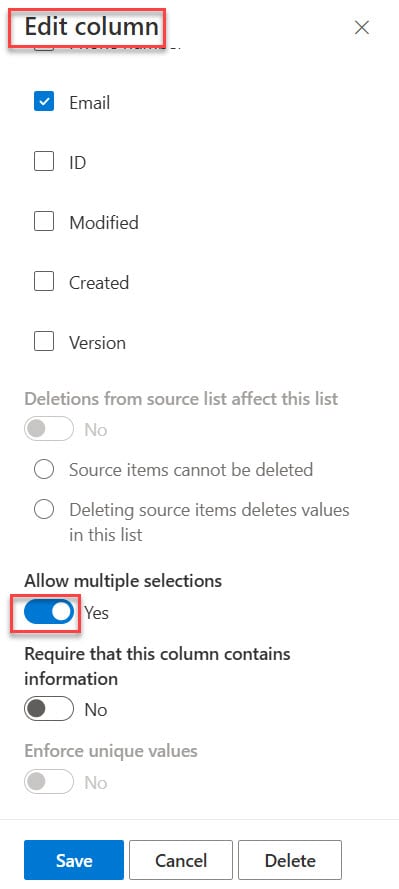
You can now pick several customers for an item. The values are shown separated by semicolons, and the extra columns show the details of each selected customer:

I’d only turn this on when you really need it, though. Multi-value lookups can’t have delete rules, and they’re harder to work with in filters, Power Apps and Power Automate.
Delete rules: what happens when a source item is deleted
By default, SharePoint lets you delete a customer from the Customer List even when orders still point to it, which leaves those orders with an empty Customer field. To protect the relationship, set a delete rule on the lookup column. In the modern column panel, turn on Deletions from source list affect this list. In List settings, the same option is called Enforce relationship behavior. Then choose one of the two rules:
| Option | What happens when someone deletes a customer |
|---|---|
| Restrict delete | The customer can’t be deleted while orders still use it |
| Cascade delete | The orders that use the customer are deleted too |
For customers and orders, I almost always choose Restrict delete, because losing orders by accident is far worse than being stopped from deleting a customer. You need the Manage Lists permission to set these rules, and on lists with more items than the list view threshold (5,000), turning them on can be blocked, so it’s best to set them up while the lists are still small.
Delete a lookup column
If you no longer need the lookup, you can delete the column. Keep in mind that this removes the lookup values from every item in the list. Select the column header, choose Column settings > Edit, select Delete, and confirm.
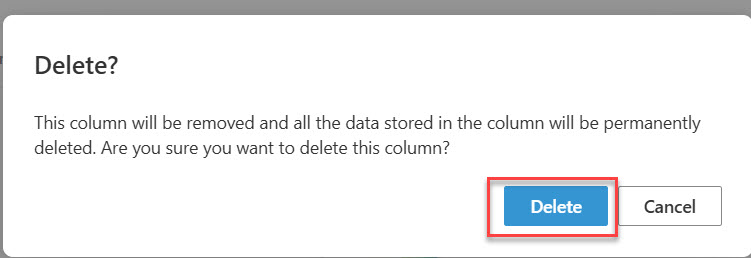
You can also delete it from Settings > List settings by selecting the column and then Delete. The extra columns created by the lookup are listed separately, and you can delete them the same way.
Limits and best practices
The limit people run into most often is the List View Lookup Threshold: SharePoint Online allows up to 12 lookup-type columns in a list view, and Person or Group and Managed Metadata columns count towards that number too. If a view has more, it shows an error instead of the items.
The fix is to remove columns from the view, or turn off extra lookup columns you don’t actually use. Microsoft explains this in the list view threshold article.
The same limit applies in Power Automate, where the Get items action supports a maximum of 12 lookup columns. If your list has more, use Limit Columns by View and choose a view with fewer columns.
For large lists, filter and sort on indexed columns once a list has more than 5,000 items; the 5,000 list view threshold can’t be changed in SharePoint Online.
When you design the lists, plan the source list first: create the columns you’ll look up before you build the lookup, keep their values unique, and look up an ID or code rather than a name that might change or repeat. You can always show the name as an extra column.
More SharePoint list guides that work well with lookup columns:
- What Is a SharePoint List? A Complete Guide With Examples
- SharePoint Online List Examples [15 Real Examples]
- How to Use Content Types in SharePoint Online Lists (Step-by-Step Guide)
- SharePoint List View Formatting by JSON Using Lookup Value
- SharePoint Online List View: A Complete Guide (With Examples)
- SharePoint Online List Permissions: Step‑by‑Step Guide for Unique, Item‑Level & Anonymous Access
Frequently Asked Questions
How do I create a lookup column in SharePoint Online?
In the list that should show the data, select + Add column > Lookup > Next, choose the source list and the column to show, optionally add extra columns under More options, and select Save.
Can a SharePoint lookup column use a list from another site?
No. The source list must be on the same site as the list with the lookup column. For data from another site, copy it with Power Automate instead.
Why can’t I see my Choice or Person column in the lookup options?
Choice, Person or Group, Yes/No, Currency, Calculated, Hyperlink and Multiple lines of text columns can’t be looked up. Use a Single line of text, Number or Date and Time column in the source list.
How many lookup columns can a SharePoint list view have?
Up to 12 lookup-type columns per view, and Person or Group and Managed Metadata columns count toward that limit. Remove columns from the view or turn off extra lookup columns if you reach it.
What is the difference between Restrict delete and Cascade delete?
Restrict delete stops people from deleting a source item that other items still use. Cascade delete deletes the related items in the target list when the source item is deleted.

I have worked with Microsoft technologies for more than 18 years, including SharePoint, Microsoft 365 and the Power Platform (Power Apps, Power Automate and Power BI), at companies like HP, TCS and KPIT. I started EnjoySharePoint in 2011 to share the solutions I build in real projects with readers in the United States, Canada, the United Kingdom, Australia, New Zealand and beyond. Microsoft has recognized this work with the Microsoft MVP award 13 times since 2014.
how to create a column field with unique entry values but validate/lookup already existing data in another list