
The SharePoint Group calendar web part lets you display a Microsoft 365 group’s Outlook calendar directly on a modern SharePoint page, so your team can see upcoming meetings and events without leaving the site. It is available on modern team sites connected to Microsoft 365 groups and is ideal for surfacing shared schedules like team meetings, department events, and training calendars.
Often, when designing SharePoint intranet portals, we use the group calendar web part. By using the SharePoint group calendar web part, you can display a Microsoft 365 group calendar on your SharePoint page. In this tutorial, I will explain how to use a SharePoint group calendar web part.
What is the SharePoint Group Calendar Web Part?
The SharePoint Group calendar web part allows you to display a Microsoft 365 group’s Outlook calendar directly on a modern SharePoint page. It helps team members quickly see upcoming meetings and events without opening Outlook or switching to another app. This web part works only on Microsoft 365 group‑connected team sites and is not available in SharePoint Server 2019 or certain sovereign clouds.
Prerequisites to use Group Calendar Web Part
- A modern SharePoint team site connected to a Microsoft 365 group.
- A group calendar (the Outlook calendar associated with that Microsoft 365 group) with at least one event created.
- Permission to edit the SharePoint page where you want to add the web part.
You cannot use this web part on SharePoint classic pages or on sites that are not connected to a Microsoft 365 group. Also, the web part can show a limited number of upcoming events (up to 10) and only for up to the next 6 months.
How to add a Group Calendar Web Part in SharePoint Online
- Open your SharePoint Online team site and go to the page where you want to display the group calendar.
- Select Edit on the top-right of the page to enter edit mode.
- Click the + icon in the section where you want to add the web part.
- In the web part toolbox, search for Group calendar and select the Group calendar web part.
- The Group calendar web part will appear on the page, ready to be configured.
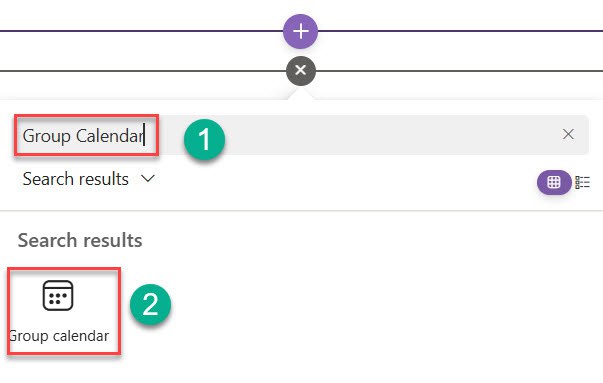
You can place this web part in the main content area of your home page so users always see upcoming team meetings when they visit the site.
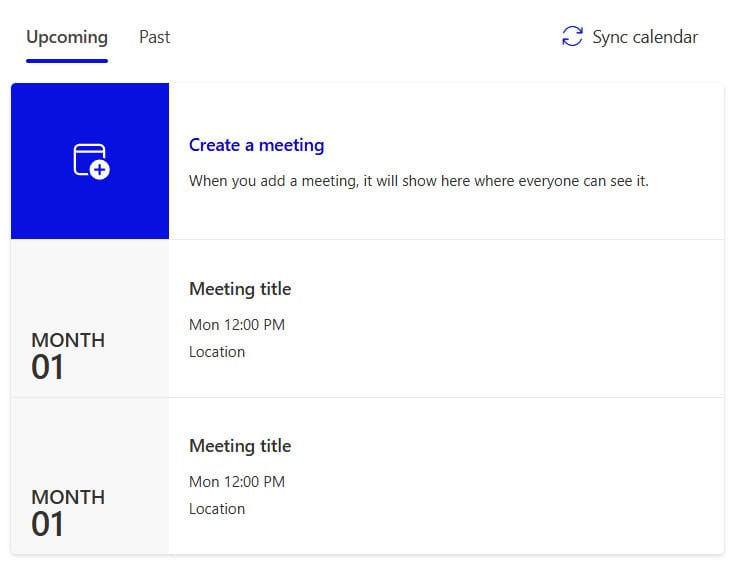
The Group calendar web part is displayed as shown in the screenshot below. Here we don’t have any meetings, so we cannot see any events in the web part.
Check out Send Approval Requests to Outlook and Teams Using Power Automate
How to Create Events for the Group Calendar
- Open Outlook on the web or Outlook desktop for the same Microsoft 365 group.
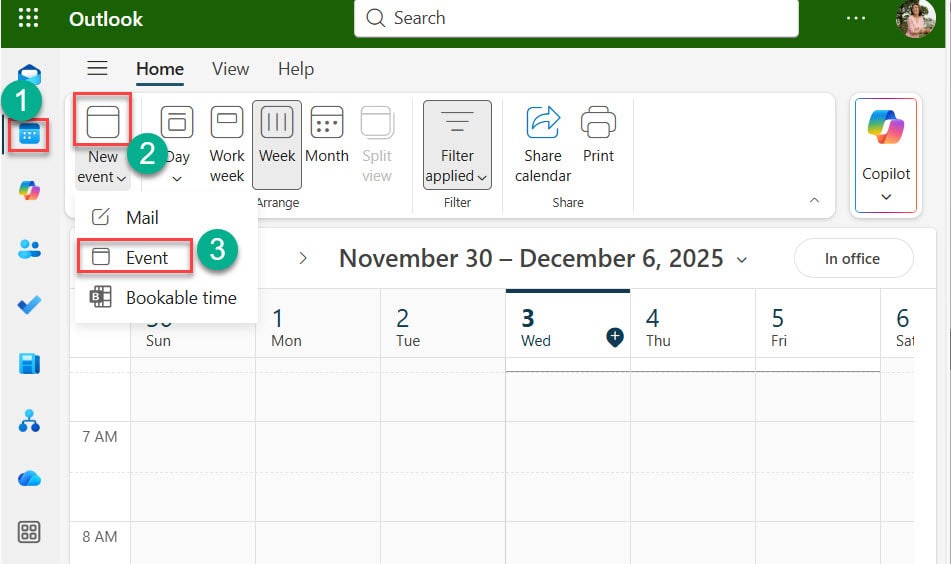
- Go to the group’s calendar and create a new meeting or event with the required title, date, time, and participants.
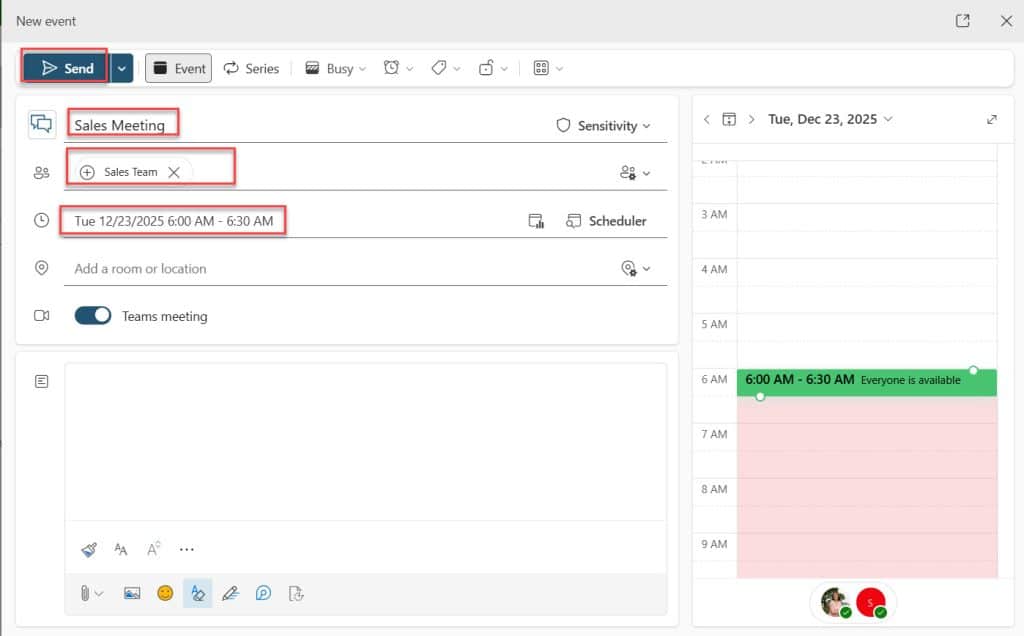
- Save/send the meeting so it appears in the group’s Outlook calendar. In the same way, I created two more meetings with the same Microsoft group.
- After a few moments, refresh your SharePoint page, and the events will start appearing in the Group calendar web part
Remember that the Group calendar web part only displays events that exist on the group’s Outlook calendar; it does not store events in SharePoint itself.
Configure SharePoint Online Group Calendar Web Part
- While the page is still in edit mode, select the Group calendar web part.
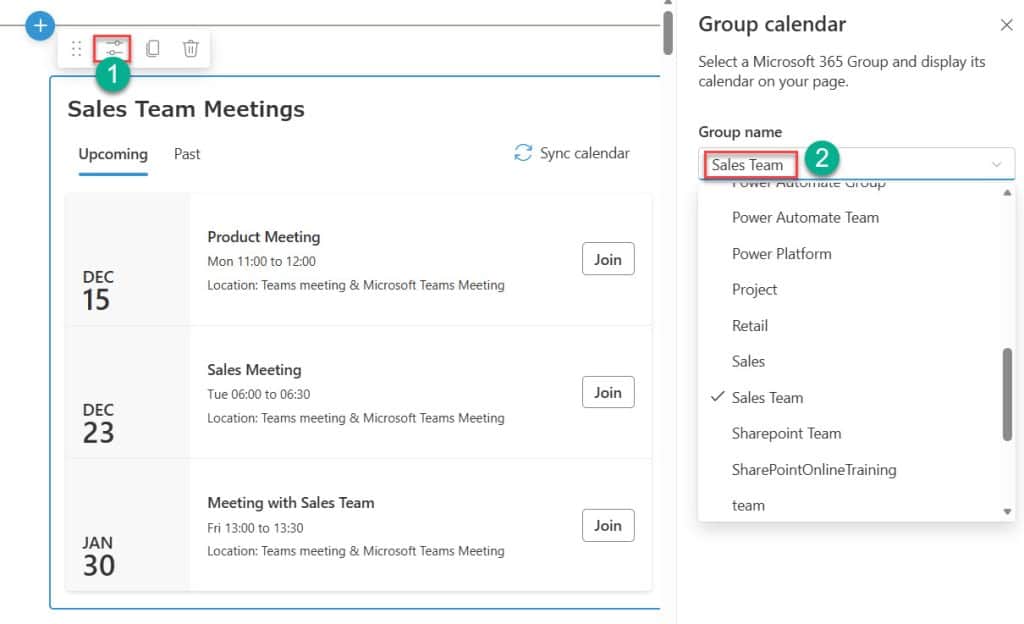
- Click the Edit web part (pencil) icon on the left side of the web part.
- In the properties pane, choose the Microsoft 365 group whose calendar you want to display.
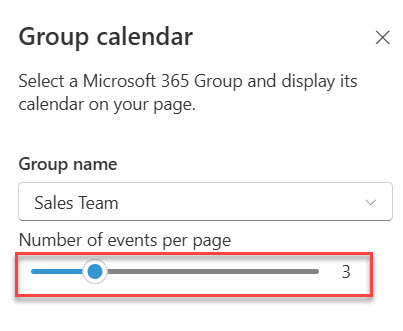
- Use the Number of events slider to select how many upcoming events (up to 10) should appear in the web part.
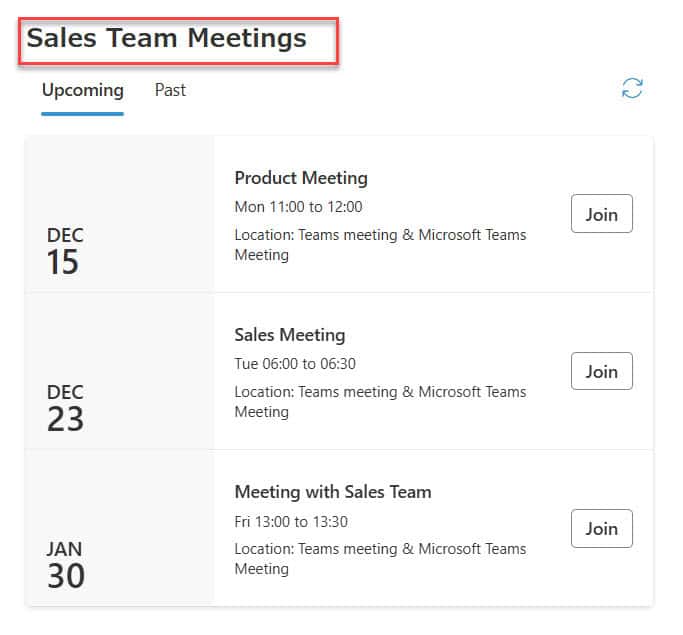
- Optionally, change the web part title to something meaningful like Sales Team Meetings.
- Click Republish or Publish to save your changes.
Here we can see the upcoming events in the Upcoming section and the Past events in the Past section. If you click on Join, then it will open the Teams meeting directly.
The web part now shows upcoming meetings for the selected group, and users can select Create a meeting to open Outlook on the web and schedule new events.
Conclusion
The SharePoint Group calendar web part is a powerful web part for centralizing team schedules and improving collaboration. By displaying Microsoft 365 group events directly on your SharePoint site, you enable team members to stay informed about upcoming meetings, deadlines, and events without switching between applications. This web part is especially valuable for team sites, project hubs, and communication sites where visibility of shared calendars drives productivity and reduces scheduling conflicts.
With the step‑by‑step guide above, you can now confidently add and configure the Group calendar web part for your teams. Remember to keep the number of visible events manageable and ensure your Microsoft 365 group permissions align with your site audience. If you encounter any challenges or have questions about using the Group calendar web part in SharePoint Online, feel free to share them in the comments section below.
You may also like the following tutorials:

After working for more than 18 years in Microsoft technologies like SharePoint, Microsoft 365, and Power Platform (Power Apps, Power Automate, and Power BI), I thought will share my SharePoint expertise knowledge with the world. Our audiences are from the United States, Canada, the United Kingdom, Australia, New Zealand, etc. For my expertise knowledge and SharePoint tutorials, Microsoft has been awarded a Microsoft SharePoint MVP (12 times). I have also worked in companies like HP, TCS, KPIT, etc.

