
In Power Automate, “create table” means one of two things. The Excel Online (Business) Create table action turns a cell range in a workbook into a real Excel table. The Create HTML table data operation turns an array into an HTML table you can drop into an email.
Both come up in the same kind of flow: you have rows of data, and you want them somewhere people can read them. In this tutorial, I’ll build both with Contoso sample data, add a dynamic range for Excel, style the HTML table so it looks good in Outlook, and point out the settings that trip people up.
Quick answer: For Excel, add Create table, pick the location, library and file, and enter a Table range such as Sales!A1:E9. For email, add Create HTML table, set From to an array (for example Get items value), choose Automatic or Custom columns, and put the output in the Body of Send an email (V2).
Create an Excel table with the Create table action
Excel actions such as List rows present in a table and Add a row into a table only work with tables, not plain ranges. That’s why Create table is often the first Excel step in a flow. If your end goal is a SharePoint list, see how to import data from Excel to a SharePoint list.
My workbook, Contoso Sales.xlsx, is in a SharePoint library. It has a Sales sheet with headers in row 1 (Order, Product, Region, Units, Revenue) and eight orders below them, but no table yet.
Step 1: Add the Create table action
Select + > Add an action, search for Create table, and pick the Excel Online (Business) action. Then fill it in:
- Location: the SharePoint site (shown as Group – EnjoySharePoint here) or OneDrive for Business.
- Document Library: Documents.
- File: browse to
/Contoso Sales.xlsx. - Table range:
Sales!A1:E9, in A1 notation with the sheet name in front. - Table name (under Advanced parameters):
SalesTable. Without a name, Excel picks one like Table1.
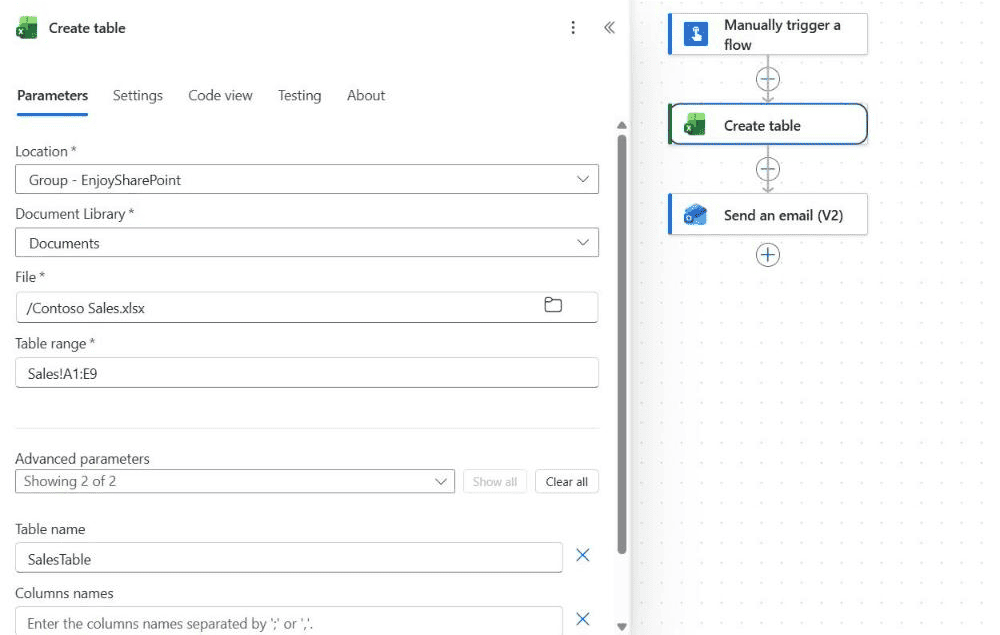
Leave Columns names empty when the range already has a header row. Fill it in, separated by commas or semicolons, only when you want the action to create the headers for you.
Step 2: Run the flow and check the workbook
Save the flow and test it. When you open the workbook, the range is a formatted table with filter buttons, and the Table Design tab appears:
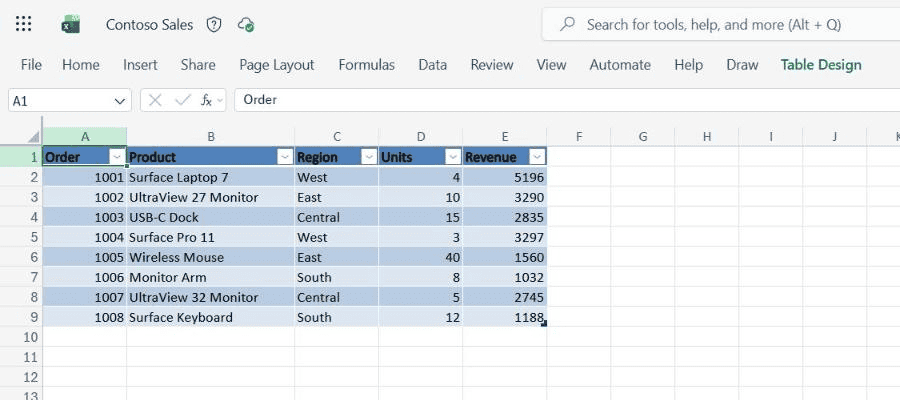
Don’t run the same action twice on one range: once the range is a table, creating it again fails. In real flows, check first with Get tables and only create the table if the name isn’t there.
Use a dynamic table range
A fixed range like A1:E9 breaks as soon as the data grows. If the flow knows how many rows it’s writing, build the range with an expression. For example, when the rows come from a Compose action in Power Automate that holds an array:
concat('Sales!A1:E', add(length(outputs('Compose_rows')), 1))The add(..., 1) accounts for the header row, so eight data rows produce Sales!A1:E9. If the number of columns changes too, build the column letter the same way, but keep it simple: most flows only need a dynamic last row.
You can also create an empty table with just a header row, such as Sales!A1:E1 with Columns names filled in, and then fill it with Add a row into a table. Excel grows the table automatically as rows are added.
Create an HTML table for an email
The Create HTML table action is under Data Operation. It takes an array of objects and returns a plain <table>. My flow gets the in-stock products from a SharePoint list with the filter InStock eq 1, which I explain in Power Automate filter query operators.
Step 1: Choose the columns
Set From to the value output of Get items. Under Advanced parameters, change Columns from Automatic to Custom, because Automatic includes every SharePoint field, such as IDs and ETags. Then add one row per column:
| Header | Value |
|---|---|
| Product | item()?['Title'] |
| Category | item()?['Category/Value'] |
| Price | formatNumber(item()?['Price'], 'C2', 'en-US') |
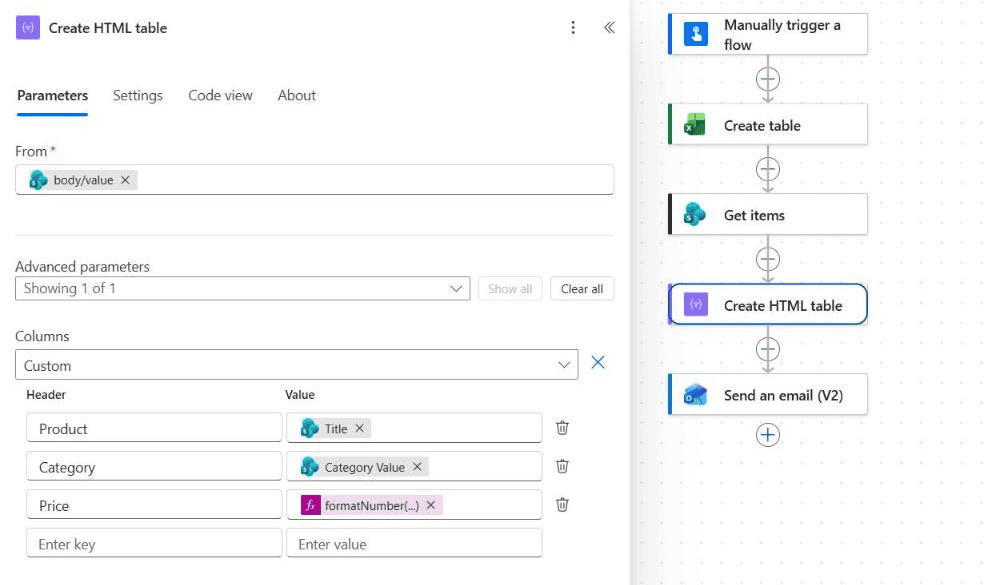
Format values before they reach the table: formatNumber() turns 1299 into $1,299.00, and formatDateTime() does the same for dates. See how to use formatDateTime() in Power Automate.
Step 2: Style the table
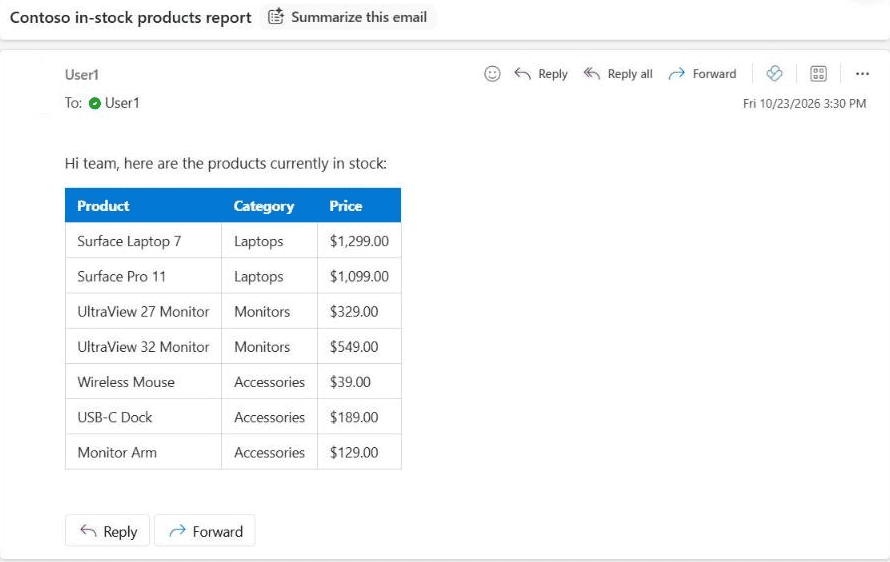
The raw output has no borders or colors. Many email clients ignore a <style> block, so I add inline styles with replace() in a Compose action named Style the table:
<p>Hi team, here are the products currently in stock:</p>@{replace(replace(replace(body('Create_HTML_table'),
  '<table>', '<table style="border-collapse:collapse;font-family:Segoe UI,Arial,sans-serif;font-size:14px">'),
  '<th>', '<th style="background:#0078D4;color:#ffffff;padding:8px 12px;text-align:left">'),
  '<td>', '<td style="border:1px solid #d0d7de;padding:8px 12px">')}
Step 3: Send the email
Add Send an email (V2) and put the Compose Outputs in the Body. The body is already HTML, so there’s no “Is HTML” setting to turn on; that option only existed in the old, deprecated Send an email action. For the other fields, see how to use the Send an email (V2) action.
Create a CSV table instead
Create CSV table sits right next to Create HTML table and works the same way. Save the output with the SharePoint or OneDrive Create file action and a .csv file name to give people a file they can open in Excel. Here’s a full example of how to create a CSV table in Power Automate.
Common problems
- An invalid range or overlap error: the range is already part of a table, or the sheet name is wrong. Sheet names with spaces need quotes, as in
'Sales 2026'!A1:E9. - The file is locked: Excel Online can keep a file locked for a few minutes after a flow uses it. Close the workbook, wait, and run again.
- Only 256 rows come back from List rows present in a table: turn on Pagination in the action’s settings.
- The HTML table is empty: Create HTML table still succeeds when the array is empty. Add a condition with
empty()before sending the email. - Links or line breaks show as text: the action encodes HTML characters in values. Fix them with
replace()on the output.
These Power Automate tutorials work well with tables:
Frequently Asked Questions
What does the Create table action do in Power Automate?
It turns a cell range in an Excel workbook into an Excel table, which other Excel actions need. The parameters and limits are in the Excel Online (Business) connector reference.
How do I make the Create table range dynamic?
Build the Table range with an expression, for example concat(‘Sales!A1:E’, add(length(outputs(‘Compose_rows’)), 1)), so the last row follows your data.
Where is the Is HTML option in Send an email (V2)?
There isn’t one. The V2 body is HTML already, so the output of Create HTML table displays as a table without any extra setting.
How do I style a Create HTML table output?
Add inline styles with replace() on the
| and | tags, because many email clients ignore style blocks.
What’s the difference between Create HTML table and Create CSV table?Both take an array. HTML table returns markup for emails or pages, and CSV table returns comma-separated text you can save as a .csv file.  I have worked with Microsoft technologies for more than 18 years, including SharePoint, Microsoft 365 and the Power Platform (Power Apps, Power Automate and Power BI), at companies like HP, TCS and KPIT. I started EnjoySharePoint in 2011 to share the solutions I build in real projects with readers in the United States, Canada, the United Kingdom, Australia, New Zealand and beyond. Microsoft has recognized this work with the Microsoft MVP award 13 times since 2014. 4 thoughts on “Power Automate Create Table: Excel Tables and HTML Tables (With Examples)”Comments are closed. Get the FREE Power Automate Expressions Ebook122 copy-paste formulas with real examples, sent straight to your inbox. Check your inboxYour free Power Automate Expressions Cheat Sheet is on its way. Can't find it in a few minutes? Look in your Promotions or Spam folder. Sent to |
|---|
Hello,
How I can get power automate to look for the latest file created in Onedrive in the {File Name Field} rather than specifying the file name as all the file names are dynamic
This is very informative and really helpful. Thank you so much
Hi Bijay,
Can you give a hint how can I rename an excel sheet in power automate. There is no action available for this. many thanks
You need to send a HTTP request to SharePoint:
URI:
_api/web/lists/GetByTitle(‘Documents’)/items( )/validateUpdateListItem
Body:
{
“formValues”:[
{
“FieldName”: “FileLeafRef”,
“FieldValue”: ” Your new file name”
}
]
}