
An HR director I built a report for wanted department filters that looked like buttons across the top of the page, not a list tucked into a corner. The classic slicer can do tiles, but the button slicer goes further: colors per button, a grid layout, images and even a small number under each button.
In this tutorial, I’ll show you how to add a button slicer and customize it: layout, fill colors, a different color for each button, sorting, shapes and text alignment. The button slicer has been generally available since late 2025, so you don’t need to turn on any preview feature.
Quick answer: With nothing selected on the page, choose Button slicer in the Visualizations pane and drag a field, such as Department, into it. Then open Format visual: use Multi-button layout for a horizontal row or grid, Buttons > Background > Fill color for colors (with fx for a color per value), and the visual’s … menu to sort.
Add a button slicer
If you still see an old tutorial telling you to enable the button slicer under File > Options > Preview features, skip it; that was only needed during the preview. Update Power BI Desktop if you don’t see the icon. It’s also available in the Power BI service.
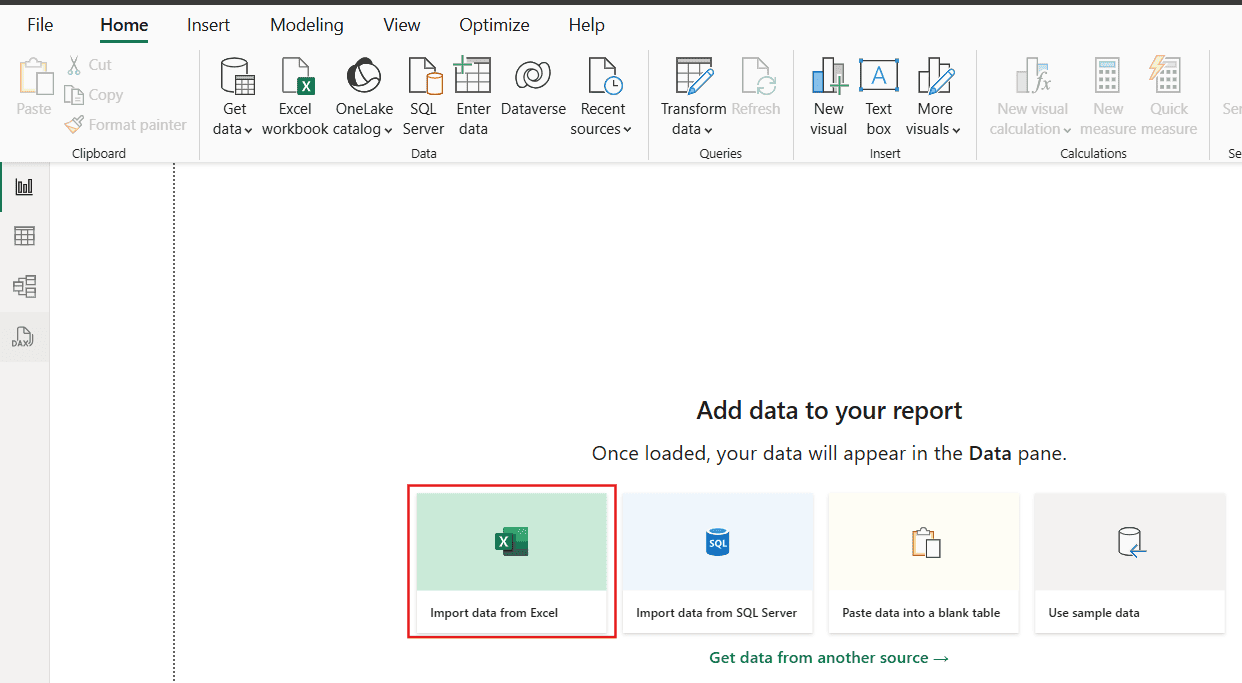
My example uses an Excel file of employee details. After loading it with Get data, the columns appear in the Data pane:
Select the Button slicer icon in the Visualizations pane and drag Department into its field well:

Each department becomes a button:


Show the buttons in one row or a grid
By default, the buttons stack in a column or a small grid:

In Format visual, open Multi-button layout and choose an arrangement: Vertical, Horizontal or Grid. For one row across the page, choose Horizontal. Then pick how the buttons are sized:
- Fit to space (formerly called Autogrid) grows and shrinks the buttons with the visual.
- Fixed size sets an exact height and width in pixels; a scroll bar appears if they don’t all fit.
Older versions called this Layout > Arrangement > Single row. The result is the same:

Change the button color
Out of the box, the buttons use the report theme’s colors:

In Format visual > Visual, expand Buttons:

In the Background group, set Fill color:


The Buttons card also has a state selector, so you can give selected, hovered and pressed buttons their own colors. That makes it much clearer which filter is active.
Give each button its own color
Select the fx button next to Fill color:

Set Format style to Rules, choose the field to base it on (Department), and add a rule and color for each value:


Conditional formatting also works for button borders, effects and the callout text, so you can highlight one value, such as a department that’s over budget.
Sort the buttons
The buttons follow the field’s order, which for text is alphabetical:

To reverse it, select … (More options) on the visual and choose Sort descending:
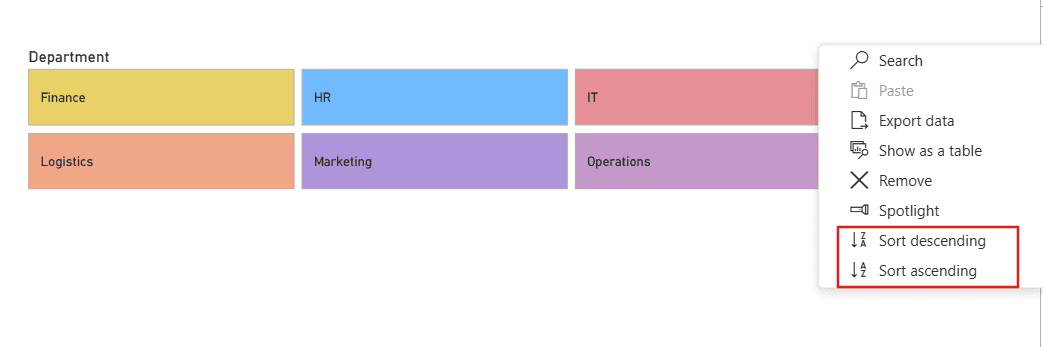

Sorting is by value only; you can’t sort by the button label. For a custom order, add a sort column to your data and use Sort by column.
Change the button shape
Under Buttons, the shape setting offers a rectangle, rounded rectangle, tab shapes and more:


Here’s the Snipped tab, both top shape:


Center the button text
The text starts aligned to the left:

Open Callout values in the format pane, then set Horizontal alignment to center. Font, size and color are in the same section:


Other useful options
- Single select limits people to one button at a time; with Force selection also on, one button is always selected.
- Show “Select all” option adds a button that clears the filter.
- The Highlight label well shows a measure, such as headcount, under each button.
- Images can add an icon or picture to each button.
- You can paste a list of values (up to 2,000, exact matches) into a selected slicer with Ctrl+V to select them all at once.
For a simpler list with checkboxes, the classic slicer is still a good choice; see how to use checkboxes in a Power BI slicer and the Power BI dropdown slicer.
These Power BI slicer tutorials may help next:
- How to Add Slicer Checkbox in Power BI?
- Power BI Slicer Dropdown [Setup, Search, Sort, Fixes & When to Use It]
- Power bi show items with no data
- Hide or Remove Column Headers on Power BI Matrix Visual
- Power bi show value as percentage + 13 Examples
- Display Multiple Rows in Matrix Without Hierarchy in Power BI
Frequently Asked Questions
Is the Power BI button slicer still in preview?
No. It’s generally available in Power BI Desktop and the service, so you don’t need to enable a preview feature. Microsoft covers every setting in its button slicer documentation.
How do I show a button slicer horizontally?
Open Format visual > Multi-button layout and choose Horizontal, with Fit to space or Fixed size.
How do I give each button a different color?
Select fx next to Buttons > Background > Fill color, choose Rules, base them on the slicer field, and set a color per value.
Can I sort a button slicer by label?
No. Sorting is by value only. Use a sort column and Sort by column for a custom order.

I have worked with Microsoft technologies for more than 18 years, including SharePoint, Microsoft 365 and the Power Platform (Power Apps, Power Automate and Power BI), at companies like HP, TCS and KPIT. I started EnjoySharePoint in 2011 to share the solutions I build in real projects with readers in the United States, Canada, the United Kingdom, Australia, New Zealand and beyond. Microsoft has recognized this work with the Microsoft MVP award 13 times since 2014.