
In this SPFx tutorial, I’ll show you how to use the GroupedList control inside a SharePoint Framework (SPFx) client-side web part.
Two quick notes before we start, because both trip people up when they’re following an older blog post. First, this control used to be called Office UI Fabric React GroupedList. Microsoft renamed the whole Fabric library to Fluent UI React, and the npm package moved from office-ui-fabric-react to @fluentui/react.
Second, and this one catches even experienced SPFx developers off guard: starting with SPFx v1.22, Microsoft replaced the old gulp-based build toolchain with a new one called Heft. If you run gulp serve on a project scaffolded today, it will fail outright — there’s no gulpfile anymore. Every build command in this article uses Heft, and I’ve noted the old gulp equivalent alongside each one so it’s obvious what changed.
We’ll build a client-side web part step by step, and then wire up the GroupedList so it reads data from a SharePoint list and groups items by an icon category. If you’re new to SPFx, make sure you’ve already set up your development environment for SharePoint Framework, and it helps to know the basics of how to create a client-side web part using SPFx before jumping in.
Fluent UI React GroupedList Example
Here’s what we’re building: a list of icons that expand and collapse. When a user clicks the arrow next to a group, it reveals the items under that group. This is a common pattern for things like a categorized document list, a navigation panel, or a filterable list of site links.
For this demo, I have created a SharePoint Online list named FabricUIGroupedList with two columns: Title (the default column) and IconCategory (Single line of text). I’ve added a few sample items where the Title holds the display name, and IconCategory holds a valid Fluent UI icon name, as shown below.
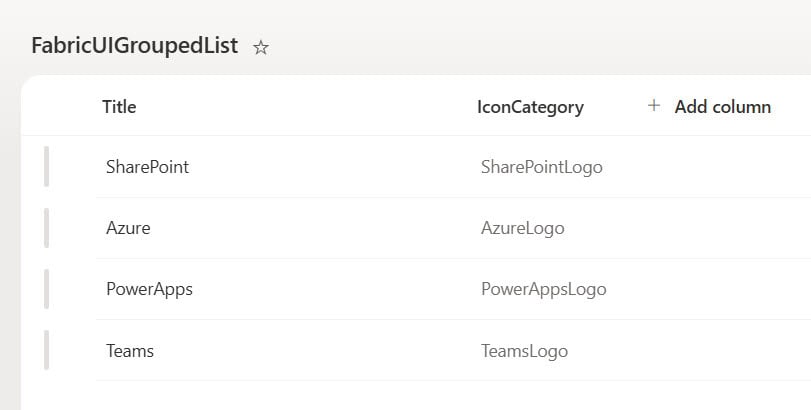
Each unique value in IconCategory becomes its own collapsible group in the GroupedList.
Pro tip: I’ve built this pattern for a few clients who wanted a “categorized resources” panel on their intranet home page. The GroupedList control looks great for this because it’s virtualized — meaning it only renders the rows that are actually visible on screen. If you try to build the same thing with a plain mapped array of
<div>elements, performance drops fast once you cross a few hundred items. Stick with GroupedList (or DetailsList with grouping) any time your list can grow.
Setting Up the SPFx Solution
Open the Node.js command prompt and create a new folder for the project.
md FluentUiGroupedListwithIcons

cd FluentUiGroupedListwithIcons
Now run the Yeoman generator to scaffold the SPFx solution.
yo @microsoft/sharepointThe generator’s prompts have changed slightly from older SPFx versions. Here’s what you’ll see today:
- What is your solution name? Press Enter to accept the default.
- Do you want to allow the tenant admin the choice of being able to deploy the solution to all sites immediately without running any feature deployment or adding apps in sites? Choose N.
- Will the components in the solution require permissions to access web APIs that are unique and not shared with other components in the tenant? Choose N.
- Which type of client-side component to create? Choose WebPart.
- What is your web part name? Type FluentUiGroupedList.
- What is your web part description? Press Enter to accept the default.
- Which template would you like to use? Choose React.
One thing worth pointing out: current versions of the generator only scaffold solutions for SharePoint Online (latest). The older prompt asking you to choose between SharePoint 2016, 2019, or Online is gone, because on-premises SharePoint no longer supports SPFx. If you’re maintaining an old solution built for SharePoint 2019, you’ll need an older generator version for that specific project.
Once scaffolding finishes, open the solution in Visual Studio Code:
code .If you open package.json, you’ll notice the scripts section now calls heft instead of gulp:
"scripts": {
  "build": "heft test --clean --production && heft package-solution --production",
  "start": "heft start --clean",
  "clean": "heft clean"
}
There’s no gulpfile.js in the project root anymore. That’s expected — Heft is config-driven, so build behavior lives in JSON files under the config folder instead of a JavaScript task file.
Adding the Site URL Property
Open the IFluentUiGroupedListProps.ts file and add a property to pass the site URL down to the component.
export interface IFluentUiGroupedListProps {
  description: string;
  siteUrl: string;
}
I’ve renamed SiteURL to siteUrl here to follow standard TypeScript camelCase convention — the old article used PascalCase for a prop name, which works fine but isn’t the pattern you’ll see in current SPFx samples.
Now open FluentUiGroupedListWebPart.ts and pass the value in the render() method.
public render(): void {
    const element: React.ReactElement<IFluentUiGroupedListProps> = React.createElement(
      FluentUiGroupedList,
      {
        description: this.properties.description,
        siteUrl: this.context.pageContext.web.absoluteUrl
      }
    );

    ReactDom.render(element, this.domElement);
  }
Check out Get Data Between Two Dates from a SharePoint List Using SPFx
Writing the GroupedList Code
Now open FluentUiGroupedList.tsx, the React component file, and replace the content with the updated version below.
import * as React from 'react';
import styles from './FluentUiGroupedList.module.scss';
import { Icon } from '@fluentui/react/lib/Icon';
import { initializeIcons } from '@fluentui/react/lib/Icons';
import { Selection, SelectionMode } from '@fluentui/react/lib/Selection';
import { GroupedList, IGroup, IGroupHeaderProps } from '@fluentui/react/lib/GroupedList';
import { IFluentUiGroupedListProps } from './IFluentUiGroupedListProps';
import { groupBy, findIndex } from '@microsoft/sp-lodash-subset';

export interface IGroupedListState {
  result: IDocument[];
}

export interface IDocument {
  Title: string;
  IconCategory: string;
}

export default class FluentUiGroupedList extends React.Component<IFluentUiGroupedListProps, IGroupedListState> {
  private _selection: Selection;

  constructor(props: IFluentUiGroupedListProps) {
    super(props);
    initializeIcons();
    this._selection = new Selection();
    this.state = {
      result: []
    };
  }

  public async componentDidMount(): Promise<void> {
    const groupedListItems = await getGroupedListData(this.props.siteUrl);
    this.setState({ result: groupedListItems });
  }

  private _generateGroupsFromArray(sortedItems: IDocument[]): IGroup[] {
    const groupedByIconCategory: Record<string, IDocument[]> = groupBy(sortedItems, (i: IDocument) => i.IconCategory);
    const groups: IGroup[] = [];

    for (const iconCategory in groupedByIconCategory) {
      const startIndex = findIndex(sortedItems, (i: IDocument) => i.IconCategory === iconCategory);
      groups.push({
        name: iconCategory,
        key: iconCategory,
        startIndex: startIndex,
        count: groupedByIconCategory[iconCategory].length,
        isCollapsed: startIndex !== 0
      });
    }
    return groups;
  }

  public render(): React.ReactElement<IFluentUiGroupedListProps> {
    return (
      <div>
        <h3>Fluent UI Grouped List with Icon Category</h3>
        <hr />
        <GroupedList
          className={styles.groupcolor}
          items={this.state.result}
          onRenderCell={this._onRenderCell}
          groups={this._generateGroupsFromArray(this.state.result)}
          groupProps={groupedListProps}
          selection={this._selection}
          selectionMode={SelectionMode.none}
        />
      </div>
    );
  }

  private _onRenderCell = (_nestingDepth: number, item: IDocument): JSX.Element => {
    return (
      <div>
        <span style={{ fontSize: 'large', paddingLeft: '25px' }}>
          {item.Title}
        </span>
        <br />
      </div>
    );
  }
}

export const getGroupedListData = async (webUrl: string): Promise<IDocument[]> => {
  const items: IDocument[] = [];

  try {
    const response = await fetch(
      `${webUrl}/_api/web/lists/getbytitle('FluentUIGroupedList')/items?$select=Title,IconCategory`,
      {
        method: 'GET',
        headers: {
          'Accept': 'application/json;odata=nometadata'
        },
        credentials: 'same-origin'
      }
    );

    if (!response.ok) {
      throw new Error(`Request failed with status ${response.status}`);
    }

    const data = await response.json();
    for (const value of data.value) {
      items.push({
        Title: value.Title,
        IconCategory: value.IconCategory
      });
    }
  } catch (error) {
    console.error('Error retrieving list items:', error);
  }

  return items;
};

const onRenderHeader = (props?: IGroupHeaderProps): JSX.Element | null => {
  if (!props || !props.group) {
    return null;
  }

  const toggleCollapse = (): void => {
    if (props.onToggleCollapse && props.group) {
      props.onToggleCollapse(props.group);
    }
  };

  return (
    <div>
      <Icon
        style={{ marginBottom: '10px', fontSize: 25, cursor: 'pointer' }}
        iconName="ChevronRightSmall"
        onClick={toggleCollapse}
      />
      <Icon
        style={{ paddingLeft: '16px', fontSize: 37, cursor: 'pointer' }}
        iconName={props.group.name}
        onClick={toggleCollapse}
      />
    </div>
  );
};

const groupedListProps = {
  onRenderHeader
};
A few changes worth explaining:
componentWillMount()is gone. React deprecated this lifecycle method years ago because it’s unsafe with async rendering. I’ve swapped it forcomponentDidMount(), which is the correct place to kick off a data fetch in a class component.initializeIconsnow comes from@fluentui/react/lib/Icons, not from the root package. Importing it from the wrong path is one of the most common build errors I see when people update an old Fabric-based web part.- The fetch call no longer sets
Access-Control-Allow-Originmanually. That header is set by the server, not the client. I also switchedcredentials: 'include'tocredentials: 'same-origin', which is correct when your web part and the SharePoint REST API sit on the same site. - Added a
$selectquery to only pull the Title and IconCategory columns instead of the whole item, keeping the payload small. - Wrapped the fetch in a try/catch so a failed request doesn’t leave your GroupedList silently empty with no clue why.
Pro tip: In my experience, teams eventually want to call SharePoint from more than one web part. If that’s you, it’s worth learning to bind a SharePoint list to a Fluent UI React dropdown or displaying SharePoint list items in a table using SPFx using the same fetch pattern, so you’re not rewriting the same REST call five different ways across a solution.
Read Bind SharePoint List Items to a Dropdown in an SPFx Web Part
Testing the Web Part with Heft
This is where the toolchain change matters most. Run the following command to start the local dev server:
heft start --cleanThat’s the direct replacement for the old gulp serve. If it’s your first time running the project, trust the local dev certificate first:
heft trust-dev-certOlder SPFx tutorials will tell you gulp serve opens a local workbench page automatically. That local workbench has been unreliable on recent SPFx releases and is being phased out, so I’d skip it entirely and test straight from your tenant’s hosted workbench instead:
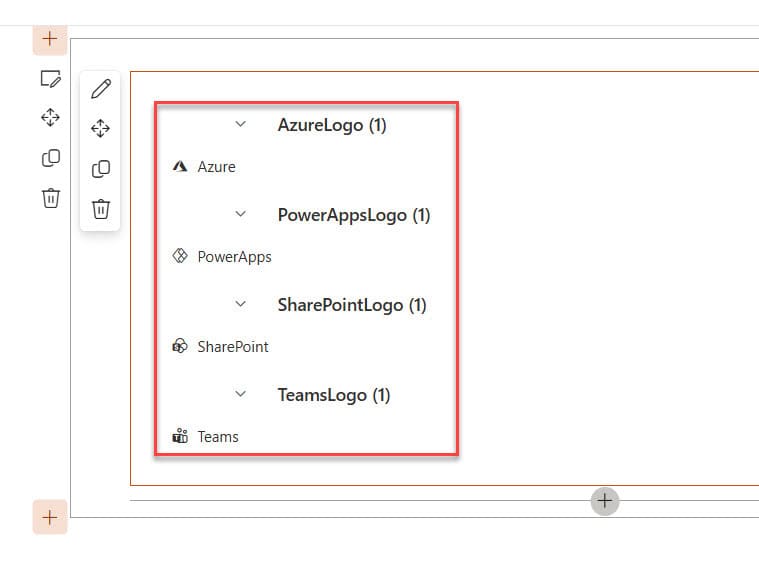
https://<yourtenant>.sharepoint.com/sites/<yoursite>/_layouts/15/workbench.aspxAdd the FluentUiGroupedList web part to the page. You should see each unique IconCategory rendered as a collapsible group, with the Title values listed underneath.
You can see the exact output in the screenshot below:
Pro tip: If you were used to running
gulp serve --nobrowserto stop the browser from opening automatically, the same flag works with Heft:heft start --nobrowser. I use this constantly when I’m testing against a specific page I’ve already got open, instead of letting the tool launch a fresh tab every time.
Deploying the Solution with Heft
Once you’re happy with how it behaves, build and package the solution for production. With gulp, this used to be two separate commands (gulp bundle --ship and gulp package-solution --ship). With Heft, bundling is folded into the build step, so it’s:
heft build --production

heft package-solution --production
Note that the old --ship flag is gone — Heft uses --production instead. This creates the .sppkg file inside the SharePoint folder in your solution, exactly like before. Upload that file to your tenant app catalog site, or a site collection app catalog if you’re deploying scoped to a single site. From there, you can add the web part to any modern page.
Here’s the full command mapping if you’re migrating an older project or just want a quick reference:
| Old (gulp) | New (Heft) |
|---|---|
gulp serve | heft start |
gulp build | heft build |
gulp bundle | folded into heft build |
gulp clean | heft clean |
gulp test | heft test |
gulp package-solution | heft package-solution |
gulp package-solution --ship | heft package-solution --production |
gulp trust-dev-cert | heft trust-dev-cert |
Things to Keep in Mind
- Package name matters. If you copy code from an older tutorial, double check every import still points to
office-ui-fabric-react. That package is no longer maintained, and mixing it with@fluentui/reactin the same project causes duplicate icon registrations and style conflicts. - Don’t mix gulp and Heft commands. If your project was scaffolded before SPFx v1.22, it still has a gulpfile and uses gulp commands — that’s fine and still supported. But don’t try running
heft starton an old gulp project orgulp serveon a new Heft project; the config files don’t match up. - Call
initializeIcons()once, early. I usually call it in the component constructor or in the web part’sonInit()method rather than on every render. - Watch your list size. GroupedList is virtualized, so it handles large lists well on the rendering side — but the REST call itself is still subject to SharePoint’s list view threshold. If your source list can grow past a few thousand items, filter server-side with
$filterand add paging. - Don’t hardcode the list name in production code. Move the list title into the web part property pane so the same web part can point to a different list per site, without needing a code change.
- Use
$selecton every REST call. Pulling the full item object is one of the most common reasons SPFx web parts feel slow on pages with a lot of columns.
Frequently Asked Questions
Is Office UI Fabric React the same as Fluent UI React?
Yes. Microsoft renamed Office UI Fabric React to Fluent UI React, and the npm package changed from office-ui-fabric-react to @fluentui/react. The components, including GroupedList, work almost the same way — only the import paths and package name changed.
Why does gulp serve fail on my new SPFx project?
Because starting with SPFx v1.22, new projects use the Heft build toolchain instead of gulp, and there’s no gulpfile generated anymore. Use heft start instead of gulp serve. Existing projects created before v1.22 keep working with gulp; you only see this issue on newly scaffolded solutions.
Do I need to manually install Heft?
No. Any solution scaffolded with a current version of the SharePoint Framework Yeoman generator comes with Heft already configured through a shared “rig” package, so it works out of the box the first time you run npm install.
Can I use GroupedList in Fluent UI React v9?
Not directly. Fluent UI React v9 (@fluentui/react-components) is a newer, rebuilt component library, and it doesn’t yet have a one-to-one GroupedList replacement. For SPFx web parts today, use @fluentui/react (v8), which still fully supports GroupedList.
Why is my GroupedList showing items collapsed or expanded incorrectly?
This usually comes down to the startIndex values in your IGroup array not matching the actual position of items in the underlying array. Sort your items array by the grouping field before building the groups, since GroupedList expects items in the same group to sit next to each other.
Can I still use the old –ship flag with Heft?
No, --ship was specific to gulp. With Heft, use --production instead — for example, heft build --production and heft package-solution --production.
That covers everything you need to get a Fluent UI React GroupedList working in a current SPFx web part built on the Heft toolchain, from scaffolding the solution to pulling grouped data straight from a SharePoint list. Stick with @fluentui/react, use Heft commands instead of gulp, and keep your REST calls lean with $select — this pattern scales nicely from a simple icon list to a full categorized navigation panel.
You may also like the following SPFx tutorials:
- Modern Script Editor Web Part using SharePoint Framework (SPFx)
- SPFx Application Customizer Example
- Display Current User Name in SPFx Client Side Web Part
- Add Bootstrap to SharePoint SPFx Webpart

After working for more than 18 years in Microsoft technologies like SharePoint, Microsoft 365, and Power Platform (Power Apps, Power Automate, and Power BI), I thought will share my SharePoint expertise knowledge with the world. Our audiences are from the United States, Canada, the United Kingdom, Australia, New Zealand, etc. For my expertise knowledge and SharePoint tutorials, Microsoft has been awarded a Microsoft SharePoint MVP (12 times). I have also worked in companies like HP, TCS, KPIT, etc.

