
The Power Automate getFutureTime() function returns the current UTC time plus a number of time units, for example getFutureTime(3, 'Day') for exactly three days from now. Use it to set due dates, expiry dates and reminder windows without getting the current time first.
In my projects, it fills the Due Date of new Contoso support tickets, sets the expiry date of a sharing request, and finds tasks that are due this week. Below, I’ll walk through the syntax, real output from a test run on 10/27/2026, date formats and time zones, and the flow patterns where getFutureTime saves you the most work.
Quick answer: Syntax: getFutureTime(interval, 'timeUnit', 'format'). The interval is a whole number, the unit is Second, Minute, Hour, Day, Week, Month or Year, and the format is optional. getFutureTime(3, 'Day') returns a UTC timestamp such as 2026-10-30T06:27:46.7139472Z. Wrap it in convertFromUtc() to show local time.
getFutureTime() syntax
getFutureTime(<interval>, '<timeUnit>', '<format>'?)| Parameter | Required | Details |
|---|---|---|
| interval | Yes | A whole number, without quotes: 3, not ‘3’ |
| timeUnit | Yes | Second, Minute, Hour, Day, Week, Month or Year (singular) |
| format | No | A .NET date format such as ‘MM/dd/yyyy’. The default ‘o’ gives ISO 8601: yyyy-MM-ddTHH:mm:ss.fffffffK |
getFutureTime always counts from now in UTC. To add time to another date, such as a start date from a list, use addToTime instead. Its counterpart for past dates is the getPastTime function, which takes the same parameters.
getFutureTime() examples for each time unit
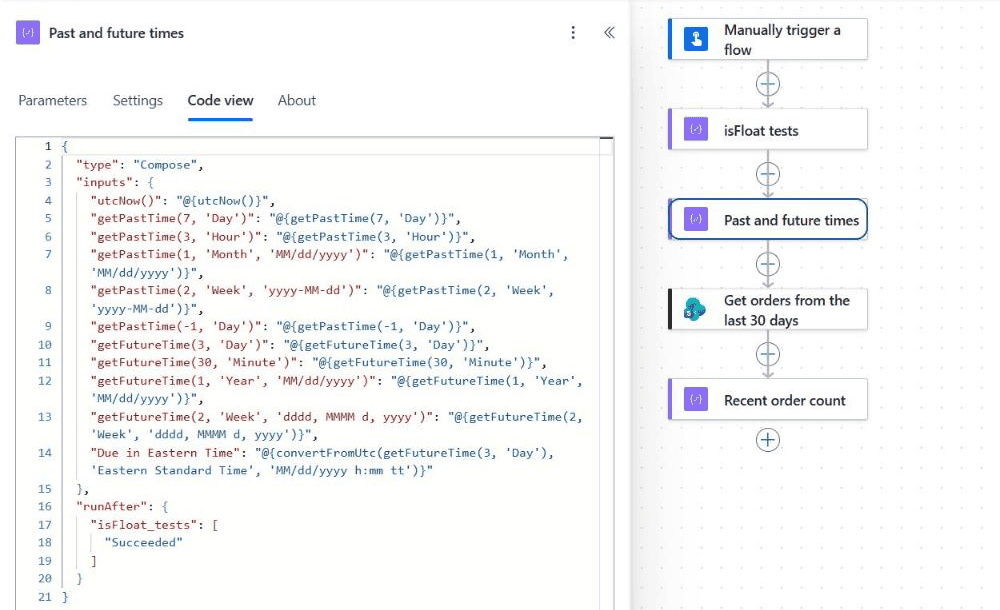
To test it, create an instant flow with Manually trigger a flow, add a Compose action, select fx in Inputs, type the expression and select Add. I put several expressions into one Compose so the results line up:
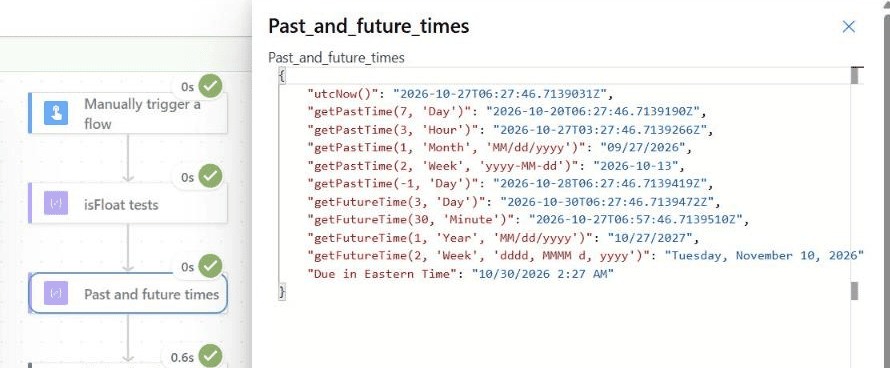
The flow ran at 06:27:46 UTC on 10/27/2026, and the Compose returned these values:
| Expression | Output |
|---|---|
| getFutureTime(30, ‘Minute’) | 2026-10-27T06:57:46.7139510Z |
| getFutureTime(3, ‘Day’) | 2026-10-30T06:27:46.7139472Z |
| getFutureTime(2, ‘Week’, ‘dddd, MMMM d, yyyy’) | Tuesday, November 10, 2026 |
| getFutureTime(1, ‘Year’, ‘MM/dd/yyyy’) | 10/27/2027 |
| convertFromUtc(getFutureTime(3, ‘Day’), ‘Eastern Standard Time’, ‘MM/dd/yyyy h:mm tt’) | 10/30/2026 2:27 AM |
The time of day is kept, so three days from now is 06:27 UTC on 10/30, not midnight. Month and Year follow the calendar: one month from 10/27 is 11/27, whatever the number of days in between.
The format strings are the same ones that the formatDateTime function uses, so you can reuse any pattern you already know.
Set a due date when an item is created
Here’s the first real use. When a new request arrives in a Contoso Support Tickets list, I want its Due Date set to three business days later, which I simplify to three days here:
- Use the trigger When an item is created on your list.
- Add Update item with the same site, list and the trigger’s ID.
- In the Due Date field, select fx and enter
getFutureTime(3, 'Day', 'yyyy-MM-dd').
For a date-only column, the ‘yyyy-MM-dd’ format is the safest choice. For a date and time column, leave the format out and SharePoint stores the full UTC timestamp, which it then shows in each user’s time zone.
If the due date must skip weekends, getFutureTime can’t do it alone, because it adds calendar time. In that case, check the day with dayOfWeek() and add extra days. For adding days to a date from the item itself, see the addDays function.
Find items due in the next 7 days
For a weekly reminder, I filter a task list for items whose due date falls between now and seven days from now. In Get items, open Advanced parameters, add Filter Query, and enter:
DueDate ge '@{utcNow('yyyy-MM-dd')}' and DueDate le '@{getFutureTime(7, 'Day', 'yyyy-MM-dd')}'Type the text parts, and insert each expression with fx. The single quotes around both dates are required. Then loop over the results and send each assignee an email. There’s a complete version of this flow in sending 7 or 14 day due date reminders.
The same idea works without a filter query in a Condition. Microsoft’s own reminder example compares a due date with addDays(utcNow(), 1), and getFutureTime(1, 'Day') gives the same value. For more date filters, see Get items filter queries by date.
Set a deadline for a Do until loop
When a flow waits for something, such as a file to appear or a status to change, I give the loop a deadline so it can’t run for hours:
- Before the loop, initialize a variable named Deadline with
getFutureTime(2, 'Hour'). - In the Do until condition, stop when the work is done or when
greaterOrEquals(utcNow(), variables('Deadline'))is true. - Inside the loop, add a Delay so the flow checks every few minutes instead of constantly.
Calculate the deadline once, before the loop. If you call getFutureTime inside the loop condition, it recalculates on every pass and the deadline keeps moving away.
Show the result in your time zone
Every getFutureTime value is UTC. That’s what you want for filters and SharePoint columns, but an email that says a ticket is due at 06:27 confuses a reader in New York. Convert it first:
convertFromUtc(getFutureTime(3, 'Day'), 'Eastern Standard Time', 'MM/dd/yyyy h:mm tt')My test returned 10/30/2026 2:27 AM, four hours behind the UTC value because of daylight saving time. Use the Windows time zone name for your region. More options are in converting UTC to a local time zone.
getFutureTime vs addToTime vs addDays
| Expression | Starts from | Example |
|---|---|---|
| getFutureTime | Now (UTC) | getFutureTime(7, ‘Day’) |
| addToTime | Any timestamp | addToTime(triggerBody()?[‘StartDate’], 7, ‘Day’) |
| addDays | Any timestamp, days only | addDays(utcNow(), 7) |
Starting from now, all three return the same moment. Use addToTime when you start from a date in your data, such as a contract start date. It’s explained with its partner in the addToTime and subtractFromTime functions.
Common getFutureTime errors
- The function expects an integer: the interval is in quotes or comes from a text input. Use
int(), as ingetFutureTime(int(variables('Days')), 'Day'). - Invalid time unit: use the singular, such as ‘Week’, not ‘Weeks’.
- The date is a day off: the value is UTC. Convert it to your time zone before you format it as a date.
- The filter query returns nothing: check the single quotes around each date and the column’s internal name.
These tutorials pair well with getFutureTime:
Frequently Asked Questions
Is the getFutureTime result in UTC?
Yes. The Microsoft expression reference examples return UTC timestamps. Wrap the value in convertFromUtc to show it in your time zone.
What is the difference between getFutureTime and addToTime?
getFutureTime always starts from the current UTC time. addToTime adds the interval to any timestamp you pass in.
How do I get only the date from getFutureTime?
Add a format as the third parameter, for example getFutureTime(7, ‘Day’, ‘yyyy-MM-dd’) or ‘MM/dd/yyyy’.
Can the interval come from a variable or a list column?
Yes, but it must be a whole number. Convert text with int(), for example getFutureTime(int(variables(‘Days’)), ‘Day’).
How do I find SharePoint items due in the next 7 days?
Use a Get items Filter Query that compares the due date with utcNow() and getFutureTime(7, ‘Day’, ‘yyyy-MM-dd’), with single quotes around each date.

Preeti Sahu is a Microsoft MVP for Power Apps with over six years of experience working with SharePoint Online and the Power Platform. She is the co-author of the book Microsoft Power Platform: A Deep Dive. As a Power Platform developer, she has built various tools with Power Apps and Power Automate, and she makes Microsoft 365 videos for YouTube.