
This Power Automate tutorial will assist you in learning everything about the Power Automate addToTime() function, Power Automate subtractFromTime() function, and Power Automate addHours() like what does mean by this function and its syntax.
Also, we will see how to add time to the second, minute (UTCNow), and hour in Power Automate. Additionally, you will get to know some more below topics:
- How to work with Power Automate add to time day.
- Working with Power Automate add to time week.
- Add to time month in Power Automate.
- How to use Power Automate add to time year.
Power Automate addToTime() Function
The addToTime() function in Microsoft Power Automate (formerly known as Microsoft Flow) is a useful expression for manipulating dates and times. It allows you to add a specified time to a given date/time value.
This function is particularly handy in workflows where you need to calculate future or past dates based on a certain duration. The return value from the addToTime() function will be a timestamp plus the specified number of time units.
Regarding the addToTime expression, giving positive time intervals will add the specific time unit to the time stamp. On the other hand, negative time intervals will exclude or subtract the duration from the time stamp.

This is a brief introduction to the Power Automate addToTime() function.
Power Automate addToTime() Syntax
Below is the syntax for a Power Automate addToTime() function:
addToTime('timestamp', interval, 'time unit', 'format')Parameters:
- Timestamp: It is a required field where a user can add time to the timestamp.
- Interval: It is in the form of an integer where a particular number of time units are added.
- Time Unit: It represents the unit of time that can be used with intervals like Second, Minute, Hour, Day, Week, Month, and Year.
- Format: It is an optional field where a user can provide a custom timestamp format. If not provided, it will take the default format[yyyy-MM-ddTHH:mm: ss.fffffffK].
Example:
For example, I will add 1 day as a time unit to the date.
addToTime('2023-12-07T00:00:00Z', 1, 'Day')- 2023-12-07T00:00:00Z = Give the timestamp as per your requirement.
- 1 = Specify a particular interval of time unit.
- Day = Provide the time unit like Second, Minute, Hour, Day, Week, Month, and Year per your need.
Here will be the output as 2023-12-08T00:00:00.0000000Z.
This is the overview of Power Automate’s addToTime() function syntax.
Power Automate addToTime Second
I will illustrate an example of Power Automate addToTime() to second in a flow.
Example:
I will add a specific number of seconds to the provided timestamp. So, the outcome will display a date and time with the additional seconds.
Let’s take a date as “2023-12-13“. To this date, I am required to add 10 seconds. Then, my result will be 2023-12-13T00:00:10.0000000, as shown below.

So, Let’s dive into the below steps!
1. Navigate to make.powerautomate.com in the browser to open the Power Automate Home page -> Tap on +Create -> Select Instant cloud flow -> Take Manually trigger a flow and enter a flow name -> Click Create.
- Open the trigger -> Click Add an input -> Select Date.

2. To give the addToTime() expression in a flow, add an ‘Initialize variable’ flow action under the flow trigger. The Initialize variable stores the information of the date, and the stored values can be used during the flow.
Set the parameters of the initialized variable.
- Name: Enter the variable name manually as Date.
- Type: Select String datatype.
- Value: Take the value that is given in the code below.
addToTime(triggerBody()['date'],10,'Second','F')Click OK.
Where ‘F’ represents the format of a date.

3. To view the output of the Power Automate addToTime() function, we can use the Compose data operation. Add the ‘Compose’ data operation and give the value in the ‘Inputs’ section.
Inputs: Click the field -> Take the Date variable from dynamic content.

4. After creating the flow, Save and Test the flow manually. In the Run flow window, pick the triggered date the unit needs to be added.

5. Now the flow runs successfully, it will notify a message as ‘Your flow ran successfully.’ Then, open the ‘compose’ flow action to see the output. The outputs will display the returns of the addToTime() expression as below.
- The current date and time will be [Friday, December 8, 2023, 12:00:00AM].

This is how to add seconds to the date using the Power Automate addToTime() function.
Power Automate addToTime to utcNow Minute
In the same way, we will see about Power Automate addToTime() in the ‘Minutes’ time unit.
Example:
Similarly, I must add a designated number of minutes to the current date and time. Thus, the updated Today’s date and time will reflect its added minutes.
Assuming today’s date is “13-12-2023,” adding five minutes to the current time will result in 13-12-2023T13:05, as seen in the screenshot below. Presently, the current time is [2023-12-13T13:00].

Look at the steps that are mentioned below:
1. In the ‘Initialize variable‘ flow action, change the addToTime() expression to add minutes to the timestamp. Give the variable properties.
- Name: Enter the variable name manually as Date.
- Type: Select datatype String from drop-down.
- Value: Give the value that is given in the code below.
Value: addToTime(utcNow(),5,'Minute','dd-MM-yyyyTHH:mm')
After that, click on OK.
2. This output will be retrieved from the compose flow action by adding minutes to the utcNow() as below.
Timestamp: 08-12-2023T05:27, and the result will be 08-12-2023T05:32.

This is about how to add minutes to the timestamp using the Power Automate addToTime() function.
Power Automate addToTime Hour
Similarly, in a flow, let’s see how to add hours to the timestamp using a Power Automate addToTime function.
Example:
I will add a specific number of hours to a given timestamp. For instance, suppose we have a timestamp of “2023-12-08” and need to add 2 hours. In that case, the resulting timestamp will be “2023-12-08T02:00:00.0000000,” as shown below.

Follow the steps below:
1. Inside the ‘Initialize variable‘ flow action, give Name, Type, and a Value. Take ‘Trigger date’ from the dynamic content in the Value parameter. Set the details:
- Name: Provide the variable name manually as Date.
- Type: Select datatype String.
- Value: Select field -> Take Trigger date from the dynamic content.

2. In the Compose flow action, give the addToTime() expression to add hours to the timestamp.
Inputs: Select field -> Click Expression -> Add the code below.
addToTime(variables('Date'),2,'Hour','dd-MM-yyyyTHH:mm:ss')
3. After saving the flow, pick the triggered date the unit needs to be added in the Run flow window.
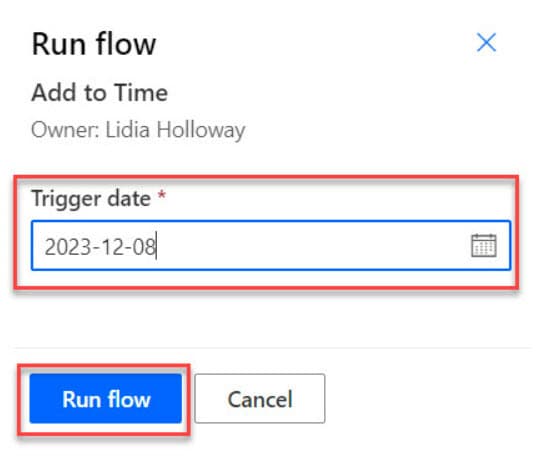
4. Check out the timestamp retrieved from the addToTime expression in the compose outputs. The result will add the given hours to the timestamp [08-12-2023T02:00:00].

This will be a detailed process of using the Power Automate addToTime() function to add hours to a timestamp.
Power Automate addToTime Day
Going deep into the Power Automate addToTime() function, let’s look at how to add days to the time stamp.
Follow the same steps that are mentioned in the above example:
- Add a manual trigger flow to take the input as ‘Date.’
- Initialize trigger date variable.
- Provide addToTime() expression in the ‘Compose’ data operation.
Example:
This example involves adding a specific number of days to a particular timestamp. For example, if we begin with a timestamp of “2023-12-08” and intend to add two days, the resulting timestamp will be “2023-12-10,” as shown below.

Follow the below given steps:
1. In the ‘Inputs’ of the compose flow action, give the expression to add days to the timestamp.
Inputs: Select the field -> Click Expression -> Add the expression given below.
addToTime(variables('Date'),2,'Day','yyyy-MM-dd')After that, Click OK.

2. Once the flow has been saved, select the desired date for the unit to be added in the “Run flow” window. Then, click Run flow.
![Power Automate addToTime[Day]](https://enjoysharepoint.com/wp-content/uploads/2023/12/Power-Automate-addToTimeDay.jpg "Power Automate addToTimeDay")
3. After running the flow successfully, open the initialized variable to see the triggered date.
- Triggered Date: 2023-12-08

4. The image below illustrates the results of the addToTime() function, which adds two days to the provided timestamp.
- The result will be 2023-12-10.

This is about the Power Automate addToTime() function to add days to a timestamp.
Power Automate addToTime Week
Moreover, I will show you how to add a week to the date by using the Power Automate addToTime() function inside a flow.
Example:
This example involves adding a specific number of weeks to a particular timestamp. For example, if we begin with a timestamp of “2023-12-10” and intend to add one week(7 days), the resulting timestamp will be “2023-12-17,” as shown below.
![Power Automate addToTime[Week]](https://enjoysharepoint.com/wp-content/uploads/2023/12/Power-Automate-addToTimeWeek.jpg "Power Automate addToTimeWeek")
To achieve this, go through the steps:
1. Change the ‘time interval and time unit’ in the addToTime() expression. Take the compose ‘Inputs‘ as given in the code below.
- Inputs: Select the field -> Click Expression -> Give the expression given below.
Inputs: addToTime(variables('Date'),1,'Week','yyyy-MM-dd')After giving the expression, click on OK.

2. Then, Save and Test the flow manually. In the Run flow window, pick a triggered date. Click Run flow.

3. Upon completing the flow, the output of the compose flow action will give the return values of the addToTime() function corresponding to the given date by adding one week to it. The return value will be [2023-12-17].

This is the Power Automate addToTime() function overview to add a week to a timestamp.
Power Automate addToTime Month
In this section, let’s look at the example that will add a month to the timestamp using a Power Automate addToTime() function.
Example:
Let us assume the timestamp “2023-12-08“. I will date the negative value of the 2 months to this date. So, the return output will be like ”2023-10-08,” which means it will subtract the months provided in the addToTime() expression.
![Power Automate addToTime negative [Month]](https://enjoysharepoint.com/wp-content/uploads/2023/12/Power-Automate-addToTime-negative-Month.jpg "Power Automate addToTime negative Month")
To work around this, follow the steps below:
1. Take ‘Month’ as a time unit in the addToTime() expression so that it will add given intervals of months to the timestamp.
Inputs: Select the field -> Click Expression -> Give the expression given below.
addToTime(variables('Date'),-2,'Month','MMMM dd, yyyy')Then, Select OK.
The negative of 2 will subtract the specific time units from the original timestamp provided.

2. After that, Save and Test the flow manually. In the Run flow window, pick a triggered date. Click Run flow.
![Power Automate addToTime[Month]](https://enjoysharepoint.com/wp-content/uploads/2023/12/Power-Automate-addToTimeMonth.jpg "Power Automate addToTimeMonth")
3. Look out for the timestamp retrieved from the addToTime() expression in the compose outputs, displaying the given date + specified number of time units.
- The return output will be 2023-10-08 [October 08, 2023].
When we give the negative values as an interval for the time unit, it subtracts the duration from the time stamp.

This is all about how to add a month to the date using the Power Automate addToTime() function.
Power Automate addToTime Year
Let us see the final example, i.e., adding a year to the timestamp by using a Power Automate addToTime() expression inside a flow.
Example:
Let’s give the timestamp “2023-12-01“. I need to add 10 years to the timestamp that we have taken. So, the return output will be like ”2033-12-01,” which means it will add the given years provided in the addToTime() expression to the timestamp.

To do this example, follow the below given steps.
1. Similarly, change the format of addToTime() expression to include a year in it. Provide the below-given code in the ‘Inputs’ of compose.
Inputs: Click the field -> Select Expression ->Take the code given below.
getFutureTime(variables('Date'),10,'Year','dd-MM-yyyy'Click Ok.
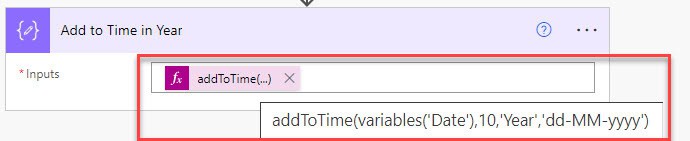
2. Once the flow has been created, save and run it. In the Runflow window, pick the triggered date you need, as shown below.

3. The Power Automate addToTime() function will give the output relevant to the expression by adding a year to the given timestamp.
- The return value from the addToTime() expression is 01-12-2033.

This is all about addToTime() expressions and how to use them in a Power Automate flow.
Power Automate subtractFromTime() Function
Power Automate subtractFromTime() is designed to subtract a specific unit of time from a given timestamp. This function enables users to subtract various time units, including seconds, minutes, hours, days, weeks, months, or years, based on their requirements.
The output of the “subtractFromTime()” function is a timestamp that is reduced by the specified number of time units.
This is the overview of the Power Automate subtractFromTime() function.
Power Automate subtractFromTime() Syntax
Here’s the syntax for the Power Automate subtractFromTimeTime() function:
subtractFromTime('timestamp', interval, 'time unit', 'format')Parameters:
- Timestamp: It is a required field where a user can add time to the timestamp.
- Interval: It is in the form of an integer where a particular number of time units are added.
- Time Unit: It represents the unit of time that can be used with intervals like Second, Minute, Hour, Day, Week, Month, and Year.
- Format: It is an optional field where a user can provide a custom timestamp format. If not provided, it will take the default format[yyyy-MM-ddTHH:mm: ss.fffffffK].
Example:
For example, I will subtract one-day time unit from the date.
subtractFromTime('2024-01-02T00:00:00Z', 1, 'Day')- 2024-01-02T00:00:00Z = Give the timestamp as per your requirement.
- 1 = Specify a particular interval of time unit.
- Day = Provide the time unit like Second, Minute, Hour, Day, Week, Month, and Year per your need.
Here will be the output as 2024-01-01T00:00:00.0000000Z.
This is the overview of the Power Automate subtractFromTime() function syntax.
Power Automate subtractFromTime() in Second
Using Power Automate flow, I will illustrate an example of Power Automate subtractFromTime() in seconds.
Example:
I will subtract a specific number of seconds from the provided timestamp. So, the outcome will display a date and time with the remaining seconds.
Let’s take a date as “2024-01-02“. From this date, I am required to subtract 20 seconds. Then, my result will be 2024-01-01T23:59:40, as shown below.

So, Let’s dive into the below steps!
1. Navigate to make.powerautomate.com in the browser to open the Power Automate Home page -> Tap on +Create -> Select Instant cloud flow -> Take Manually trigger a flow and enter a flow name -> Click Create.
- Open the trigger -> Click Add an input -> Select Date.

2. Add an Initialize variable flow action under the flow trigger to give the subtractFromTime() expression in a flow.
Set the parameters of the initialized variable.
- Name: Enter the variable name manually as Date.
- Type: Select String datatype.
- Value: Take the value that is given in the code below.
subtractFromTime(triggerBody()['date'],20,'Second','yyyy-MM-ddTHH:mm;ss')Click OK.

3. To view the output of the Power Automate subtractFromTime() function, we can use the Compose data operation. Add the Compose data operation and give the value in the ‘Inputs’ section.
Inputs: Click the field -> Take the Date variable from dynamic content.

4. After creating the flow, Save and Test the flow manually. In the Run flow window, pick the triggered date the unit needs to be added.
- The triggered date is 2024-01-02.

5. Now the flow runs successfully, it will notify a message as ‘Your flow ran successfully. The outputs of compose will display the returns of the subtractFromTime() expression as below.
- The output is 2024-01-01T23:59:40.

This is how to remove seconds from the date and time using the Power Automate subtractFromTime() function.
Power Automate subtractFromTime() in Day
Going deep into the Power Automate subtractFromTime() function, let’s consider subtracting days from the time stamp.
Follow the same steps that are mentioned in the above example:
- Add a manual trigger flow to take the input as ‘Date.’
- Initialize trigger date variable.
- Provide subtractFromTime() expression in the Compose flow action.
Example:
This example involves subtracting a specific number of days from a particular timestamp. For example, if we begin with a timestamp of “2023-01-05” and intend to subtract 2 days, the resulting timestamp will be “2023-01-03,” as shown below.

Follow the below given steps:
1. In the ‘Inputs’ of the compose flow action, give the expression to subtract days from the timestamp.
Inputs: Select the field -> Click Expression -> Add the expression given below.
subtractFromTime(triggerBody()['date'],2,'Day','yyyy-MM-dd')After that, Click OK.

2. Once the flow has been saved, select the desired date for the unit to be added in the “Run flow” window. Then, click Run flow.
- The triggered date is 2024-01-05.

4. The image below illustrates the subtractFromTime() function results, which removes two days from the provided timestamp.
- The result will be 2023-01-03.

This is about the Power Automate subtractFromTime() function to subtract days from a timestamp.
Power Automate subtractFromTime() in Month
Using a SharePoint list, let’s check out an example of the Power Automate subtractFromTime() function.
Example
I have taken a SharePoint list named [Hazard Checklist – Workplace] with a date column as Date. This list has various items along with dates, as shown below:

My requirement is to subtract one month from the SharePoint date column, i.e., Date using Power Automate.
For example, if we take “2024-03-01,” my result displayed will be 2024-02-01. It will subtract one month from the given timestamp.

To work with this, follow the below-given steps:
1. Log into Power Automate with your Microsoft credentials -> In the Power Automate Home page, tap +Create -> Select Automated cloud flow -> Provide a flow name & select trigger When an item is created or modified -> Tap the Create button.
- Site Address: Select a SharePoint site address from the drop-down.
- List Name: Choose a specific SharePoint list name from the drop-down.

2. To initialize the “Date” column, utilize the “Initialize Variable” flow action and set the relevant parameters.
- Name: Provide the name manually as the Date.
- Type: Select the variable type as String.
- Value: Select the field -> Take Date from the dynamic content of the SharePoint list.

3. Now include the subtractFromTime() expression and the value from the initialized variable into the Compose flow action.
Ensure to give details in the inputs as below.
Select a field -> Click Expression -> Insert below expression.
subtractFromTime(variables('Date'),1,'Month','yyyy-MM-dd')After giving the expression, Click OK.

4. After creating the flow, save it and test it manually. Here, I will modify the existing SharePoint list item as below.

5. When the flow runs successfully, it will display the output in the compose flow action. The return value from the subtractFromTime() expression will be like 2024-02-01.

This is how to subtract a month from the SharePoint list date column using the Power Automate subtractFromTime() function.
Power Automate addHours() Function
addHours() function in Power Automate adds a specified number of hours to a date or timestamp as the other datetime functions like addMinutes(), addSeconds, etc.
This function also allows for formatting date results in the desired format. Additionally, it can accept positive and negative values for the number of hours added.

This is the overview of the Power Automate addHours() function.
Power Automate addHours() Syntax
Here is the syntax for the addHours() function in Power Automate.
addHours('timestamp', hours, 'format')Parameters:
- Timestamp: A mandatory field with date and time in a string format.
- Hours: It is a required field that can take a positive or negative number of hours to add to the date.
- Format: It is optional to format the string in a specific format. The default format is [yyyy-MM-ddTHH:mm: ss.fffffffK]. If the format is not valid, then it gives the error message.
The returned value from the Power Automate addHours() function will be a timestamp plus a given number of hours.
Example:
addHours(['2023-12-06'],3)Where,
- ‘2023-12-06’ = Provide the date as per your need.
- 3 = Specify the hours that you want to add.
Here, the output will be as ‘2023-12-06T03:00:00.0000000’.
This is the format of the Power Automate addHours() function syntax in a flow.
Power Automate addHours() to utcNow
This example shows how to work with addHours() to utcNow in Power Automate.
Example:
Within this example, we will add specific hours to the current date. So that Today’s date will display along with the time by adding hours to the date.
Let’s say today is “06/12/2023,” and I want to add 10 hours to my current time. Then my result will be 06/12/2023T11:04:35 as shown below. [As my current time is 01:00].
To achieve this, follow the steps below:
Let’s begin with an example of addHours() to Power Automate’s utcNow() function.
1. Navigate to https://make.powerautomate.com to open the Power Automate Home page -> Click + Create -> Select Instant cloud flow -> Provide a flow name & select trigger Manullay trigger a flow -> Tap Create button.

2. To provide an addHours() expression, take an ‘Initialize variable‘ flow action and set the details of the variable like:
- Name = Provide the variable name as Add Hours.
- Type = Select String.
- Value = Select the field -> Click Expression and write the code below:
addHours(utcNow(),10,'dd/MM/yyyyThh:mm:ss')Click on OK.

3. Now, add the Compose action to check the output from the addHours() expression.
Inputs: Select the field -> Click Expression and select the Add Hours variable from the dynamic content.

4. Now the flow is created. It’s time to Save and run the flow manually.
5. Upon successfully executing the flow, open the ‘Compose‘ flow action to check the addHours() expression output.
This is how to addHours() to utcNow in Power Automate flow.
Power Automate addHours() Negative
To demonstrate the example of Power Automate addHours() negative values, follow the same pattern of steps previously discussed.
Example:
Here, we will add negative hours to the given timestamp or date so that it will subtract the provided hours from the given timestamp.
Let’s take the timestamp as “2023-12-20T15:00:00Z. “ After that, I want to add negative hours (-5) to the timestamp. Then my result will be “20-12-2023T10:00:00,” as shown below. [As it will subtract ‘5‘ hours from the actual given time].

1. In the ‘Initialized variable‘ flow action, change the expression with negative values in the ‘Value’ section as given below. Below are the details of ‘Initialized variable.’
- Name = Provide the variable name as Add Hours.
- Type = Select the variable type as ‘String‘.
- Value = Select the field -> Click Expression and write the code below.
addHours('2023-12-20T15:00:00Z',-5,'dd-MM-yyyyTHH:mm:ss')Then, click on OK.
When using negative values in the addHours() expression, the function will output a specific date value, which reflects the subtraction of that number of hours from the original hours.

2. The compose flow action will produce the output using a Power Automate addHours() function, resulting in a date value obtained by subtracting a specified number of hours (5) from the original hours. The result will be [20-12-2023T10:00:00].

This is how to add negative hours to the date in a Power Automate flow.
Power Automate addHours() to SharePoint Date
This section will show you about Power Automate addHours() to SharePoint date column values.
Example:
I have a SharePoint list [Task List] with a Date column named Task Deadline. This list has various items along with dates, as shown below.

I want to add extra hours to this SharePoint Date column using Power Automate. Let’s imagine a date “08/12/2023“, and if we add 5 hours to this date, it will provide the result along with the time as 2023-12-08T05:00:00:0000000.

To achieve it, follow the steps below:
1. Browse make.powerautomate.com in the browser to open the Power Automate Home page. On the Home page, click +Create -> Select Automated cloud flow -> Give flow name and choose the trigger -> Click Create button.
Inside the trigger, provide the below details, as shown in the screenshot.
- Site Address: Select a site address from the drop-down.
- List Name: Choose a specific list name from the drop-down.

2. To proceed, initialize a date column in SharePoint using an ‘Initialize variable‘ flow action. Set the below details of the variable.
- Name: Give the name for the variable as Task Deadline
- Type: Select datatype as ‘String’ from drop-down.
- Value: Select the field -> Click Expression -> Take ‘Task Deadline’ from the dynamic content.

3. Take the expression of addHours() to date in the ‘Compose‘ flow action.
- Inputs: Select the field -> Click Expression -> Provide the expression of addHours() as below.
After that, Select OK.
Inputs: addHours(variables('Task Deadline'),5)
4. After creating the flow, Save and Test the flow properly. At this point, add or modify an item to the specified SharePoint list. Here, I was modifying the item already present in the SharePoint list.

5. Then, the outputs of the compose flow action will show the date, adding specific hours to the date as below. The result will add hours to the date value like [2023-12-08T05:00:00.0000000].
This is about the Power Automate addHours() function to calculate and add specified hours to the SharePoint date.
Conclusion
Using the Power Automate addToTime() function, we can add required time units to the date and time instead of using individual functions like addSeconds(), addMinutes(), addHours(), addDays(), etc.
I hope this tutorial helps you better understand how to use the Power Automate addToTime() and Power Automate subtractFromTime() expressions by providing various examples.
Along with this, I have also covered the below topics with the addToTime() function:
- Power Automate addToTime() second
- Power Automate addToTime() minute
- Power Automate addToTime() hour
- Power Automate addToTime() day
- Power Automate addToTime() week
- Power Automate addToTime() month
- Power Automate addToTime() year
Moreover, you may like some more Power Automate tutorials:
- Power Automate addDays() Function
- Power Automate dayOfWeek() Function
- Create HTML Table in Power Automate
- Get SharePoint Choice Values in Power Automate

Preeti Sahu is an expert in Power Apps and has over six years of experience working with SharePoint Online and the Power Platform. She is the co-author of Microsoft Power Platform: A Deep Dive book. As a Power Platform developer, she has worked on developing various tools using Power Apps and Power Automate. She also makes Microsoft 365 videos and shares them on YouTube.

