
Last week, one of my clients gave me the task of creating an HTML table from an array using an automate. They also needed to design that HTML table like border, font bold, size, etc.
In this article, I will explain how to create an HTML table from an Array in Power Automate. Also, we will see how to create an HTML table from SharePoint list using Power Automate and many more like:
- Create HTML table from Filter Array in Power Automate
- Create an HTML Table from Microsoft Form in Power Automate
- Create an HTML Table With a Border in Power Automate
- Power Automate HTML Table Formatting
Create an HTML Table from an Array in Power Automate
Here, I will explain how to create an HTML table from an array in Power Automate. To achieve this, follow the steps below.
1. Open the Power Automate home page, click on + Create -> Select the Instant cloud flow -> Enter the flow name and choose the trigger’s flow (Manually trigger the flow).

2. Next, add the ‘Initialize variable’ flow action to set the array to create an HTML table and set the required field.
- Name: Provide the name of the variable.
- Type: Select the type of the variable as Array.
- Value: Provide the array value as shown below
[
  {
    "Employee Name": "Alex",
    "Employee Experience": 2,
    "Employee Department": "Finance"
  },
  {
    "Employee Name": "Michel",
    "Employee Experience": 3,
    "Employee Department": "Development"
  },
  {
    "Employee Name": "Ruby",
    "Employee Experience": 3,
    "Employee Department": "Finance"
  }
]
3. For formatting and presenting data in a structured manner, add the ‘Create HTML table’. Set the required fields.
- From: Here, I have given EmployeeDetails from dynamic content.
- Columns: Select the type of columns.

4. Now it’s time to Save and Test. Test it Manually -> Then the Create HTML table flow action will display the output according to the value of an array.

This is how to create HTML table in Power Automate from an Array.
Create HTML table from Filter Array in Power Automate
Let’s see how to create an HTML table from a filter array in Power Automate.
The “Filter array” action is typically used to narrow down a list of items based on certain conditions. It is also commonly used to select specific elements from an array or list.
To achieve this, follow the steps below.
1. Navigate to https://make.powerautomate.com in your browser to open the Power Automate home page, click on + Create -> Select the Instant cloud flow -> Provide the flow name and choose trigger’s flow (Manually trigger the flow).
2. To store the text value during the flow, add the ‘Initialize variable’ flow action and set the required fields.
- Name: Provide the name of the initialized variable.
- Type: Select the variable type as Array.
- Value: Here, I have populated the value with the array.
[
{
"Product Name":"Gear lever",
"Product ID":"4567G"
},
{
"Product Name":"Oil Filter",
"Product ID":"1184O"
},
{
"Product Name":"Suspension",
"Product ID":"931S"
}
]
3. Next, add the ‘Filter array’ flow action to narrow down a list of items based on certain conditions and provide all the details.
- From: Select the Output of Initialize variable action from Dynamic content.
item()?['Part ID'] is equal to 1184Owhere 1184O is the Part ID.

4. Add the ‘Select’ flow action to transform or select specific properties from an array of objects and set the required fields.
- From: Here, I have selected the Body of the Filter array action from dynamic content.
- Map: Provide a value to define how you want to shape each object in the array.
{
"Part Name":@{item()?['Part Name']} ,
"Part ID":@{item()?['Part ID']}

}
5. Now, add the ‘Create HTML table’ flow action for formatting and presenting data in a structured manner and set the required fields.
- From: Here, I have given the Output of the Select flow action from Dynamic content.
- Columns: Select the type of column you want to display in the HTML table.

6. Now, it’s time to Save and Test -> Click on Test and test it Manually -> Then the Create HTML table flow action displays the output as shown below.

This is how to create an HTML table in Power Automate from a filter array.
Create HTML Table With Border in Power Automate
Let’s create an HTML table with Border in Power Automate. I implemented this using HTML code.
To achieve this, follow the steps below.
1. Navigate to https://make.powerautomate.com in your browser to open the Power Automate home page; click on + Create -> Select the Instant cloud flow -> Provide the flow name and choose the trigger’s flow (Manually trigger the flow).
2. Next, add the ‘Compose’ flow action to set the expression to provide the borders to the HTML table.
<table style="border-collapse: collapse; width: 100%; border: 2px solid #4CAF50; margin: 20px;">
    <thead>
        <tr style="background-color: #4CAF50; color: white;">
            <th style="border: 2px solid #4CAF50; padding: 12px;">Name</th>
            <th style="border: 2px solid #4CAF50; padding: 12px;">Age</th>
            <th style="border: 2px solid #4CAF50; padding: 12px;">Department</th>
        </tr>
    </thead>
    <tbody>
        <tr style="background-color: #f2f2f2;">
            <td style="border: 2px solid #4CAF50; padding: 12px;">John</td>
            <td style="border: 2px solid #4CAF50; padding: 12px;">30</td>
            <td style="border: 2px solid #4CAF50; padding: 12px;">IT</td>
        </tr>
        <tr>
            <td style="border: 2px solid #4CAF50; padding: 12px;">Alice</td>
            <td style="border: 2px solid #4CAF50; padding: 12px;">28</td>
            <td style="border: 2px solid #4CAF50; padding: 12px;">Marketing</td>
        </tr>
    </tbody>
</table>
- <table> = Defines the start of the HTML table.
style= Sets the table styles, including collapsing borders, full width, a green border, and a margin of 20px. - <thread>= Represents the table header section.
<tr style= Styles the header row with a green background and white text.
Name= Defines a header cell with a green border, padding of 12px, and the text “Name”. Similar cells for “Age” and “Department.” - <tbody>= Represents the table body section.
- <tr style= Styles the first data row with a light gray background.
- <td style= Defines a data cell with a green border, padding of 12px, and the text “John.” Similar cells for “30” and “IT.”
- A similar structure is used for the second data row with an alternating background color.
3. Then add the ‘Send an email(V2)’ flow action to send an email consisting of the HTML table with borders. Set all the details.
- To: Provide the user email to whom you want to send email.
- Subject: Enter the purpose of that email.
- Body: I have given the Outputs of the Compose flow action here.

4. Now, it’s time to Save and Test. Then, test it Manually. Then, the Send an email(V2) flow action will display the output below.
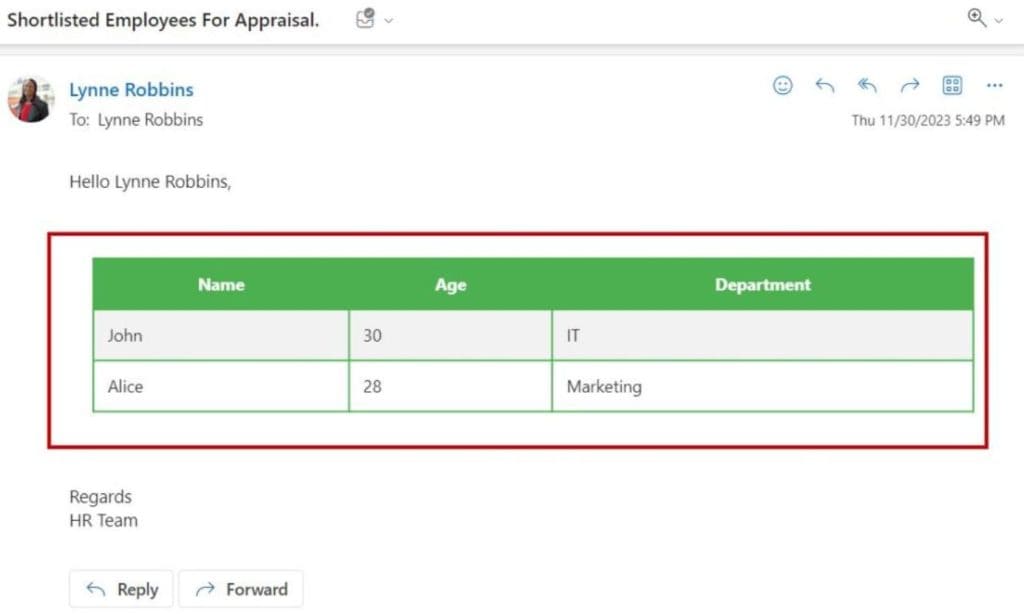
This is how we can create an HTML table with Border in Power Automate.
Power Automate Create HTML Table From SharePoint List
Let’s see how to create an HTML table from a SharePoint list using Power Automate.
I have taken a SharePoint list named ‘Employees Data‘ with different columns and data types for this.
| Columns | Data Types |
| Employee ID | Single line of text |
| Employee Name | Single line of text |
| Employee Email ID | Multiple lines of text |
| Employee DOB | Date and Time |

To work around this, follow the steps below.
1. Navigate to https://make.powerautomate.com in your browser to open the Power Automate home page -> Click on + Create -> Select the Automated cloud flow -> Provide the flow name and choose the trigger’s flow (When an item is created and modified).
- Provide the Site Address and List Name for this trigger.

2. Add the ‘Get items’ flow action to retrieve all information from a SharePoint list and set the required fields.
- In this action, provide the Site Address and List Name.

3. Next, add the ‘Create HTML table’ flow action for formatting and presenting data in a structured manner and set the required fields.
- From: Here, I have selected the value of the Get items’ output from dynamic content.
- Then, add the custom table value manually, as shown below.
| Header | Value |
| Employee Name Employee Email ID Employee DOB | Select value from the dynamic content under Get items and expression |

4. Now, it’s time to Save and Test. Test it Manually -> Then the Create HTML table will display the output according to the custom value entered.

This is how Power Automate create HTML table from the SharePoint list.
Create an HTML Table from Microsoft Form in Power Automate
Let us create an HTML table with Microsoft Forms using Power Automate step by step.
For this, I have created a Microsoft form named “Candidate List” that consists of some fields such as Candidate Name, Candidate Email ID, Candidate DOB, and Candidate Address, as shown below.

While using Microsoft-related action, we need a Form ID that will be fetched from the URL of the Microsoft form, as shown below.

To achieve this, follow the steps below.
1. Navigate to https://make.powerautomate.com to open the Power Automate home page. Click on + Create -> Select the Automate cloud flow -> Set the flow name, choose the trigger’s flow (When a new response is submitted), and set the required field.
- Form Id: Copy the form Id from the site address and paste it into the Form Id.

- Then it will automatically take the name of the Microsoft form as shown below.

2. Now, add the ‘Get response details’ flow action to retrieve detailed information about a specific response to a Microsoft Form and set the required fields.
- Form Id: Provide the Form Id.
- Response Id: Select the Response Id from dynamic content.

3. Add the ‘Compose’ flow action and provide the expression to create HTML table of candidate responses and set the required fields as shown below.
<h2>Candidate Responses: Answer</h2>
<table border="1">
<tr>
 <td>Candidate Name</td>
 <td>@{outputs('Get_response_details')?['body/r4871d29ef5b7498589fee997dbc38057']} </td>
</tr>
<tr>
 <td>Candidate Email ID</td>
 <td>@{outputs('Get_response_details')?['body/r16d4b66b7e484bc58dda1a39e89d84c0']}</td>
 </tr>
   <td>Candidate DOB</td>
  <td>@{outputs('Get_response_details')?['body/ra061e7f80cee48fe9c1429a54b156b7f']}</td>
  <tr>
    <td>Candidate Address</td>
    <td> @{outputs('Get_response_details')?['body/rde060b6f07d1406297f3cd906fbc9e78']}</td>
   </tr>
</table>
where,
- <h2>= This is an HTML heading element () with the text “Candidate Responses: Answer.” It represents a second-level heading in HTML.
- <table border=”1″> = This starts defining an HTML table. The border=”1″ attribute sets a border around the table.
- <tr>= This represents a table row. You have one row for each candidate attribute (Name, Email ID, DOB, Address).
- <td>= This represents a table cell. You have two cells in each row, one for the attribute label (e.g., “Candidate Name”) and one for the corresponding response value.
- @{outputs(‘Get_response_details’)? [‘body/…’]} = This is using the Power Automate expression to retrieve the values from the “Get response details” action.

4. Next, add the ‘Send an email(V2)’ flow action to display the output in the table form and set all the details.

5. Now, it’s time to Save and Test -> Click on Test and test it Manually -> Then the Send an email(V2) flow action will display the output in Outlook’s inbox as shown below.

Power Automate HTML Table Formatting
When we create a Power Automate HTML table without applying any formatting, it will appear unstyled, as shown below.

After formatting the Power Automate HTML table, it will appear as shown below.

To format an HTML table in Power Automate, follow the steps below.
Example:
I have used a SharePoint List named ‘Internal Job Post‘ with a few columns and their data types.
| Columns | Data Types |
| Job Title | Single line of text |
| Job Description | Multiple lines of text |
| Skills | Choice |
| Job Post Date | Date and Time |
Refer to the image below:

To work around this, follow the steps below.
1. Open Power Automate using https://make.powerautomate.com in your browser. Click on + Create. Select the Instant cloud flow. Provide the flow name and choose the trigger’s flow (manually trigger the flow).
2. Add the ‘Get item‘ flow action to retrieve all the information of a SharePoint List and set the required field:
- Site Address: Select and provide the specific SharePoint Site address.
- List Name: Select the particular SharePoint list name.

3. To shape or transform the data received from a previous action in the flow, add the ‘Select’ flow action and set all the details:
- From: Select the value from dynamic content [SharePoint list].
- Map: Provide the column names and select their values from Dynamic content.

4. Next, add the ‘Create HTML table’ flow action for formatting and presenting data in a structured manner and set the required fields as:
- From: Here, I have given the Output of the Select action from Dynamic content.
- Columns: Select the type of columns to display the HTML table.

5. Then, add the ‘Compose‘ flow action to format the table by using an expression and set the required field:
Inputs: Insert the expression to format the HTML table. At the end of the expression, set the output of the Create HTML table flow action from Dynamic content.
<style>
table {
  border: 1px solid #1C6EA4;
  background-color: #EEEEEE;
  width: 100%;
  text-align: left;
  border-collapse: collapse;
}
table td, table th {
  border: 1px solid #AAAAAA;
  padding: 3px 2px;
}
table tbody td {
  font-size: 13px;
}
table thead {
  background: #1C6EA4;
  border-bottom: 2px solid #444444;
}
table thead th {
  font-size: 15px;
  font-weight: bold;
  color: #FFFFFF;
  border-left: 2px solid #f2f2f2;
}
table thead th:first-child {
  border-left: none;
}
6. Add the ‘Send an email(V2)’ flow action to display the formatted HTML table and set the required field.
- To: Provide the user email address.
- Subject: Enter the purpose of the email.
- Body: Here, I have selected the Outputs of the compose action from dynamic content to construct the email’s body.

7. Now, it’s time to Save and Test. Then, test it Manually. Then, the Send an email(V2) flow action will display the output below.

This is how we can format an HTML table in Power Automate.
Conclusion
I hope you find this Power Automate tutorial helpful. I have explained how to create an HTML table in Power Automate from an Array and shown how to create an HTML table in Power Automate using a SharePoint list, including various table formatting.
You may also like:
- Convert CSV to Array in Power Automate
- Convert CSV to Excel in Power Automate
- Get Approval Comments Using Power Automate
- Rename Subfolders in a SharePoint Document Library Using Power Automate
- Reverse an Array in Power Automate

Preeti Sahu is an expert in Power Apps and has over six years of experience working with SharePoint Online and the Power Platform. She is the co-author of Microsoft Power Platform: A Deep Dive book. As a Power Platform developer, she has worked on developing various tools using Power Apps and Power Automate. She also makes Microsoft 365 videos and shares them on YouTube.

