
When you build a real Power Apps app, users rarely want to see every gallery item at once. They usually think in simple questions like “show me only Sony products” or “now show all again.” A simple radio button filter on top of your Power Apps gallery does exactly that, making your Power Apps screen feel clean and easy to use.
In this scenario, the radio control lets users pick a single manufacturer (Sony, Samsung, Apple), and the gallery instantly shows only those items. I will also show you how to add the “All” option, so users can quickly go back to the full list of items without clearing filters or changing screens.
In this Power Apps tutorial, I’ll show you the easiest way to filter a Power Apps gallery using a radio button, including an “All” option. We’ll use a SharePoint list of products and build a neat, one‑click filter that you can reuse in any app where users need to quickly narrow down records.
So let’s get started!
Filter Gallery By Radio Button in Power Apps
Imagine you have a SharePoint list called Product Details with these columns:
| Column | Data type |
|---|---|
| Product Name | Single line of text |
| Manufacturer | Choice: [Sony, Samsung, Apple] |
| Price | Currency |
| Purchase Date | Date and time |
With some data, you can see below how the SharePoint Online list looks like:
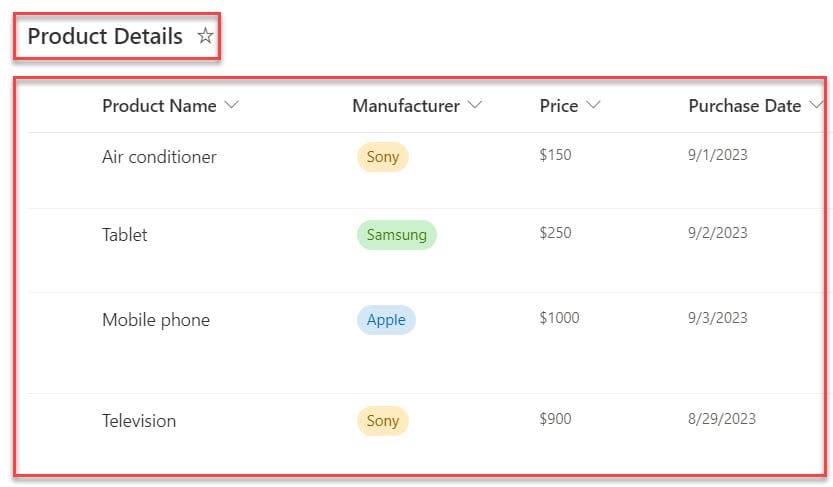
There is a gallery in Power Apps that shows these products, with a radio button at the top with options like All, Sony, Samsung, and Apple. When the user clicks an option, the gallery should instantly update and show only those items.

Follow the steps:
Step 1: Add the Power Apps gallery
- In Power Apps, add a new screen.
- Insert a Power Apps Vertical gallery.
- Set the gallery’s Items property to your SharePoint list:
'Product Details'- In the gallery layout, show fields like Product Name, Manufacturer, and Price so the filter effect is easy to see. Here is a screenshot for your reference.

Step 2: Add the Power Apps Radio button
First, bind the radio button directly to the choice column.
- Insert a Power Apps Radio control above the Power Apps gallery.
- Rename it to something clear, like
Radio_Manufacturer. - Set its Items property:
Choices([@'Product Details'].Manufacturer)
This will automatically display the SharePoint choice values (Sony, Samsung, Apple).
At this point, you could already filter the gallery like this:
Filter(
    'Product Details',
    Manufacturer.Value = Radio_Manufacturer.Selected.Value
)
But this would not give you an “All” option. Let’s add that next.
Step 3: Build a Power Apps Collection with “All”
To prepend All to the list of manufacturers, we will use a Power Apps Collection. This also helps when you want to reuse the same values in other controls.
- Select the screen.
- Set the screen’s OnVisible property to:
ClearCollect( colProducts, { Value: "All" } ); Collect( colProducts, Distinct( 'Product Details', Manufacturer.Value ) )This does two things:
- Clears and creates a collection named
colProducts. - Adds one row labeled ‘All’, then adds distinct manufacturer values from the list.

- Now select the radio button and change its Items property to:
colProducts
- Set the radio button’s Default property to:
"All"
So when the app loads, the radio shows All, and the user sees every product.
Step 4: Filter the Power Apps gallery by radio selection
Now connect everything in the Power Apps gallery.
- Select the gallery.
- Set the gallery Items property to:
If( Radio_Manufacturer.Selected.Value = "All", 'Product Details', Filter( 'Product Details', Manufacturer.Value = Radio_Manufacturer.Selected.Value ) )
Here is what this does:
- If the radio selection is All, show the full list.
- Otherwise, filter the list where Manufacturer equals the selected radio value.
Once your app is ready, Save, Publish, and Preview the app. When the user selects any value from the Radio button, the gallery control will display all records based on the Radio button selected value, as in the screenshot below.

This pattern (All + Filter) is very common and works well for most gallery filters.
Step 5: Make it user‑friendly
A few small tweaks can make the app feel polished:
- Sort the gallery so results are consistent:
SortByColumns( If( Radio_Manufacturer.Selected.Value = "All", 'Product Details', Filter( 'Product Details', Manufacturer.Value = Radio_Manufacturer.Selected.Value ) ), "Product Name" )- Show a message when no items match, for example, by adding a label over the gallery with this Visible property:
CountRows(Gallery1.AllItems) = 0- Rename controls clearly (e.g.,
galProducts,Radio_Manufacturer) so it is easy to maintain later.
Once you understand this approach, you can reuse it with other data sources (Dataverse, SQL, Excel) and other fields, not just manufacturers.
Conclusion
In this tutorial, you’ve built a clean, user‑friendly filter for your Power Apps gallery using a radio button and an “All” option. The radio control now lets users switch between specific manufacturers or quickly return to the full product list without any extra clicks or complex filters.
You also learned how to use a collection to prepend “All”, connect it to the Power Apps gallery, and handle sorting and empty results, so this pattern is ready to reuse with any data source in your future apps.
Also, you may like some more Power Apps tutorials:
- Patch Dataverse Choice Column in Power Apps
- Patch a Collection in Power Apps
- Filter Power Apps Gallery Based On Combo Box Selection
- Bind Power Apps Text Input Values to a Dropdown
- Power Apps Create Custom Progress Bar

Preeti Sahu is an expert in Power Apps and has over six years of experience working with SharePoint Online and the Power Platform. She is the co-author of Microsoft Power Platform: A Deep Dive book. As a Power Platform developer, she has worked on developing various tools using Power Apps and Power Automate. She also makes Microsoft 365 videos and shares them on YouTube.

