
To use multiple conditions in a Power Automate Get items filter query, join them with lowercase and or or, and wrap the or part in parentheses when you mix both. For example, (Status eq 'Pending' or Status eq 'Shipped') and Amount ge 1000 returns open orders worth at least $1,000.
I built exactly that filter for the Contoso sales team, so they get only the orders that still need attention. Below you’ll see the flow, a test that shows why the parentheses change the result, and examples for every common column type, plus the Filter array alternative.
Quick answer: In Get items > Advanced parameters > Filter Query, join conditions with lowercase and / or: Status eq 'Pending' and Amount ge 1000. Put text and dates in single quotes, leave numbers without quotes, and use parentheses when you combine and with or, because and is evaluated first.
How and, or and the comparison operators work
Every condition has the same shape: internal column name, operator, value. You then join the conditions with and (all must be true) or or (at least one must be true). The basics of a single condition are in how to use the Get items filter query.
| Operator | Meaning | Example |
|---|---|---|
| eq | equal to | Status eq 'Pending' |
| ne | not equal to | Status ne 'Cancelled' |
| gt / ge | greater than / or equal | Amount ge 1000 |
| lt / le | less than / or equal | Amount lt 500 |
| and | both conditions are true | Region eq 'East' and Amount ge 1000 |
| or | either condition is true | Region eq 'East' or Region eq 'West' |
Write and and or in lowercase. AND in capitals makes the request fail.
Build the flow
My list, Customer Orders, has 15 orders with the columns Title, CustomerName, OrderDate, Status (choice: Pending, Shipped, Delivered, Cancelled), Region (choice) and Amount (currency). I used a manual trigger so I can run the flow whenever I want; a scheduled trigger works the same.
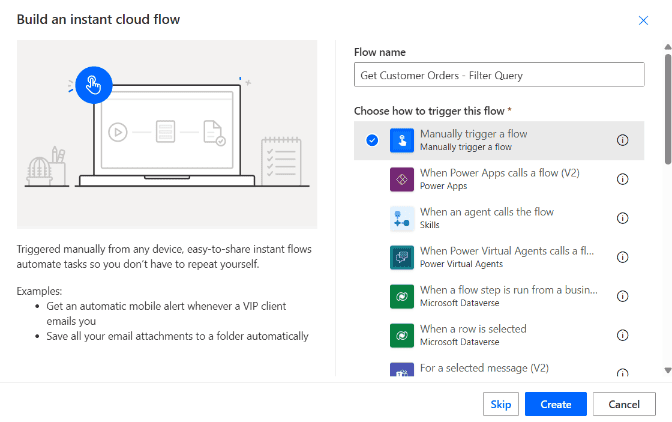
First, select Create > Instant cloud flow, name the flow, choose Manually trigger a flow and select Create.
- Add the SharePoint Get items action, then choose the site and list.
- Under Advanced parameters, select Show all, and enter the filter below in Filter Query.
- Add a Select action with From set to the Get items
valueto see the results clearly.
(Status eq 'Pending' or Status eq 'Shipped') and Amount ge 1000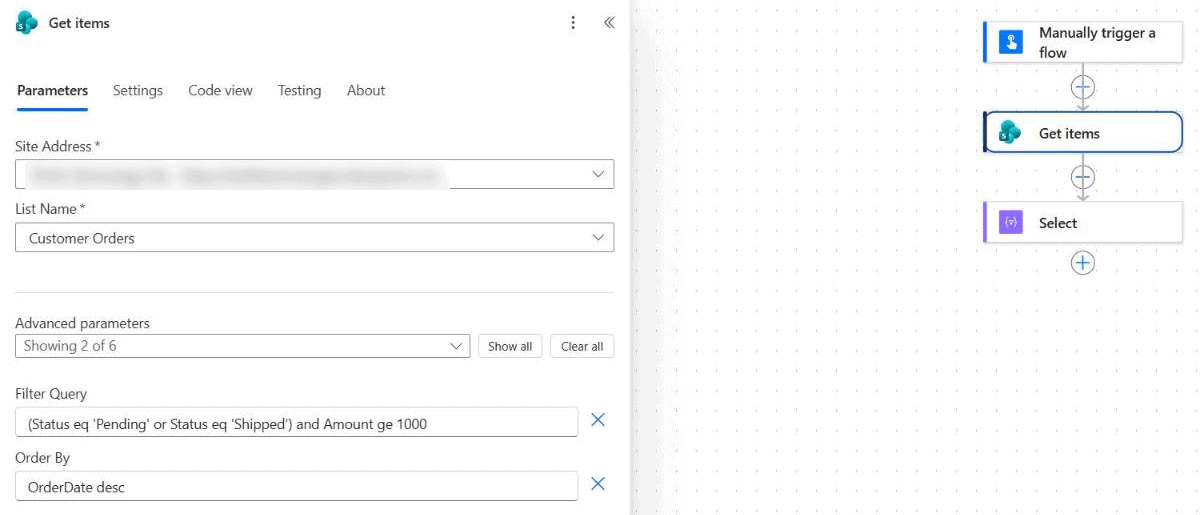
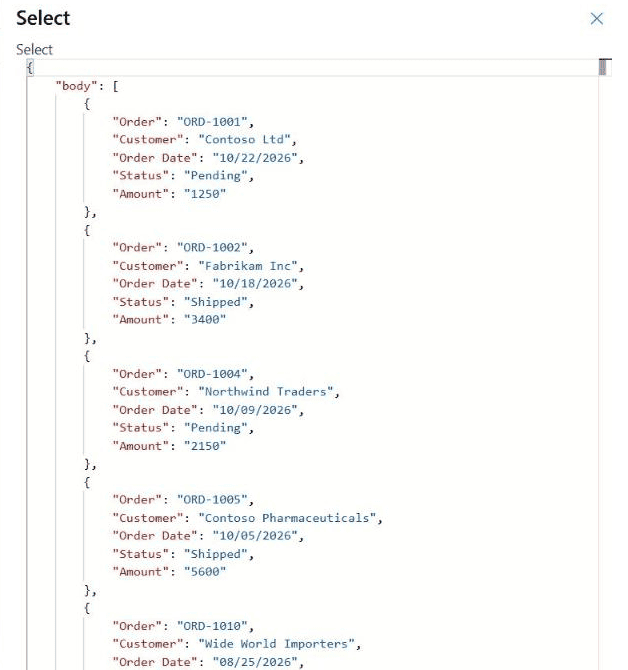
After a test run, the Select output showed five orders: ORD-1001, ORD-1002, ORD-1004, ORD-1005 and ORD-1010. Each one is Pending or Shipped and has an Amount of 1,000 or more.
Why the parentheses matter
In OData, and is evaluated before or, not simply from left to right. I ran the same conditions without parentheses against the same list:
| Filter query | Items returned |
|---|---|
(Status eq 'Pending' or Status eq 'Shipped') and Amount ge 1000 | 5 |
Status eq 'Pending' or Status eq 'Shipped' and Amount ge 1000 | 7 |
The second filter is read as Pending or (Shipped and at least $1,000), so it also returned ORD-1009 for $430 and RET-2001 for $310. Whenever a filter mixes and with or, add the parentheses yourself.
Filter query examples by column type
The value format depends on the column type. These are the patterns I use most:
| Column type | Example with two conditions |
|---|---|
| Text | CustomerName eq 'Contoso Ltd' and Region eq 'East' |
| Number or currency (no quotes) | Amount ge 1000 and Amount le 5000 |
| Choice | Status eq 'Pending' or Status eq 'Shipped' |
| Date (yyyy-MM-dd) | OrderDate ge '2026-10-01' and OrderDate lt '2026-11-01' |
| Yes/No (1 or 0) | IsPriority eq 1 and Status ne 'Cancelled' |
| Person (email) | SalesRep/EMail eq 'meganb@contoso.com' and Status eq 'Pending' |
| Lookup | Customer/Title eq 'Contoso Ltd' and Amount gt 500 |
| Blank values | OrderDate ne null and Status eq 'Pending' |
| Starts with | startswith(Title,'ORD') and Region eq 'West' |
Yes/No columns compare with 1 and 0, not true and false; see the OData filter for Yes/No columns. For empty values, use null without quotes, as in the Get items filter query equals null.
Multi-value lookup and multi-value person columns can’t be queried this way. Microsoft notes there’s no way to filter on them, so filter those with Filter array after Get items. Text prefixes are covered in the OData startswith filter query.
Multiple conditions on the same column
A range is just two conditions on one column joined with and. The date example above returns October 2026 orders. Make the end date lt the first day of the next month, so you don’t miss items with a time on the last day. More date ranges are in the Get items filter query by date.
For several values of one column, chain or conditions inside parentheses. SharePoint has no in operator, so a list of ten statuses means ten conditions. If that list gets long, filter on the most selective condition in Get items and do the rest with Filter array.
Use dynamic content in the conditions
You can replace any value with dynamic content or an expression. Keep the quotes around text and dates. This filter returns the signed-in user’s pending orders from the last 7 days, using the Office 365 Users Get my profile (V2) action:
SalesRep/EMail eq '@{outputs('Get_my_profile_(V2)')?['body/mail']}' and Status eq 'Pending' and OrderDate ge '@{addDays(utcNow(),-7,'yyyy-MM-dd')}'Filter array with multiple conditions
When a condition can’t go into the filter query, for example a multi-line text column or a multi-value lookup, use the Filter array action after Get items. In advanced mode, combine the conditions with and() or or():
@and(equals(item()?['Status/Value'],'Pending'), greaterOrEquals(item()?['Amount'],1000))Filter array runs inside the flow, after every item has been loaded, so it’s slower on large lists. For more patterns, see these Filter array examples in Power Automate.
Get items limit, Top Count and Order By
Get items returns 100 items by default, even when more match your conditions. Set Top Count (up to 5,000) or turn on Pagination in the action’s Settings, as explained in how to get more than 100 items with Get items.
Order By sorts the results on the server, for example OrderDate desc or Amount desc. See how to use Order By in Get items for sorting on more than one column.
On lists with more than 5,000 items, put the condition on an indexed column first and turn on Pagination. Microsoft documents that a filtered Get items can otherwise return nothing on large lists.
Troubleshooting
- The query is invalid: check for capital AND or OR, curly quotes, or a missing closing parenthesis.
- Numbers return nothing or fail: remove the quotes around numbers. Use
Amount ge 1000, notAmount ge '1000'. - Column does not exist: use internal names, for example
Order_x0020_Datefor a column created as Order Date. - Too many lookup columns: Get items fails on lists with more than 12 lookup columns, including Person columns. Set Limit Columns by View to a view with fewer columns.
- Unexpected items: add parentheses, then test each condition on its own and check the
$filtervalue in the run history.
These filter query tutorials go well with this one:
Frequently Asked Questions
How do I add multiple conditions to a Get items filter query?
Join them with lowercase and or or, for example Status eq ‘Pending’ and Amount ge 1000. Use parentheses when you mix and with or.
Does and or or come first in a Power Automate filter query?
and is evaluated first. A or B and C is read as A or (B and C), so add parentheses to get (A or B) and C.
Should numbers be in quotes in a filter query?
No. Put text, choice values and dates in single quotes, and write numbers without quotes, such as Amount ge 1000.
How many items does Get items return?
100 by default. Set Top Count or turn on Pagination to get more, as described in Microsoft’s guide to Get items and Get files.
Can I use multiple conditions in Filter array?
Yes. Switch Filter array to advanced mode and use and() or or(), for example @and(equals(…), greaterOrEquals(…)).

Preeti Sahu is a Microsoft MVP for Power Apps with over six years of experience working with SharePoint Online and the Power Platform. She is the co-author of the book Microsoft Power Platform: A Deep Dive. As a Power Platform developer, she has built various tools with Power Apps and Power Automate, and she makes Microsoft 365 videos for YouTube.