
To get SharePoint items from the last 30 days with a Power Automate OData date filter, put OrderDate ge '@{addDays(utcNow(),-30,'yyyy-MM-dd')}' in the Filter Query of the Get items action. SharePoint then returns only the items whose date is on or after the date 30 days ago, so the flow never loads the rest of the list.
I use this OData date filter for weekly order reports at Contoso. In this tutorial, I’ll build it step by step on a real list, show how to check the date the flow actually used, and cover the variations people ask for next: the next 30 days, items older than 30 days, time zones and large lists.
Quick answer: In Get items, open Advanced parameters and set Filter Query to YourDateColumn ge '@{addDays(utcNow(),-30,'yyyy-MM-dd')}'. Use the column’s internal name and keep the single quotes around the expression. For the Created date, use Created ge '...' with the same expression.
The filter query for the last 30 days
The filter has three parts. OrderDate is the internal name of the date column, ge means greater than or equal to, and the expression builds the date 30 days before today:
OrderDate ge '@{addDays(utcNow(),-30,'yyyy-MM-dd')}'utcNow() returns the current date and time in UTC, and the addDays() function in Power Automate subtracts 30 days. Its third argument, 'yyyy-MM-dd', formats the result as a plain date such as 2026-09-26, which is the format SharePoint expects in a filter.
You’ll often see the longer version formatDateTime(addDays(utcNow(),-30),'yyyy-MM-dd'). It gives the same result. If you want other formats, see how formatDateTime() works in Power Automate.
Build the flow step by step
My example list is called Customer Orders. It has the columns Title (the order number), CustomerName, OrderDate (date only), Status (choice), Region (choice) and Amount (currency), with 15 orders dated from 07/30/2026 to 10/22/2026.
Add Get items with the filter
- Create an instant cloud flow with the Manually trigger a flow trigger. A scheduled flow works the same way for a weekly report.
- Add the SharePoint Get items action and select your Site Address and List Name.
- Under Advanced parameters, select Show all.
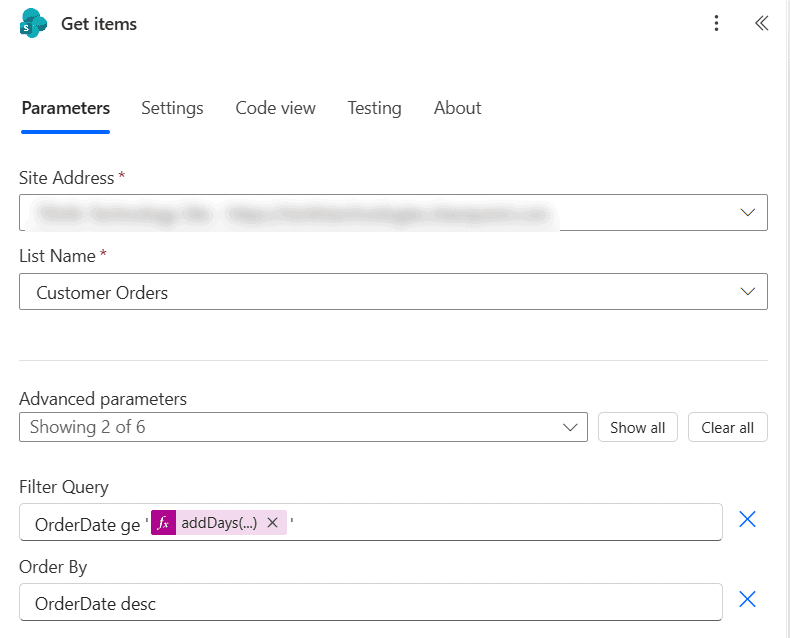
- In Filter Query, type
OrderDate ge ', insert the expression with the fx button, and type the closing'. - Optionally, set Order By to
OrderDate descso the newest orders come first.
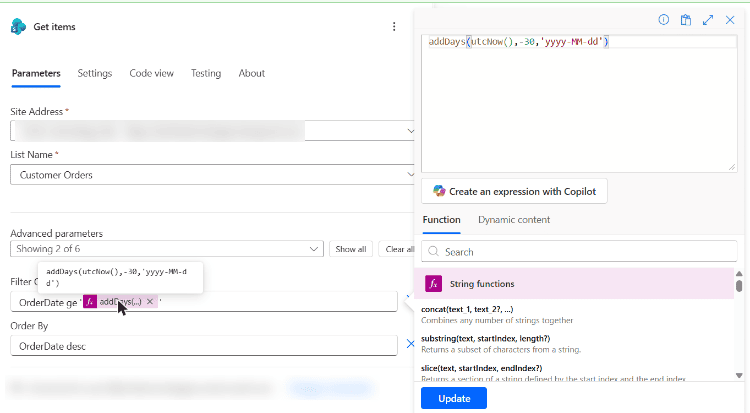
When you select the addDays(…) token, the expression editor shows the full formula. I typed it as @{...} text, and the designer turned it into a token when I saved the flow, which is a handy shortcut.
Show the matching items
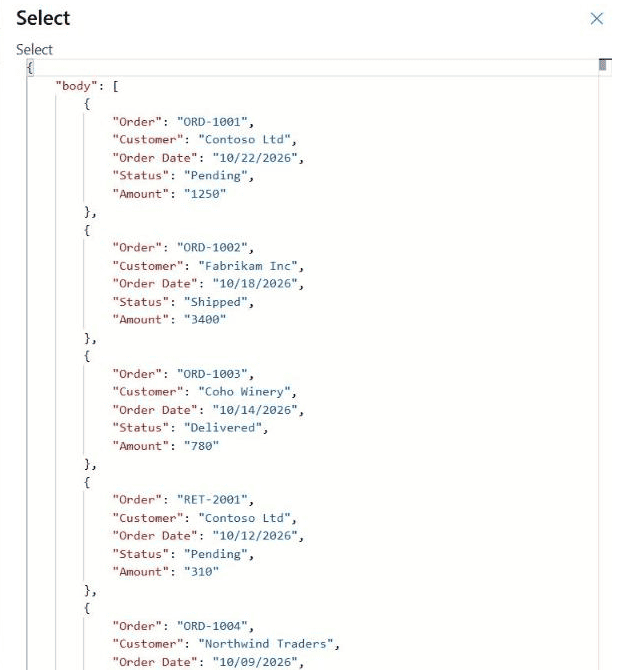
To see the result in a readable form, I added a Select action with From set to the Get items value and five columns in the map. You can turn the same output into an email table later; see how to create an HTML table from an array.
Check the date the flow used
After a test run, open the Get items step in the run history. Under INPUTS > parameters, the $filter row shows the filter after the expression ran. My run on 10/26/2026 sent OrderDate ge '2026-09-26' to SharePoint.
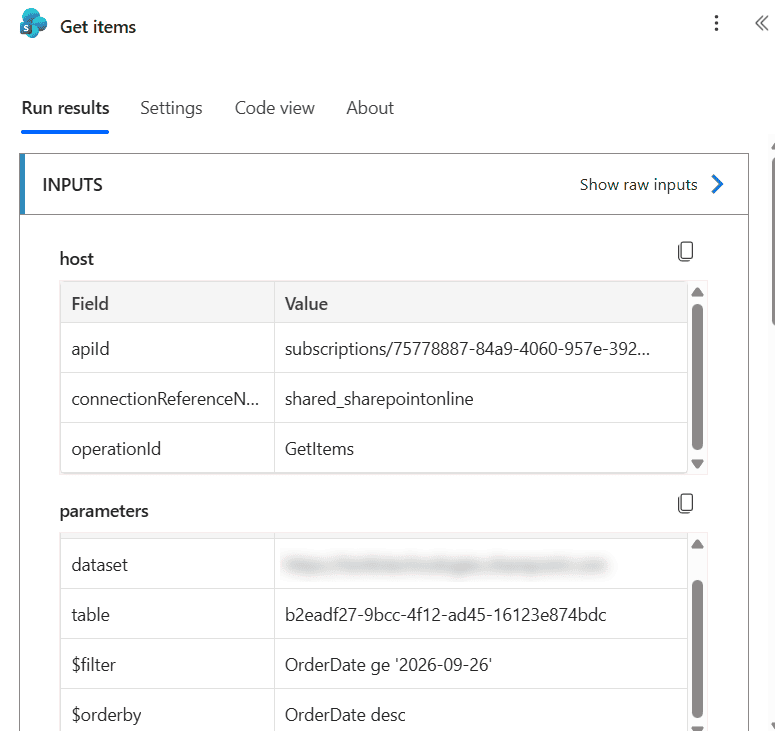
This is the fastest way to debug a date filter. If the date or the quotes look wrong here, the problem is in the expression, not in SharePoint.
The Select output lists seven orders, from ORD-1001 on 10/22/2026 down to ORD-1006 on 09/30/2026. The orders from August and July were left out, so the filter worked.
Next 30 days, older than 30 days and the Created date
Change the operator and the number of days to get the other common ranges. Note that two conditions on the same column need and; see combining multiple conditions in a Get items filter query for more.
| You want | Filter Query |
|---|---|
| Last 30 days | OrderDate ge '@{addDays(utcNow(),-30,'yyyy-MM-dd')}' |
| Last 30 days, nothing in the future | OrderDate ge '@{addDays(utcNow(),-30,'yyyy-MM-dd')}' and OrderDate le '@{utcNow('yyyy-MM-dd')}' |
| Next 30 days | OrderDate ge '@{utcNow('yyyy-MM-dd')}' and OrderDate le '@{addDays(utcNow(),30,'yyyy-MM-dd')}' |
| Older than 30 days | OrderDate lt '@{addDays(utcNow(),-30,'yyyy-MM-dd')}' |
| Created in the last 30 days | Created ge '@{addDays(utcNow(),-30,'yyyy-MM-dd')}' |
| Has a date at all | OrderDate ne null |
For the next 30 days, start from today, not from startOfMonth(). The start of the month would also return the past days of the current month.
Date-only columns, date and time columns and time zones
SharePoint stores every date in UTC, and utcNow() is UTC too. For a date-only column like OrderDate, comparing with a yyyy-MM-dd value works well, as the run above shows.
With a date and time column, never use eq for a single day, because the time part rarely matches. Use a range instead, such as ge the day and lt the next day.
If items created late in the evening fall on the wrong side of the boundary, calculate today in your own time zone first:
OrderDate ge '@{addDays(convertFromUtc(utcNow(),'Eastern Standard Time'),-30,'yyyy-MM-dd')}'For more on today’s date and its formats, see the utcNow() function with examples.
Send one email with all the items
A common mistake is putting Send an email (V2) inside Apply to each. That sends one email per item, each with the same content. Instead, add Create HTML table after Select, with From set to the Select output, and add a single Send an email (V2) action after it.
Put the HTML table output in the email body. If you haven’t used the action before, see how to use the Send an email (V2) action.
Large lists: 100 items, pagination and 5,000 items
Get items returns only 100 items unless you set Top Count or turn on Pagination in the action’s Settings. If your last 30 days can hold more, follow how to get more than 100 items with Get items.
On lists with more than 5,000 items, Microsoft documents a known limitation: a filtered Get items can return nothing when the matches aren’t in the first 5,000 items. Turn on Pagination and set a threshold of up to 100,000 (5,000 on a Low license), and index the date column in the list settings.
Troubleshooting
- Column does not exist: you used the display name. Open the column settings in SharePoint and use the internal name from the URL, for example
Order_x0020_Datefor a column created as Order Date. - Expression is invalid: the single quotes are missing or curly. Type the quotes in the Filter Query box, not in Word or Teams.
- No items returned: check the
$filtervalue in the run history and compare it with a date in the list. - Blank dates cause problems: add
and OrderDate ne null. See the filter query if blank syntax for every column type.
Keep going with these date and filter query tutorials:
Frequently Asked Questions
How do I filter Get items for the last 30 days in Power Automate?
Set Filter Query to YourDateColumn ge ‘@{addDays(utcNow(),-30,’yyyy-MM-dd’)}’ with the column’s internal name. The single quotes around the expression are required.
Can I use the Created column in a date filter query?
Yes. Created and Modified are regular date and time columns, so Created ge ‘@{addDays(utcNow(),-30,’yyyy-MM-dd’)}’ returns items created in the last 30 days.
Why does my date filter return no items?
Check the $filter value in the run history, the internal column name and the quotes. On lists over 5,000 items, turn on Pagination, as described in the SharePoint connector reference.
How do I get items for the next 30 days?
Use two conditions on the same column: YourDateColumn ge today and YourDateColumn le addDays(utcNow(),30), both formatted as yyyy-MM-dd.
Does the date filter use my time zone?
No. utcNow() and SharePoint dates are UTC. Use convertFromUtc() to calculate today in your time zone when items near midnight matter.

Preeti Sahu is a Microsoft MVP for Power Apps with over six years of experience working with SharePoint Online and the Power Platform. She is the co-author of the book Microsoft Power Platform: A Deep Dive. As a Power Platform developer, she has built various tools with Power Apps and Power Automate, and she makes Microsoft 365 videos for YouTube.