
A regional manager I work with wanted a quick way to spot overdue work in a SharePoint task list without opening every item. We added one calculated column with an IF formula that labeled each task, and a view that sorted by it. It’s still the column she looks at first every Monday.
IF is the most useful function in SharePoint calculated columns. In this tutorial, I’ll show you seven working examples, from a single condition to nested tiers, plus the limits and errors that trip people up.
Quick answer: Create a Calculated column and use =IF(condition, value_if_true, value_if_false), for example =IF([Status]="Completed","Done","Open"). Combine conditions with AND() or OR(), check for text with ISNUMBER(SEARCH("word",[Title])), and check for empty values with ISBLANK(). You can nest up to seven IF functions. Set the return type to match the result, usually Single line of text.
How to add a calculated column
In the list, select + Add column > See all column types > Next:

Enter a column name and choose Calculated (calculation based on other columns):

Type the formula, starting with =, choose the data type returned from this formula, and select OK. Use straight quotes; curly quotes pasted from Word or email cause a syntax error.
Example 1: A simple IF
This task list has a Work Progress choice column with Completed and In Progress. The calculated column labels each task:
=IF([Work Progress]="Completed","Achiever","Keep going")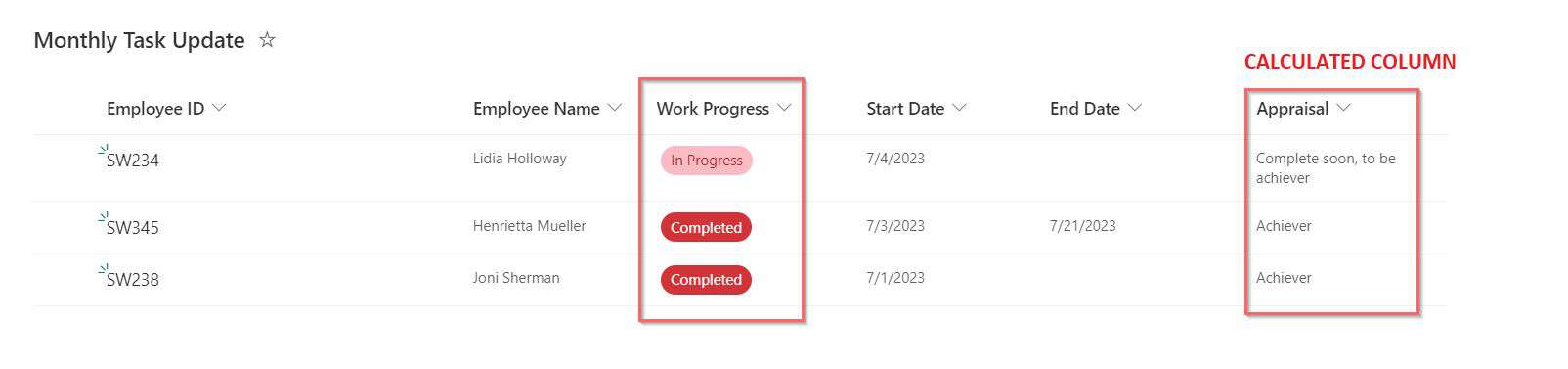

Completed tasks show “Achiever” and everything else shows the second text, including tasks with no progress selected:
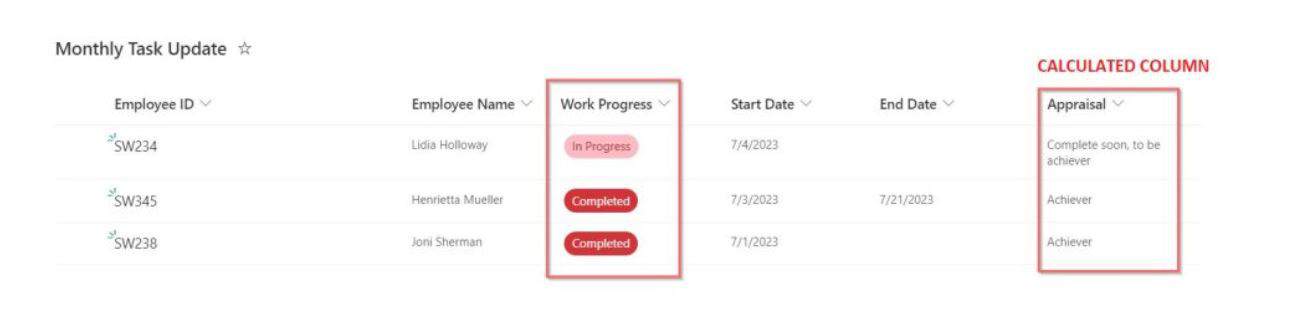
Text comparisons with = aren’t case-sensitive, so “completed” matches too.
Example 2: IF the text contains a word
An issue tracker has issue descriptions in the Title column, and a calculated Product Name column picks out the product:

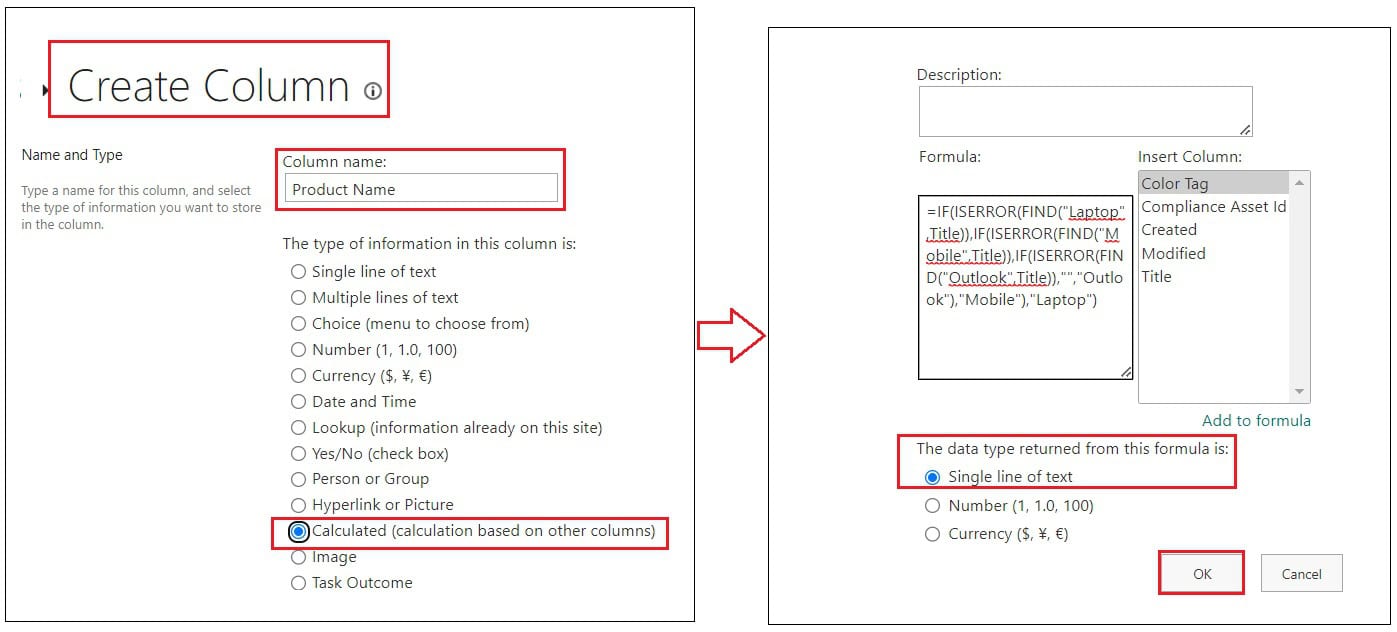
SEARCH returns the position of a word, or an error if it’s not there. ISNUMBER turns that into true or false:
=IF(ISNUMBER(SEARCH("laptop",[Title])),"Laptop",IF(ISNUMBER(SEARCH("mobile",[Title])),"Mobile",IF(ISNUMBER(SEARCH("outlook",[Title])),"Outlook","")))
You’ll often see the same formula with FIND and ISERROR. It works, but FIND is case-sensitive, so “laptop won’t start” wouldn’t match “Laptop”. SEARCH ignores case. The first match wins, so a title mentioning a laptop and Outlook returns Laptop.
Example 3: IF with AND
AND returns true only when every condition is true. This list has a Subscription Type (Premium, Standard, Basic) and a Join Month text column, and Premium members who joined in August get an offer:
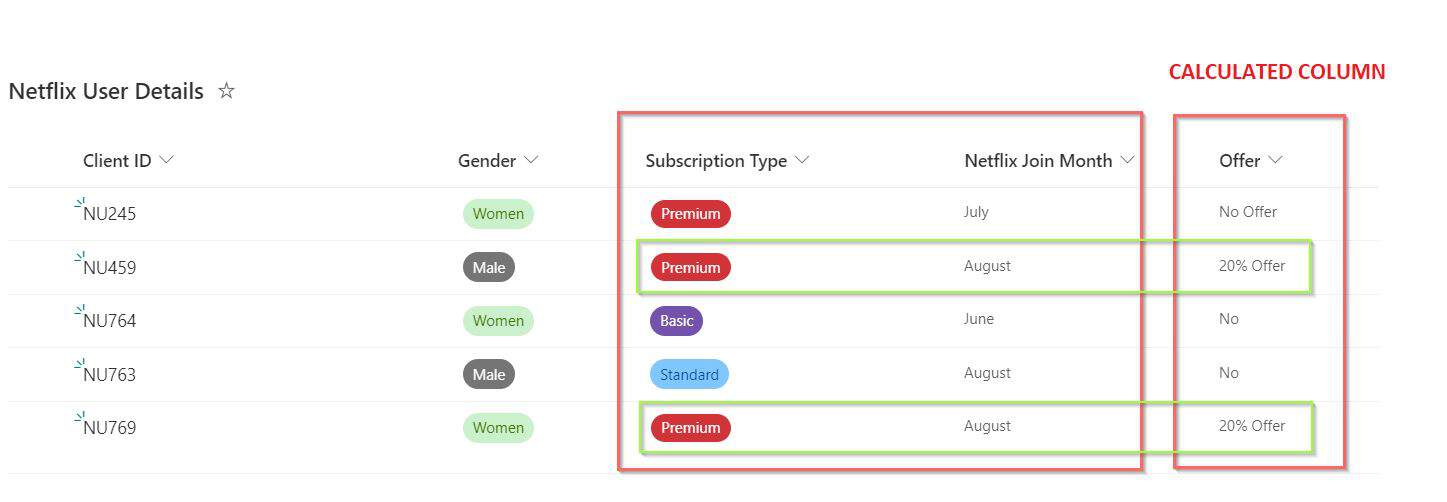

=IF(AND([Subscription Type]="Premium",[Join Month]="August"),"20% Offer","No Offer")
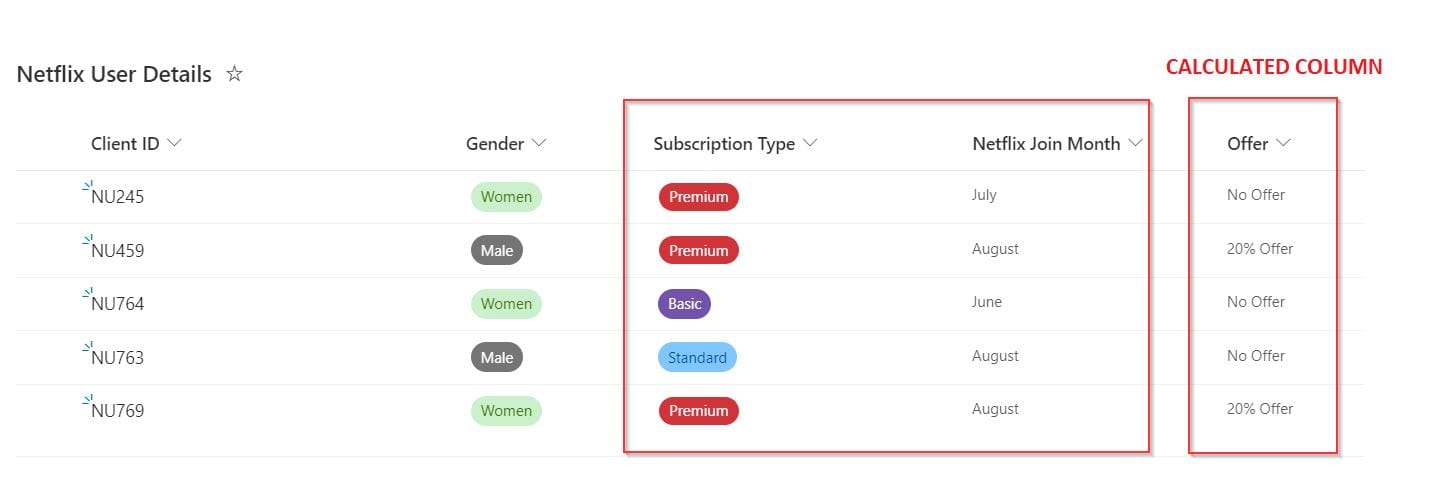
If the month is stored in a Date and Time column instead, comparing it with the text “August” is always false. Use the month number: =IF(AND([Subscription Type]="Premium",MONTH([Join Date])=8),"20% Offer","No Offer").
Example 4: Multiple IF AND conditions
For several combinations, nest IFs, each with an AND. This Product Issue Tracker List has Priority and Progress choice columns:

=IF(AND([Priority]="Important",[Progress]="Completed"),"Green",
IF(AND([Priority]="Medium",[Progress]="Not Started"),"Blue",
IF(AND([Priority]="Not Important",[Progress]="Not Started"),"Red",
IF(AND([Priority]="Important",[Progress]="In Progress"),"Black","NA"))))
Each IF handles one combination, and “NA” covers everything else. The choice text in the formula must match the column’s choices exactly, including spaces; the screenshots use an older “On Progress” choice, which I’d rename to In Progress.

You can type the formula on several lines as shown, or on one line. To turn the label into an actual color on the row, use JSON view formatting; see SharePoint column formatting.
Example 5: IF with OR
OR returns true when any condition is true. An order list has Number of Products Ordered and Order Distance Miles number columns. Orders with more than three products, or closer than six miles, get free delivery:
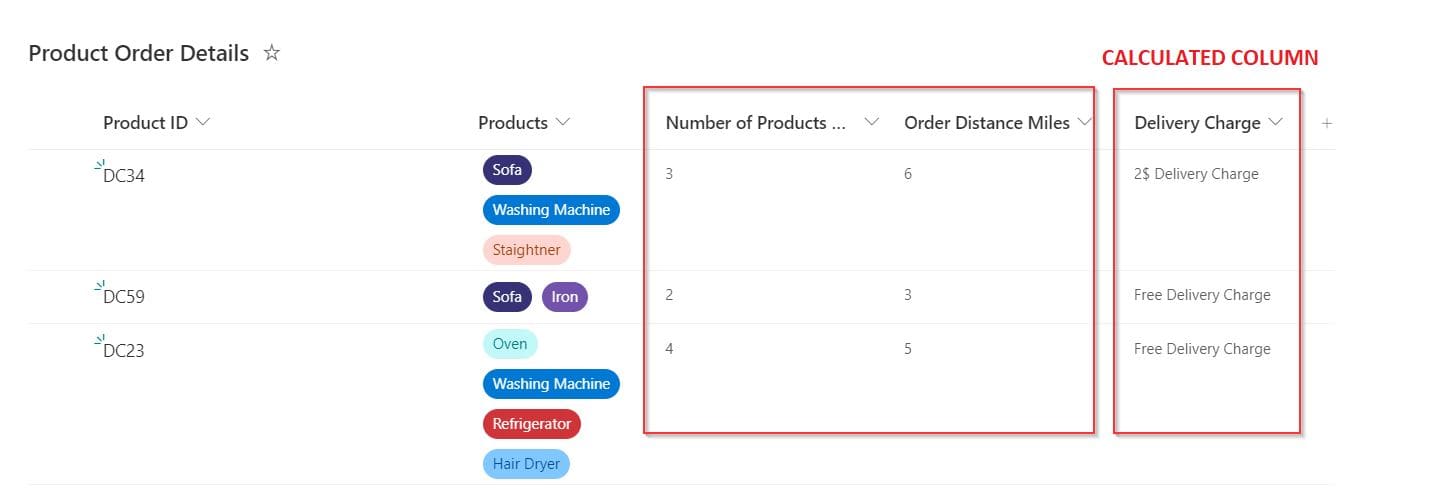

=IF(OR([Number of Products Ordered]>3,[Order Distance Miles]<6),"Free delivery","$2 delivery fee")
Use the columns’ exact display names in brackets. A name that doesn’t match gives “The formula contains a syntax error or is not supported.”
Example 6: Nested IF for tiers
Nested IFs are ideal for tiers. This list has an Employee Performance number column shown as a percentage, and a bonus column:
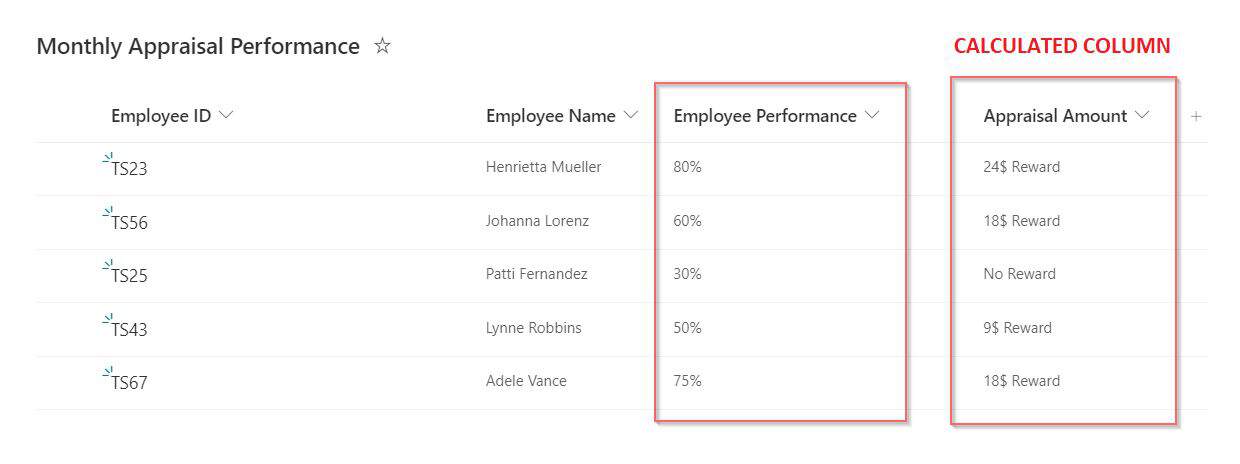

=IF([Employee Performance]>=0.8,"$24 bonus",IF([Employee Performance]>=0.6,"$18 bonus",IF([Employee Performance]>=0.5,"$9 bonus","No bonus")))
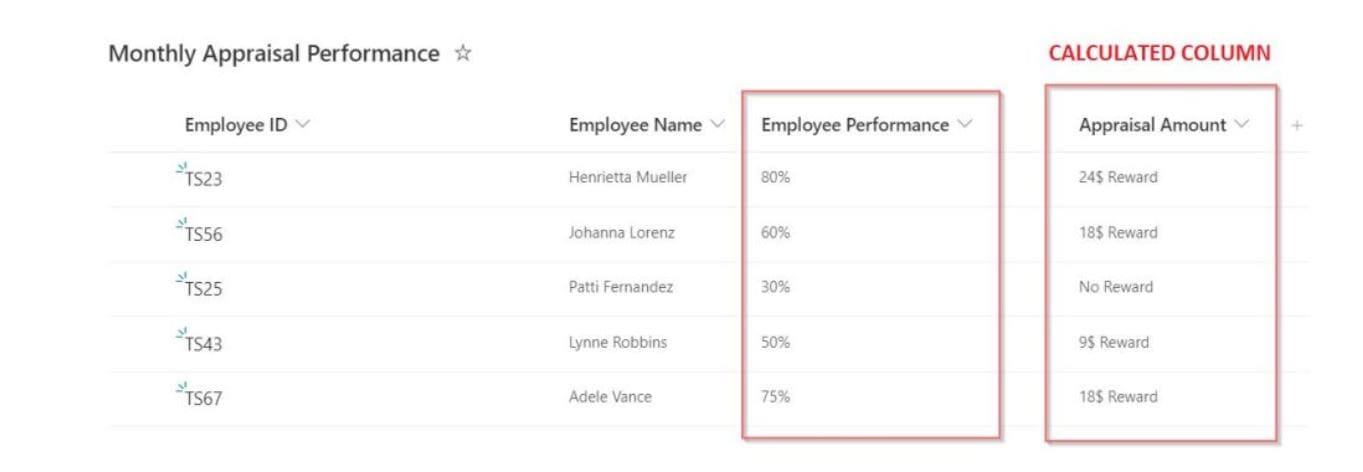
Check the tests from highest to lowest, and let the last value cover everything else, so you don’t need a fourth IF. The percentages only work if the column stores fractions: turn on Show as percentage for the Number column, so 80% is stored as 0.8. If people type 80 into a plain number column, compare with 80, 60 and 50 instead. A blank counts as 0.
Example 7: IF a column is blank
This Project Timeline list flags projects with no description:


=IF(ISBLANK([Project Description]),"Empty","Not Empty")

Project Description is a single line of text column here. Calculated columns can’t reference Multiple lines of text columns, so this check doesn’t work on those.
Limits and rules
- You can nest up to seven IF functions, and a formula can have up to eight levels of nested functions. For more, split the logic into helper calculated columns, or use CHOOSE.
- You can reference single line of text, number, currency, date and time, choice, yes/no and other calculated columns. Lookup, person or group, multiple lines of text and managed metadata columns can’t be used.
- A formula can only use values from the same item.
- TODAY and ME aren’t supported in calculated columns, and NOW isn’t supported at all. For “overdue” logic based on today’s date, use a view filter with [Today] or JSON formatting.
- Sites whose language uses commas for decimals separate arguments with semicolons (;) instead of commas.
- Choose the return type that matches the result; returning text with a Number type shows an error.
For date calculations in IF formulas, see SharePoint calculated column date formulas.
These SharePoint calculated column tutorials go further:
- SharePoint Calculated Column Date Examples
- SharePoint List Calculated Column Concatenate() Function
- SharePoint Online Site Date Format
- How to Add SharePoint Column Formatting with JSON?
- How to Format a SharePoint Online List Column using JSON (Step‑by‑Step Guide)
- How to Validate Dates in SharePoint to Choose WeekEnds?(Saturdays & Sundays)
Frequently Asked Questions
How do I write an IF statement in a SharePoint calculated column?
Use =IF(condition,value_if_true,value_if_false), for example =IF([Status]=”Completed”,”Done”,”Open”). Microsoft has more examples in Examples of common formulas in lists.
How many nested IFs can a SharePoint calculated column have?
Up to seven IF functions, within a limit of eight levels of nested functions.
How do I check if a column contains text in a calculated column?
Use =IF(ISNUMBER(SEARCH(“word”,[Title])),”Yes”,”No”). SEARCH ignores case; FIND is case-sensitive.
Can I use TODAY in a SharePoint calculated column IF formula?
No. TODAY isn’t supported in calculated columns. Use a view filter with [Today] or JSON formatting instead.
Why does my calculated column formula show a syntax error?
Check the column names, use straight quotes, use semicolons if your site’s language uses them, and make sure you’re not referencing a lookup, person or multiple lines of text column.

I have worked with Microsoft technologies for more than 18 years, including SharePoint, Microsoft 365 and the Power Platform (Power Apps, Power Automate and Power BI), at companies like HP, TCS and KPIT. I started EnjoySharePoint in 2011 to share the solutions I build in real projects with readers in the United States, Canada, the United Kingdom, Australia, New Zealand and beyond. Microsoft has recognized this work with the Microsoft MVP award 13 times since 2014.