
To search inside documents in SharePoint, you just type a word or phrase into the search box. SharePoint indexes the text in Word, PDF, Excel, PowerPoint and text files, so a match in the body counts, not only in the file name.
This query finds a phrase in PDF files only:
"per diem" filetype:pdfIt returns PDF files whose text contains the exact words “per diem” next to each other.
In this tutorial, I’ll show you how to search inside documents in SharePoint from a library, a site and Microsoft Search, which KQL operators narrow the results, and why a file you know is there sometimes doesn’t show up.
Quick answer: Type the words into the library or site search box. Quote phrases, use uppercase AND, OR, NOT, and filter with filetype:docx or author:"Rachel Thompson". New files show up after the next crawl.
Where can you search inside files in SharePoint?
There are three search boxes, and all of them read the same search index. The difference is the scope. If you’re new to libraries, first read what a SharePoint document library is.
| Search box | Where you find it | What it searches |
|---|---|---|
| Library search | Top of the library, “Search this library” | Only the files in that library |
| Site search | Header bar on any page of the site | The site’s pages, lists and files |
| Microsoft Search | SharePoint start page or Microsoft 365 home | Everything in the organization you can open |
Results are always security trimmed. You only see files you already have permission to open, whichever box you use.
Search inside documents in a library
I uploaded seven sample files to a library called ESP Policies. None of them has “stipend” in its name. Typing stipend in the library search box returned these files:
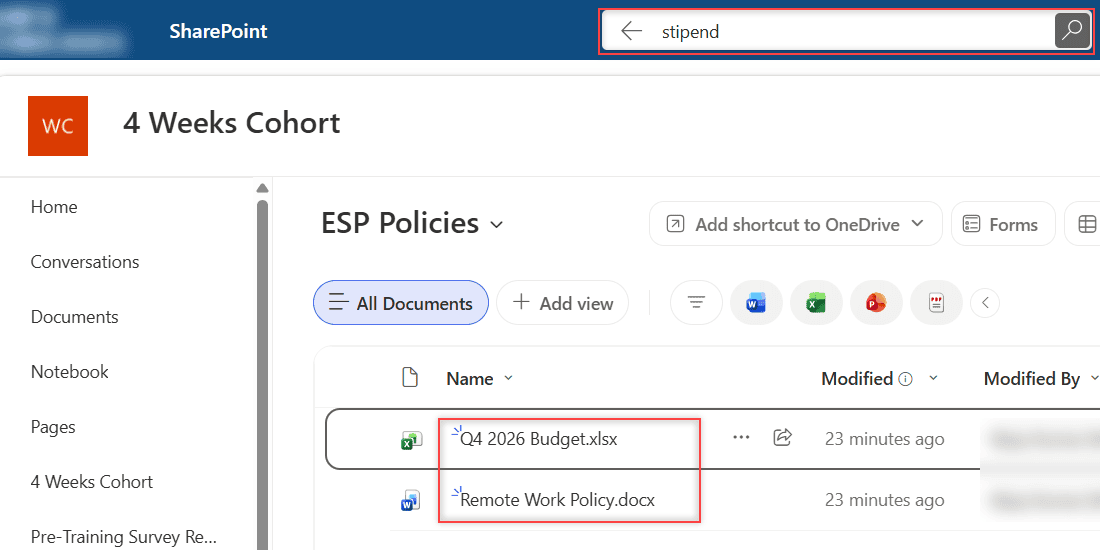
Both hits come from the file text: the Word document mentions a home office stipend, and the workbook has it as a budget line.
To filter by a column value instead of a word, a custom library view is faster than search.
Search file contents across a site
When you don’t know which library holds the file, use the search box in the site header. It searches every library on the site and shows a text snippet with your words highlighted:
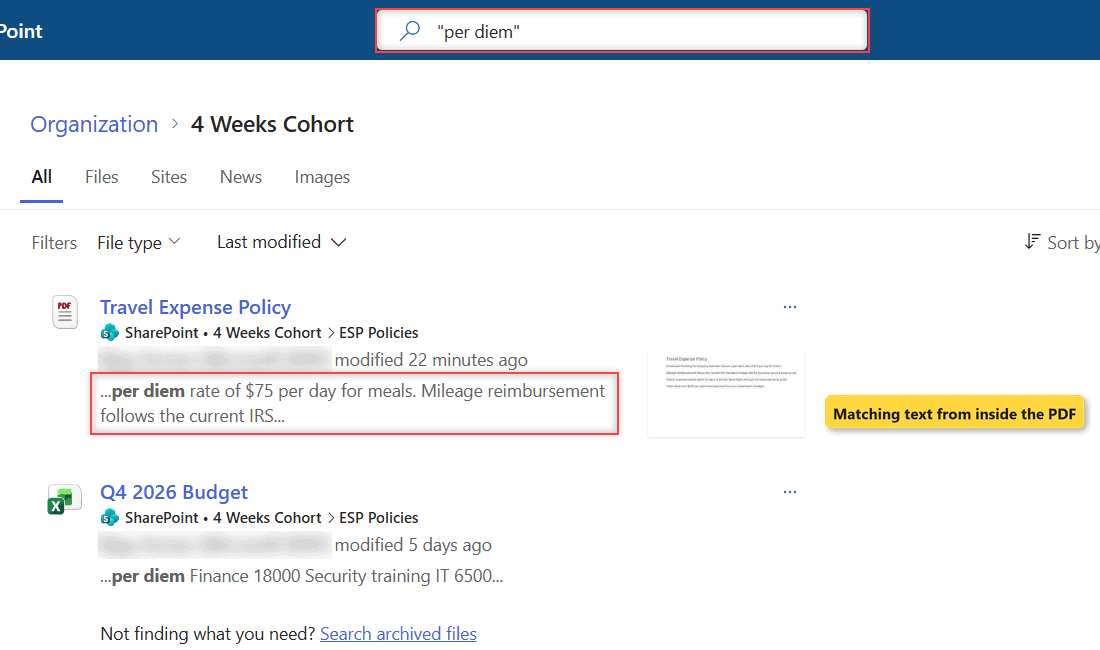
On a hub site, the same box can search all the sites associated with a SharePoint hub.
To search every site you have access to, start from the SharePoint start page or the Microsoft 365 home page. Results are personal, so two people can see different results:
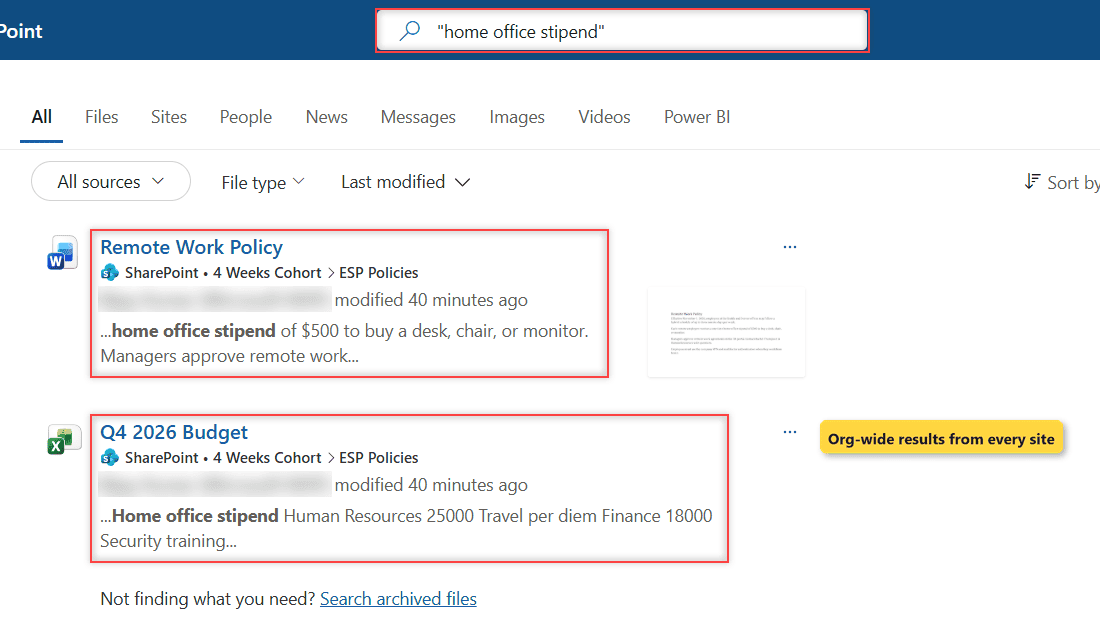
KQL operators for searching inside documents
The search box understands Keyword Query Language (KQL), a short syntax for phrases, logic and file properties. These are the operators I use most:
"paid time off"            exact phrase, words next to each other
stipend multifactor        both words (a space works like AND)
stipend OR bereavement     either word
multifactor NOT filetype:txt   exclude text files (same as -filetype:txt)
budg*                      words that start with "budg"
filetype:pdf               only PDF files
author:"Rachel Thompson"   files authored by Rachel Thompson
LastModifiedTime>=2026-10-01   modified on or after Oct 1, 2026
Three rules trip people up. Write AND, OR and NOT in uppercase, or SharePoint treats them as plain words. The wildcard works only at the end of a word, so *stipend doesn’t work.
Also, never put a space after the colon. author: "Rachel Thompson" becomes a free-text search for the words author, Rachel and Thompson.
Here’s what the property filter looks like when you combine it with a word from the file text:
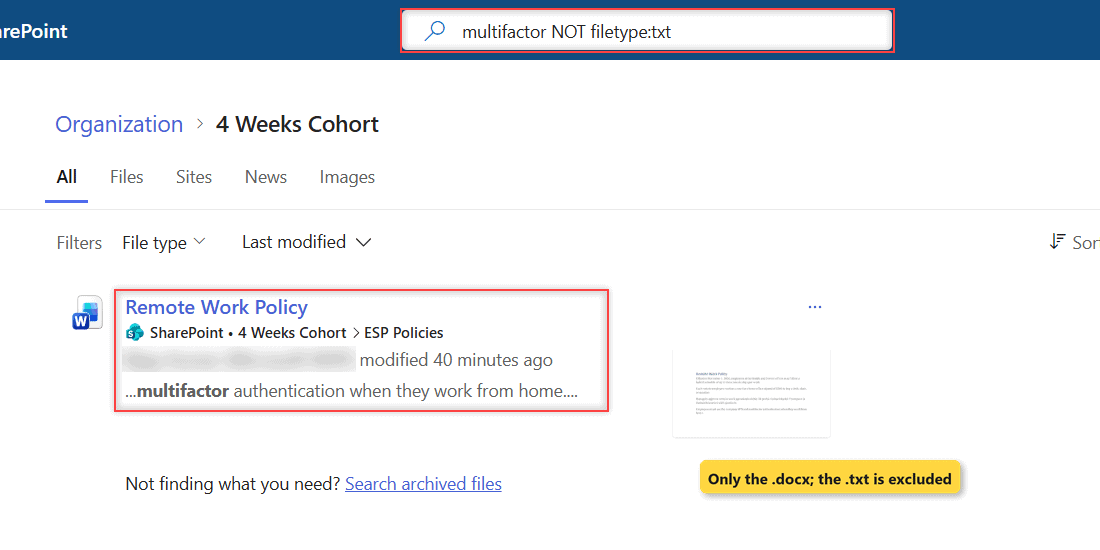
Search also covers your columns. If you tag files with content types and metadata columns, a value typed into a column is searchable like the body text.
Search inside documents with PowerShell
For admins, PnP PowerShell runs the same KQL against the index and shows the hit count. This is how I checked my results:
Connect-PnPOnline -Url "https://<tenant>.sharepoint.com/sites/Cohort" -Interactive

$scope = 'Path:"https://<tenant>.sharepoint.com/sites/Cohort/ESP Policies"'
$r = Submit-PnPSearchQuery -Query "stipend $scope" -SelectProperties "Title,FileExtension"
$r.TotalRows
$r.ResultRows | Select-Object Title, FileExtension
It prints the hit count and each file’s title and extension.
Why doesn’t my file show up in search?
When a file you know is there doesn’t appear, the cause is almost always one of these:
- It isn’t indexed yet. SharePoint crawls new and changed files on a schedule, so a brand-new upload may not appear yet.
- You can’t open it. Search hides files with unique permissions on the library or the file that you don’t have.
- It’s never been checked in. A new file stays checked out to its author until the first check in in SharePoint, so others can’t find it.
- It’s a scanned PDF or an image. SharePoint can’t read text inside pictures without OCR, covered below.
- The file type isn’t parsed. Word, Excel, PowerPoint, PDF, TXT, CSV, MSG and Visio files are. Others may match on the file name only.
- The library is excluded from search. A site owner can turn search off for a library or a whole site.
To check the last one, open the library and select Settings > Library settings > Advanced settings. Under Search, “Allow items from this document library to appear in search results” should be Yes:
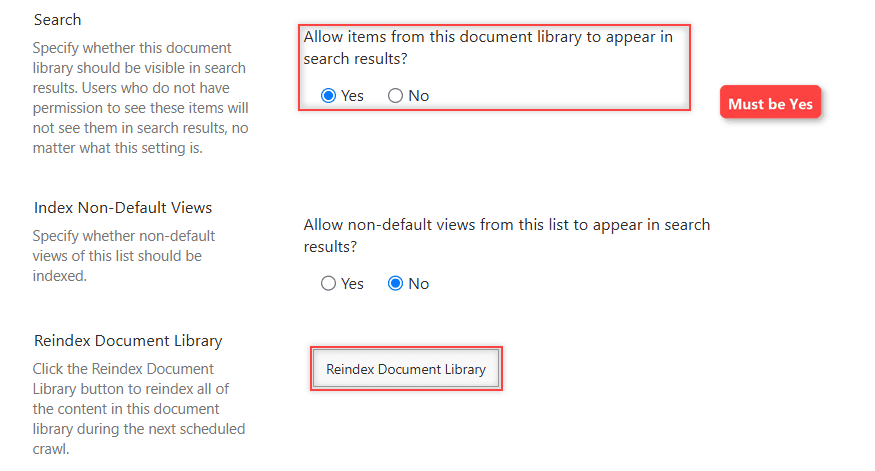
The same page has Reindex Document Library. It marks every file as changed for the next crawl, so use it after a schema change, not as a routine fix.
Can SharePoint search inside scanned PDFs?
Not by default. My scanned lease agreement contains the words “security deposit”, but they exist only as pixels, so the search below returned no file:
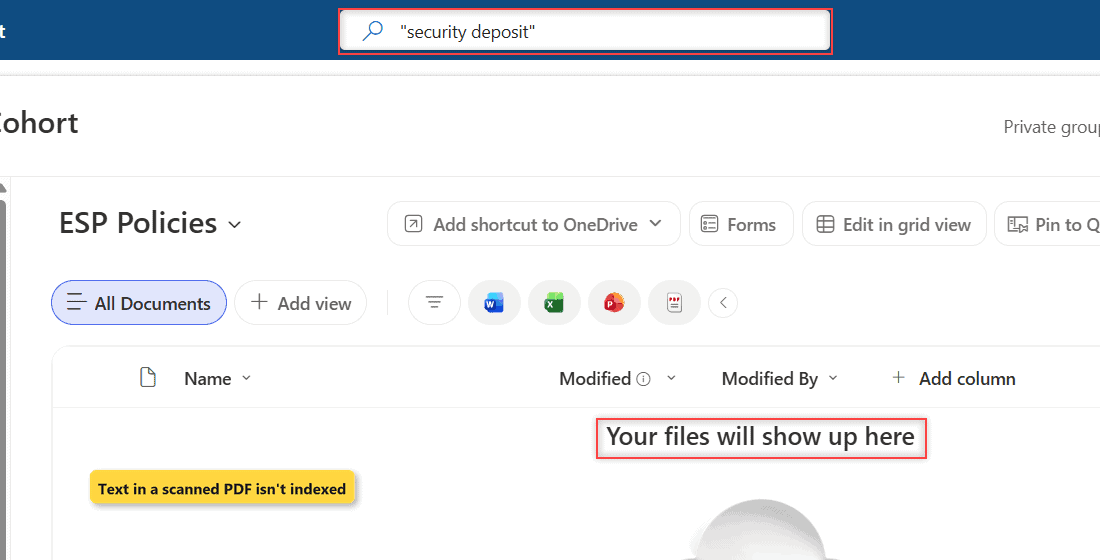
It still turns up for lease, because file names and columns are indexed even when the body isn’t.
To make scanned text searchable, your admin can turn on the optical character recognition (OCR) service in SharePoint. It needs pay-as-you-go billing and only scans files uploaded after it’s enabled. Often the easier fix is to save the PDF again with text.
If you manage the files people are searching for, these guides help next:
Frequently Asked Questions
Does SharePoint search the contents of PDF files?
Yes, SharePoint indexes the text in PDF files. Scanned, image-only PDFs are the exception until your admin turns on OCR.
How do I search for an exact phrase in SharePoint?
Put the phrase in double quotation marks, for example "home office stipend". SharePoint then returns only files where those words appear next to each other in that order.
How long does it take for a new file to be searchable?
There’s no fixed time. SharePoint crawls new and changed content on a schedule; in my experience it takes minutes to a few hours. Reindexing a library doesn’t make it instant.
Can I search for text inside Excel spreadsheets in SharePoint?
Yes. Cell text in .xlsx, .xls and .xlsm workbooks is indexed, so a word in a cell matches even if it isn’t in the file name.
Which search operators work in SharePoint?
SharePoint uses KQL: quotes for phrases, uppercase AND, OR and NOT, a trailing * wildcard and property filters like filetype:docx and author:"Name". Microsoft’s KQL syntax reference lists every operator.

I have worked with Microsoft technologies for more than 18 years, including SharePoint, Microsoft 365 and the Power Platform (Power Apps, Power Automate and Power BI), at companies like HP, TCS and KPIT. I started EnjoySharePoint in 2011 to share the solutions I build in real projects with readers in the United States, Canada, the United Kingdom, Australia, New Zealand and beyond. Microsoft has recognized this work with the Microsoft MVP award 13 times since 2014.