
Contoso’s customer service lead was getting an email for every single feedback form response, and on busy days that meant 40 emails before lunch. What she really wanted was one message each morning with yesterday’s responses in a clean table.
In this tutorial, I’ll show you how to build a Microsoft Forms responses summary email with Power Automate. You’ll store each response in a SharePoint list, then send one scheduled digest with an HTML table, skip the email on quiet days, and fix the problems that usually trip people up.
Quick answer: Use two flows. Flow 1: When a new response is submitted > Get response details > SharePoint Create item. Flow 2: Recurrence (daily, your time zone) > Get items with the filter Created ge '@{addHours(utcNow(), -24)}' > Condition (count greater than 0) > Select > Create HTML table > Send an email (V2).
Why you need two flows for a summary email
The Forms connector only has one trigger, When a new response is submitted, and it fires once per response. There’s no action that returns “all responses from yesterday,” so a scheduled flow can’t ask Forms for a batch.
The fix is to save every response somewhere you can query later, like I do when I save Microsoft Forms responses to a SharePoint list.
- Flow 1 (automated): runs for each response and adds it to a SharePoint list.
- Flow 2 (scheduled): runs once a day, reads the last 24 hours from the list and sends one email.
If you’d rather keep responses in a workbook, saving Forms responses to Excel Online works too. Just know that Excel’s filter query can’t compare dates, which I cover in the Excel section below.
Before you start
- A form you own, or a group form whose ID you can paste in. Group forms don’t appear in the Form Id drop-down, so open the form for editing and copy the part after
FormId=from the address bar. - A SharePoint list for the responses. Mine is Contoso Feedback Responses with Customer Name (Title), Email, Product (Choice), Rating (Number), Comments (multiple lines) and Response ID.
- Office 365 Outlook and SharePoint connections in Power Automate.
My demo form, ESP Demo – Customer Feedback, asks for the customer’s name, email, product (Contoso Laptop, Monitor, Headset or Desk), a 1 to 5 star rating and comments.
Flow 1: Save each form response to SharePoint
- In Power Automate, select Create > Automated cloud flow, name it, choose When a new response is submitted and select Create.
- In the trigger, pick your form under Form Id.
- Add Get response details. Pick the same form and set Response Id to the trigger’s Response Id.
- Add SharePoint Create item, choose the site and the Contoso Feedback Responses list, and map each column to an answer from Get response details.
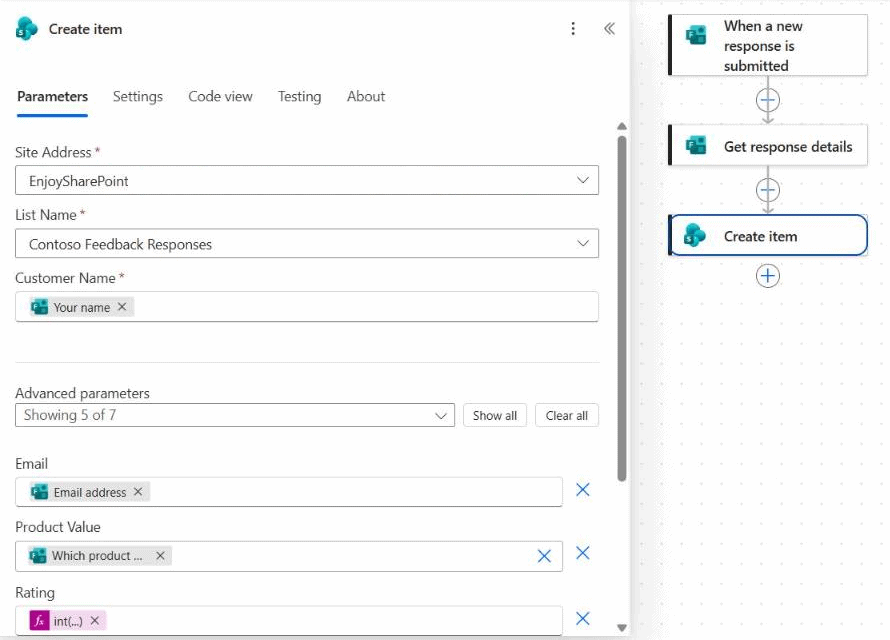
The rating needs one extra step. Forms returns the star rating as text, and a Number column won’t accept the dynamic value directly. I used an expression instead (the long ID is my question’s ID, so use yours):
int(outputs('Get_response_details')?['body/r2f8790a96f224910b9833996be823b5c'])You can find your question IDs in the trigger or Get response details outputs after one test run. If you also want an instant reply for urgent answers, add a condition here, like in this guide to conditions based on a form response.
Save the flow and submit a test response. A new item should appear in the list within a few seconds. The trigger only fires for responses submitted after the flow is turned on, so older answers have to be imported separately.
Flow 2: Build the daily summary
Set the schedule
Select Create > Scheduled cloud flow, name it, set Repeat every to 1 Day and select Create. Then open the Recurrence trigger and set the details. The basics of the trigger are in how to create a scheduled cloud flow.
- Time zone: (UTC-05:00) Eastern Time (US & Canada). Without it, the schedule runs in UTC.
- Start time:
2026-10-24T08:00:00 - At these hours: 8, and At these minutes: 0.
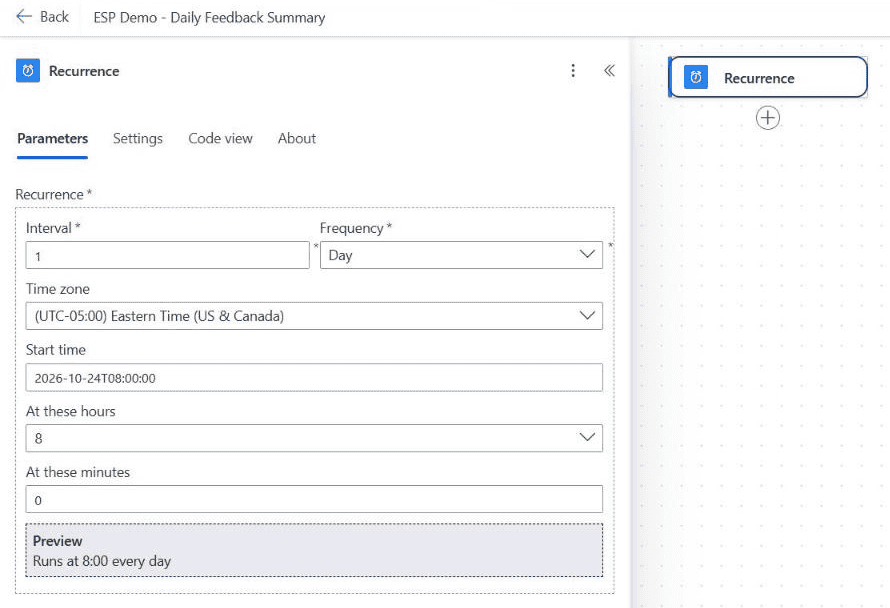
The preview at the bottom should say Runs at 8:00 every day. Daylight saving time is handled for you when a time zone is set.
Get the last 24 hours of responses
Add SharePoint Get items, pick the same site and list, then open Advanced parameters and add Filter Query and Order By:
Created ge '@{addHours(utcNow(), -24)}'Set Order By to Created asc so the oldest response comes first. utcNow() and the Created column are both in UTC, so the 24-hour window is exact. For a weekly digest, use addDays(utcNow(), -7) instead, as shown in these addDays() examples.
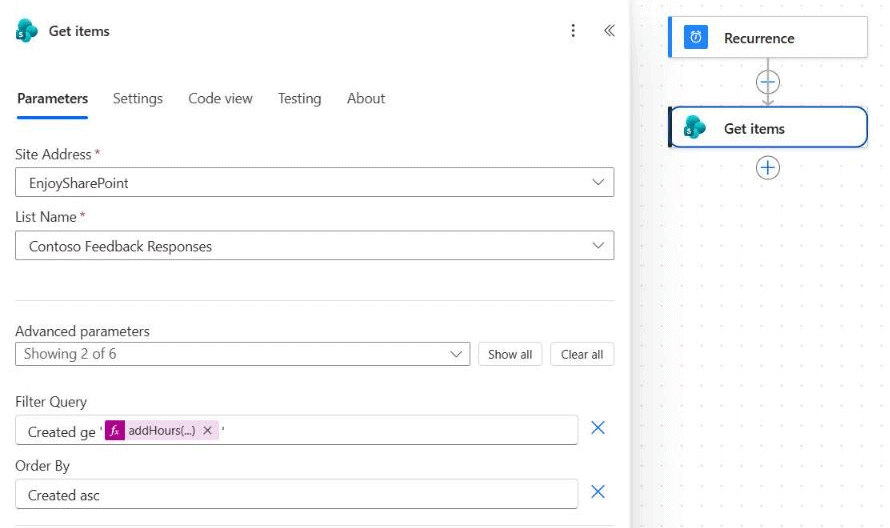
Get items returns 100 items by default. If you expect more responses per day, open the action’s Settings, turn on Pagination and set a threshold, as explained in how to get more than 100 items with Get items.
Skip the email when there are no responses
Nobody wants an empty summary. Add a Condition with this expression on the left, the operator is greater than and 0 on the right:
length(outputs('Get_items')?['body/value'])Everything else goes in the True branch, and the False branch stays empty. If you’re new to checks like this, checking for blank values in Power Automate uses the same idea.
Pick the columns with Select
Get items returns dozens of system fields, so a table made directly from it would be unreadable. In the True branch, add Select, set From to the Get items body/value and map only the columns you want, with friendly headers:
| Key (column header) | Value |
|---|---|
| Customer | item()?['Title'] |
| Product | item()?['Product']?['Value'] |
| Rating | item()?['Rating'] |
| Comments | item()?['Comments'] |
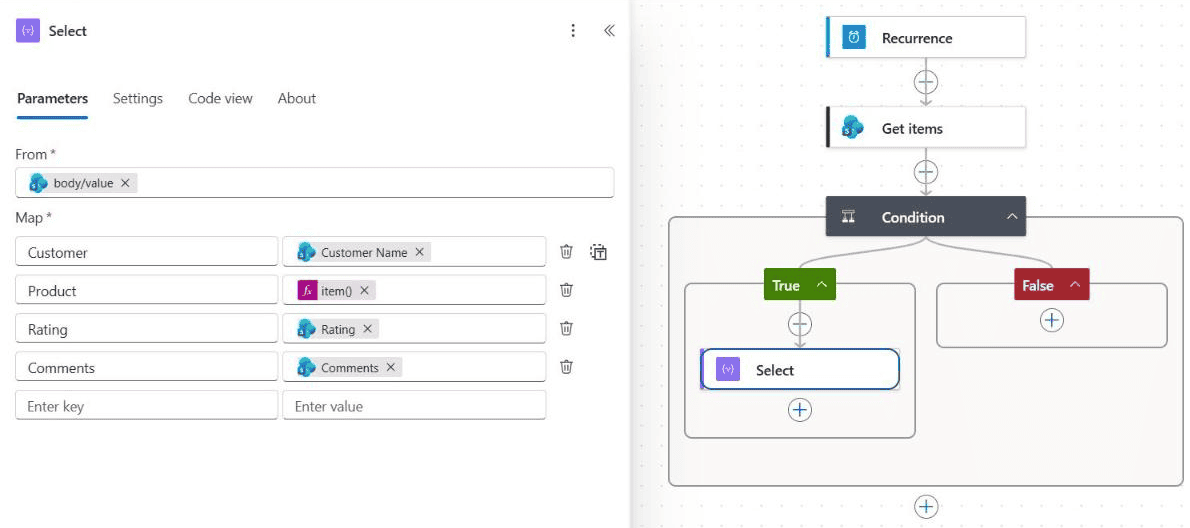
Choice columns such as Product return an object, so you need ?['Value'] to get the text. Without it, the table shows raw JSON.
Create the HTML table and send the email
Add Create HTML table and set From to the Select Output. Leave Columns on Automatic, because Select already set the headers. For more styling ideas, see how to format an HTML table in Power Automate.
Then add Office 365 Outlook Send an email (V2). Set To to the team’s address and use this subject. Converting to Eastern time keeps the date right in the evening, and converting time zones in Power Automate has other zone names:
Customer feedback summary for @{formatDateTime(convertFromUtc(utcNow(), 'Eastern Standard Time'), 'MM/dd/yyyy')}For the body, select the </> code view button in the Body toolbar and paste this HTML. The replace() adds borders and a font to the plain table, because the default table has no styling at all:
<p>Hello team,</p>
<p>Here are the @{length(outputs('Get_items')?['body/value'])} customer feedback responses from the last 24 hours:</p>
@{replace(body('Create_HTML_table'), '<table>', '<table border="1" cellpadding="6" style="border-collapse:collapse;font-family:Segoe UI,Arial,sans-serif;font-size:14px">')}
<p>Thanks,<br>Power Automate</p>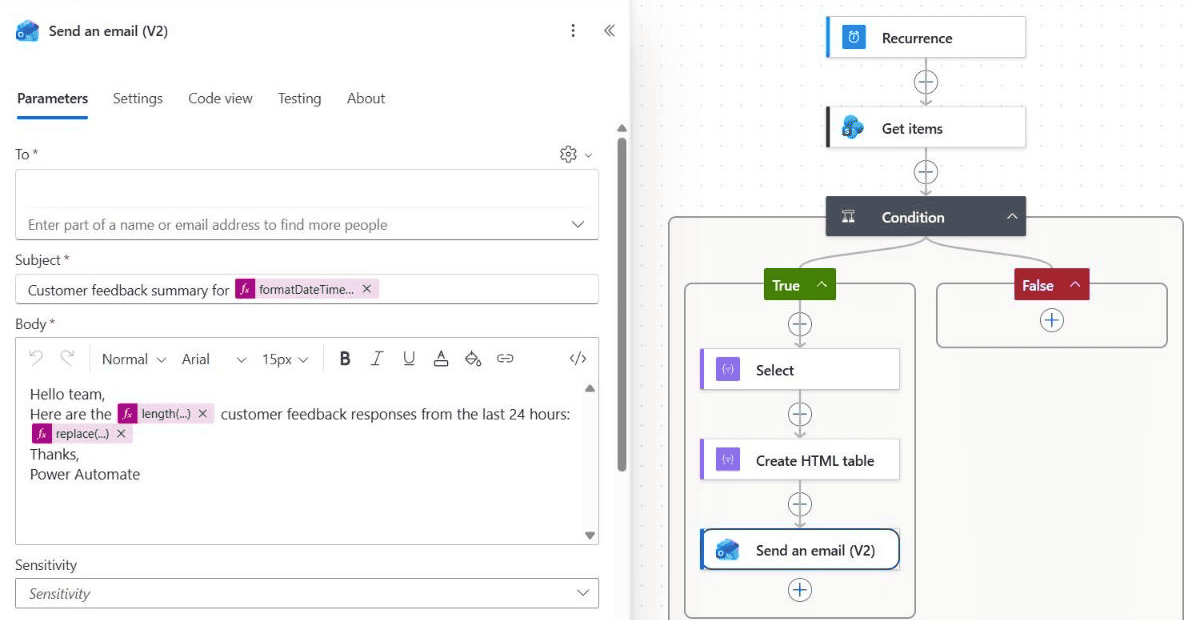
Send an email (V2) has no Is HTML setting, because its Body is always HTML. Most email clients ignore a <style> block, so inline styles like the ones above are the safest. The other options of the action are covered in how to use Send an email (V2).
Test the summary flow
Save the flow, select Test > Manually and then Run flow. A scheduled flow runs right away when you test it, so you don’t have to wait until 8:00 AM.
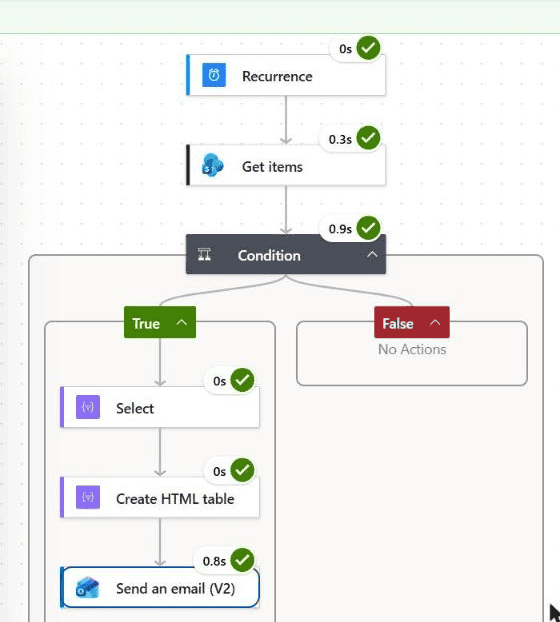
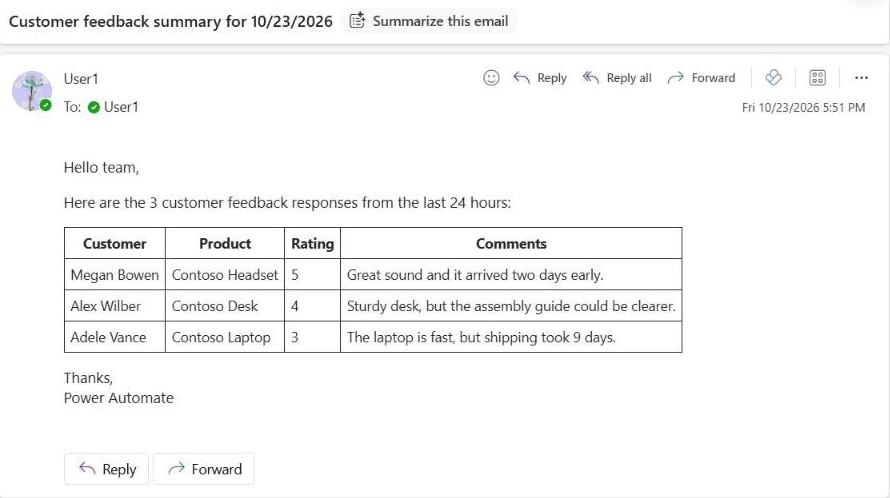
My run picked up the three test responses and sent this email:
Using Excel instead of a SharePoint list
If flow 1 writes to an Excel table with Add a row into a table, flow 2 reads it with List rows present in a table. That action’s filter query only supports eq, ne, contains, startswith and endswith, so it can’t do “in the last 24 hours.”
Add a Filter array after it instead, as shown in how to use Filter array in Power Automate.
Store the submission time as an ISO date (for example from the trigger or utcNow()) in a column, set the DateTime Format of List rows to ISO 8601, and compare it in Filter array with greaterOrEquals(). Everything after that, Select, Create HTML table and the email, stays the same.
Options that don’t need a summary flow
- Forms email notifications: under … > Settings > Response receipts, “Get email notification of each response” emails the owner for every response. It’s not a digest.
- The Responses tab: Forms shows a chart per question, and Open results in Excel gives you every answer. Fine if one person checks manually.
- A Teams post: swap the email for Post message in a chat or channel. Keep the table small, because Teams messages are limited to about 28 KB, and flows can’t post to private channels.
Troubleshooting
- My form isn’t in the Form Id list: it’s probably a group form. Paste its ID as a custom value.
- The summary is always empty: check that flow 1 is on and that the filter uses
Createdwith single quotes around the expression. - The email shows HTML code as text: paste the HTML in the code view, not the normal editor.
- Product shows {“Value”: …}: add
?['Value']for Choice columns in Select. - The email arrives at the wrong hour: set the Time zone in Recurrence. Without it, 8:00 means 8:00 UTC.
- Some responses are missing: turn on pagination in Get items, and remember the trigger doesn’t pick up responses submitted before the flow existed.
These Power Automate tutorials will help you go further with this flow:
Frequently Asked Questions
Can Power Automate get all Microsoft Forms responses at once?
No. The Forms connector only triggers on each new response and gets one response’s details at a time. Save every response to a SharePoint list or Excel table, then read them in a scheduled flow.
How do I send a weekly summary instead of a daily one?
Set Recurrence to Frequency Week, pick the day under On these days, and change the Get items filter to Created ge ‘@{addDays(utcNow(), -7)}’.
How do I make the HTML table look better?
Pick the columns and headers in Select, then use replace() on the Create HTML table output to add inline styles. Microsoft explains Select and Create HTML table in its data operations documentation.
Why does Get items return only 100 responses?
That’s the default page size. Open the action’s Settings, turn on Pagination and enter a threshold such as 5000.
Can I send the summary to the respondents instead?
Yes, but use a separate Send an email (V2) per person inside Apply to each over the list items, with their Email column in To. Keep the team summary as one email.

I have worked with Microsoft technologies for more than 18 years, including SharePoint, Microsoft 365 and the Power Platform (Power Apps, Power Automate and Power BI), at companies like HP, TCS and KPIT. I started EnjoySharePoint in 2011 to share the solutions I build in real projects with readers in the United States, Canada, the United Kingdom, Australia, New Zealand and beyond. Microsoft has recognized this work with the Microsoft MVP award 13 times since 2014.