
A Contoso sales director asked me for one Power BI report that the whole sales team could open, but with one catch: the EmployeePay table with salaries and bonuses had to stay invisible to the reps. Row-level security couldn’t do it, because the reps would still see the table and its columns.
What she needed was Power BI table level security. In this tutorial, I’ll show you how it really works (it’s part of object-level security), how to set it up in Power BI Desktop without extra tools, the error I hit on the way, and how to test and publish it.
Quick answer: Power BI doesn’t have a separate table-level security switch. You hide a table with object-level security (OLS): create a role and give the table metadataPermission: none. In Power BI Desktop, open TMDL view, run a createOrReplace role script, select Apply, test it with Modeling > View as, then publish and add members to the role in the Power BI service.
What table-level security means in Power BI
Power BI has two kinds of data security. Row-level security (RLS) in Power BI filters the rows a user can see. Object-level security (OLS) hides whole tables or columns from a role, so for those users it’s as if the objects don’t exist.
Table-level security is simply OLS applied to a table. When a table permission is set to None, users in that role can’t see the table in the Data pane, can’t query it, and any visual that uses it shows an error instead of data.
| Row-level security | Table-level security (OLS) | |
|---|---|---|
| What it hides | Rows that don’t match the rule | The whole table and all its columns |
| Table visible in the field list | Yes | No |
| Where you set it up | Modeling > Manage roles | TMDL view or Tabular Editor |
| Typical use | Each rep sees only their region | Salary or HR tables only managers see |
One thing that isn’t security: right-clicking a table in Model view and choosing Hide in report view. That only hides it from authors in the field list. Anyone who can build on the model can still use it.
The sample model
My example model has three tables loaded from a Contoso Excel workbook:
- Sales: 400 order lines from 01/02/2026 to 09/29/2026 with Region, Category, Product, Sales Rep, Quantity, Unit Price and Unit Cost.
- SalesReps: eight reps such as Megan Bowen and Alex Wilber, with their region and email.
- EmployeePay: each rep’s job title, annual salary in USD, bonus and effective date. This is the table to hide.
Sales is related to SalesReps on Sales Rep (many-to-one), and SalesReps is related to EmployeePay one-to-one. If you’re building a similar report from scratch, see how to create a Power BI report from Excel first.
Step 1: Create the role with a TMDL script
Microsoft now supports defining OLS directly in Power BI Desktop through TMDL view, so you no longer need Tabular Editor for this. Here’s how I did it:
- Select the TMDL view icon on the left side of Power BI Desktop.
- Open a new script tab (the + at the bottom of the editor).
- Paste the script below. It creates a role called Sales Team with read access to the model and no access to the EmployeePay table.
- Select Preview to check the change, then Apply.
createOrReplace

	role 'Sales Team'
		modelPermission: read

		tablePermission EmployeePay
			metadataPermission: none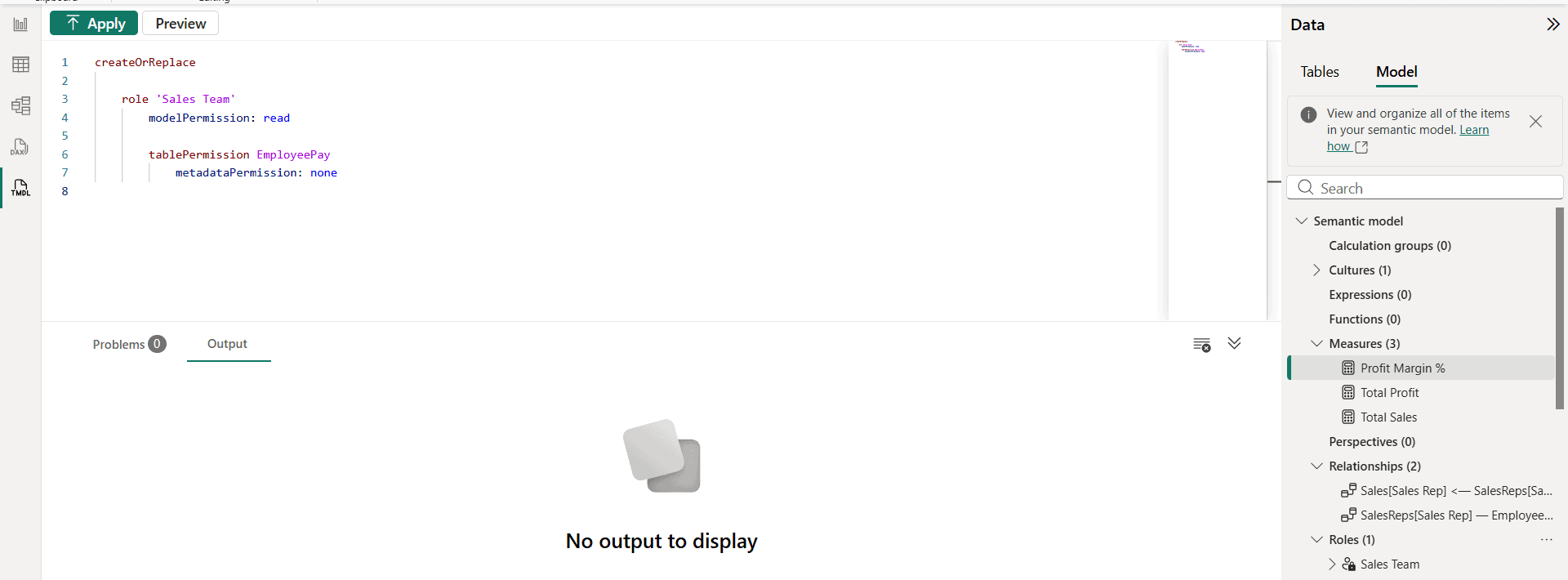
After Apply, the role appears under Roles in the Data pane’s Model tab. The indentation matters in TMDL, so keep each property one level under its parent. You can add a DAX row filter to the same role later in Modeling > Manage roles, just like the measure filters in this guide to filtering a measure with CALCULATE.
The relationship chain error (and how I fixed it)
My first Apply failed with this message: The metadata restrictions for role ‘Sales Team’ resulted with the table ‘LocalDateTable_…’ being inaccessible from table ‘Sales’. The relationship chain to this table passes through a secured table, which is not allowed.
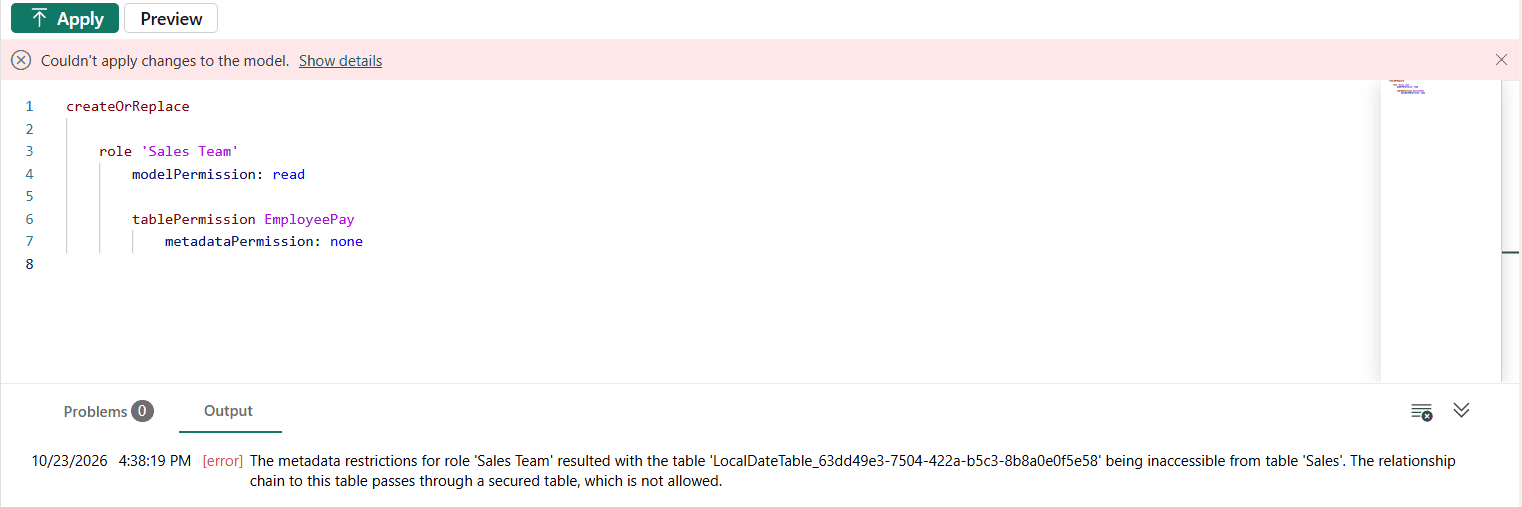
OLS has a rule: you can’t secure a table that sits in the middle of a relationship chain. My EmployeePay table had an Effective Date column, and Auto date/time had quietly created a hidden LocalDateTable behind it. Sales could reach that hidden table only through EmployeePay, so securing EmployeePay broke the chain.
The fix was to turn off Auto date/time for the file: File > Options and settings > Options > Current File > Data Load, then clear Auto date/time. Most models should use a proper date table built with DAX anyway. After that, the same script applied without errors.
If your model has a real table behind the secured one (A to B to C, where B is secured), redesign the relationships so the other tables don’t need to pass through B, or secure the columns instead of the whole table.
Step 2: Test the role with View as
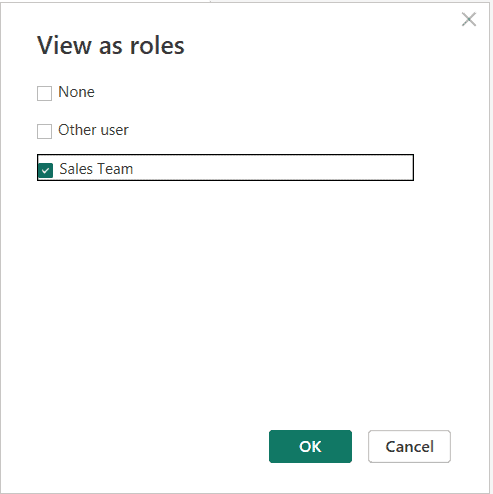
Go back to Report view, select Modeling > View as, check Sales Team and select OK.
A yellow bar says Now viewing as: Sales Team. EmployeePay is gone from the Data pane, and the table visual that showed salaries now says Something’s wrong with one or more fields. The Sales visuals on the other page work as before.
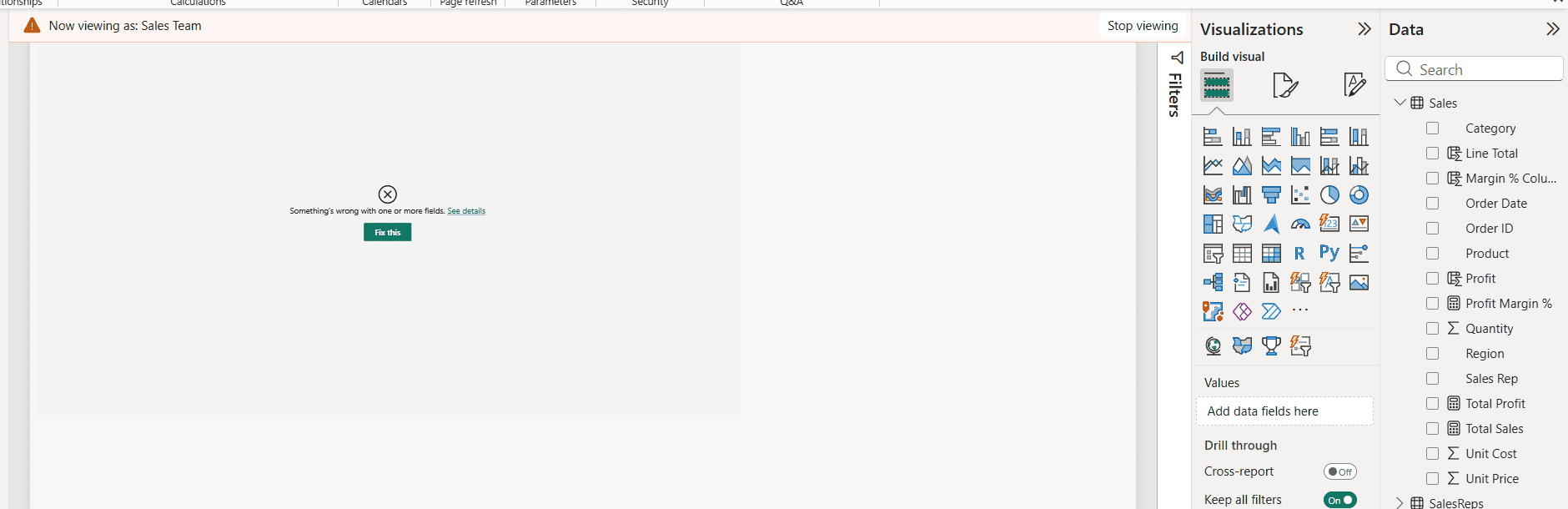
That error is expected and is the same message users get for a deleted field. Put secured visuals on a page only managers use, or build a separate report for them.
Measures that reference a secured table are restricted too, so keep salary math such as average bonus in a separate measure table that only that report uses. Select Stop viewing when you’re done.
Step 3: Publish and add members in the Power BI service
- Publish the report to a workspace.
- In the workspace, open the semantic model’s More options (…) menu and select Security.
- Select the Sales Team role and add the reps (or a security group), then select Save.
- Use Test as role on the same page to check what the reps will see.
Roles only restrict people with the Viewer workspace role or people who get the report through an app or a share. Admins, Members and Contributors can edit the model, so OLS doesn’t apply to them. Plan your workspace access with that in mind, and set up scheduled refresh for the semantic model as usual.
Hide only some columns instead of the whole table
Sometimes the reps can see EmployeePay but not the salary. That’s column-level security, and the script just nests a column permission inside the table permission:
createOrReplace

	role 'Sales Team'
		modelPermission: read

		tablePermission EmployeePay
			columnPermission 'Annual Salary'
				metadataPermission: none
With this role, the table and its other columns stay visible, but Annual Salary disappears. Column security also avoids the relationship chain problem because the table itself stays reachable.
If you prefer to shape the data before it’s loaded, you can also split sensitive columns into their own table in Power Query, as described in how Power Query and Power BI work together.
Alternative: an RLS rule that returns no rows
Some guides suggest a row-level rule of FALSE() on the table. That returns no rows, but the table and its column names stay visible, and roles are additive: if a user is in a second role with TRUE(), they see every row.
Use it only when you want an empty table, not a hidden one. For per-user rules, measures and DAX basics help when you write filters with USERPRINCIPALNAME().
Limitations to know before you rely on it
- Different roles can’t mix RLS and OLS. If a user belongs to one role with row filters and another role with object security, queries fail. Put both rules in the same role instead.
- Some features don’t work with OLS models: Q&A visuals, Quick insights, Smart narrative and the Excel data types gallery.
- Visuals break, they don’t hide. Users see an error where a secured field is used, so plan separate pages or reports.
- You can’t secure a measure directly. Measures that reference a secured table or column are restricted automatically.
- Only Viewers are restricted. Workspace Admins, Members and Contributors see everything.
These Power BI tutorials pair well with this one:
Frequently Asked Questions
Does Power BI have table-level security?
Not as a separate feature. You get table-level security through object-level security by setting a table permission to None in a role. Microsoft documents it in the object-level security guide.
Can I set up object-level security in Power BI Desktop?
Yes. Use TMDL view with a createOrReplace role script, or Tabular Editor from the External tools ribbon. The Manage roles dialog only handles row filters.
Why does my visual show an error after I applied OLS?
Visuals that use a secured table or column fail for users in that role, with the same message as a deleted field. Move those visuals to a page or report the role doesn’t use.
What does the relationship chain error mean?
You tried to secure a table that other tables reach through relationships. Remove the path through the secured table, turn off Auto date/time if a hidden date table causes it, or secure columns instead.
Does table-level security apply to workspace members?
No. Like RLS, it only restricts Viewers and people who access the content through an app or a share. Admins, Members and Contributors see all data.

I have worked with Microsoft technologies for more than 18 years, including SharePoint, Microsoft 365 and the Power Platform (Power Apps, Power Automate and Power BI), at companies like HP, TCS and KPIT. I started EnjoySharePoint in 2011 to share the solutions I build in real projects with readers in the United States, Canada, the United Kingdom, Australia, New Zealand and beyond. Microsoft has recognized this work with the Microsoft MVP award 13 times since 2014.