
If you’ve been exploring Microsoft’s data tools, you’ve probably run into both “Power Query” and “Power BI” and wondered – wait, are these the same thing? Are they different? Do I need both?
I had the same confusion when I started out. So let me break it down in plain language, with real examples, so you walk away knowing exactly what each tool does and when to use which one. So let’s discuss everything about Power Query vs Power BI.

The Short Answer First
Power Query is a data preparation tool. Power BI is a data analytics and reporting platform.
Power Query lives inside Power BI (and Excel). It’s the engine that cleans and shapes your data before Power BI does anything with it. Think of Power Query as the kitchen where you prep the ingredients, and Power BI as the restaurant where you serve the final dish.
They’re not competitors. They’re teammates.
What Is Power Query?
Power Query is a data transformation and data preparation engine. Microsoft officially describes it as a tool for extracting data from sources and shaping it into a usable format before loading it into your model.
Here’s what that actually means in practice:
- You connect to a data source — an Excel file, a SQL database, a SharePoint list, a CSV, a web API, or any of 100+ connectors
- You clean and reshape that data visually — remove blank rows, rename columns, split columns, merge tables, change data types
- All those steps get recorded automatically as M code in the background (you don’t need to write M manually unless you want to)
- You load the clean, transformed data into your data model
The beauty of Power Query is the step-by-step approach. Every transformation you apply gets recorded as a step in the “Applied Steps” pane on the right. You can go back, edit any step, delete it, or reorder it. It’s completely non-destructive — your original data never changes.
Example: Say you get a monthly sales report from your finance team as a messy Excel file. The dates are inconsistently formatted, there are blank rows, the product names have trailing spaces, and the totals column is a text field rather than a number. In Power Query, you’d:
- Connect to the Excel file
- Filter out blank rows
- Trim the product name column
- Change the totals column data type to Decimal Number
- Standardize the date format
That’s it. Now, every month when you get a new file, you just refresh, and Power Query re-runs all those same steps automatically. No manual cleanup needed.
What Is Power BI?
Power BI is a full business intelligence platform. It includes:
- Power Query (for data prep, as described above)
- The Data Model (where relationships between tables are defined)
- DAX (Data Analysis Expressions — the formula language for calculations and measures)
- Report Canvas (where you build charts, tables, slicers, and dashboards)
- Power BI Service (the cloud platform for publishing and sharing reports)
So when someone says “I built this in Power BI,” they mean they used all these components together to transform raw data into an interactive report that they (or their team) can explore.
Power BI Desktop is the free app you download on your computer to build reports. Power BI Service (app.powerbi.com) is where you publish those reports so others can view them in a browser or on mobile.
Power Query Inside Power BI: How It Actually Works
When you open Power BI Desktop and click “Transform Data,” you’re entering Power Query. That’s where you choose your data source and transform your data. Once you click “Close & Apply,” Power Query loads the clean data into Power BI’s data model.
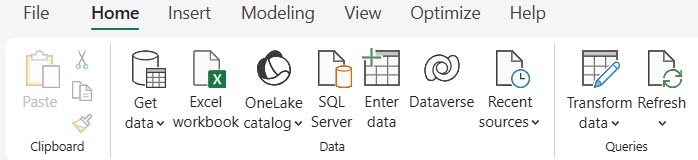
From there, Power BI takes over:
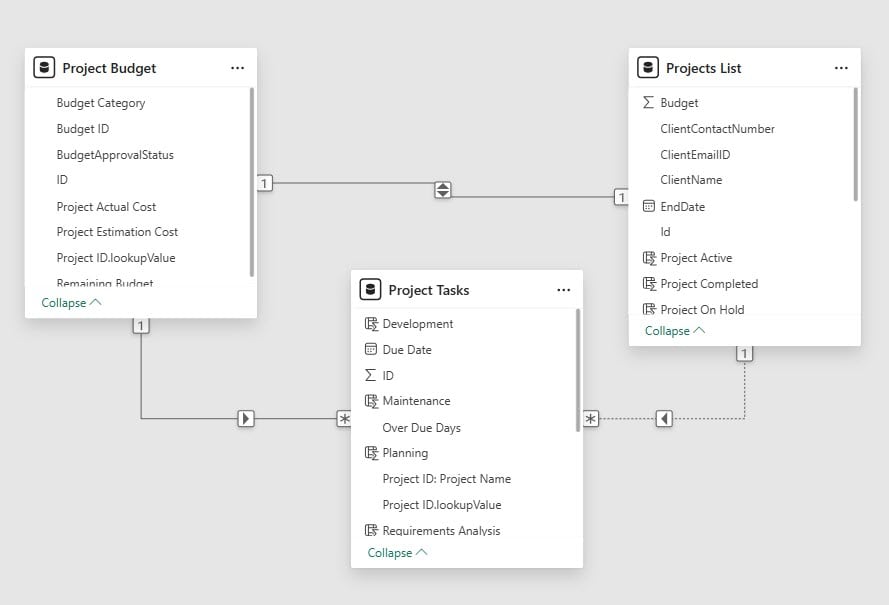
- You define relationships between tables in the Model view
- You write DAX measures for calculations like Year-over-Year growth, running totals, or % of total
- You drag fields onto a report canvas to build visuals
The workflow looks like this:
Raw Data → Power Query (Clean & Transform) → Data Model (Relationships + DAX) → Report Canvas (Visualizations)
Power Query is Step 1. Power BI is the whole pipeline.
Power Query in Excel vs Power Query in Power BI
This is where a lot of people get confused. Power Query also exists inside Excel — you’ll find it under the Data tab as “Get & Transform Data.”
Here’s the key difference:
| Power Query in Excel | Power Query in Power BI | |
|---|---|---|
| Where data loads | Excel worksheet or Data Model | Power BI Data Model |
| Row limits | ~1–2 million rows practical limit | Handles much larger datasets |
| Refresh options | Manual or scheduled via gateway | Scheduled refresh, incremental refresh, DirectQuery |
| Advanced features | Standard transformations | All standard + better performance, query folding support |
| Sharing | Share the Excel file | Publish to Power BI Service, share across the org |
If you’re already using Power Query in Excel, the experience in Power BI will feel familiar. The interface is nearly identical. But Power BI’s Power Query is more powerful under the hood, especially for large datasets and automated refresh.
What Is Query Folding in Power BI? (And Why You Should Care)
I want to mention this because it’s one of those things that sounds advanced but is actually very practical — especially if you’re working with large databases.
Query folding is Power Query’s ability to push your transformation steps back to the source database as native SQL queries. Instead of pulling the entire raw table into Power Query and then filtering it down, Power Query tells the database: “Hey, filter this, group that, and only send me the result.”
Why this matters:
- Much faster data refresh
- Less memory usage
- Required for incremental refresh to work properly in Power BI
When query folding works, the database does the heavy lifting. When it breaks (usually because you added a step that can’t be translated to SQL, like a custom M function), Power Query downloads everything and processes it locally — which can be painfully slow on large tables.
You can check if a step is folding by right-clicking on it in the Applied Steps pane. If “View Native Query” is greyed out, folding has broken at that point.
Power Query M Language: Power Query’s Secret Engine
Every step you apply in Power Query generates M code automatically. M is a functional language designed specifically for data transformation. You’ll see it if you open the Advanced Editor in Power Query.
You don’t need to write M to use Power Query. 95% of what most people do can be handled through the visual interface. But knowing a bit of M is useful when you need to:
- Create custom functions (e.g., reusable logic you apply across multiple queries)
- Handle dynamic parameters (e.g., filter dates based on today’s date)
- Work around something the GUI doesn’t support directly
Quick M example:
If you want to remove rows where the Sales column is null, Power Query writes this M step for you automatically when you filter:
= Table.SelectRows(Source, each [Sales] <> null)
Clean, readable, and completely editable if you need to adjust it later.
DAX vs M: Which One Do You Write in Power BI?
This trips people up. Power BI uses two languages:
- M — used in Power Query, for transforming and shaping data
- DAX — used in the data model and report canvas, for calculations and measures
Think of it this way:
- M handles the “what does the data look like” question
- DAX handles the “how do I calculate something from this data” question
M example: Combining first name and last name columns into one full name column → do this in Power Query with M.
DAX example: Calculating total sales for only the last 30 days → write a DAX measure using CALCULATE and DATESINPERIOD.
A common mistake beginners make is trying to do everything in Power Query when some things are better handled in DAX (and vice versa). The rule of thumb: if it’s about shaping the structure of your data, use Power Query. If it’s about calculating values based on filters and context, use DAX.
Should You Learn Power Query or Power BI First?
Honestly? Learn Power Query first.
Here’s why: bad data preparation ruins everything downstream. If your Power Query tables are messy, inconsistent, or poorly structured, your DAX measures will be harder to write, your report will have gaps, and your numbers will be wrong.
Power Query also has a much gentler learning curve than DAX. The visual interface is intuitive, the step-by-step model is forgiving, and you can accomplish a lot without writing a single line of code.
Once you’re comfortable getting clean data out of Power Query, learning the data model and DAX feels much more natural. You’ll know what your data looks like, so you can write calculations that make sense.
My suggested learning path:
- Start with Power Query basics: connect to data, filter rows, change types, merge tables
- Learn about relationships and the star schema data model
- Pick up basic DAX: SUM, CALCULATE, FILTER, date intelligence functions
- Then put it all together in a full Power BI report
A Real-World Example: Sales Dashboard from Scratch
Let’s say you want to build a monthly sales dashboard. Here’s how the two tools work together in practice:
Step 1 — Power Query:
- Connect to your sales data (SQL database, Excel file, SharePoint list — whatever you’re using)
- Remove nulls, fix date formats, rename columns to clean names
- Merge with a product lookup table to get product category names
- Load the clean tables into the data model
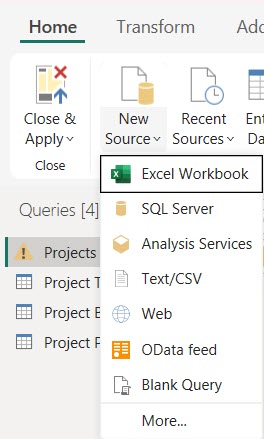
Step 2 — Data Model (Power BI):
- Create a relationship between your Sales table and a Date table
- Create a relationship between Sales and your Products table
Step 3 — DAX Measures:
- Total Sales = SUM(Sales[Revenue])
- Sales Last Month = CALCULATE([Total Sales], PREVIOUSMONTH(‘Date'[Date]))
- Month-over-Month % = DIVIDE([Total Sales] – [Sales Last Month], [Sales Last Month])
Step 4 — Report Canvas:
- Bar chart showing sales by product category
- Line chart showing month-over-month trend
- Card visuals showing total sales and MoM growth
- Slicers for region and time period
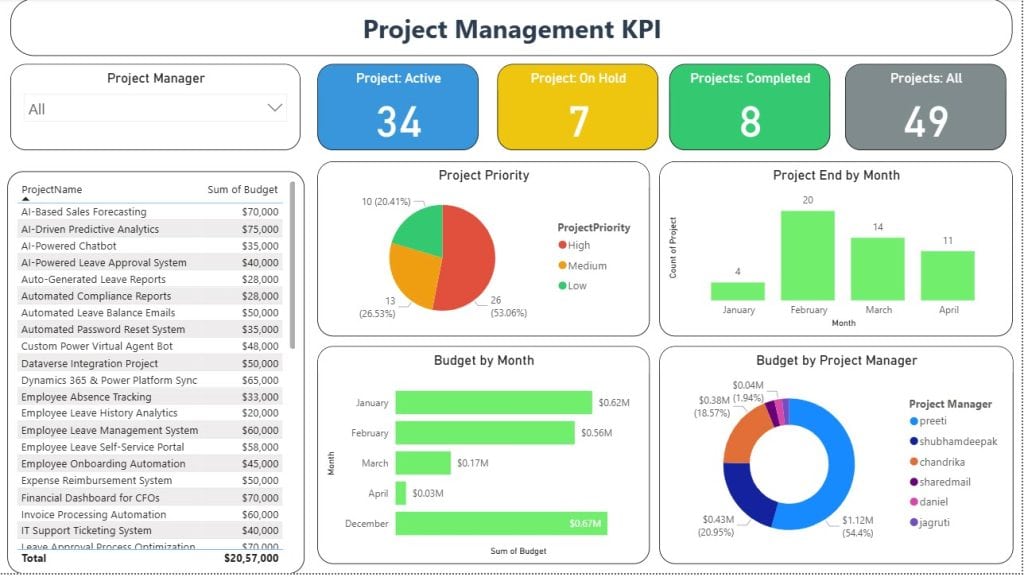
Power Query made the data clean. Power BI made it useful.
Quick Reference: Power Query vs Power BI
| Power Query | Power BI | |
|---|---|---|
| Primary job | Data prep and transformation | Analytics and reporting |
| Where it lives | Inside Power BI and Excel | Standalone platform |
| Language | M | M (data prep) + DAX (calculations) |
| Output | Clean, structured tables | Interactive dashboards and reports |
| Works without the other? | Yes (in Excel) | No — needs Power Query for data |
| Learning curve | Low to medium | Medium to high (especially DAX) |
Wrapping Up
Power Query and Power BI aren’t rivals — they’re two parts of the same workflow. Power Query handles the messy part of getting your data clean and structured. Power BI takes that clean data and turns it into something people can actually use to make decisions.
If you’re just getting started, open Power BI Desktop today, click Get Data, and start experimenting with Power Query. You don’t need to know DAX yet. Just get comfortable cleaning and shaping data, and the rest will follow.
You may also like the following tutorials:
- Create a Power BI Slicer Panel
- 10 Power BI Dashboard Examples
- Create Ribbon Chart in Power BI
- Power BI Desktop (Step‑by‑Step Guide for Beginners)
- Power BI Row Level Security Tutorial (RLS) for Beginners

I have worked with Microsoft technologies for more than 18 years, including SharePoint, Microsoft 365 and the Power Platform (Power Apps, Power Automate and Power BI), at companies like HP, TCS and KPIT. I started EnjoySharePoint in 2011 to share the solutions I build in real projects with readers in the United States, Canada, the United Kingdom, Australia, New Zealand and beyond. Microsoft has recognized this work with the Microsoft MVP award 13 times since 2014.