
SharePoint List conditional formatting is a powerful feature that allows you to apply visual formatting to list items based on specific conditions. This helps users quickly identify important information at a glance and improve data visibility and organization within SharePoint lists.
In this tutorial, I will explain how to apply conditional formatting in a SharePoint List based on a column value.
What is Conditional Formatting in SharePoint?
Conditional formatting in SharePoint enables you to automatically change the appearance of columns, rows, or individual cells based on their values. You can apply different colors, styles, icons, and fonts to make important information stand out. This is particularly useful for project tracking, status management, priority flagging, and data analysis.
Why Use Conditional Formatting in SharePoint?
Here are a few reasons why you should use conditional formatting in a SharePoint list.
- Visual Data Clarity: Quickly identify high-priority items, overdue tasks, or critical statuses without reading text
- Improved Decision Making: Color-coded information helps stakeholders make faster, better decisions
- Professional Appearance: Creates a polished, organized look for your SharePoint lists
- Reduced Manual Work: Automatically applies formatting rules without manual intervention
- Enhanced Collaboration: Team members instantly understand the status of different items
Types of Conditional Formatting in SharePoint
SharePoint offers three main types of conditional formatting:
- Column Formatting: Apply formatting to individual columns based on their values
- Row Formatting: Apply formatting to entire rows based on any column value
- View Formatting: Format the entire view with conditional rules and styling
How to Apply Conditional Formatting to Columns in SharePoint
Before showing you how to apply conditional formatting to SharePoint list columns, let me show you the SharePoint list we are using here.
Here, I have created a SharePoint list as a Project Tracker list with the following columns.
- Project ID
- Project Name
- Due Date
- Status
- Project Owner
Here we will do the following conditional formatting based on the Status column:
- 🟡 In Progress → Status column Yellow, row Light Green
- 🔴 Not Started → Status column Red, row Pink
- 🟢 Completed → Status column Green, row Yellow
- 🔵 Project Owner: Jo Anna → Project Name column Blue
Follow the steps below to apply conditional formatting to the SharePoint list status column.
Step 1: Open Your SharePoint List
Navigate to the list where you want to apply conditional formatting. For this example, we’ll use a Project Tracker list with columns like Status, Due Date, Priority, and Project Owner.
Step 2: Access Column Settings
Click on the column dropdown menu (next to the column header) and select “Column settings“, then click “Format this column“. Here is a screenshot for your reference.

Step 3: Open Conditional Formatting
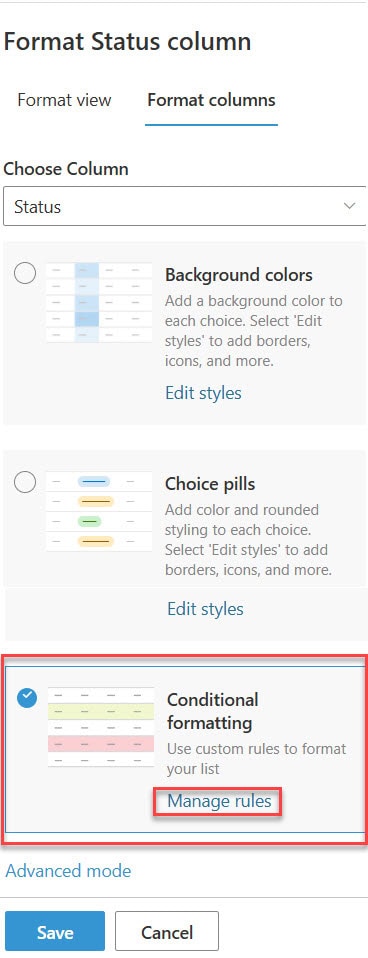
In the Format column panel, under “Format columns“, select “Conditional Formatting” and click “Manage rules“. Here is a screenshot for your reference.
Step 4: Create Your First Rule
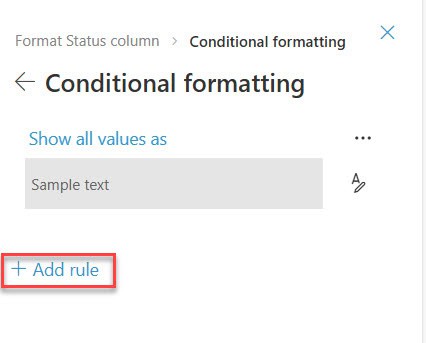
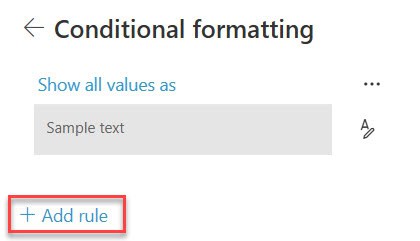
Click “+Add rule” to create a new formatting rule.
Step 5: Define the Rule Condition
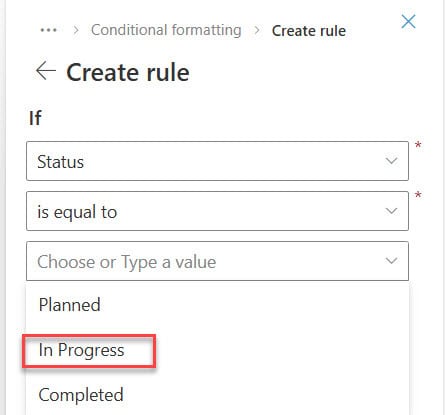
- Select the list column you want to base the rule on (e.g., Status)
- Choose a comparison operator: “is equal to”, “is not equal to”, “is greater than”, “is less than”, or “contains”
- Enter the value to compare against (e.g., “In Progress”); below is a screenshot for your reference.
Step 6: Apply Formatting Styles
Click the pencil icon under “Show list item as” to customize the appearance:
- Font Color: Change text color
- Background Color: Set cell background color
- Icon: Add an icon to represent the value
- Icon Color: Change icon color
- Bold/Italic: Apply text formatting
- Borders: Add colored borders
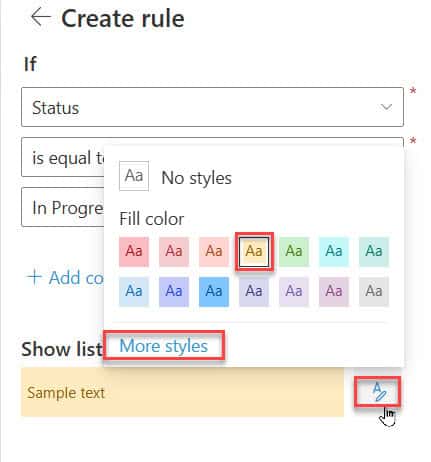
Here is another screenshot for your reference.

Step 7: Save Your Rule
Click “Save” to apply the rule. Your formatting will now appear in the list whenever the condition is met. You can see the Status column in the screenshot below:

Step 8: Add Multiple Rules
Repeat steps 4-7 to add additional rules for other values for the list Status column. For example:
- Status = “In Progress” → Yellow background with blue text
- Status = “Completed” → Green background with white text
- Status = “Not Started” → Red background with white text
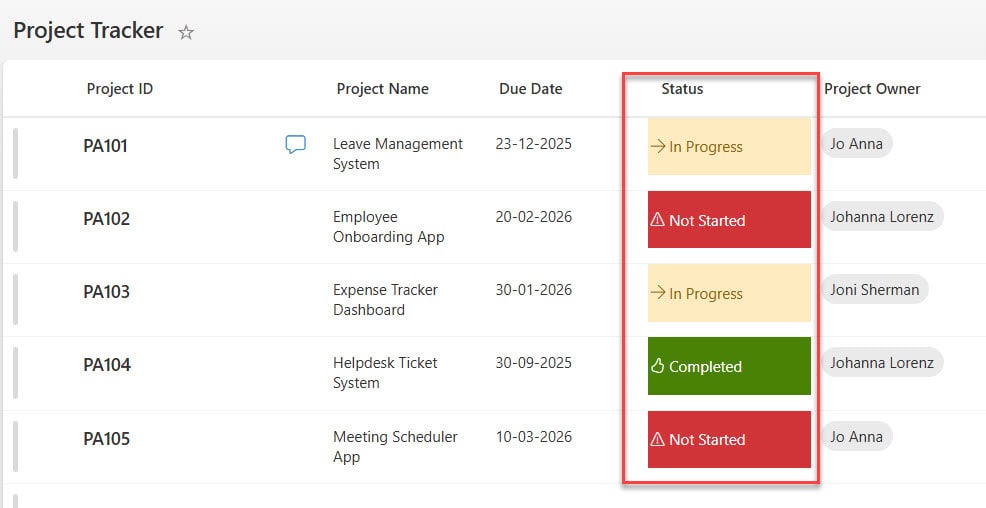
In this way, we can apply conditional formatting to a SharePoint List column based on conditions.
Check out Access Requests in SharePoint Online
Apply Conditional Formatting to the Entire Row of a SharePoint List
Let me show you now how to apply conditional formatting to an entire row of a SharePoint Online list.
Step 1: Open Your SharePoint List
Navigate to the list and click on any column in the row you want to format.
Step 2: Access Format View
Click on the column dropdown, select “Column settings“, then “Format this column”. In the properties panel, click “Format view” and select “Conditional formatting“, then “Manage rules“. You can check the screenshot below:

Step 3: Create a Row Formatting Rule
Click “+Add rule” to create a new rule for row formatting.
Step 4: Set the Condition
Choose the SharePoint list column, comparison operator, and value for your rule. For example:
- Column: Status
- Comparison: is equal to
- Value: In Progress
Step 5: Choose Row Color
Select a color from the “Show list item as” dropdown. This color will apply to the entire row when the condition is met.
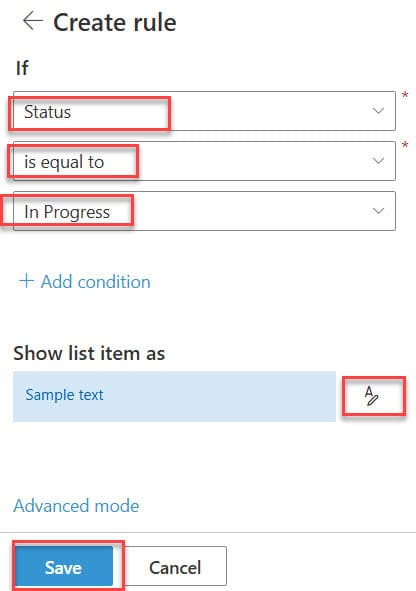
Step 6: Save the Rule
Click “Save” to apply row formatting. Now, whenever the Status equals “In Progress”, the entire row will be highlighted in your chosen color. You can see the exact output in the screenshot below:
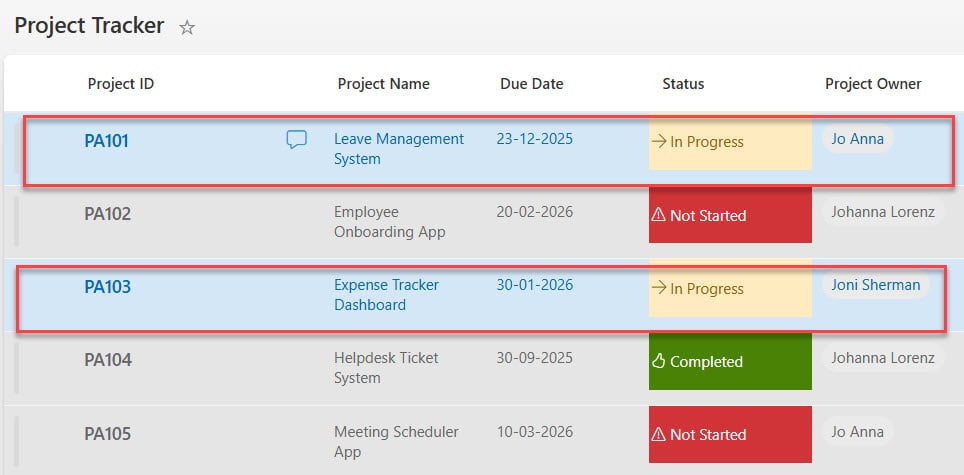
Step 7: Add Additional Row Rules
Create rules for other status values to create a color-coded system:
- In Progress → Sky Blue
- Completed → Light Green
- Not Started → Light Red
- On Hold → Light Yellow

You can see in the screenshot above how the SharePoint list appears with the conditional formatting.
Read Calculate Average Value in SharePoint List
How to Apply Conditional Formatting Based on Another Column
You can apply formatting to one column based on the value of a different column in a SharePoint list. This is useful for complex scenarios.
Step 1: Select the Target Column
Click on the column you want to format (e.g., Project Name).
Step 2: Access Column Settings
Click the column dropdown, select “Column settings“, then “Format this column“.

Step 3: Set Up Conditional Formatting
Under “Format columns”, select “Conditional Formatting” and click “Manage rules”.
Step 4: Create the Cross-Column Rule
Click “+Add rule” and configure:
- Column to check: Project Owner
- Comparison: is equal to
- Value: Jo Anna (or any person’s name)
- Formatting: Blue background
You can see the screenshot below:

Step 5: Save the Rule
Click “Save”. Now, whenever “Jo Anna” is listed as the Project Owner, the Project Name column will have a blue background for all her projects.
Step 6: Use for Filtering
This is particularly useful for:
- Highlighting items assigned to specific people
- Color-coding by priority level (when stored in another column)
- Marking items by department or category
- Flagging items based on multiple criteria
Now, you can see how the formatting looks in the screenshot below:
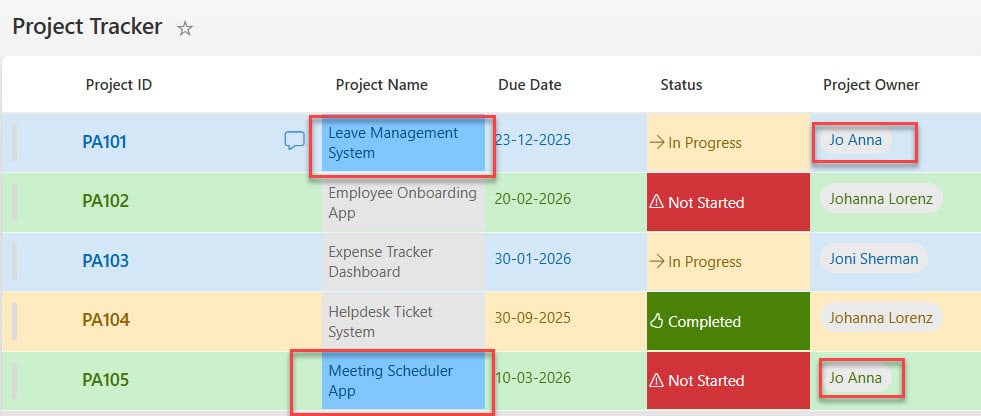
In this way, you can also apply conditional formatting in a SharePoint Online List based on another column.
Check out Update SharePoint List Items from Excel using Power Automate
Best Practices for Conditional Formatting
- Keep It Simple: Use 3-5 formatting rules per column to avoid visual clutter
- Use Consistent Colors: Maintain the same color scheme across columns (Green=Good, Red=Bad, Yellow=Warning)
- Test Your Rules: Create a test list to verify formatting works as expected before deploying
- Document Your Rules: Keep a record of what each color and icon means
- Limit Font Changes: Stick to one or two font colors to maintain readability
- Use Icons Sparingly: Icons should reinforce the color coding, not replace it
- Avoid Conflicting Rules: Ensure rules don’t overlap in ways that create confusion
- Consider Accessibility: Use color-blind friendly palettes (avoid red-green combinations)
Conditional Formatting vs. JSON Column Formatting
While conditional formatting uses the SharePoint UI, advanced users can also use JSON column formatting for more complex scenarios. However, conditional formatting is sufficient for most use cases and doesn’t require coding knowledge.
Conclusion
SharePoint List conditional formatting improves data visibility and team collaboration. By strategically applying colors, icons, and styles based on column values, you can format lists that are not only functional but also intuitive and professional. Whether you’re tracking projects, managing tasks, or monitoring KPIs, conditional formatting helps your team quickly identify what matters most and take immediate action.
My suggestion is to start with simple rules for status columns, then expand to more complex scenarios as you become comfortable with the feature. Remember to keep your formatting consistent across lists to help your team develop visual literacy and make faster decisions.
You may also like the following tutorials:
- SharePoint List Calculated Column IF Statement
- SharePoint List Calculated Column Concatenate() Function
- Create and Use Lookup Column in SharePoint Online List
- SharePoint Online Site Date Format

After working for more than 18 years in Microsoft technologies like SharePoint, Microsoft 365, and Power Platform (Power Apps, Power Automate, and Power BI), I thought will share my SharePoint expertise knowledge with the world. Our audiences are from the United States, Canada, the United Kingdom, Australia, New Zealand, etc. For my expertise knowledge and SharePoint tutorials, Microsoft has been awarded a Microsoft SharePoint MVP (12 times). I have also worked in companies like HP, TCS, KPIT, etc.

