
While working on a Windows Forms application to manage folder-level permissions in SharePoint, I needed to fetch user names from Azure Active Directory.
To do this, we must register an app in Azure and then use our application’s Client ID, Tenant ID, and Client Secret. However, when I ran the application, I encountered an error related to authentication.
AADSTS7000215: Invalid client secret provided.
This error halted the process, which was attempting to connect to Microsoft Graph using the registered Azure AD application.
In this tutorial, I will show you how to fix the AADSTS7000215 error so you can successfully connect your SharePoint-integrated app to Azure AD.
AADSTS7000215: Invalid Client Secret Provided
In the Azure portal, when you register an application and create a client secret, Azure shows:
- A Secret Value (which should be copied)
- A Secret ID (used only for reference)
Authentication will fail if you copy and use the Secret ID in your code.
Now I will show you where you can find the Secret Value, then you will use it in your code:
- Go to Azure Portal -> Azure Active Directory -> App Registrations. Select your registered app. In my case, LibraryFolderSelectorApp is my application name.
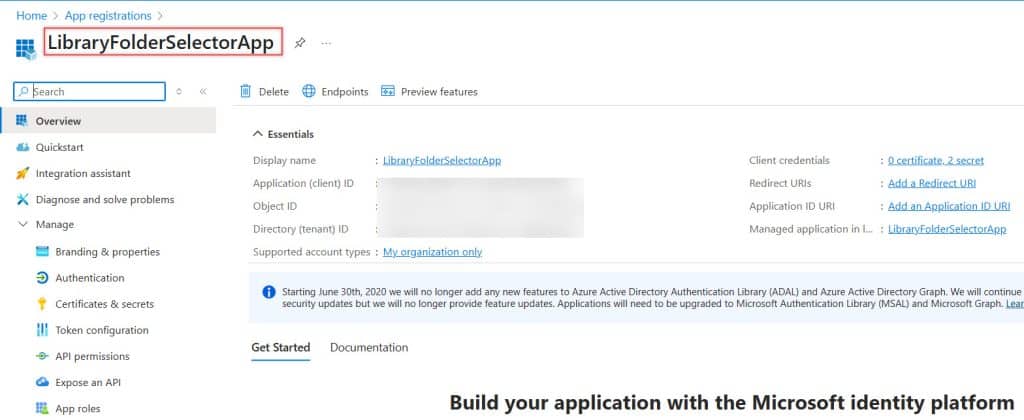
- Then click Certificates & secrets, where you can see the secret value. If you didn’t copy the Secret Value earlier, delete the current one and create a new one. Copy the Secret Value immediately after it’s generated.

Use this Secret Value in your application code. This will fix the Invalid client secret provided error and allow your SharePoint-connected app to fetch user details from Azure AD.
You may like the following tutorials:
- Microsoft Office 365 E5 30 days Free trial Subscription
- Visual Studio 2022 Community Edition Download Tutorial
- GitHub Copilot vs Microsoft Copilot
- OneDrive vs SharePoint vs Teams

After working for more than 18 years in Microsoft technologies like SharePoint, Microsoft 365, and Power Platform (Power Apps, Power Automate, and Power BI), I thought will share my SharePoint expertise knowledge with the world. Our audiences are from the United States, Canada, the United Kingdom, Australia, New Zealand, etc. For my expertise knowledge and SharePoint tutorials, Microsoft has been awarded a Microsoft SharePoint MVP (12 times). I have also worked in companies like HP, TCS, KPIT, etc.

