
As a SharePoint developer, you might need to include jQuery in SharePoint. There are different ways to include jQuery in SharePoint Online and SharePoint on-premises versions. In this tutorial, I will explain how to include jQuery in SharePoint.
Below are the different ways to include jQuery in SharePoint:
- using a Script or Content editor web part
- using the master page
- using an application page
- using a visual web part in SharePoint
Note: These approaches will not work with the modern SharePoint experience.
1. Using SharePoint Script or Content Editor Web Part
You can easily add jQuery in SharePoint using a script editor web part or a content editor web part.
There are two ways to give a jQuery reference in a SharePoint web part page.
We can give the jQuery reference from a CDN directly like below:
<script src="https://ajax.googleapis.com/ajax/libs/jquery/3.7.1/jquery.min.js"></script>You can also download the jQuery file and save it in a SharePoint site assets library, and we can provide a reference from there.
<script type="text/javascript" src="https://tsinfo.sharepoint.com/sites/TSInfoClassic/SiteAssets/jquery.min.js"></script>Once you have saved the jQuery file, you can open any web part page, click on Add a web part, and select the script editor web part from the Media and Content category.

Once the script editor web part is added to the page, you can click on EDIT SNIPPET and add the code like below:
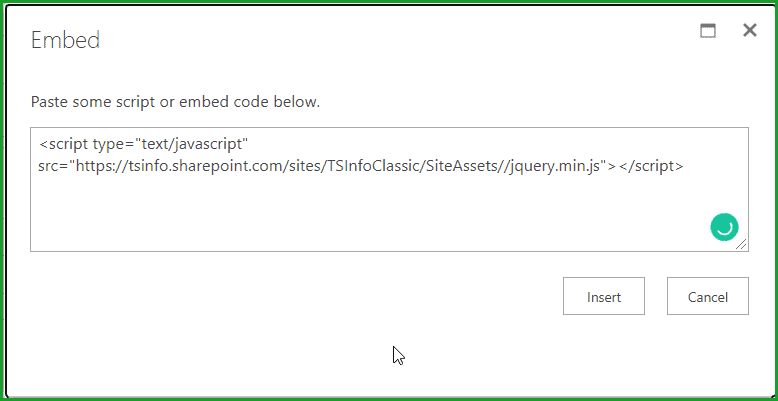
This is one of the easiest ways to include jQuery files in a SharePoint web part page.
Check out How to Check if a Checkbox is Checked Using jQuery?
2. Reference jQuery using the SharePoint Master Page
You can give a jQuery reference using a SharePoint master page.
Ensure you have edit permission for the SharePoint master page.
Open the SharePoint master page using SharePoint Designer, and then in the head section, add the script like below:
<SharePoint:ScriptLink language="javascript" name="jQuery/jquery.min.js" Defer="false" runat="server"/>Apart from using ScriptLink, we can also directly call using a Script tag like below:
<script type="text/javascript" src="http://siteURL/_layouts/jQuery/jquery-3.7.1.js"></script>In the ScriptLink tag, the name attribute is a relative path to jQuery in the Layouts folder.
Check out Dropdown Change Event in jQuery
3. Add jQuery Reference in a SharePoint Application Page
Giving a script reference to the application page is similar to providing a reference using the master page technique.
The master page exposes different placeholders, and when you create an application page, you can add content to these placeholders.
Here we will see how to add content to the PlaceHolderAdditionalPageHead placeholder present on the SharePoint master page.
Write the below code in the application page:
<asp:Content ID=”PageHead” ContentPlaceHolderID= “PlaceHolderAdditionalPageHead” runat=”server”>
<SharePoint:ScriptLink language=”javascript” name=”jQuery/jquery-3.7.1.js” Defer=”false” runat=”server”/>
</asp:Content>
The jQuery will be available to the application page in SharePoint.
Check out How to Use jQuery to Execute Functions After Page Load?
4. Add jQuery in a Visual Web Part in SharePoint
You can easily add the jQuery reference if you are working with SharePoint visual web parts.
This will work in SharePoint On-premises versions.
We can add the jQuery reference in the .ascx file in a SharePoint visual web part.
From the Solution Explorer, open the .ascx file and add the following script tag.
<script type="text/javascript" src="http://siteURL/_layouts/jQuery/jquery-min-1.6.js"></script>After that, deploy the web part to SharePoint. The jQuery will be available on the pages where you add the visual web part in SharePoint.
Conclusion
In this tutorial, I explained how to include jQuery in a SharePoint site or page. If you have access to a script editor, I recommend using the script or content editor web part in SharePoint.
You may also like:
- JavaScript Examples [51 Useful Examples]
- SharePoint Rest API Tutorial and Examples
- Visual Studio 2022 Community Edition Download Tutorial
- How To Reset Id In SharePoint List

After working for more than 18 years in Microsoft technologies like SharePoint, Microsoft 365, and Power Platform (Power Apps, Power Automate, and Power BI), I thought will share my SharePoint expertise knowledge with the world. Our audiences are from the United States, Canada, the United Kingdom, Australia, New Zealand, etc. For my expertise knowledge and SharePoint tutorials, Microsoft has been awarded a Microsoft SharePoint MVP (12 times). I have also worked in companies like HP, TCS, KPIT, etc.

