
A project management office I worked with tracked 200 projects in a SharePoint list and wanted to see, at a glance, how long each project would run and when it would end. They’d been calculating it in Excel and pasting the results back in. A few calculated columns did the math automatically, and the numbers stayed right whenever someone changed a date.
In this tutorial, I’ll show you the date formulas I use most in SharePoint calculated columns, all tested and all using functions Microsoft supports. I’ll also explain the one thing calculated columns can’t do, working with today’s date, and what to use instead.
Quick answer: Create a Calculated column and enter a formula such as =DATEDIF([Start Date],[End Date],"d") for the days between two dates, or =[Start Date]+[Duration Days] to add days. Set the return type to Number for differences and Date and Time for new dates. TODAY() and NOW() don’t work in calculated columns; use JSON formatting, a view filter on [Today], or Power Automate instead.
How to create a calculated date column
Here’s the list for the first examples, a Project Timeline with a start date and an end date:

In the list, select + Add column > See all column types > Next. (You can also go to Settings > List settings > Create column; both open the same page.)

On the Create Column page, enter a name and choose Calculated (calculation based on other columns):

Then enter the formula, pick the return type, and select OK. Always start the formula with an equals sign, and put column names in square brackets; the Insert Column list adds them for you.
Example 1: Days between two dates
=DATEDIF([Project Start Date],[Project End Date],"d")Set the return type to Number with 0 decimal places:

The new column shows the length of each project in days:

DATEDIF needs the earlier date first. If the start date is later than the end date, it returns #NUM!. To avoid errors when dates might be reversed or empty, wrap it: =IF([Project End Date]>=[Project Start Date],DATEDIF([Project Start Date],[Project End Date],"d"),""). A simple subtraction, =[Project End Date]-[Project Start Date], also gives the days, and can be negative.
Example 2: Months and years between two dates
DATEDIF’s third argument decides the unit:
| Unit | Returns | Example: 3/10/2024 to 9/27/2026 |
|---|---|---|
"y" | Complete years | 2 |
"m" | Complete months | 30 |
"d" | Days | 931 |
"ym" | Months, ignoring the years | 6 |
"yd" | Days, ignoring the years | 201 |
Use "m" for total months. "ym" is easy to misread: it only counts the months left over after whole years, which is why a project that ran two years and six months shows 6, not 30:

Example 3: Hours and minutes between two dates and times
For tasks with a start and end time, like this Task Tracker list, you can calculate the elapsed time:


Subtracting two dates gives days, so multiply to get smaller units, and wrap it in INT to drop the fraction. Set the return type to Number:
| Result | Formula |
|---|---|
| Total hours | =INT(([End Date]-[Start Date])*24) |
| Total minutes | =INT(([End Date]-[Start Date])*1440) |
| Total seconds | =INT(([End Date]-[Start Date])*86400) |
| Hours and minutes (under 24 hours) | =TEXT([End Date]-[Start Date],"h:mm"), return type Single line of text |
For example, a task from 9/24/2026 10:35 AM to 9/25/2026 3:30 PM took 28 hours, or 1,735 minutes. If you add a word to the result, such as &" hours", the result becomes text, so the return type must be Single line of text, or the column shows an error.
Example 4: Add days to a date
This Project Information list has a start date and a number of days:


Adding a number to a date moves it forward by that many days. When the result is a date, set the return type to Date and Time:
=[Project Start Date]+[Project Duration Days]
For example, 2/16/2026 plus 100 days is 5/27/2026:

Never add two date columns together. Dates are stored as numbers of days, so adding two of them lands you somewhere in the 22nd century. Add a number of days to a date, or subtract two dates to get days.
Example 5: Add days to the Created date
Every item has a Created date you can use. This list tracks travel vouchers that expire 30 days after they’re requested:


=[Created]+30
A voucher created on 4/28/2026 now shows an expiry date of 5/28/2026:

Example 6: Add months or years
There’s no EDATE function, so build the date with DATE, YEAR, MONTH and DAY. Set the return type to Date and Time:
=DATE(YEAR([Start Date]),MONTH([Start Date])+[Months],DAY([Start Date]))
=DATE(YEAR([Start Date])+[Years],MONTH([Start Date]),DAY([Start Date]))
The first adds a number of months from a Number column called Months; the second adds years. Replace the column with a number, such as 6, for a fixed period.
Example 7: Show the day of the week, month or year
TEXT turns a date into a label. Set the return type to Single line of text:
| Result | Formula |
|---|---|
| Day of the week (Monday) | =TEXT([Due Date],"dddd") |
| Short day (Mon) | =TEXT([Due Date],"ddd") |
| Month name (March) | =TEXT([Due Date],"mmmm") |
| Year (2026) | =TEXT([Due Date],"yyyy") |
| Month and year (Mar 2026) | =TEXT([Due Date],"mmm yyyy") |
| Text plus a date | ="Due: "&TEXT([Due Date],"m/d/yyyy") |
Example 8: Show a message when a date is blank
This order list has an Estimated Date that’s empty for orders that were already delivered:
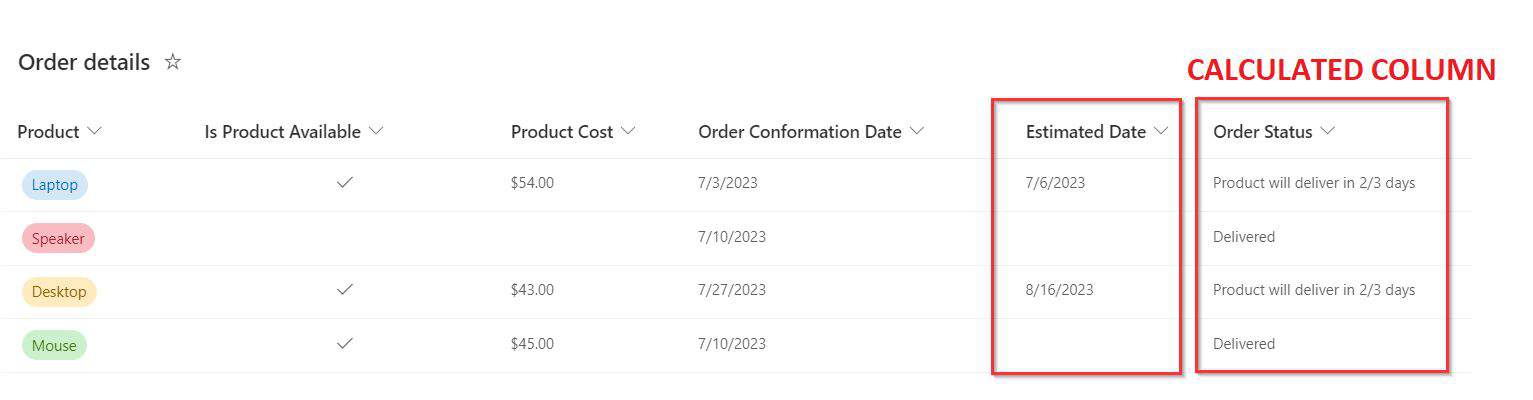


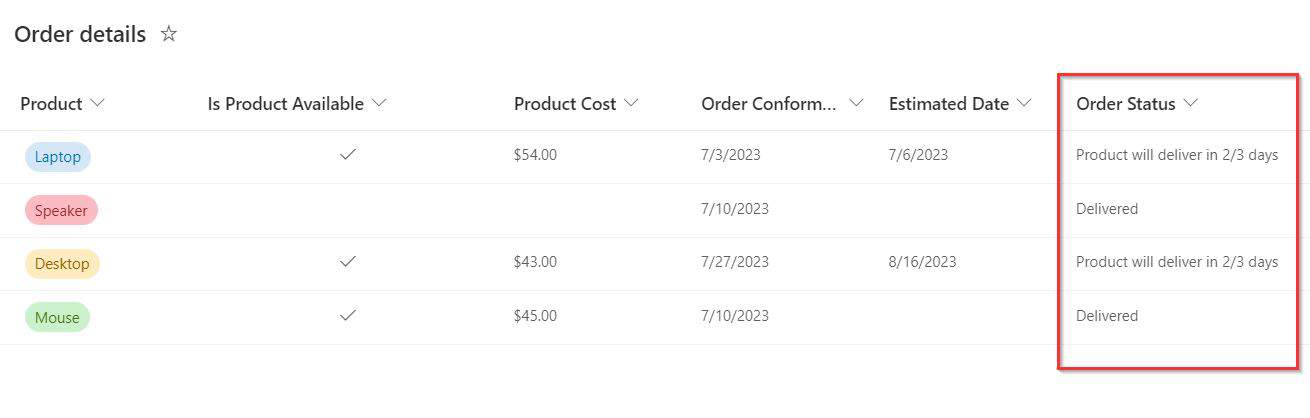
ISBLANK checks for an empty date. Set the return type to Single line of text:
=IF(ISBLANK([Estimated Date]),"Delivered","Arrives in 2-3 days")
What about today’s date?
Here’s the direct answer. Microsoft doesn’t support TODAY() in calculated columns (only as a column’s default value), and lists don’t support NOW() at all. Some older tutorials show workarounds, such as a hidden column called Today, but they don’t update: a calculated column only recalculates when the item is edited, so “days until due” would freeze on the day you last saved the item.
Use one of these instead:
- JSON column formatting for display. It supports
@now, so it recalculates every time the list loads. See the example below. - View filters with
[Today], such as Due Date is less than [Today] for overdue items, or Due Date is less than or equal to [Today]+7 for the coming week. - Power Automate, if you need the value stored in a column, for example a scheduled flow that updates a Days Remaining number every morning.
This JSON, applied to a Due Date column with Format this column > Advanced mode, shows the number of days left:
{
  "$schema": "https://developer.microsoft.com/json-schemas/sp/v2/column-formatting.schema.json",
  "elmType": "div",
  "txtContent": "=floor((Number([$DueDate]) - Number(@now)) / 86400000) + ' days left'"
}
Replace DueDate with your column’s internal name. For more JSON date examples, see how to change the date format in SharePoint Online.
Rules and limits to keep in mind
SharePoint supports these date and time functions in calculated columns: DATE, DATEDIF, DATEVALUE, DAY, DAYS360, HOUR, MINUTE, MONTH, SECOND, TIME, WEEKDAY and YEAR (plus TODAY, but only as a default value). Excel functions like NETWORKDAYS, WEEKNUM, EDATE, EOMONTH and NOW don’t work.
A calculated column can only use values from the same item. It can’t reference other items, other lists, lookup columns, or the ID of a new item, and you can nest up to eight functions. Dates are shown in the site’s regional format, so the same formula displays 3/6/2026 on a US site and 6/3/2026 on a UK site.
These SharePoint list guides go well with calculated date columns:
- SharePoint List Calculated Column IF Statement [7 Examples]
- SharePoint List Calculated Column Concatenate() Function
- SharePoint Online Site Date Format
- How to Validate Dates in SharePoint to Choose WeekEnds?(Saturdays & Sundays)
- How to Add SharePoint Column Formatting with JSON?
- How to Format a SharePoint Online List Column using JSON (Step‑by‑Step Guide)
Frequently Asked Questions
How do I calculate the days between two dates in a SharePoint list?
Use a calculated column with =DATEDIF([Start Date],[End Date],”d”) and a Number return type. Microsoft lists this and other date formulas in Examples of common formulas in lists.
Can I use TODAY() in a SharePoint calculated column?
No. TODAY is only supported as a column’s default value, and NOW isn’t supported in lists. Use JSON formatting with @now, a view filter on [Today], or Power Automate.
Why does my DATEDIF formula show #NUM!?
The start date is later than the end date. Put the earlier date first, or wrap the formula in an IF that checks the order.
How do I add days to a date in a SharePoint calculated column?
Add a number to the date, for example =[Start Date]+30, and set the return type to Date and Time.
How do I get the day of the week from a date in SharePoint?
Use =TEXT([Date],”dddd”) with a Single line of text return type. Use “ddd” for the short name.

I have worked with Microsoft technologies for more than 18 years, including SharePoint, Microsoft 365 and the Power Platform (Power Apps, Power Automate and Power BI), at companies like HP, TCS and KPIT. I started EnjoySharePoint in 2011 to share the solutions I build in real projects with readers in the United States, Canada, the United Kingdom, Australia, New Zealand and beyond. Microsoft has recognized this work with the Microsoft MVP award 13 times since 2014.