
Power Automate loves arrays. A multi-select choice column, a list of approver emails, the titles from a Get items action – they all come back as arrays. But an email subject, a To line or a Teams message wants one plain piece of text.
That gap is exactly what join() fills. You give it an array and a separator, and it hands back a single string with the separator between every item.
In this tutorial, I’ll show you how to use the power automate join function with six examples: a simple name list, an email To line, SharePoint multi-select choices, one item per line, cleaner file names, and a list without duplicates.
join() Function Syntax
Here is the syntax, exactly as Microsoft documents it:
join([<collection>], '<delimiter>')| Parameter | Required | Type | Description |
|---|---|---|---|
collection | Yes | Array | The array that has the items you want to join. |
delimiter | Yes | String | The separator that goes between each item in the result. |
Return value: a string. You get every item from the array, in order, with the delimiter placed between them (never before the first item or after the last one).
Microsoft’s own example is join(createArray('a', 'b', 'c'), '.'), which returns a.b.c. The result can’t be longer than 104,857,600 characters, which you’ll never hit in a normal flow.
Think of join() as the reverse of the Power Automate split() function: split() breaks a string into an array, and join() glues an array back into a string.
Pro Tip: The first parameter must be a real array. Pass a string (or null) and the action fails with an InvalidTemplate error: The template language function ‘join’ expects its first parameter to be an array.
When to Use the join() Function
- You need a semicolon-separated To or CC line to send an email to multiple recipients from a SharePoint list.
- A multi-select choice column returns an array of objects, and you want plain text like East, Central, West. This pairs well with how you get SharePoint choice values in Power Automate.
- You want each Get items title on its own line inside an email or a Teams post.
- You split a string, cleaned up the pieces, and need to put them back together with a different separator.
- You have a list of approvers or tags with duplicates and want one tidy, readable line.
Example 1: Join a List of Names into One String
Let’s start with the bare function. I have three team members – Jordan Ellis, Maria Torres and Kevin Brooks – and I want them in one comma-separated line for a status message.
join(createArray('Jordan Ellis', 'Maria Torres', 'Kevin Brooks'), ', ')I added a Compose action in Power Automate and put the expression in its Inputs box. In the new designer, click the Inputs field, then click the fx icon (or type a forward slash and pick Insert expression). Type the expression and select Add (the button says Update when you edit an existing expression).
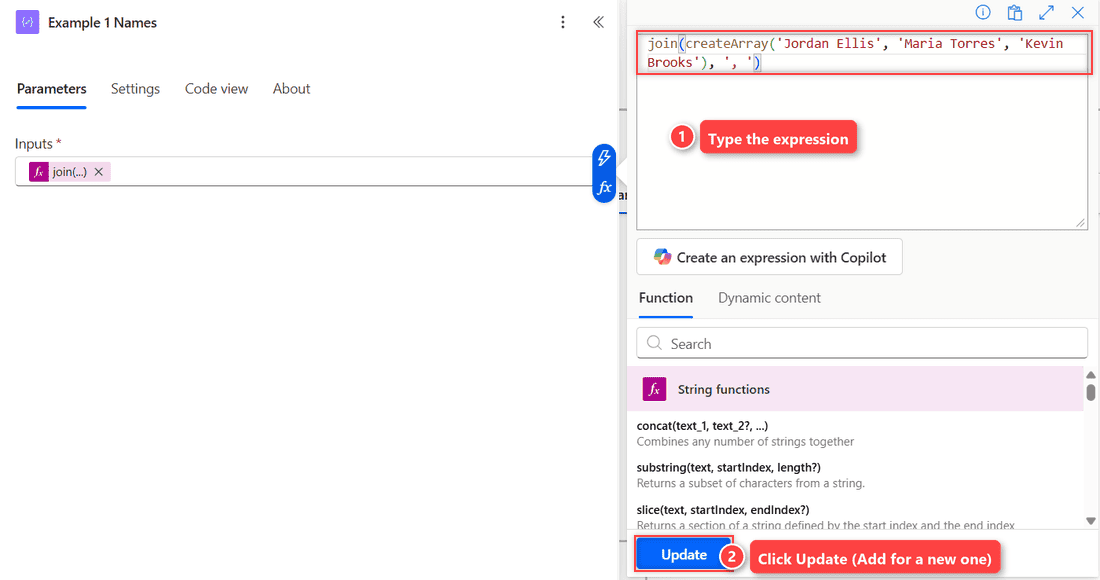
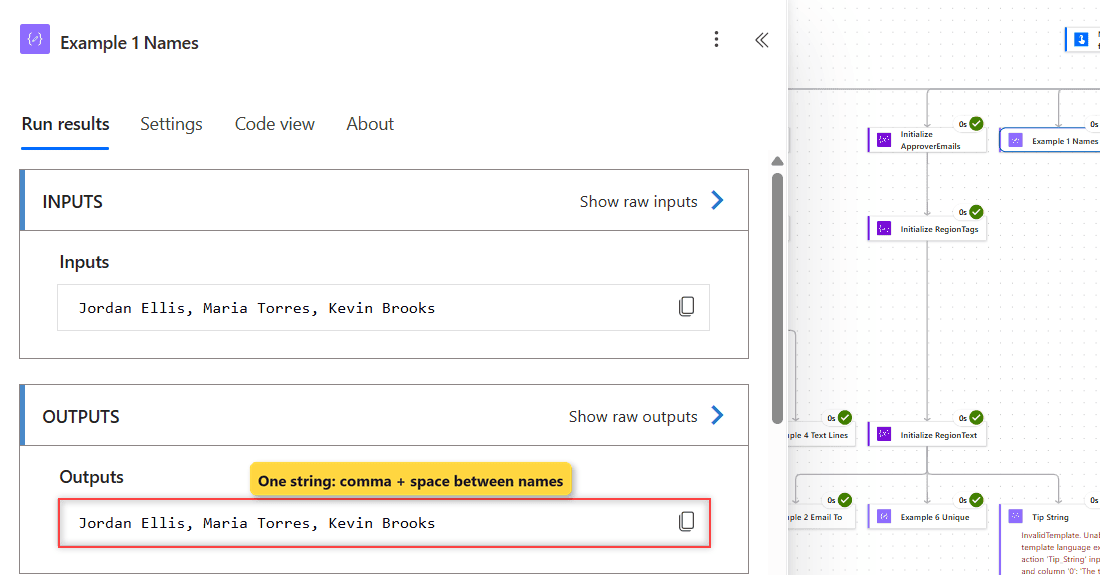
How does this work? createArray() builds an array of three strings. join() then places , (a comma and a space) between them. The output is Jordan Ellis, Maria Torres, Kevin Brooks.
Pro Tip: The delimiter is used exactly as you type it. Add the space inside the quotes (‘, ‘) if you want readable text, or leave it out (‘,’) for CSV-style output.
Example 2: Build an Email To Line from an Array of Addresses
The Outlook Send an email (V2) action wants recipients as one string separated by semicolons. My approvers live in a Power Automate array variable named ApproverEmails:
[
  "jordan.ellis@lakeshoreoutfitters.com",
  "maria.torres@lakeshoreoutfitters.com",
  "kevin.brooks@lakeshoreoutfitters.com"
]
This expression turns that array into a To line:
join(variables('ApproverEmails'), ';')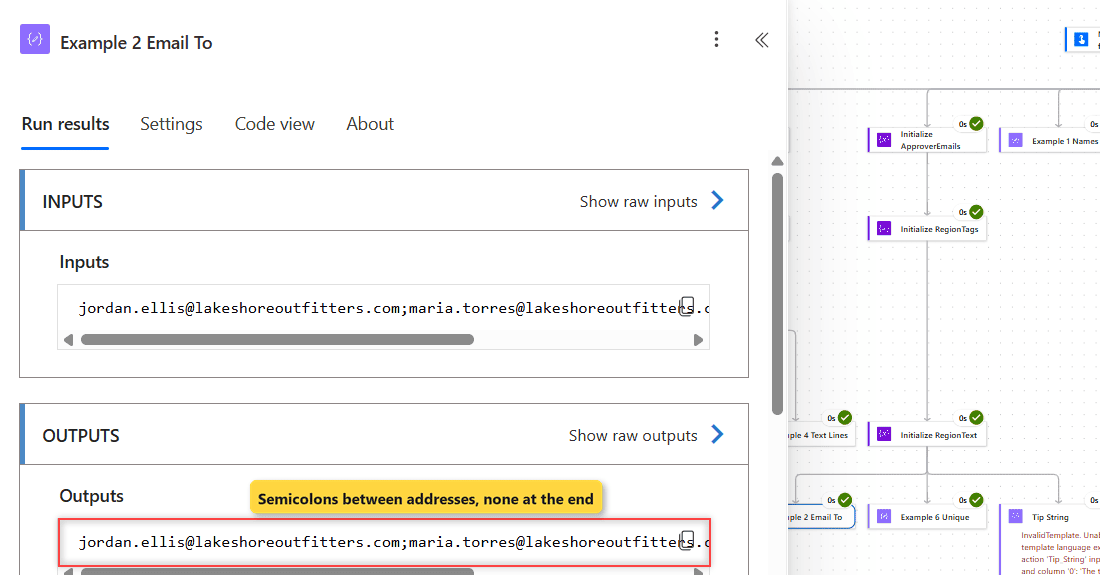
How does this work? variables('ApproverEmails') reads the array, and join() puts a semicolon between each address. The output is one string with all three addresses and no semicolon at the end, ready for the To field.
Example 3: Join SharePoint Multi-Select Choice Values
My SharePoint list, ESP Fn Join Requests, has a multi-select choice column called Regions. The Q4 Marketing Budget request (item ID 1) has East, Central and West selected. Here are the four rows I used:
| ID | Title | Regions | Requested By |
|---|---|---|---|
| 1 | Q4 Marketing Budget | East, Central, West | Jordan Ellis |
| 2 | Holiday Staffing Plan | Central, Mountain | Maria Torres |
| 3 | Warehouse Safety Audit | West | Kevin Brooks |
| 4 | Office Move Checklist | (none) | Dana Whitfield |
A Get item action for ID 1 returns the Regions column as an array of objects, not text:
[
  { "Id": 0, "Value": "East" },
  { "Id": 1, "Value": "Central" },
  { "Id": 3, "Value": "West" }
]
Each object also has an @odata.type property. join() can’t pick the Value property by itself, so I added a Select action first. From is the Regions dynamic content from Get item, and Map (in text mode) is:
item()?['Value']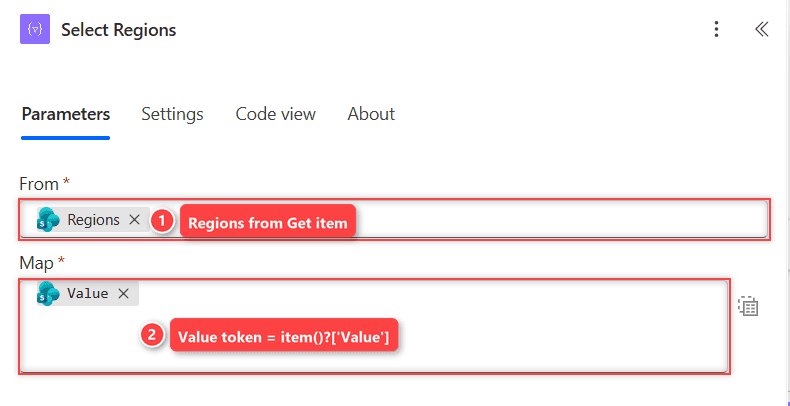
Select returns a simple array of strings. Then a Compose joins it:
join(body('Select_Regions'), ', ')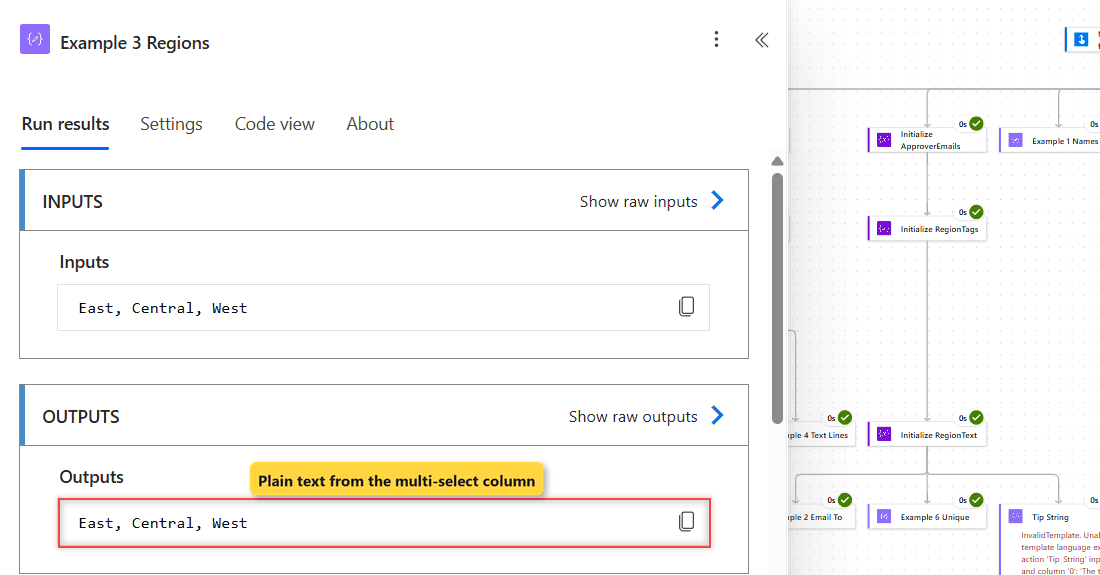
How does this work? Select strips each object down to its Value, giving ["East","Central","West"]. join() then turns that into East, Central, West. You can write this text back when you update a SharePoint multiselect column elsewhere or drop it into an email.
Pro Tip: Select plus join() is the pattern for any array of objects: people columns, lookup columns, Get items rows. Pick the property with Select, then join the result.
Example 4: Put Each Item on Its Own Line
Next, I want a short digest of every request title from the list, one per line. A Get items action returns the four rows from the table above, and a Select action named Select_Titles maps item()?['Title'].
For an HTML email body, join with a line break tag:
join(body('Select_Titles'), '<br>')For plain text, such as a Teams message or a text file, join with a real newline character:
join(body('Select_Titles'), decodeUriComponent('%0A'))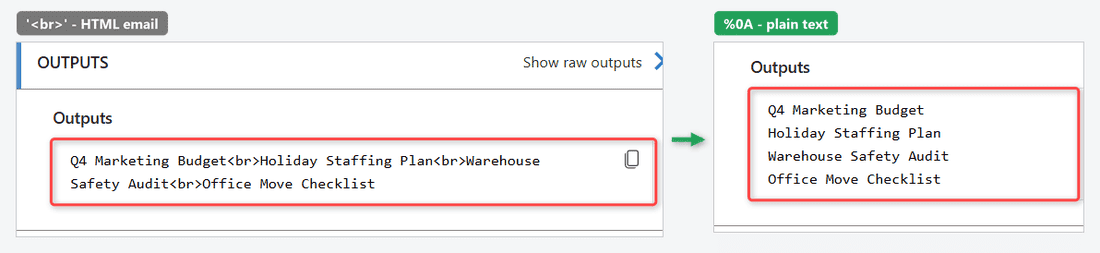
How does this work? '<br>' is HTML, so an email renders each title on a new line. decodeUriComponent('%0A') turns the URL code %0A into a line feed character.
In the run, the HTML version is one line with <br> tags between the four titles. The plain-text version shows the same four titles on four separate lines.
Pro Tip: Want columns instead of lines? Then create an HTML table from an array rather than joining.
Example 5: Change the Separator in a File Name (split + join)
Here’s a combination I use a lot. A user uploads a file named Holiday Staffing Plan 2026.docx, and I want a URL-friendly name with hyphens instead of spaces.
join(split('Holiday Staffing Plan 2026.docx', ' '), '-')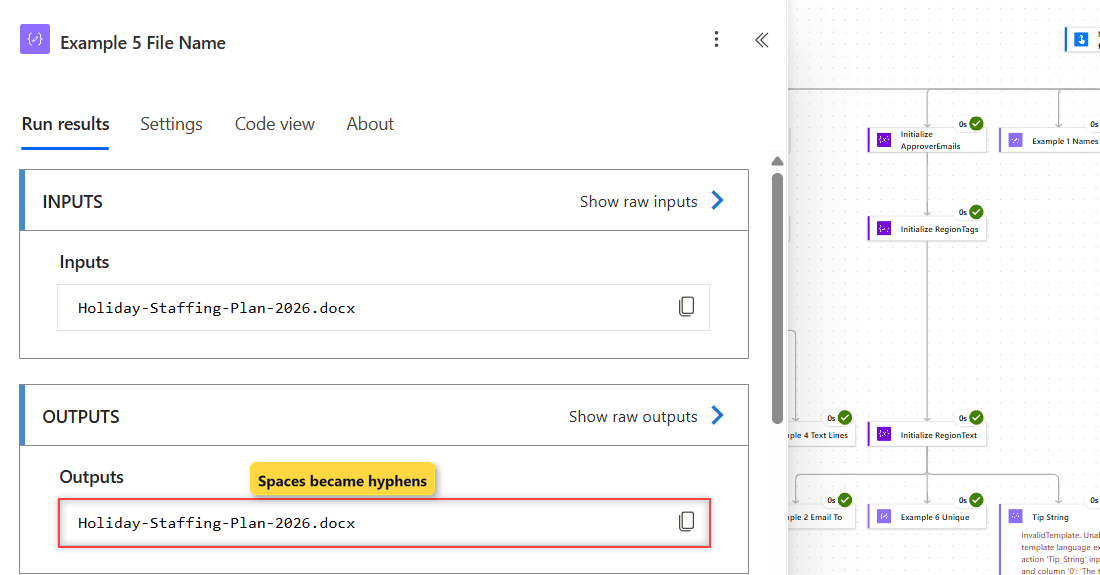
How does this work? split() breaks the name at every space into four pieces. join() puts them back together with a hyphen, so the output is Holiday-Staffing-Plan-2026.docx.
You could also use replace() for a single character, as in replace spaces with underscores in Power Automate. split + join wins when you also want to filter, trim or reorder the pieces before gluing them back.
Example 6: Join an Array Without Duplicates
Sometimes the array has repeats. My RegionTags variable came from several requests and holds ["East","West","East","Central","West"]. I want each region listed once.
join(union(variables('RegionTags'), variables('RegionTags')), ', ')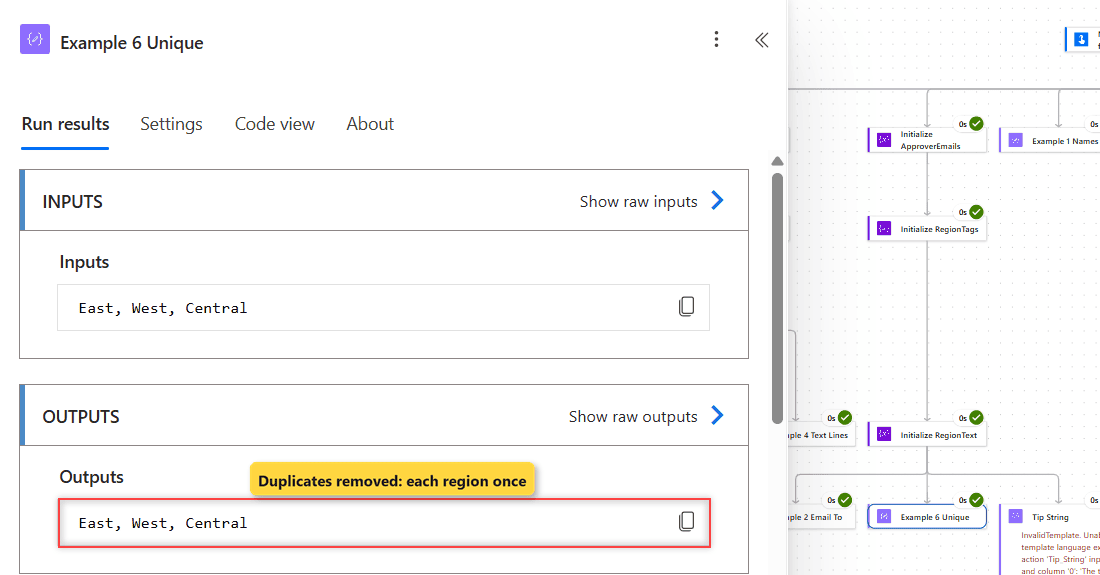
How does this work? union() returns the items from both arrays with duplicates removed. Passing the same array twice is a known trick to get unique values from an array. join() then builds East, West, Central – in the order each value first appears.
Tips & Common Mistakes
- Passing a string instead of an array. join() on a text value fails with this run error: The template language function ‘join’ expects its first parameter to be an array. The provided value is of type ‘String’. Use split() first, or check the type of the dynamic content you picked.
- Joining objects directly. join() on the raw Regions column doesn’t fail, but every item comes out as JSON text, starting with
{"@odata.type":"#Microsoft.Azure.Connectors.SharePoint.SPListExpandedReference","Id":0,"Value":"East"}. Add a Select action first, as in Example 3. - Null input. If the property doesn’t exist, join() gets null and fails with the same error, ending in The provided value is of type ‘Null’. In the flow it shows up as unable to process template language expressions. Wrap the input in
coalesce(..., json('[]'))to be safe. - Empty array.
join(json('[]'), ', ')doesn’t fail; it returns an empty string, so checkempty()first if you don’t want a blank line in an email. - Numbers and empty separators work.
join(createArray(1250, 980.5, 430), ' + ')returns1250 + 980.5 + 430, and an empty delimiter (”) runs the items together:join(createArray('East', 'West'), '')returnsEastWest. - Need more options? To compare join() with string() and the Join action side by side, see how to convert an array to a string in Power Automate.
Wrapping Up
join() takes an array and a separator and returns one string. Pair it with Select for arrays of objects, with split() to swap separators, and with union() to drop duplicates.
For more functions like this one, see all Power Automate functions, and Microsoft’s join() reference on Microsoft Learn for the official definition.
Other Power Automate functions you may find useful:

I have worked with Microsoft technologies for more than 18 years, including SharePoint, Microsoft 365 and the Power Platform (Power Apps, Power Automate and Power BI), at companies like HP, TCS and KPIT. I started EnjoySharePoint in 2011 to share the solutions I build in real projects with readers in the United States, Canada, the United Kingdom, Australia, New Zealand and beyond. Microsoft has recognized this work with the Microsoft MVP award 13 times since 2014.